
Overview
This article contains all of the basic features and usage instructions for Marketscape CRM for mobile on iPhone and Android phones.
 Most of the images in this article are taken from an Android phone. For the most part, Marketscape CRM mobile will look similar on an iPhone.
 In this article
 It is a good idea to scroll through this entire article. First of all, if you are new and setting up your phone for the first time, understanding the settings before you start will help. Secondly, the content is presented in the order you will follow (for the most part) to set up your phone. However, the outline below contains links that allow you to jump directly to specific settings.
This article is focused on setting up Marketscape CRM on your phone. Many features are merely mentioned but are documented elsewhere.
Current App versions & OS versions - minimum requirements
Login Page Overview - details of what you see when you first open Marketscape CRM mobile
-
Marketscape CRM mobile overview
Home page Overview - the default start up page
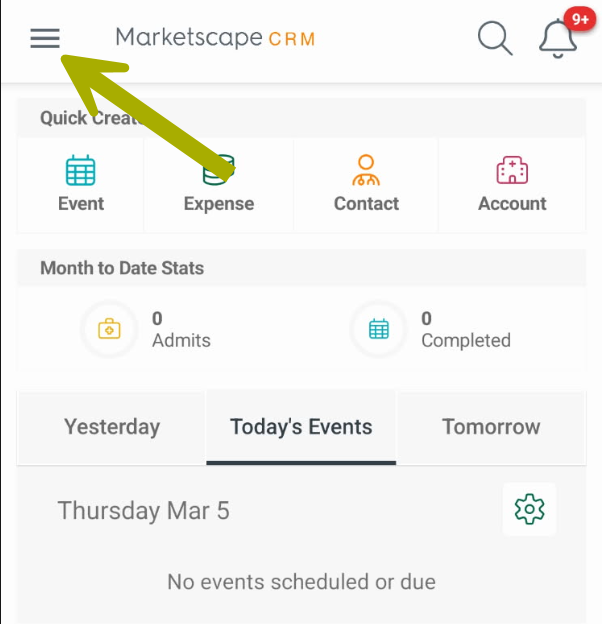
Left Navigation - how to get anywhere in the app
-
ADMIN
-
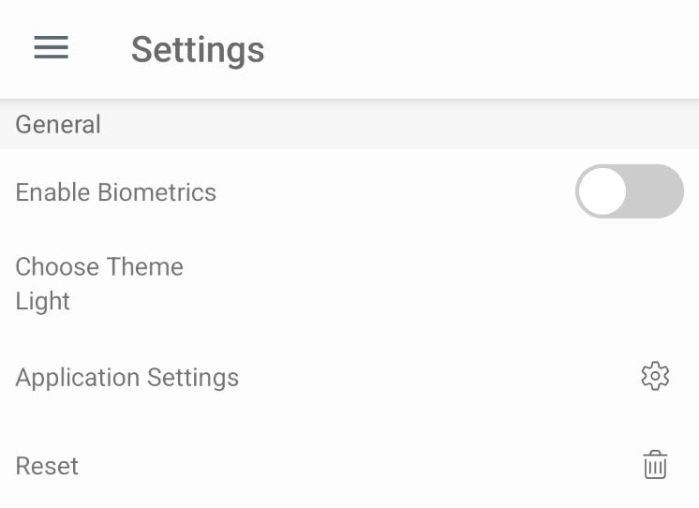
Enable Biometrics/Face ID
Choose Theme
Application Settings
Reset
-
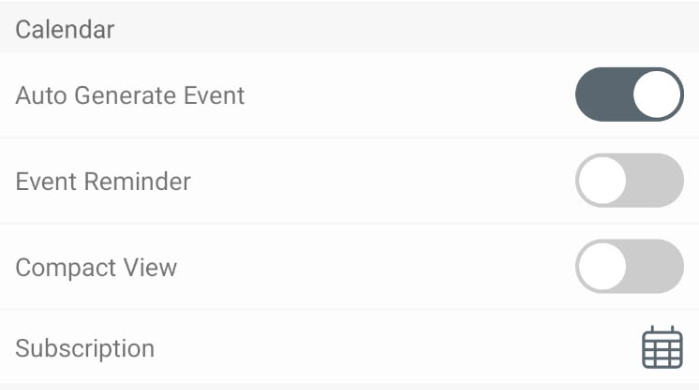
Auto Generate Event
Event Reminder
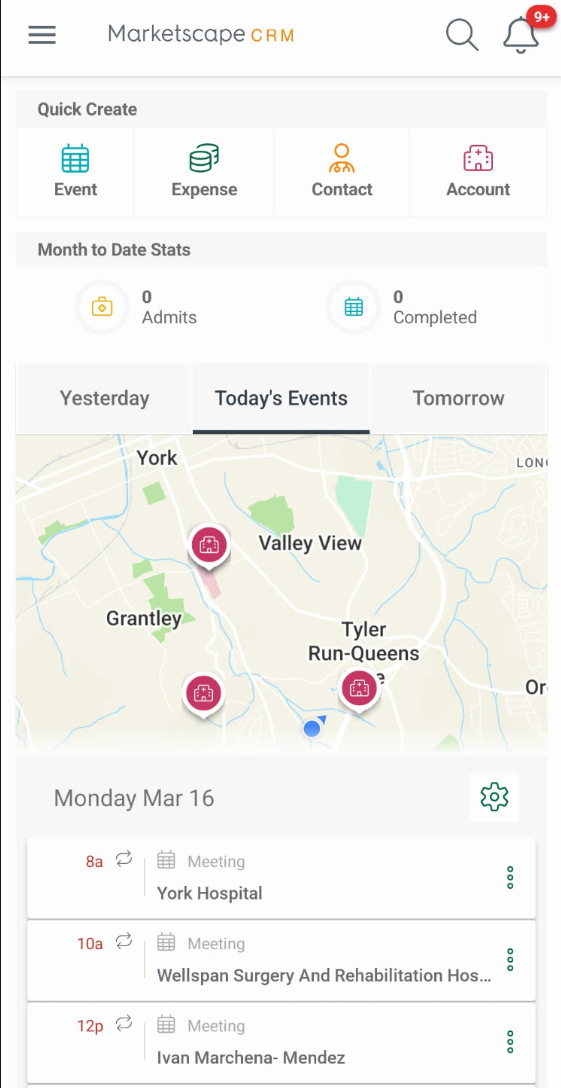
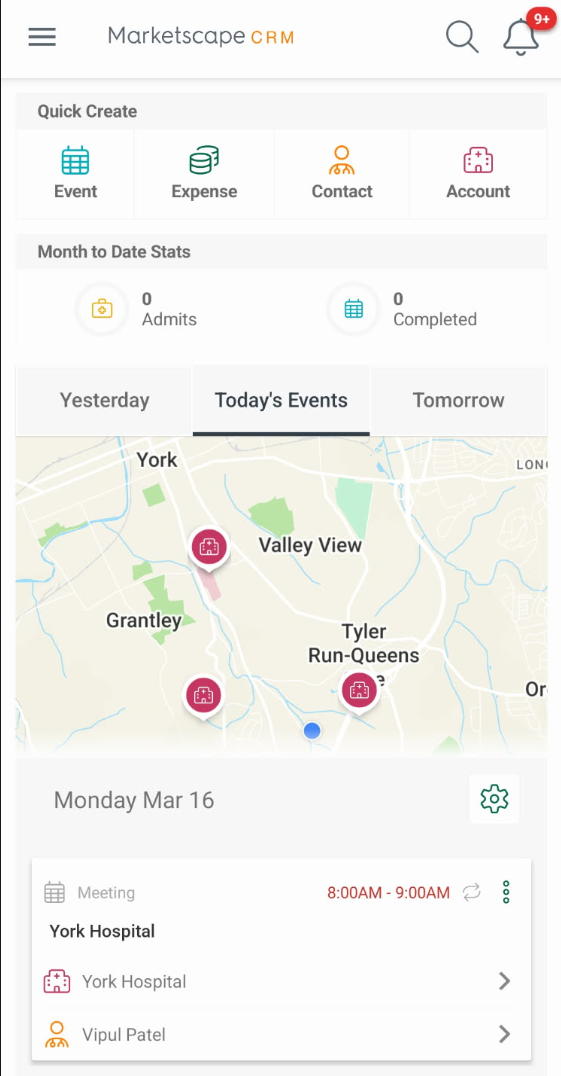
Compact View
Subscription
Downloading the app
Downloading for iOS
If you have an iPhone, follow these directions to install Marketscape CRM for mobile.
The easy way - direct link to the app store | |
| Click the button to open the App store for iPhone directly to the Marketscape CRM mobile app page. |  |
The other way - more steps
- On your phone. from the Home screen, tap App Store.
- If prompted, tap Use Existing Apple ID. Enter the Apple ID and password then tap OK. The Apple ID is the email address associated with the App Store/iTunes Store account. An Apple ID must be created to use the App Store. For assistance, contact your IT system administrator.
- Search for the app by name, tap Search then enter Trella Marketscape CRM.
- Choose the Trella Marketscape CRM Mobile app, then tap Install on app details page.
- Once the application is downloaded and installed, tap Open to launch the app.
A screenshot of the App Store search and listing for the Trella Marketscape CRM Mobile is below.
 |
Downloading for Android
If you have an Android phone, follow these directions to install Marketscape CRM for mobile.
The easy way - direct link to the Google Play store | |
| Click the button to open the App store for iPhone directly to the Marketscape CRM mobile app page. | |
The other way - more steps
- From the Home screen, tap the Play Store app.
- Tap on the Google Play text box to search for the app by name, and enter Trella Marketscape CRM.
- Choose the Trella Marketscape CRM app.
- Tap the Install button.
- Follow the on-screen instructions to complete the download. You may be required to log into or create a Google Play Store account. For assistance with this, please contact your internal IT department.
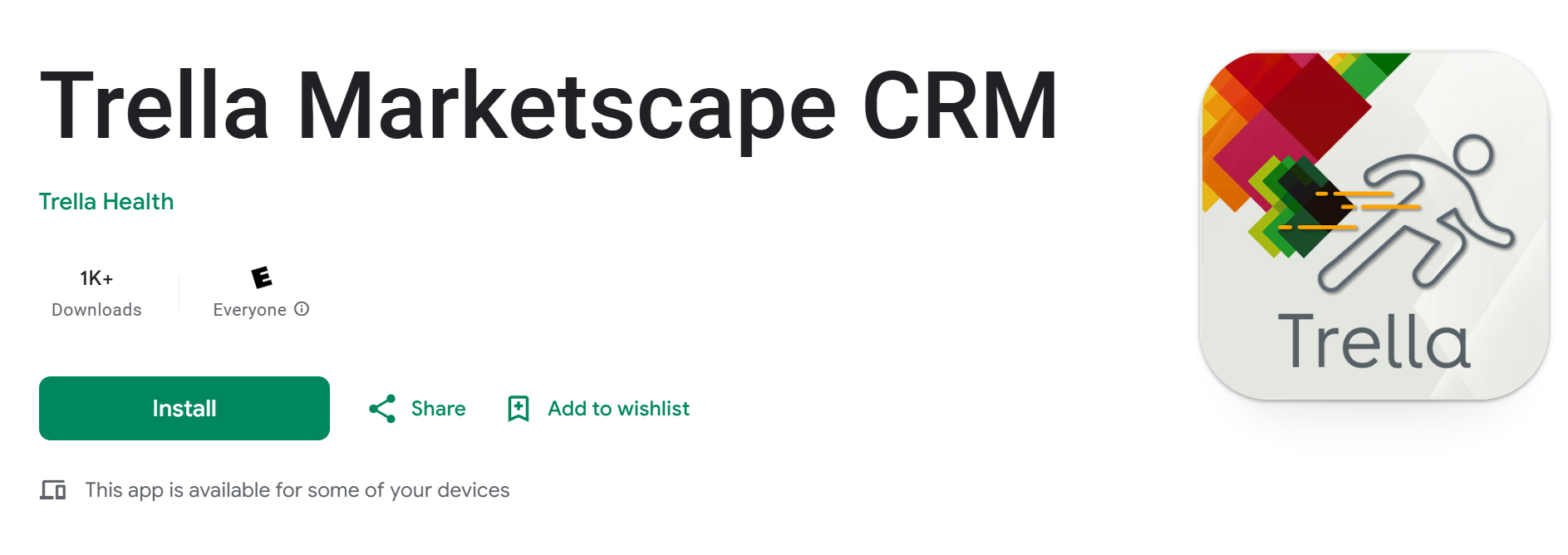
A screenshot showing the Trella Marketscape CRM Mobile app in the Google Play Store is below.
|
Current App versions & OS versions
These are the version numbers for the current releases of both the Android and iOS mobile applications and operating systems. For Marketscape CRM to work, your phone OS and the Marketscape CRM application need to be updated to the listed versions.
Android
Current release: 26.4.1
Minimum OS requirement: 26
iOS:
Current release: 26.4.1
Minimum OS requirement: 17
|
Login Page Overview
The following steps show how the features and usage of the Login page for Marketscape CRM on a mobile device.
|
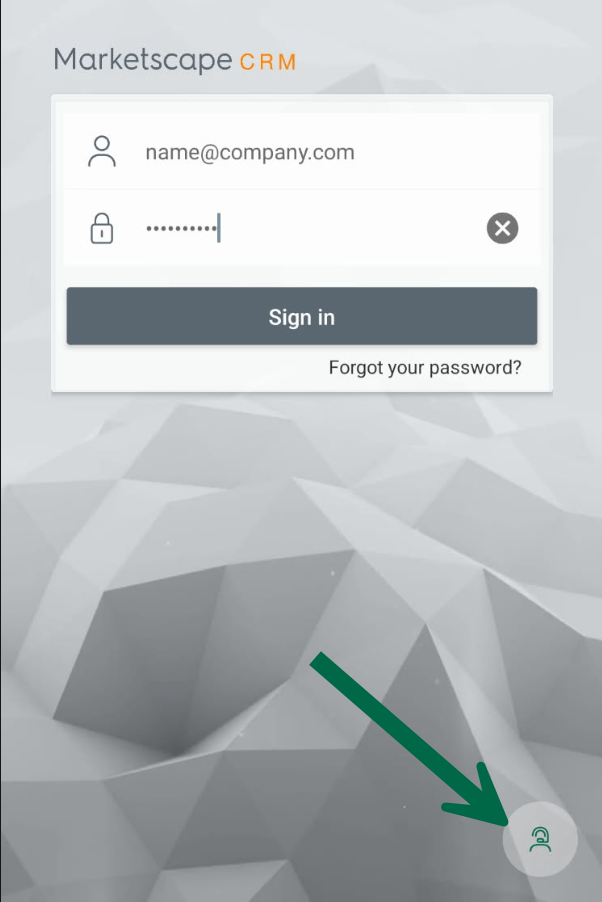
Unless you are already logged in to Marketscape CRM mobile on your phone, you will see the log in page when you first open the application on your phone. Click on the icon at the bottom right to see all of the Login page features |
 c c |
|
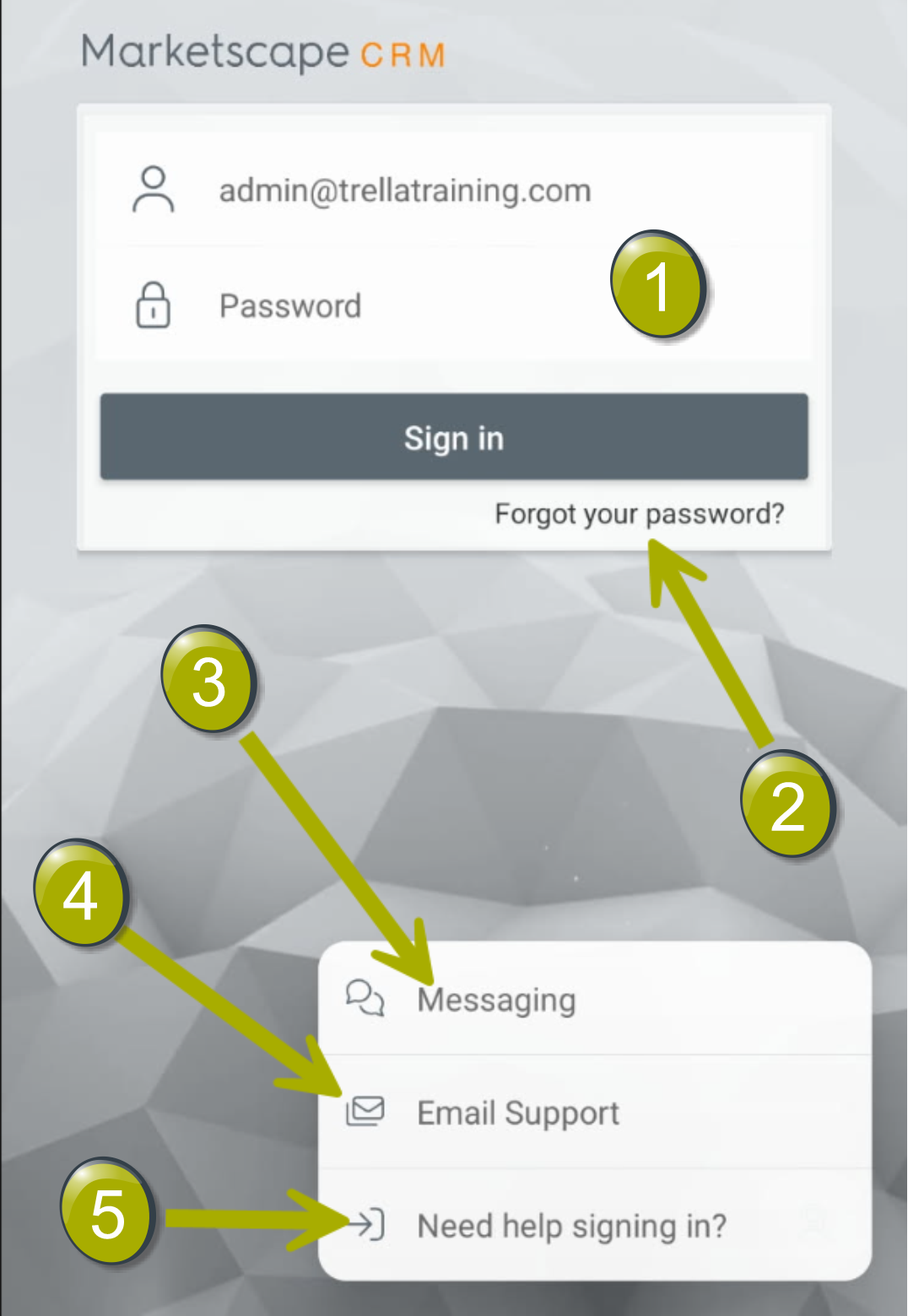
There are five options on the Login page. Details for each of these is shown below. |
 |
| |
|
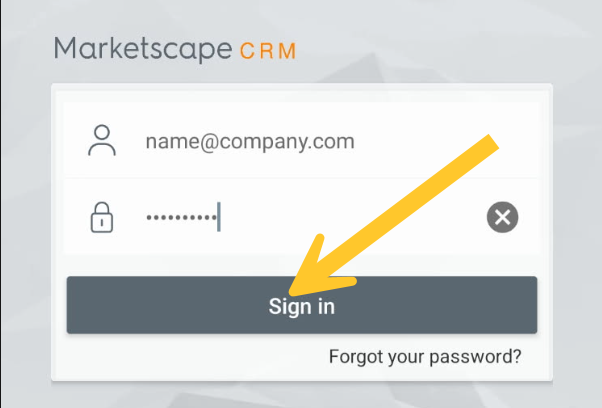 |
| |
|
When you tap on the "Forgot your password?" link the following prompt will open.
|
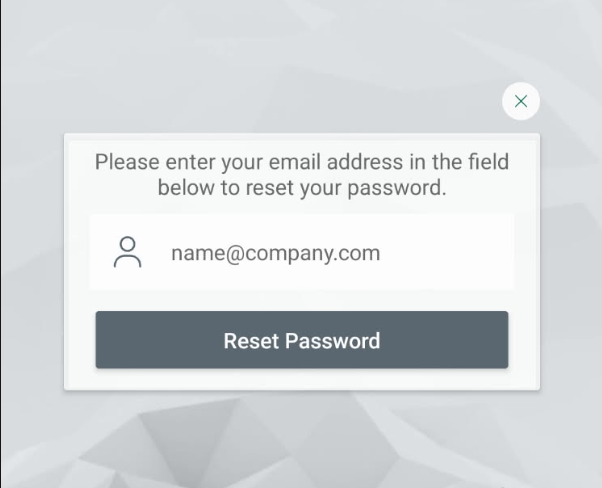 |
|
The page updates. You have been taken out of Marketscape CRM to an authentication application. That is why you need to do this twice. The email address you previously entered will appear in the field.
|
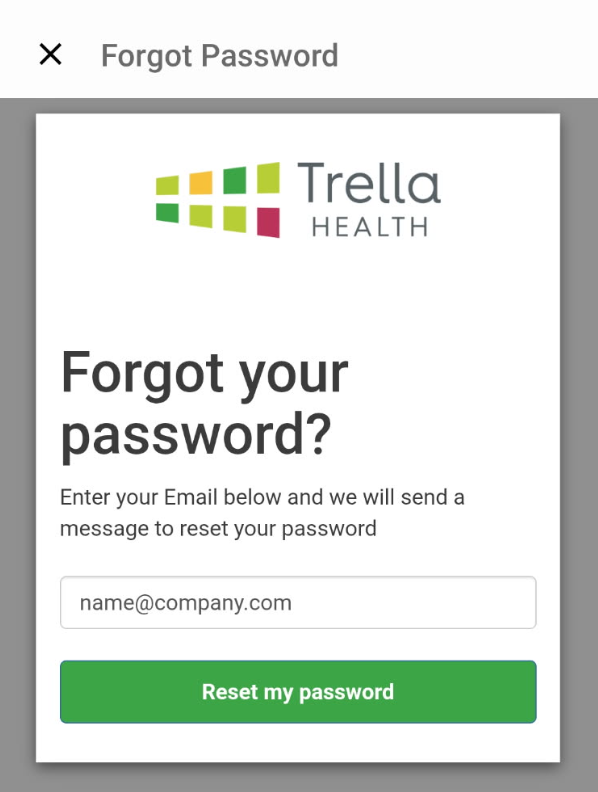 |
By completing the previous step, and email would have been sent to you at the address you supplied. The email will include a six-digit verification number.
|
|
| |
|
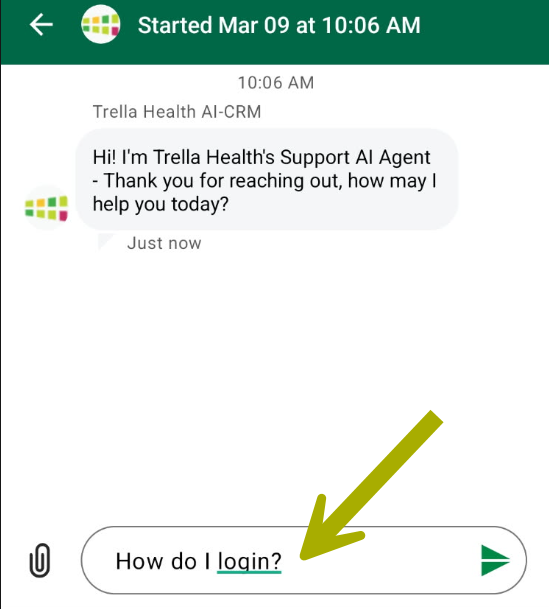
On the login page, when you tap on the "Messaging" link, the Trella Health Support interface will open. (See image at right.) This will show any previous conversations you have had with the Support team.
|
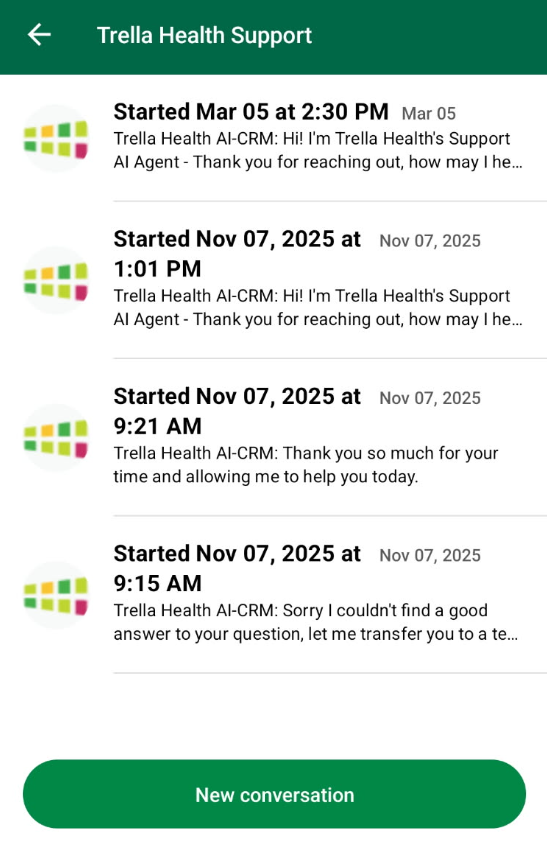 |
|
|
 |
|
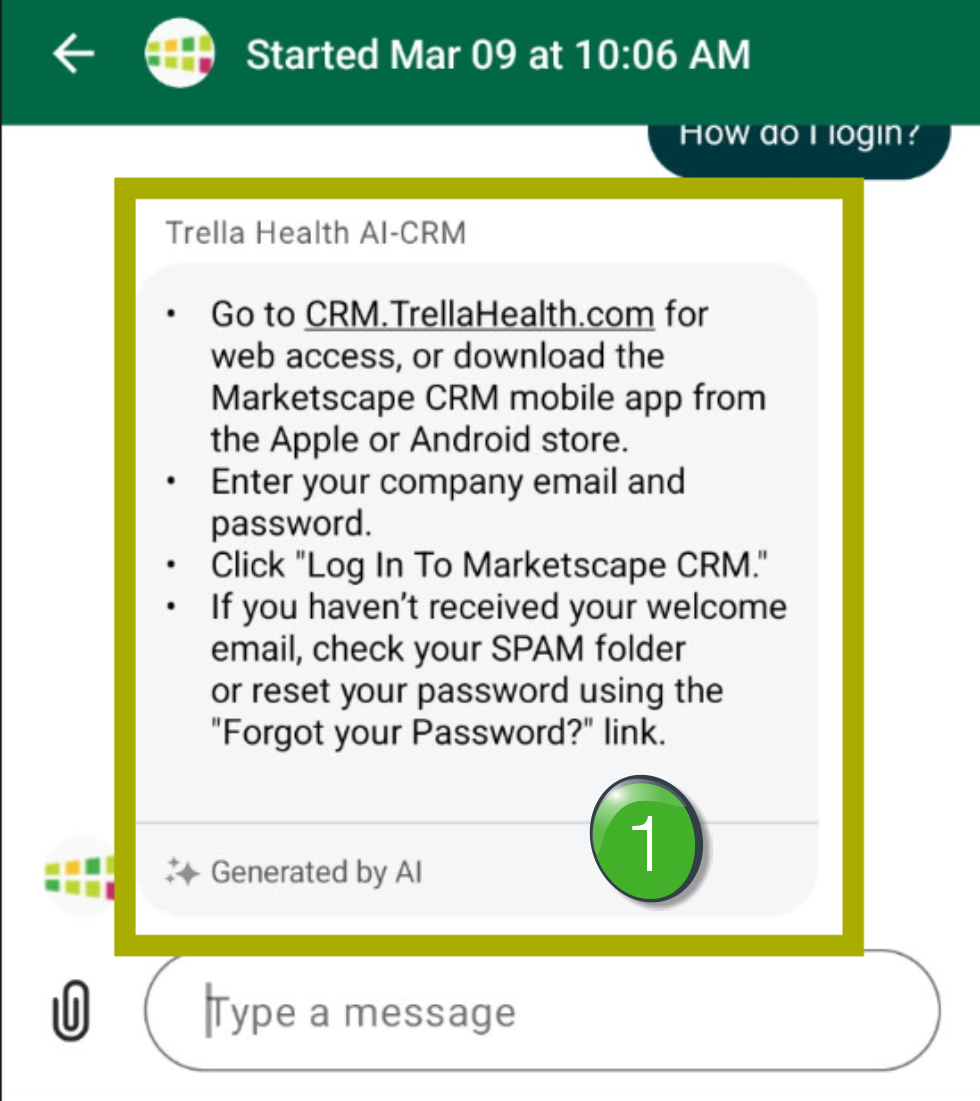
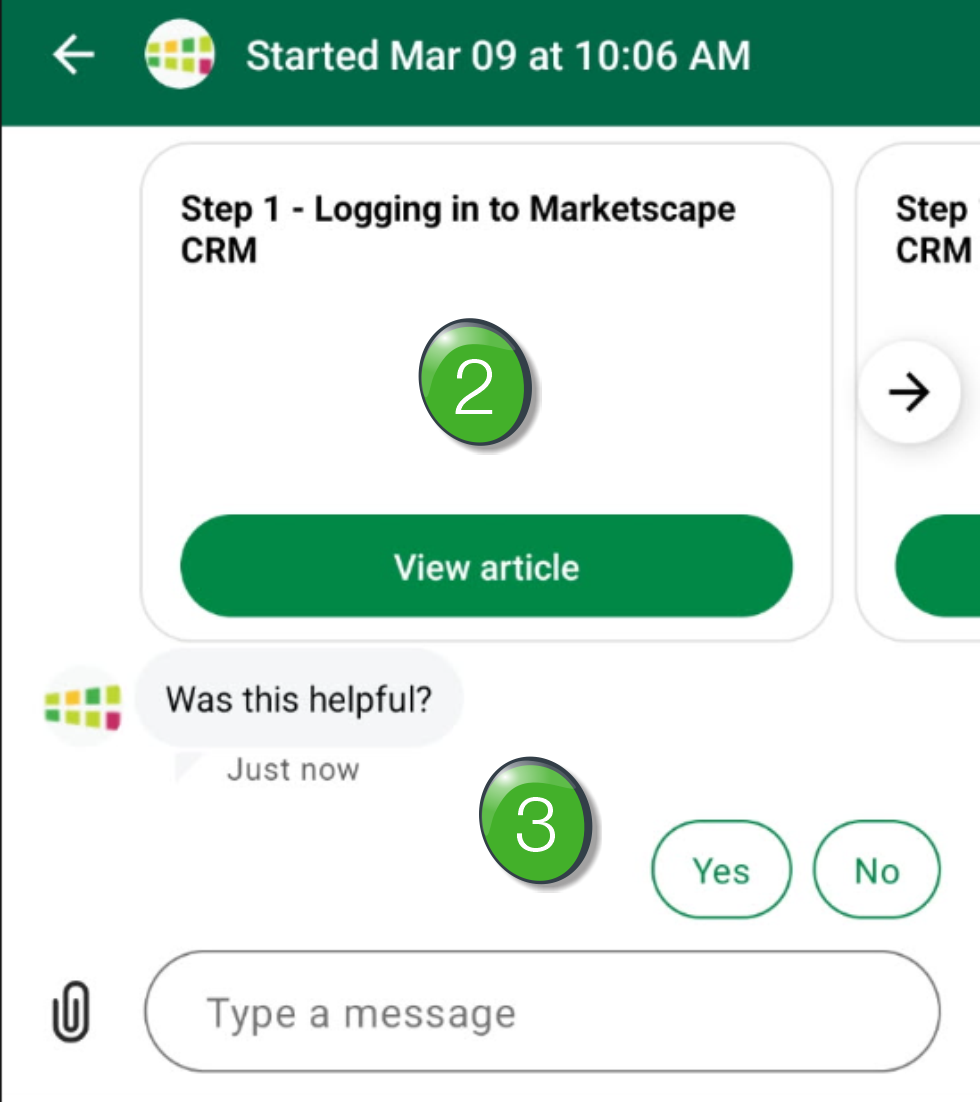
The Support interface provides you with three pieces.
You would need to scroll down to see the other items in the AI response |
 |
|
|
 |
|
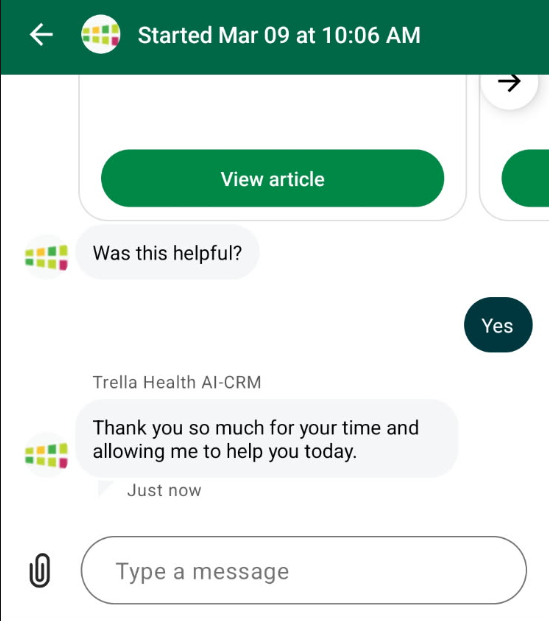
Answer "Yes" The AI will thank you. The "Type a message" field is empty and available again if you have another question. |
 |
|
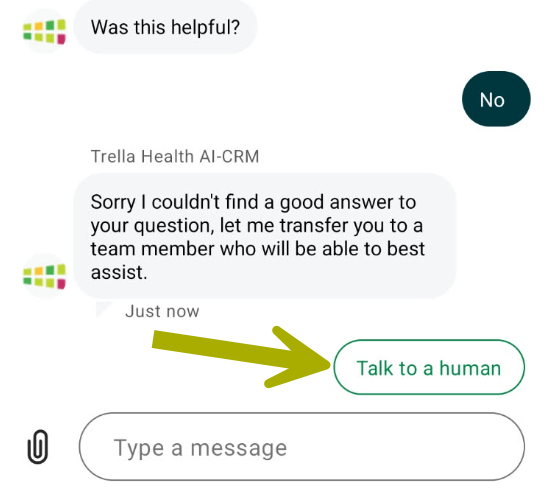
Answer "No" If the AI response was not helpful, you are provided a prompt to get assistance from a human.
Live Chat is available between 8 am and 5 pm Central time, Monday through Friday. AI Chat is available 24/7. |
 |
| |
| Tapping the "Email Support" link will open the default email app on your phone so that you can easily submit a request to Support@TrellaHealth.com | |
| |
|
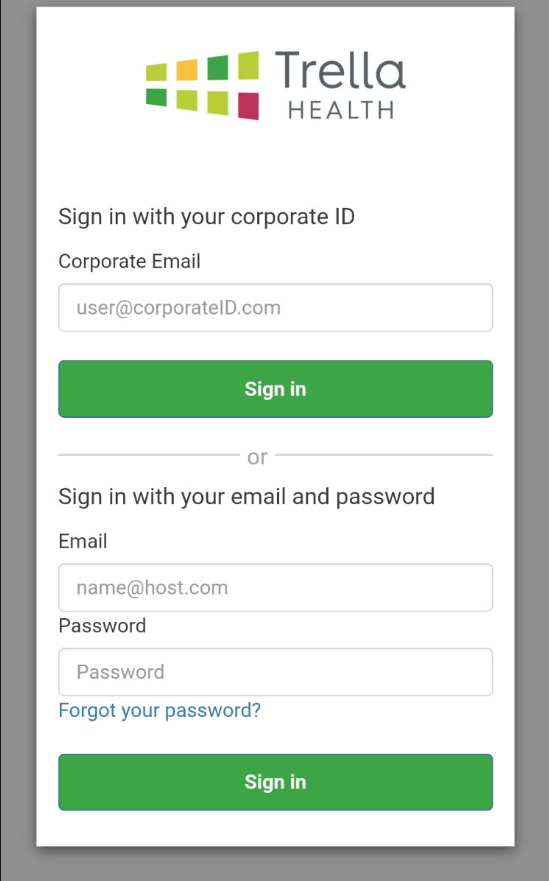
When you tap on the "Need help signing in?" link, the following interface opens in a browser on your phone. The interface (shown at right) offers many of the same options, although the top section allows you to log in in your company uses SSO. If you don't know whether your company uses SSO to log in to Trella Health products, talk to your manager.
|
 |
 Login
Login Forgot your password? - Password Reset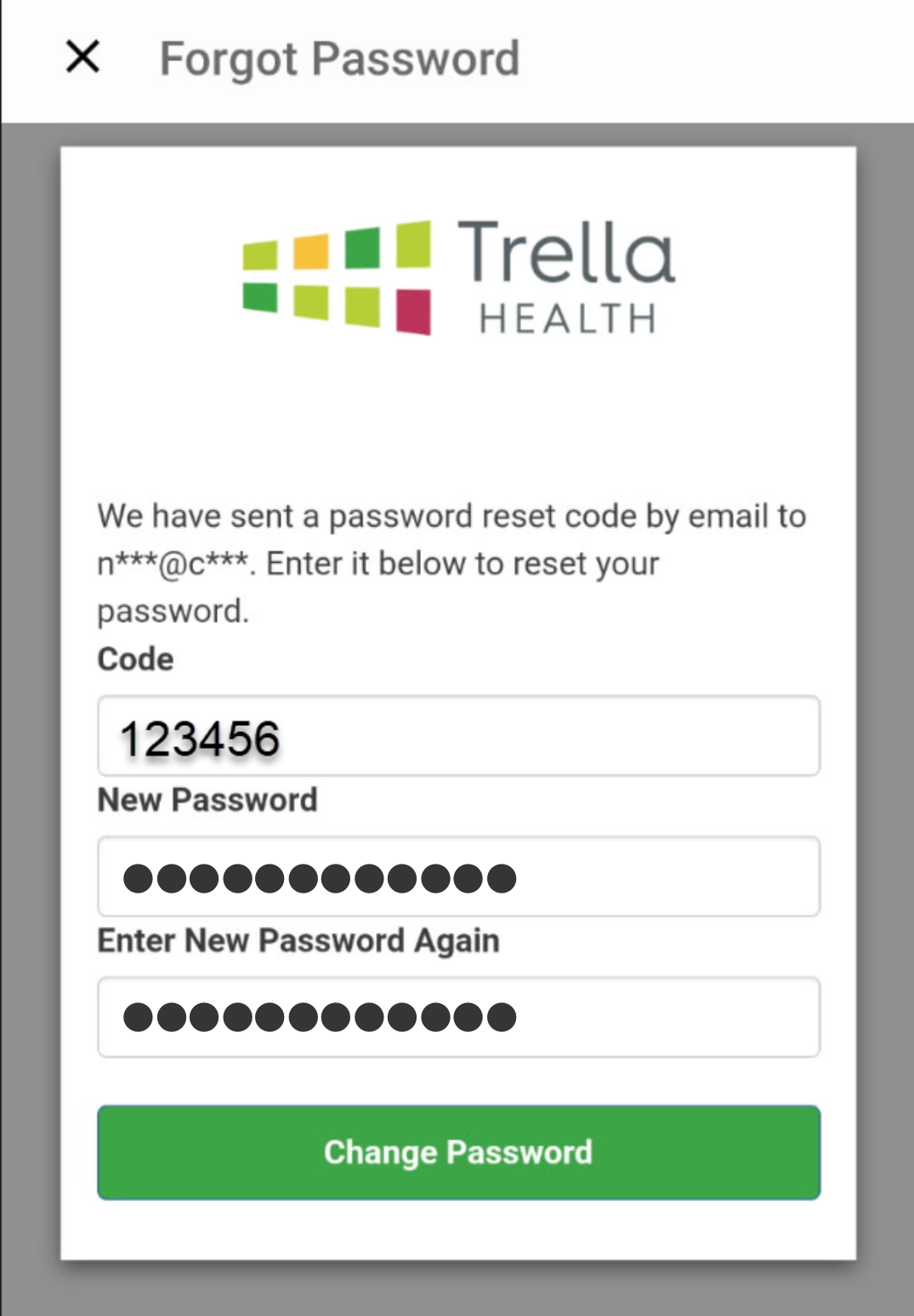
 Messaging
 The AI will present an answer to your question as shown in the image to the right.
 The AI will list articles that might assist you in response to your question. the arrow pointing to the right indicates that more than one article is available that might answer your question.
 The AI asks if the content provided helped you with your question. There are two different outcomes depending on your response.
 Email Support
 Need help signing in?
 |
Biometric Login
In short, Marketscape CRM mobile has a re-verification step after the app has been inactive. You will see this when you have logged in to Marketscape CRM and then put the app in the background. Once you have reached the inactivity threshold and attempt to resume use, the login page will appear and biometrics will be requested. This feature maintains a high level of security, but adds the convenience of biometric login rather than requiring that you enter your username and password.
In order to take advantage of this security enhancement, you will need to confirm that you have a biometric compatible phone, and that biometrics have been set up. This could mean setting up either Face ID or Touch ID on your iPhone or Face recognition or Fingerprints on an Android.
Setting up biometrics
It is possible that you already have biometrics turned on. If not, use the following steps to set up biometrics on your phone.
On Android
- Navigate to the settings page on your phone
- Open Security and Privacy
- Tap on Security Lock and Biometrics (Depending on the specific phone you have Biometrics/Fingerprint/Face Recognition might be on the Security and Privacy page.
- Follow the instructions to set up biometrics
On iPhone
- Navigate to Settings on your device
- Look for "Face ID & Passcode" or "Touch ID & Passcode"
- Follow the instructions to set up biometrics
In Marketscape CRM
Once biometrics are set up on your device, you will need to turn the feature on in Marketscape CRM.
 This setting is shown below as the first setting under Settings - General.
But, since you are here, quick instructions
- Log in to Marketscape CRM
- Tap on the
 Menu button at the top left - the left navigation/menu panel opens
 - Scroll down to Settings and Tap
- Enable Biometrics/Face ID is at/near the top
Usage
There is nothing for you to do to use biometrics to log in. If you have logged in to Marketscape CRM recently, and done other things on your phone, when you re-open Marketscape CRM, you will be prompted to use facial ID or your fingerprint to log back in to the app.
|
Marketscape CRM mobile overview
If you are new to Marketscape CRM mobile, there are some basic features that don't require setup, but knowing some of the details will help you to get up to speed quickly and make your set up tasks easier. There is a back and forth aspect to using Marketscape CRM. Your initial setup will get you going, but after you get going, you may find that you want to go back and make changes in the settings to make the interface work the way you like it.
Home page Overview
|
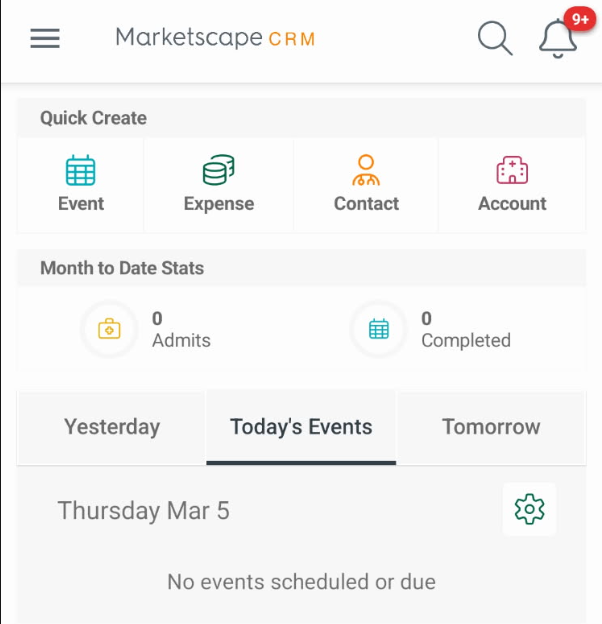
When you first log in to Marketscape CRM, the Home page opens.
|
 |
|
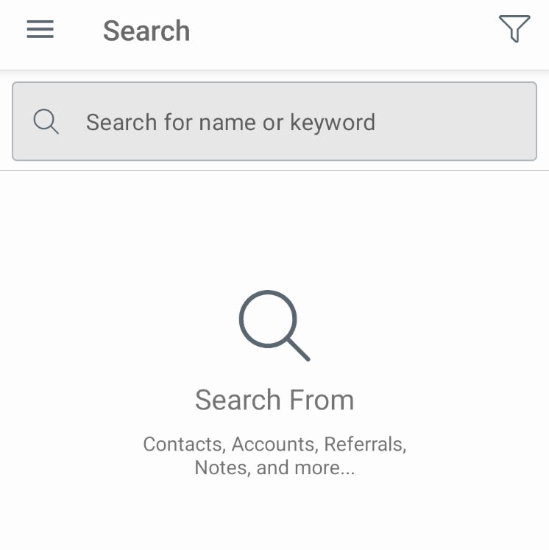
Search Left icon in the above image image Tapping the magnifying glass icon opens the Search page that y ou can use to find a contact, account, or referral.
|
 |
|
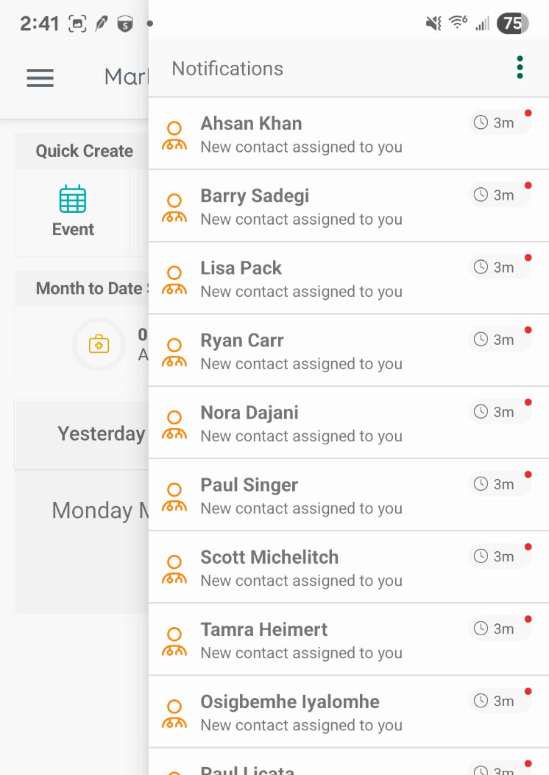
Notifications Right icon in the above image Tapping the bell icon opens the notification panel. (shown at right) Alerts for important events are displayed. Tap on the notification in the list for details.
|
 |
|
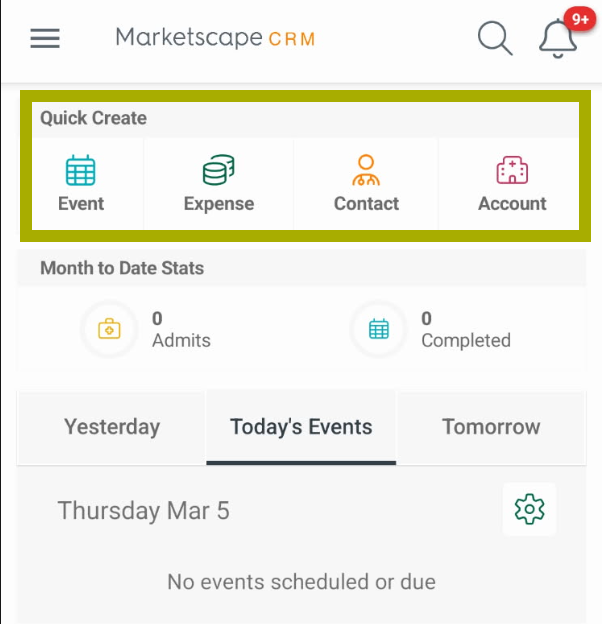
Quick Create This section of the home page allows you to quickly create the four items shown in the image.
A blank page for the selected item will open
|
 |
|
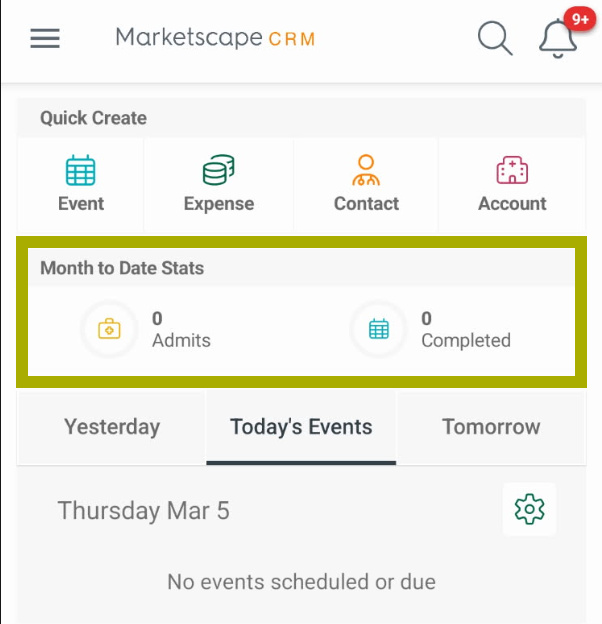
Month to Date Stats This section shows you two of the most important (and motivating) metrics from your account, the number of admits (MTD) and the number of events you have completed (MTD).
Our lazy demo user hasn't done much this month, your metrics will be far better. |
 |
|
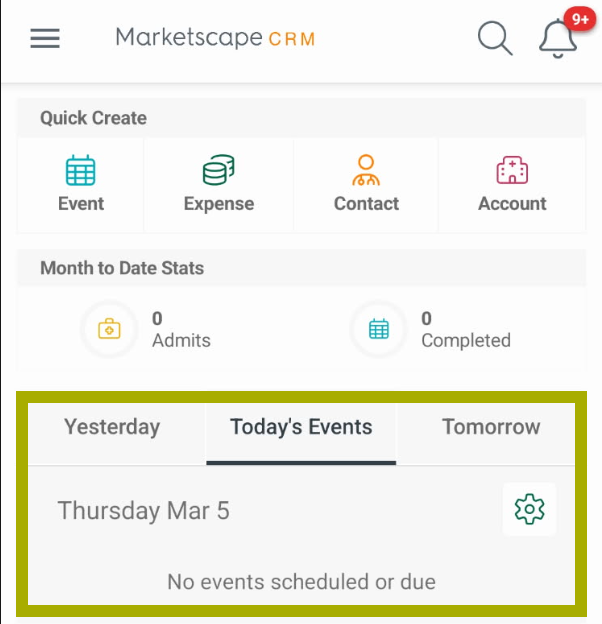
This bottom section shows a map of your scheduled events, along with the details of the events.
|
 |
 There is a reason that Marketscape CRM mobile starts here. The most important functions you will use in the app can all be performed right from this page.
|
Left Navigation
|
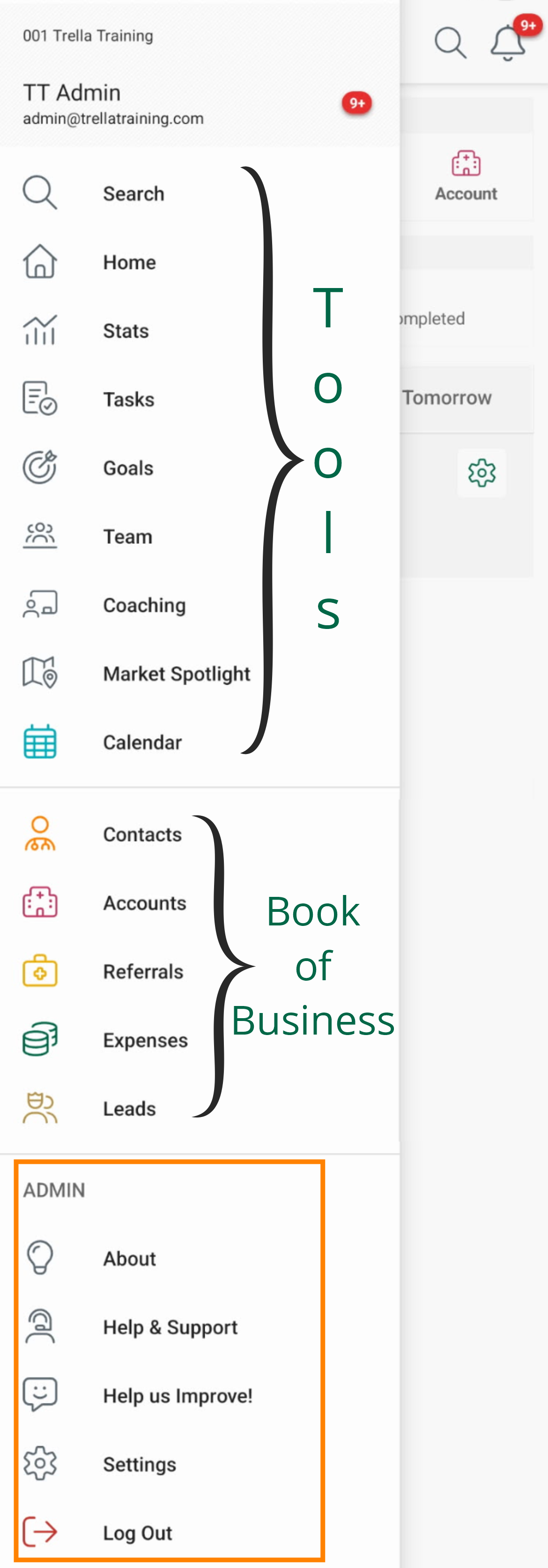
When you click on the There are three sections (shown below) that group similar pages. |
 |
|
Tools - This section contains all of the pages that aren't specifically tied to your book of business.
Also, it is possible that you will not see some of the options shown here.
|
 |
|
Book of Business - The center section includes pages related to your Book of Business.
Also, it is possible that you will not see some of the options shown here, or that there might be options not shown here. | |
|
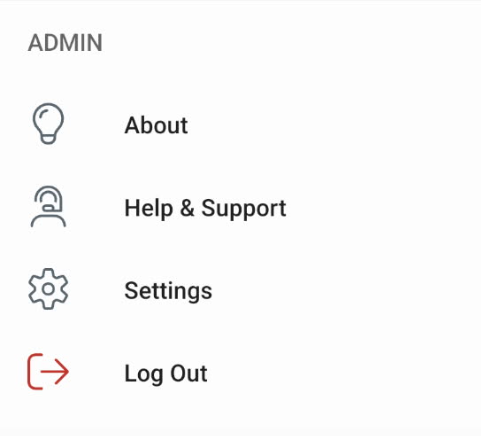
ADMIN - These are the tools that are described below in the remainder of this article.
|
 The features in this section are not described in this article, (except Search and Home). Details for other pages are in other articles in the Help Center.
 |
Settings
|
Some of the settings below you will need to work on to get started in Marketscape CRM mobile. Some you may not need til later. Familiarity now will make it easier if you need specific features later.
|
 |
About
|
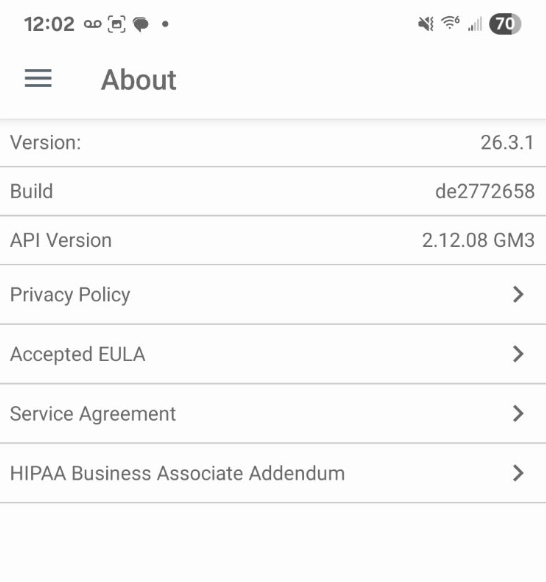
About - When you tap on the "About" link, the page shown to the right opens.
|
 |
|
Help and Support
| Help and Support - When you click on the "Help and Support" link in the left navigation, the three options shown to the right open. They are described below. | 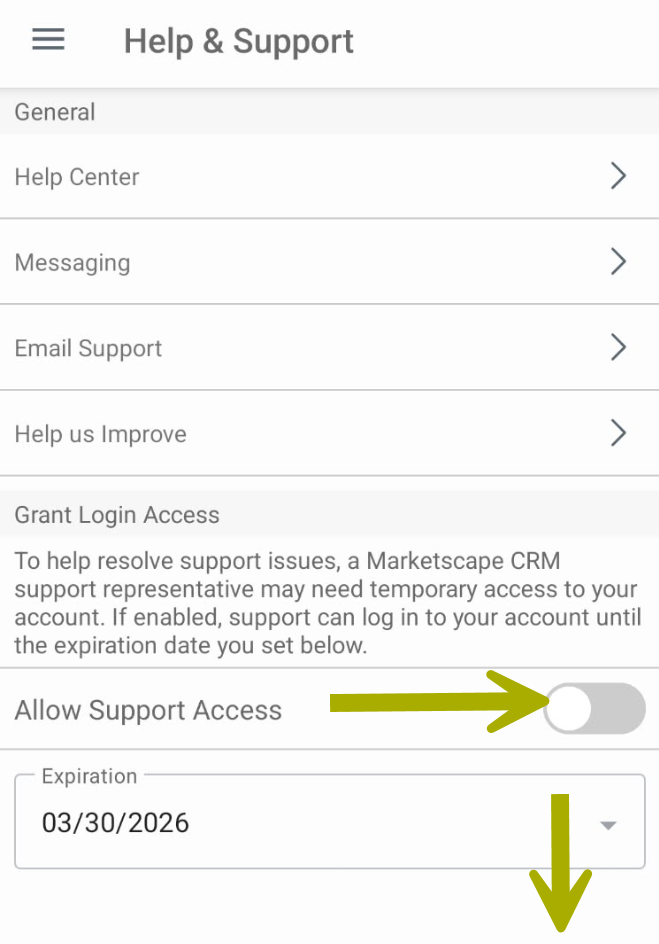 |
|
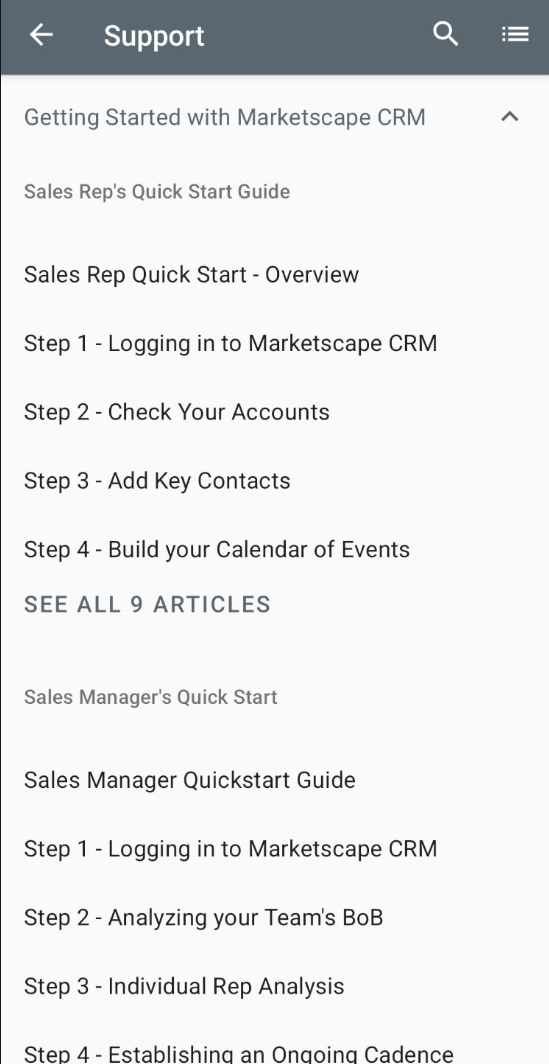
Help Center - When you click on the "Help Center" link the page shown to the right will open. The Trella Health Help Center for Marketscape CRM has hundreds of articles that describe Marketscape CRM, all of the different pages available, and how to use the features. Each row is a link to the article named in the row. You can scroll through the entries to find content of interest. |
 |
|
Help Center - When you click on the "Messaging" link the page shown to the right will open. The Messaging app allows you to start a conversation with the Help Center AI or with a human agent.
|
|
|
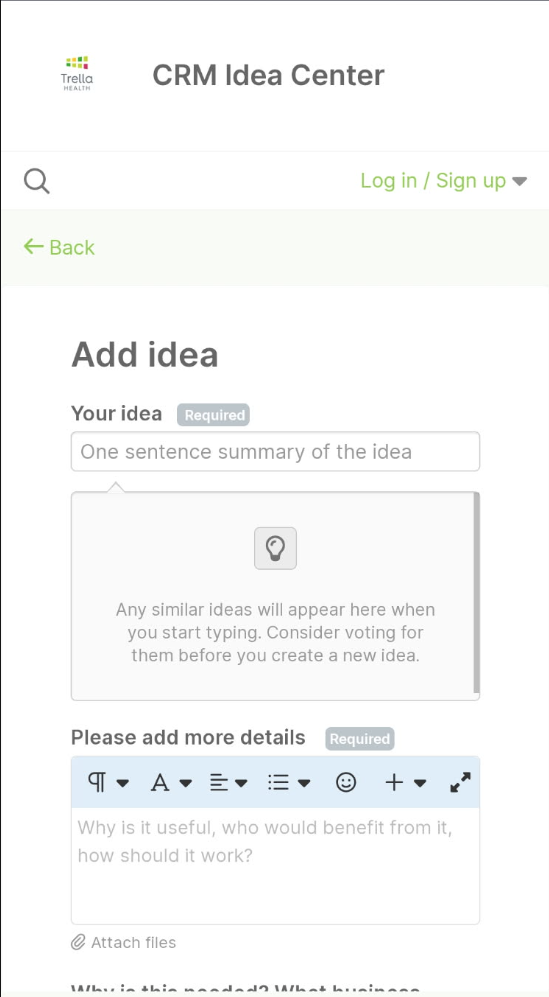
When you click on the "Help us Improve" link, the interface shown at the right will open. Fill in your suggestion and submit it. The CRM Product team evaluates every suggestion.
|
 |
|
Grant Login Access If you run into a problem that requires that the Trella Health support team gain access to your account, you will need to grant access to your account.
|
|
|
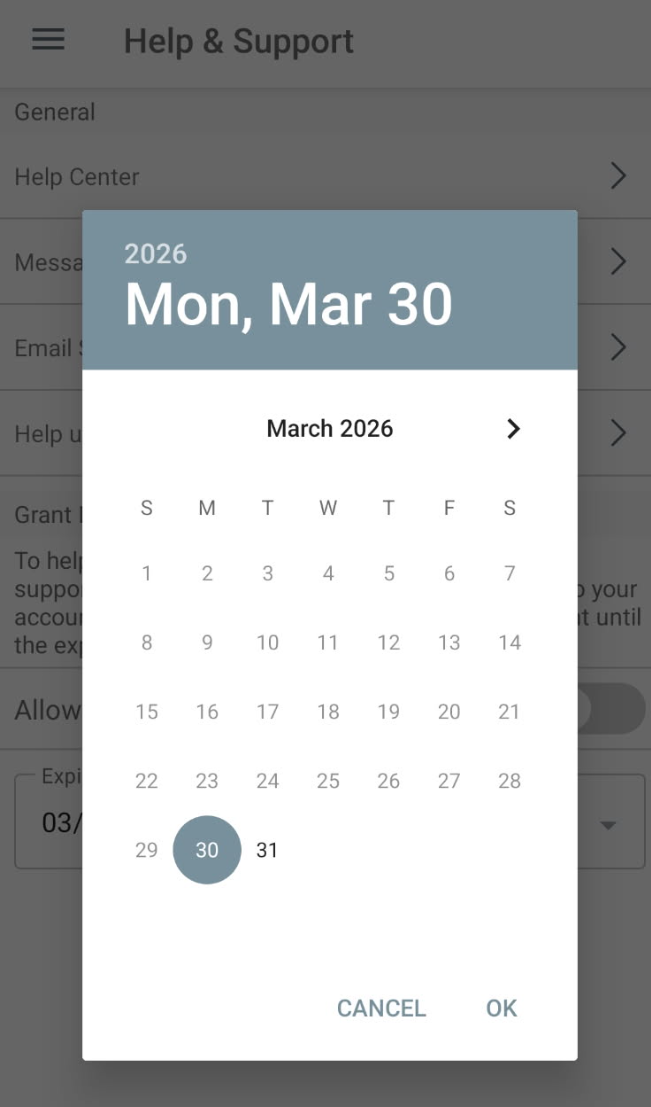
A calendar similar to the one shown at right will appear.
|
 |
 Email Support - If you tap on the "Email Support" link, your device will open your email application so that you can send an email to Support@TrellaHealth.com. A ticket is automatically opened for the Trella Health Support team, and you will receive assistance. Email Support - If you tap on the "Email Support" link, your device will open your email application so that you can send an email to Support@TrellaHealth.com. A ticket is automatically opened for the Trella Health Support team, and you will receive assistance. | |
|
Log Out
Click on this link to log out from Marketscape CRM mobile.
|
Settings
When you tap on the "Settings" link a page will open that has three sections; General, Calendar, and Push Notifications. Each of these sections is described below
Settings - General
|
The top section, General has the following options:
|
 |
|
Settings - Calendar
|
The middle section pertains to features related to the Calendar.
|
 |
Compact View | |
| Compact View On - with compact view on, the list of meetings/events are smaller | Compact View Off - with compact view off, the list of meetings/events are larger and show more details |
 |
 |
|
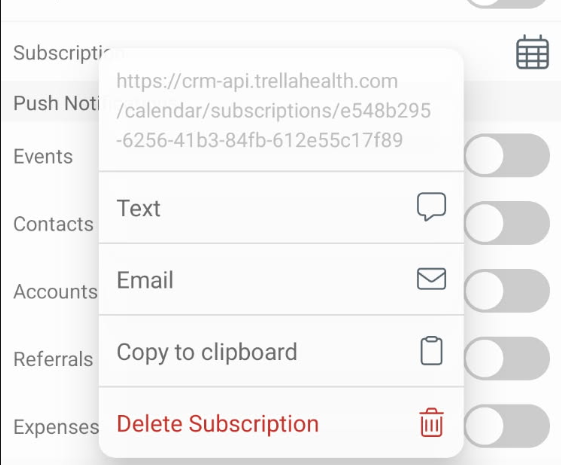
Calendar Subscription - Clicking on the calendar icon will open the open the Interface to the right. The URL can be texted, emailed or copied. Adding the URL to a browser and following the instructions will allow you to link your calendar in Marketscape CRM with your Outlook or Google calendar.
|
 |
|
Settings - Push Notifications
|
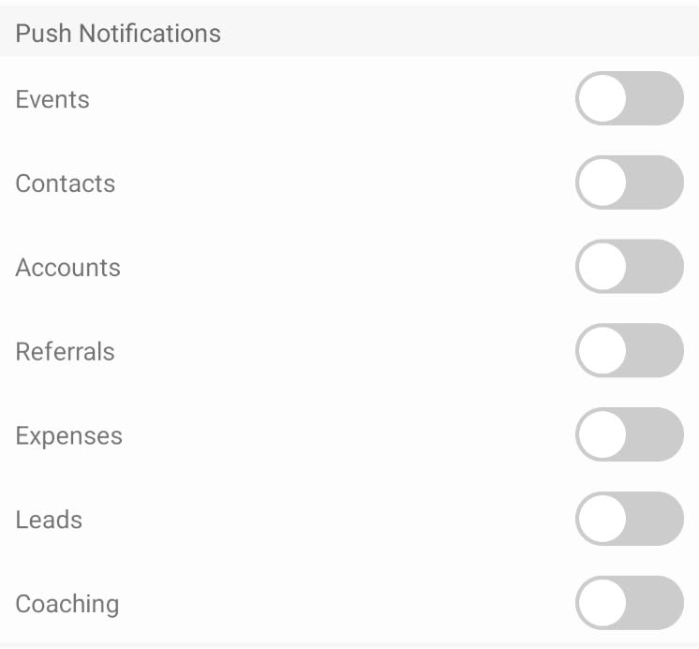
The bottom section of the Settings page allows you to pick which push notifications are sent to your phone. Each toggle icon is separate, so you can choose to turn on one, any combination, or all notifications.
|
 |
|
Some prompts
As you work through settings and when you use various Marketscape CRM tools, you might receive prompts from your phone. In general, the best practice is to give whatever access the Marketscape CRM asks for.
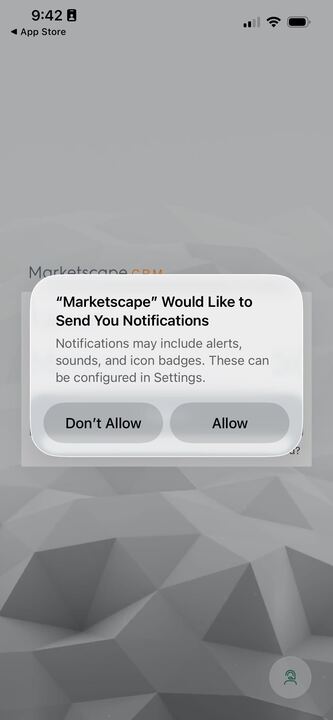
The images from the examples below were captured on an iPhone. Android produces similar, parallel prompts.
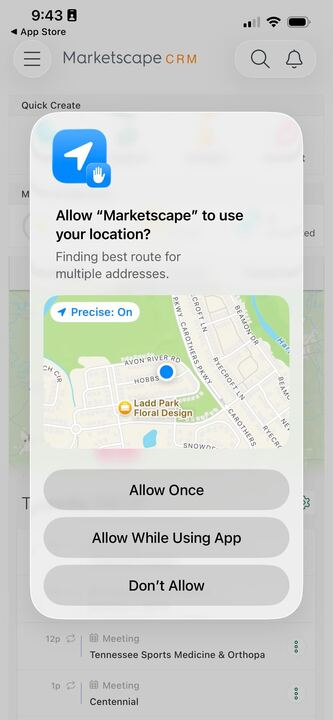
Location ServicesIf you are using Mileage Assist for event check-ins, you need to allow precise location verification. For the map on the Home page to provide meaningful images, precise location is needed. Suggested Response - Tap on the "Allow while Using App" button. |
 |
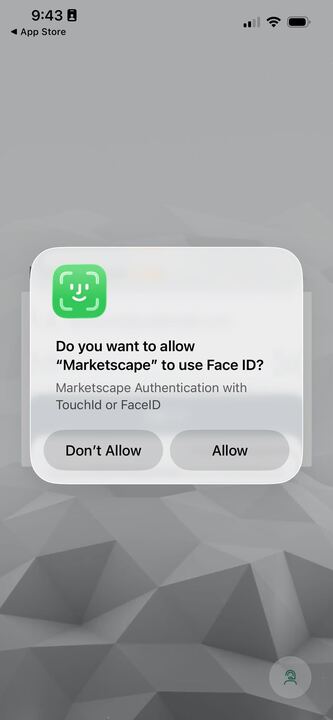
Biometric ConfirmationWith the required security re-verification, FaceID/Facial recognition needs to be turned on. Suggested Response - Tap on the "Allow" button. |
 |
NotificationsYou might see this prompt if Marketscape CRM is trying to send you a notification for an item that you have turned on in the settings. Suggested Response - Tap on the "Allow" button. |
 |