
Overview
Trella CRM has a number of buttons that drive the user to another app to complete an action such as calling or emailing. Trella CRM uses the default apps set on your device to determine which apps are launched to complete the action.
Below is a list of the actions that rely on settings on your device.
- Email – Opens preferred email app to allow users to initiate an email from the CRM app.
- Call – Opens preferred phone app to allow users to initiate a call from the CRM app.
- Map – Opens preferred navigation app to initiate directions from the CRM app.
- Visit – Opens preferred browser app to navigate a user to a website in the CRM app.
Frequently Asked Questions
How do I get CRM to use my Outlook email address when clicking “email” on an account or contact?
- You’ll need to change your default mail app to Outlook, then relaunch your Trella CRM app.
My Gmail opens after I click “email”. How do I change it to my work email?
- On an Apple device, if you’re using the Mail app, you can tap on the email address to see a list of other options and switch to email addresses to the desired address.
- On Android devices, this is not an option.
Some Samples
The following images show examples of where you will find these links. There are many other paths to automatic links - pretty much in every location where they make sense and will help you the most!
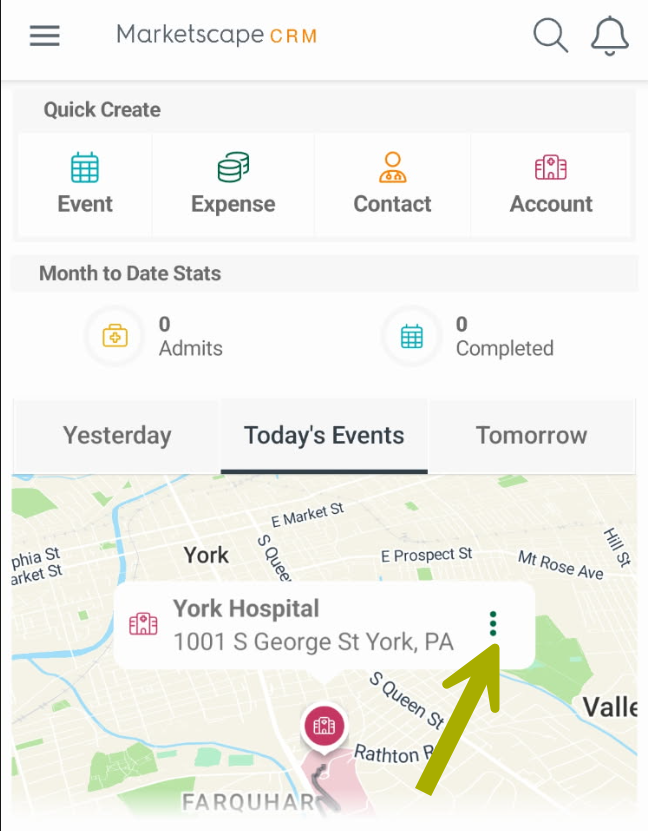
From the map on the home page | ||
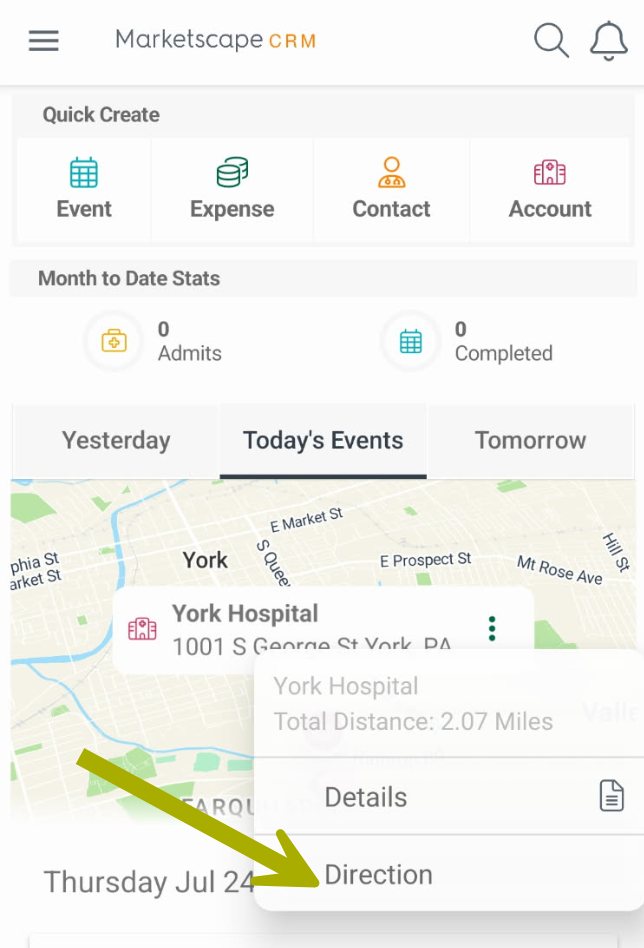
| Tap a location on the map, then click on the three dots to open the item menu | Tap on "Direction" |
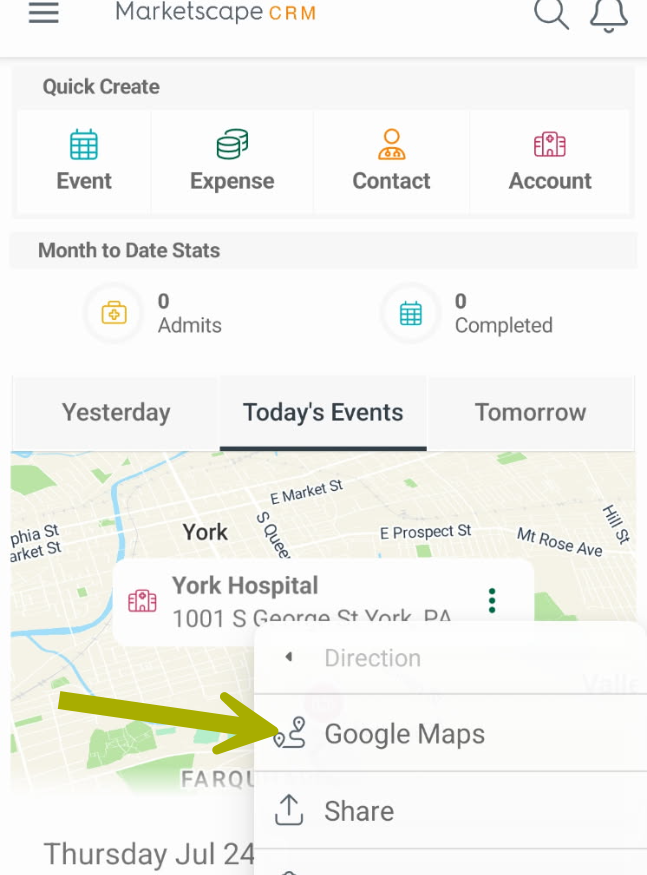
Tap on "Google Maps" Google maps will open with your chosen location as the destination |
 |
 |
 |
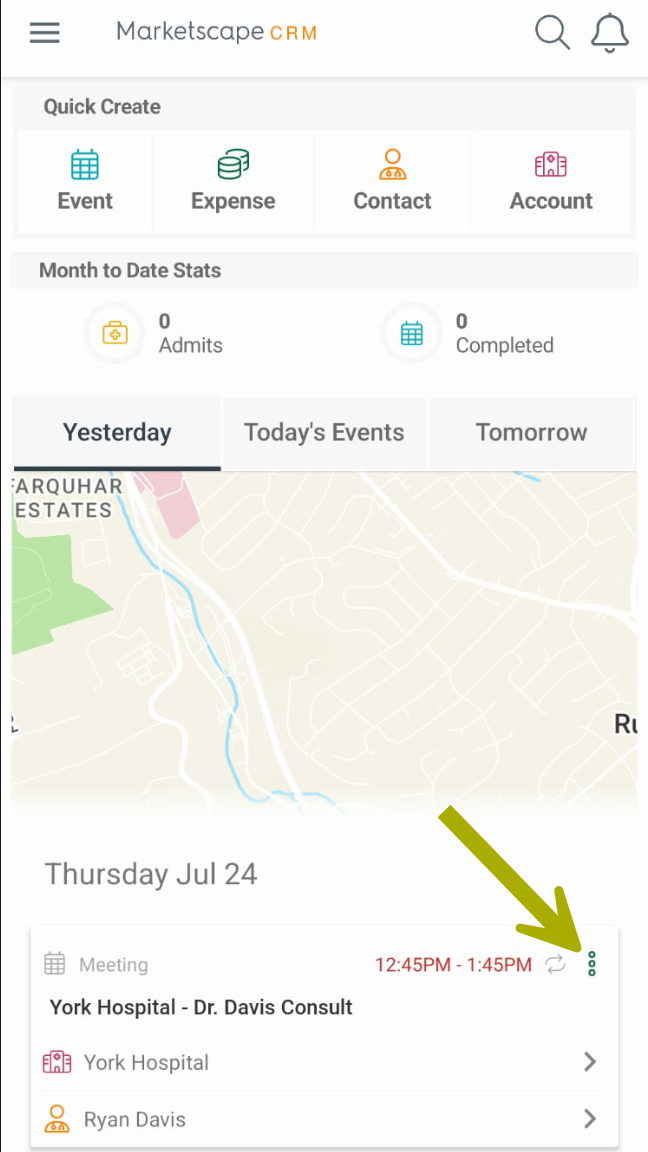
From an Event displayed on the Home page | ||
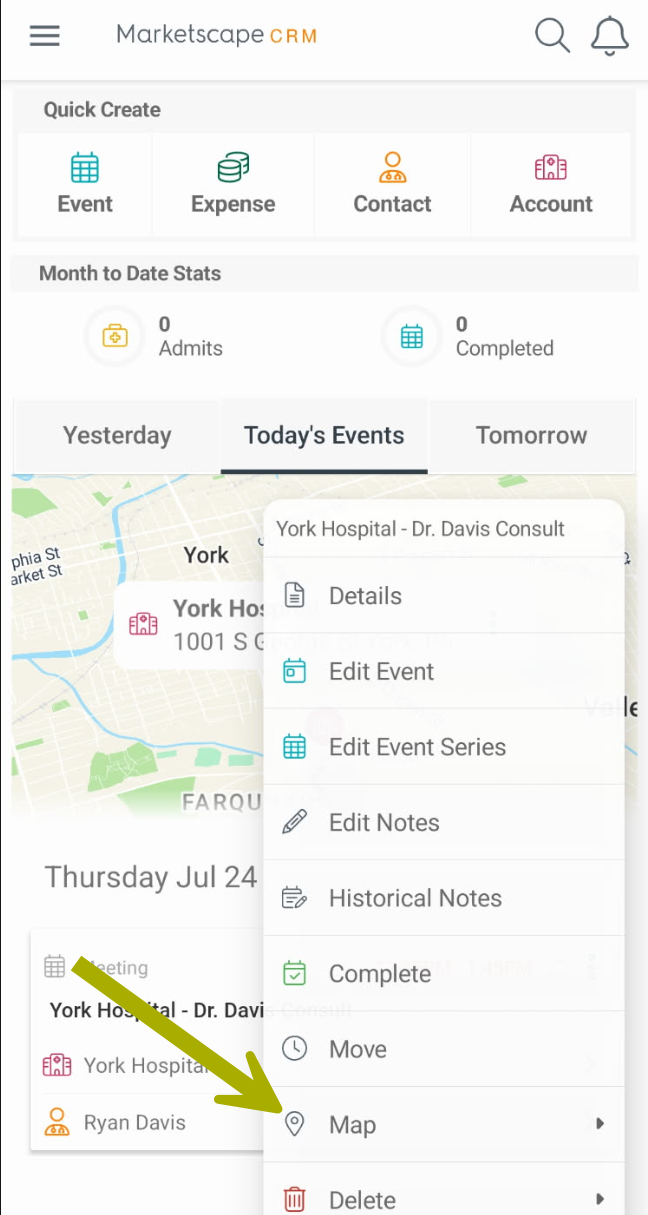
| Tap on the three dots at the top-right of any event displayed on the Home page to open the event item menu | In the menu that opens, tap on "Map." |
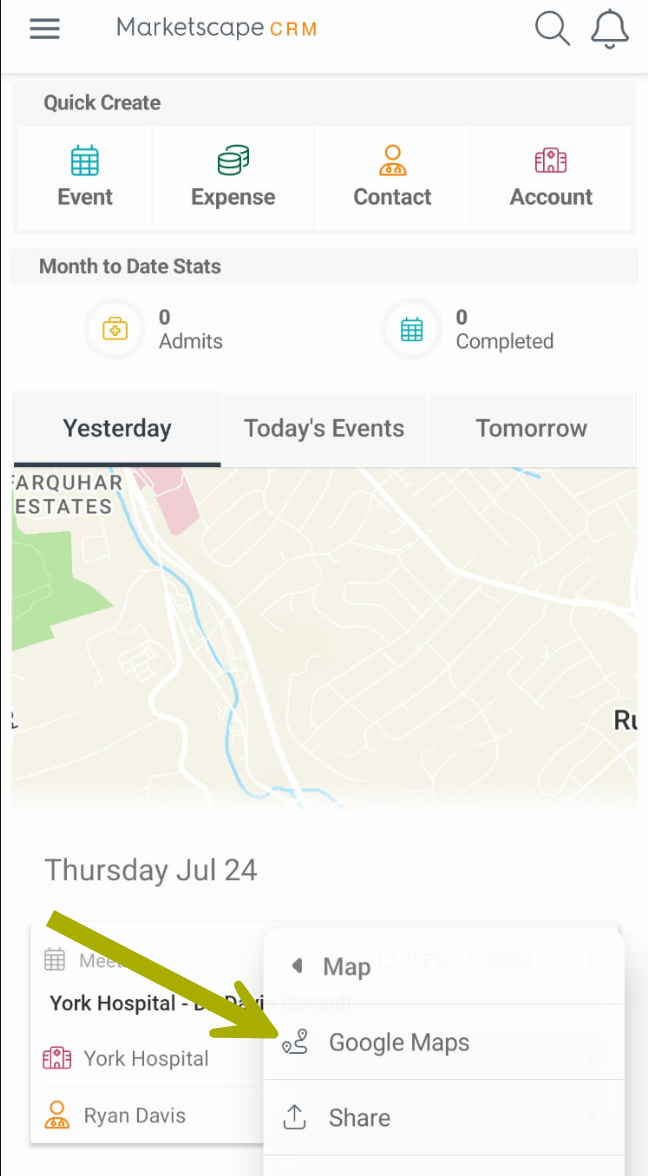
A submenu opens. Tap on "Google Maps" Google maps will open with your chosen location as the destination |
 |
 |
 |
From a Contact Details page | |
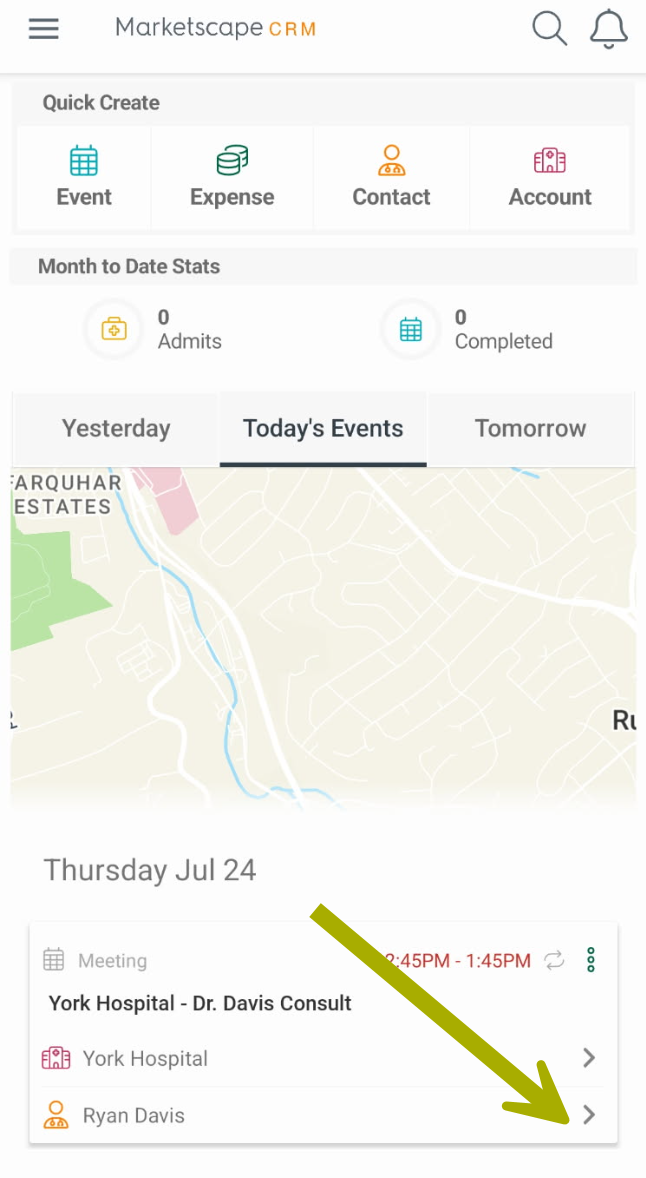
| From an Event shown on the Home page, tap on the row where the contact is listed |
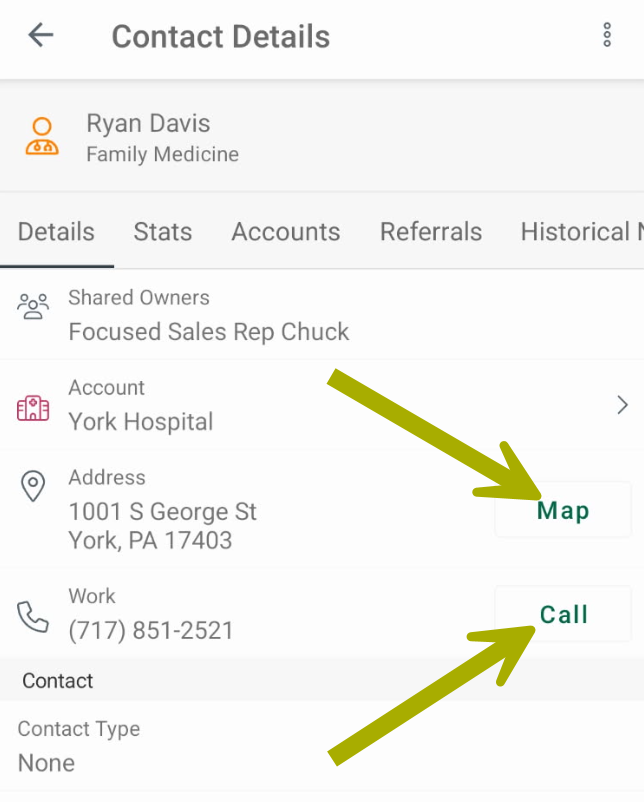
Two links are available on any Contact Details page Tap on "Map" - this will open up a link for "Google Maps" Tap on "Call" - this will open up your phone's call page |
 |
 |
|
| |
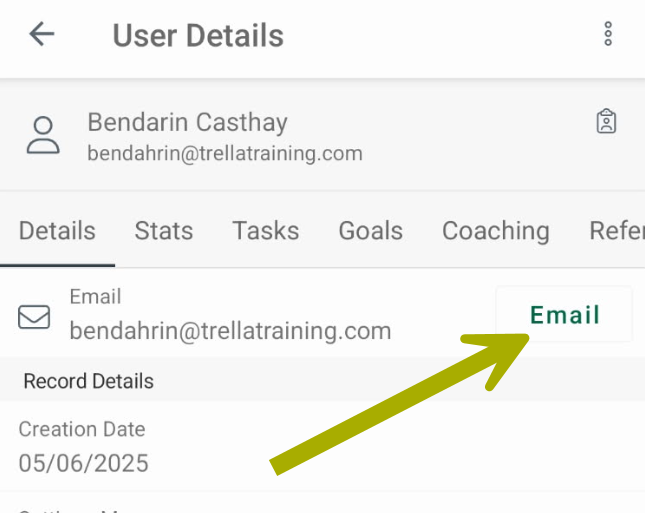
Email a user from the User Details page |
| On any User Details page, you can tap the "email" link to open an email directly to the listed user. |
 |
Helpful External Links
- IOS - Change the default apps on iPhone
- Android – Depends on your device model