
Overview
Managing your book of business (BoB) refers to the tactical tasks of adding accounts, contacts, and events to Trella CRM. In short, managing your BoB is a set of record keeping tasks that are facilitated by Trella CRM.
Trella Health Referral Growth Methodologies
OverviewAt Trella Health we do more than provide the metrics you need to understand your agency’s place and performance in the competitive world of post-acute care. We also give you a Referral Growth Methodology that enables intentional and consistent referral growth. The Trella Health Referral Growth Methodology includes the core functions your organization should focus on to hit your growth goals: Growth Strategy, Sales Planning, Sales Execution, and Sales Support. As a sales rep, your focus is on Sales Execution, which includes activities in the third column.
|
|
||||||||||||||||||||||||
| |||||||||||||||||||||||||
Referral Growth Methodology |
Your Book of Business - What do you do? |
||||||||||||||||||||||||
|
Current Account Planning - In short, this is building your plan each week. This task includes tactical thinking and frequent updates to your book of business. The overall goal is to maximize effort and time usage engaging contacts for your accounts who have the highest potential. As you plan your visits each week, basic logistics also come into play. When you create events in Trella CRM, you want to group your visits by location to minimize travel time. Scheduling more frequent visits with higher potential contacts means higher referral potential per hours in the field.
|
Summary - there are two models, or paths, that you can follow as part of your account planning with respect to your book of business. The difference between the two resides in what you are doing with Events in your calendar. You will either review and update existing events for the week, or create new events, adding them to your calendar. These are examined in more detail later in this article.
|
||||||||||||||||||||||||
| The point of Activity Tracking is to make sure that sales activities are being completed in the most efficient manner and in a way that is consistent with your company's overall growth strategy. Maintaining you book of business will provide the raw data that will connect sales activities to the reports in Trella CRM |
Summary - Activity Tracking is about keeping accounts and contacts up to date to provide the data needed to evaluate your success. Understanding whether your visits with specific contacts are generating referrals will help the sales team to validate the growth plan and pivot as needed.
|
||||||||||||||||||||||||
| Referral Management - Monitor the intake process to look for growth opportunities | |||||||||||||||||||||||||
 There are other activities related to a sales rep's book of business that are not part of the Sales Execution core function because they are part of a manager's role. For more information, see Managing a Book of Business for Sales Managers. There are other activities related to a sales rep's book of business that are not part of the Sales Execution core function because they are part of a manager's role. For more information, see Managing a Book of Business for Sales Managers. | |||||||||||||||||||||||||








 Where does your BoB fit into the Trella Health Referral Growth Methodologies?
Some basics
Summary
There are three elements you need to manage in your book of business; accounts, contacts, and the association between the two. Whether you work in Trella CRM web or mobile, it is easy to create new accounts or contacts and to set up the connection between accounts and contacts.
 Shhhh... It's also really easy to edit those accounts and contacts, the interface is almost identical for creation and editing.
 At some point during the setup process, your company decided what you have permission to do in Trella CRM. With regard to your BoB, if you want to add an account or contact that is part of the database, you might have the permission to add that account or contact yourself, OR you might need to request ownership and have the request approved by your manager. Either way, it is important that you meet with your manager to clarify your permissions and to understand when to request ownership.
 In this article
This article is huge, but there are only four main sections listed in the menu below in bold
Current Account Planning
There are essentially two types of tasks you do as a sales rep that fall under the umbrella of account planning. We use the words "building" and "reviewing" to identify them, so let's build on the difference.
-
Reviewing - When you are planning your week, you will look at each of your scheduled visits and decide two things: what is the purpose of the visit, and what is the expected (or desired) outcome(s)? You will, of course, document the answers to these two questions in the event details for two reasons:
- First, you want to be able to show your manager, in advance, that you have a purposeful plan for the meetings with contacts for the week.
- Second, by having a documented outcome, you are able to evaluate the success of the visit. This is not to put you on the spot, but to evaluate the contact as a referral source. If you execute your plan and don't get a referral, you want to know why.
-
This should be done on a regular cadence determined by you and your manager, although a weekly rhythm makes the most sense. You will find that faithful use of Trella CRM to assist with this weekly task will help to maintain the discipline, but doing so will, more importantly, generate more referrals over time.
- Building - As you identify new high potential prospects, you will want to add visits with them to your schedule. In order to do this properly, you need to align the account and any known, relevant contacts to your book of business. If you schedule an event that doesn't include identifying the account and contacts, any referrals from the visit risk not being properly reported. To ensure that all the right connections are in place to support activity tracking and reporting, we recommend a specific process that connects accounts, contacts, and events.
In the next two sections of the article below, we will show you how each of these works out in Trella CRM.
Reviewing your Account Plan -
Building new events into your plan
Adding an Contact as part of your Account Planning
THIS WILL BE A COMMENT AND A LINK
Activity Tracking
Growth Activity Summary
Activity Tracking using Trella CRM
Overview
Creating a new account/Editing an existing account
Creating a new contact/Editing an existing contact
Making Connections between Accounts and Contacts
Referral Management
This content is under construction - please come back later
Other Helpful Content
Using the Referral Source Database
**** Rather than building out each individual account or contact manually, it may be helpful to import the information from a directory. There are two options within Trella CRM: Market Insights & Referral Source Database.
Market Insights is an add-on feature to Trella CRM that provides referral source information and Medicare claims-based market data. If users have access to Market Insights there will be a link on their navigation bar. The Referral Source Database is available to all Trella CRM clients and accessed from either the Accounts or Contacts tab.
 The training videos for this content are missing. For assistance with Importing from Market Insights and the Referral Source Database, please make contact with your Customer Success Manager. ****
Creating an Account/Contact in Market Spotlight
List of All Fields in an Account Listing
List of All Fields in an Contact Listing
Other BoB Management details
 When should I add a hospital as an account? Who should I be tracking as a contact? Who are the best contacts? Before we dig in on the "how-to" steps, let's ponder accounts and contacts.
What organizations should I add as an account? And when?
 Every organization you visit as part of a sales effort is an account.
In a perfect world, every account should be set up in advance and assigned in response to your company's growth strategy. If that happens, every visit on your calendar will already be connected to an existing account.
In the real world, you will find yourself passing through the shiny doors of some medical facility that won't be listed in your accounts. When that happens, you will need to add an account. (Or request it if it is already an account, but not assigned to you.)
The aforementioned "perfect world" is the one where the Trella Health Smart Growth Methodology is already implemented and every visit is part of a coordinated plan that has been documented.
You know, this one.
Who should I track as a Contact
Ummm... everyone? Well, maybe.
On the one hand, you are looking for some specific people - those who can help you to get referrals! (see below). On the other hand, you are going to meet some people, like Dr. Pat Roadblock, who will chew up your time and donuts and never refer a single patient.
Trella CRM can handle both of these scenarios. The former contact type you will want to identify as someone to visit frequently, and you can immediately add them as a contact and schedule visits. Wha-bam! The latter type can be identified in a note that reminds you to not take the time.
So let's talk about the type of professionals you are looking for the next time you are making visits.
The Decision MakerUltimately your prime contact is the person who is responsible and empowered to make a patient referral. Decision makers can certainly include physicians, but don't forget, for example, case managers, social workers, or the director of nursing. As you get to know the staff at a target account, you will want to identify the people who fit make decisions about their patient's next course of care.
The GatekeeperThese are the people who stand between you and the decision makers. They are the folks who not only control your access to the people you want to engage, but they also know who the decision makers are. Receptionists are the most obvious gatekeeper.
InfluencersThere are a lot of people who are not directly connected to patient care but who have the ear of the decision makers with whom you want to engage. In many ways, this could be just about anyone in the community who can be an advocate for your agency. Examples could include a community coordinator, a funeral director, chaplain or pastor. You will need to be creative to identify these people.
To stimulate your thinking, the image on the right is the list of contact types you can choose from when you create a contact in Trella CRM. |
Keep in mind
 Many people who work in the medical world do not have an NPI. This is one of the reasons to manage your contacts well. Create a new contact on your phone at the first opportunity because you might not be able to look them up in a database later.
A little extra effort goes a long way - get to know your contact's first and last name. If you end up creating four contacts with First name: Mary, Last name: Nurse, you will quickly have no idea who is who. Five people named Lucy SW (Social Worker) will not help you to find the right Lucy when you visit the hospital where she works. Get the full name.
Activity Tracking using Trella CRM
Let's Review. The management of your book of business includes three categories of tasks:
- Creating new accounts or editing existing accounts
- Creating new contacts or editing existing contacts
- Setting up (or removing) associations (connections) between accounts and contacts
Both Trella CRM for web and Trella CRM Mobile allow you to do all of the above tasks. The "How to" steps for managing your book of business can be found below.
Building from Scratch
The method that is used to add accounts and contacts to a user's book of business will depend on whether or not the user's account already has data available for assignment or if the data is being built from scratch. If your company has recently started using Trella CRM, you may be required to enter some data manually. If account and contact data is already available, that will reduce the amount of input that may be required, but accounts and contacts may still need to be assigned.
Confirming your BoB
What if your EHR data is already integrated?
One of the gigantic and significant set up steps for your company when first using Trella CRM is an integration between your company's EHR system and Trella CRM. Depending on the EHR, updates from you EHR to Trella CRM happens on a period from real-time, to two hours, to once a day. Check with your manager for specifics.
Because your EHR feeds Trella CRM, it is critical that you enter all required information into your EHR in a timely fashion. Up to date data will result in activity reports that provide useful information for your sales team.
What is different if account and contact data already exists in Trella CRM from our EHR?
Pretty simple - instead of adding an account or contact, you just need to find them.
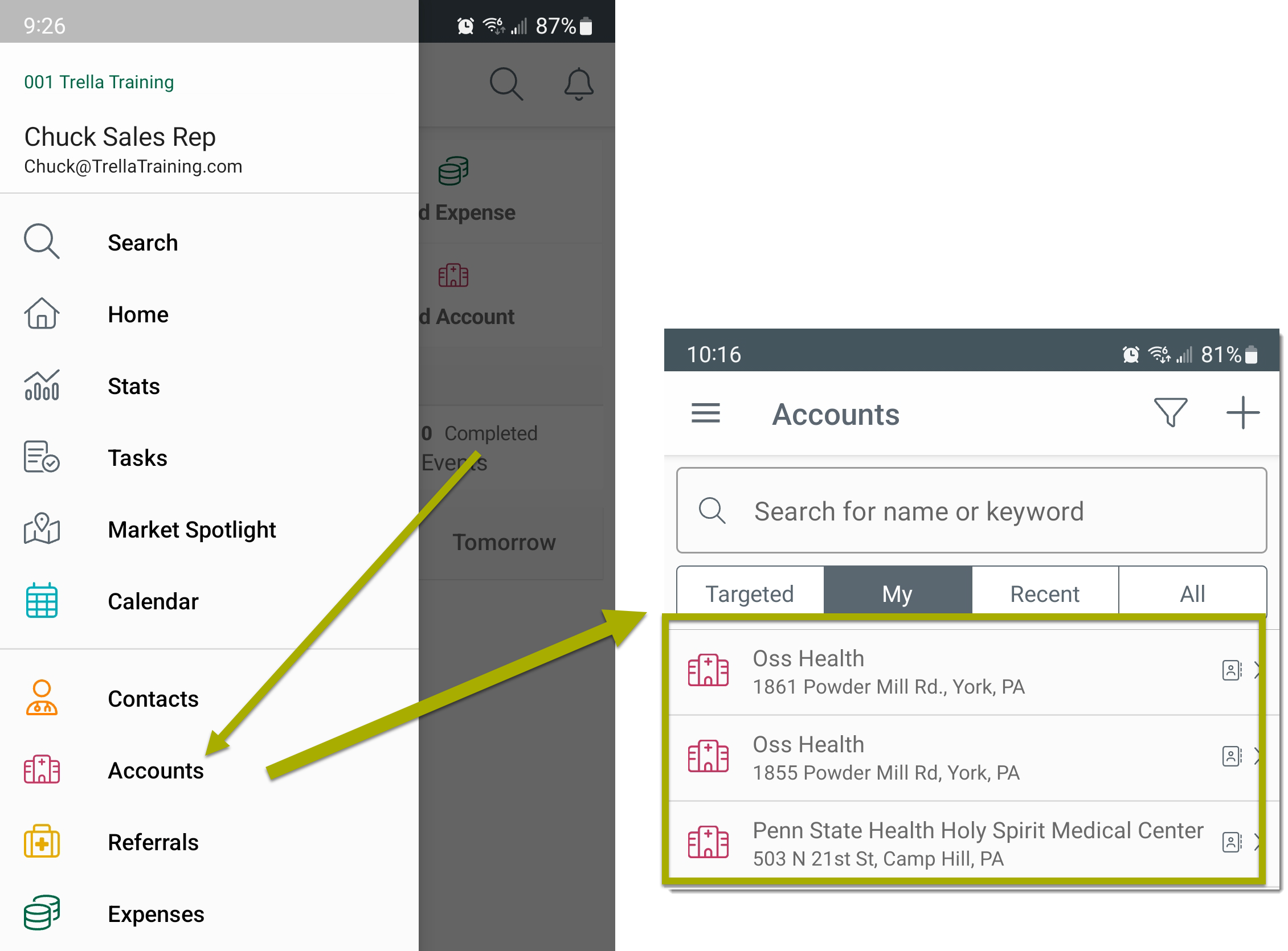
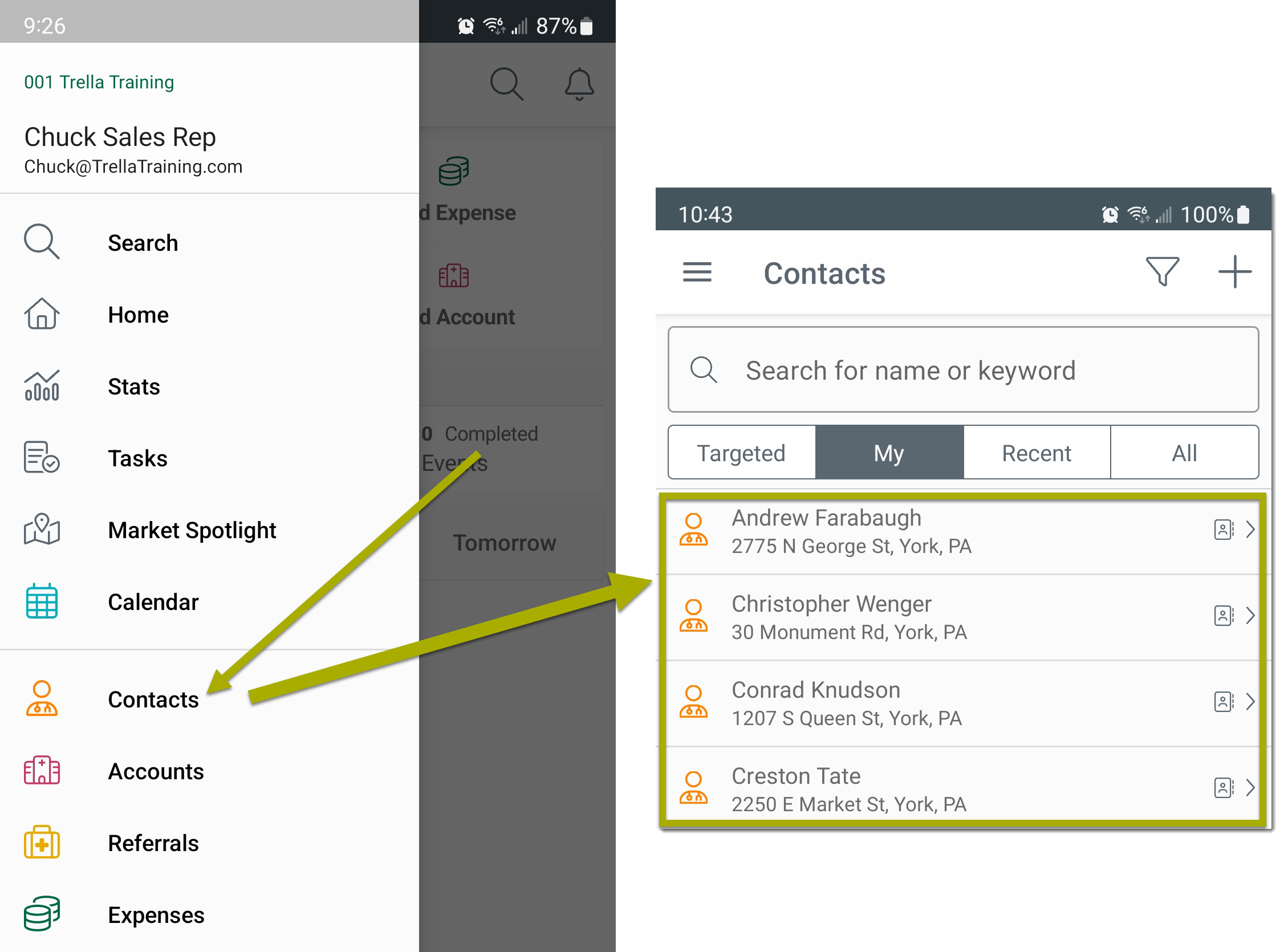
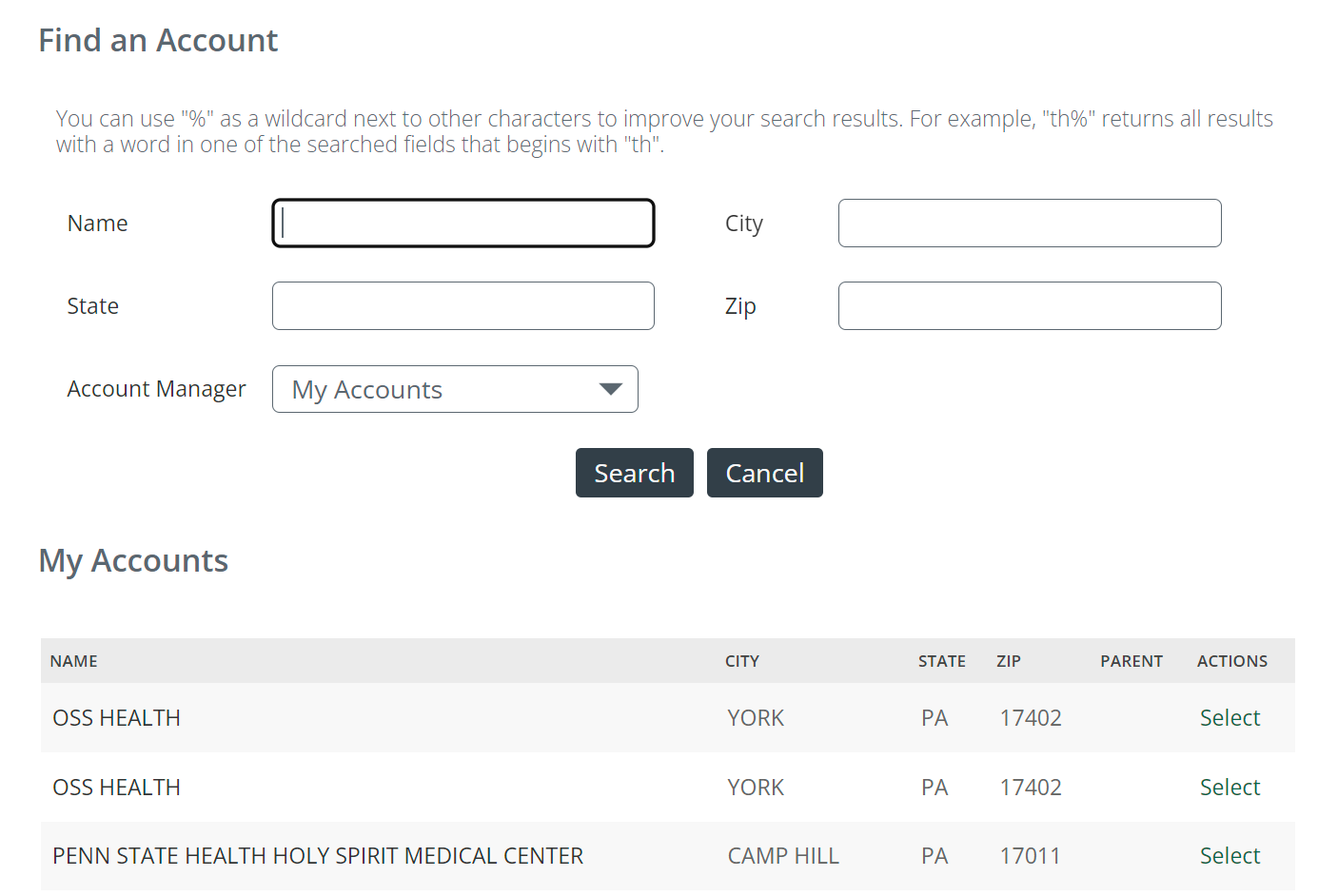
 Check for account or contact. Before you create an account or contact, you should click on the "Accounts" or "Contacts" button in the web app left navigation to check the list to see if the account or contact already exists and has been assigned to you. In the mobile app, you would tap on the Menu button, and then tap either "Accounts" or "Contacts" to confirm whether the account has been assigned to you. (See mobile image)
| Web | Mobile | |
| Accounts | 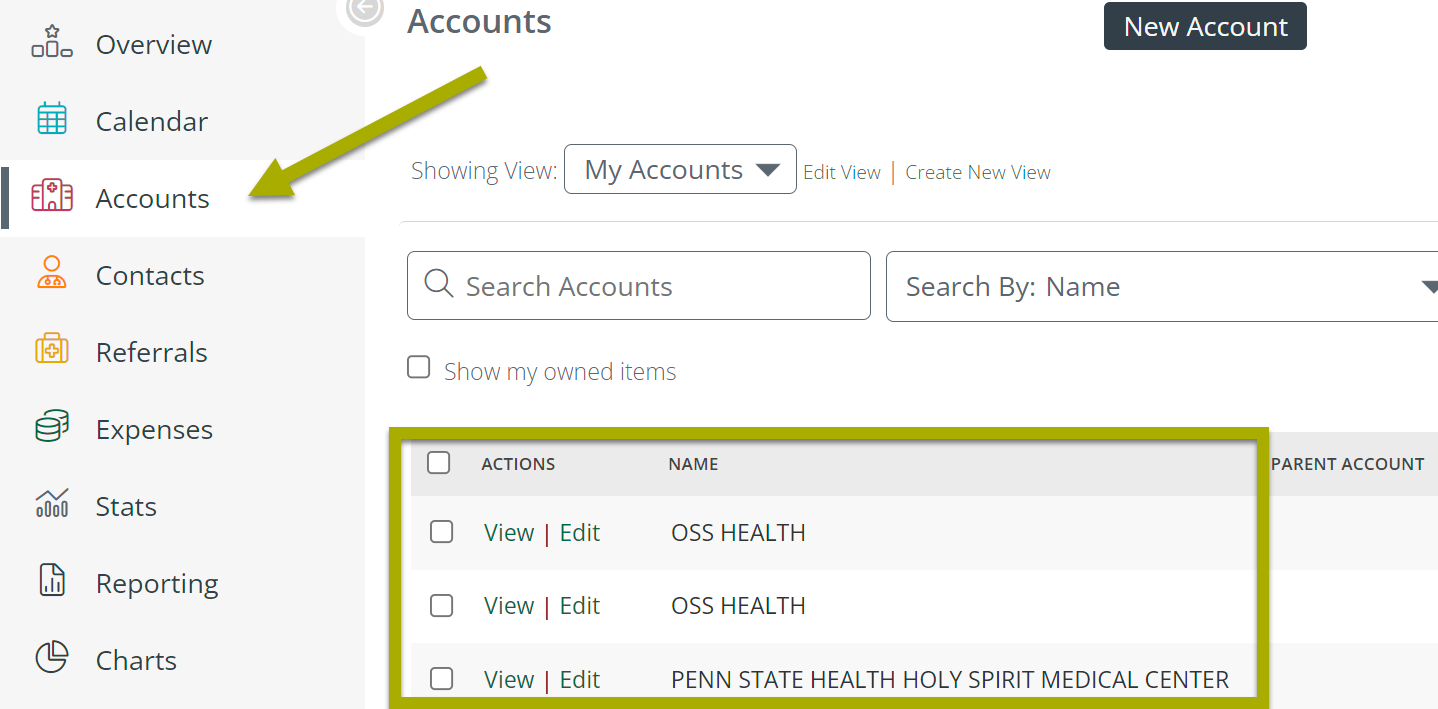 |
 |
| Contacts | 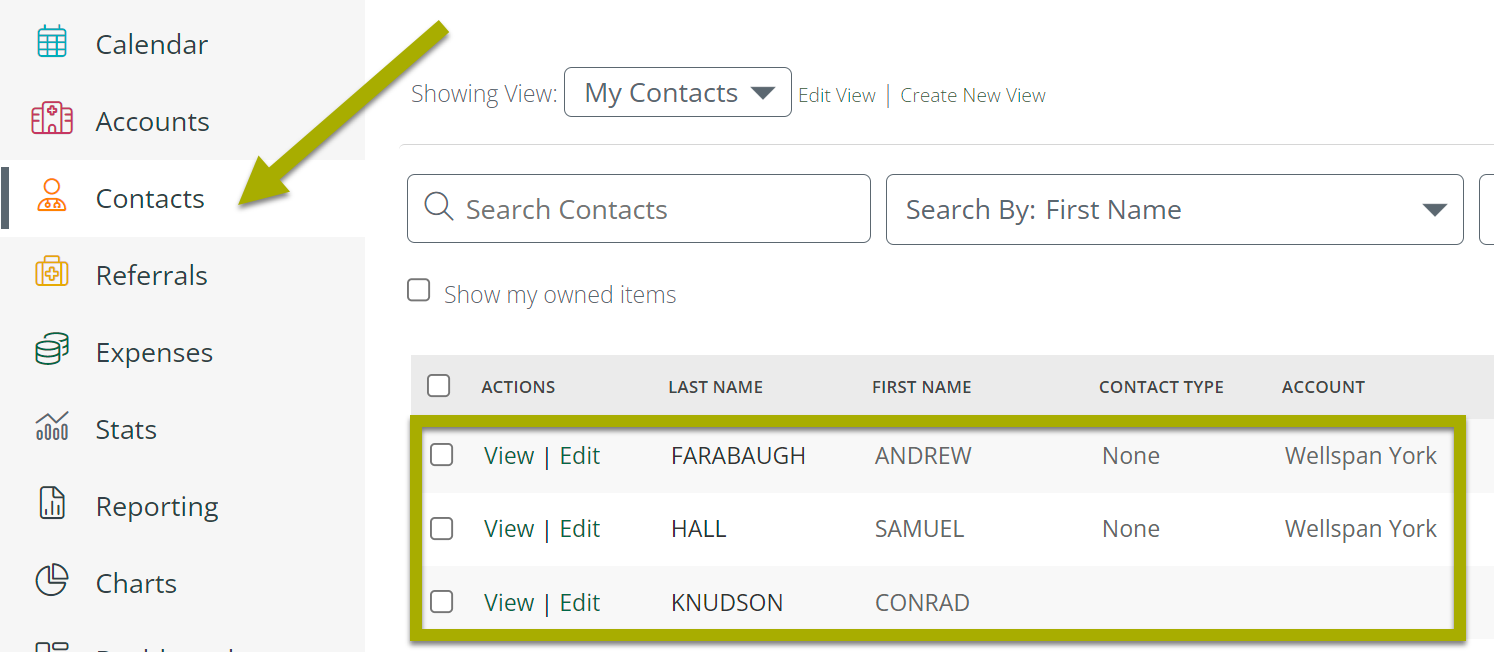 |
 |
********* Note: Dropdown for view selection ******** If you don't see My Accounts...
 IF you find the account or contact, you are done! The account or contact is already yours.
 If you don't find the account or contact
1) ********* Note: Dropdown for view selection ******** If you don't see My Accounts...
2) Ask your manager for the process for how to create a new account (If you don't have the ability to do so.)
**** something doesn't make sense here - I need to clarify with Bryan or Alex what point we are trying to make here ****
Whether from scratch or using existing data, you should partner with your manager or administrator to find out which method(s) you will need to use.
Overview
For users who do not have existing data in their Trella CRM environment, or are starting to market in a new territory where accounts and contacts have yet to be added, the user may need to manually create the needed contacts and accounts.
This article includes detailed instructions on how to create accounts and contacts, and how to connect them. Now, here's the tip: since Trella CRM is designed to manage accounts, contacts, and events, the most basic functions are intuitive. As a result, for most users, the easiest way to learn how to use the tools will be to open the application (web or mobile) and just start clicking on stuff.
Quick instructions for Creating a new account or contact
In the Mobile Application - if you want to add a new contact or account, the Home page has a button to add an account, a contact, or an event. (or an expense)
- Click the "Add Contact" button to add a new contact.
- Click the "Add Account" button to add a new account.
See the "Mobile App" row in the table below.
In the web application -
- Click the "New" button at the top left of the page and select "Contact" or "Account."
- Click on Contact/Account in the left navigation and then select "New Contact" or "New Account"
Web App options 1 and 2 below.
| |
| Mobile App |
Click on "Add Account" or Add Contact |
| Web App #1 |
Click on the "New" button and then choose Contact or Account |
| Web App #2 |
Although the image above shows how to create a new contact, creating a new account is identical, except that you click on Accounts and the "New Account" button |
 Three ways to create new contacts and accounts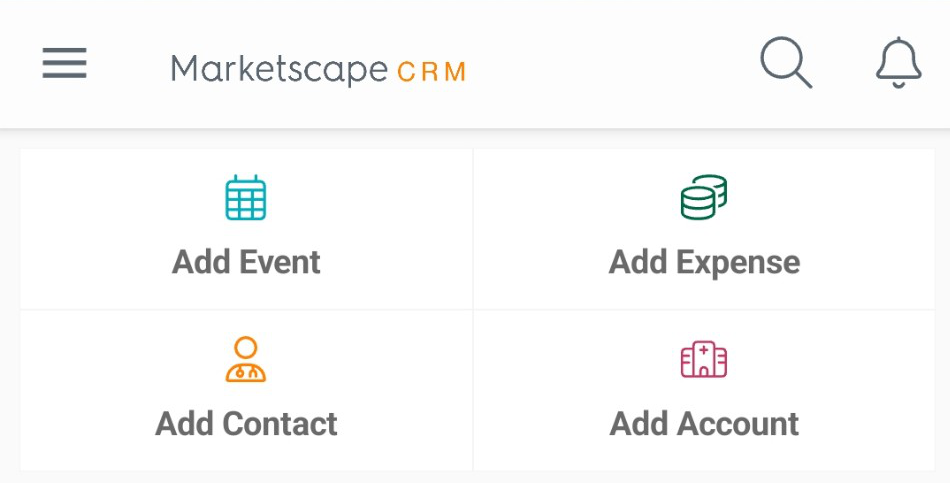
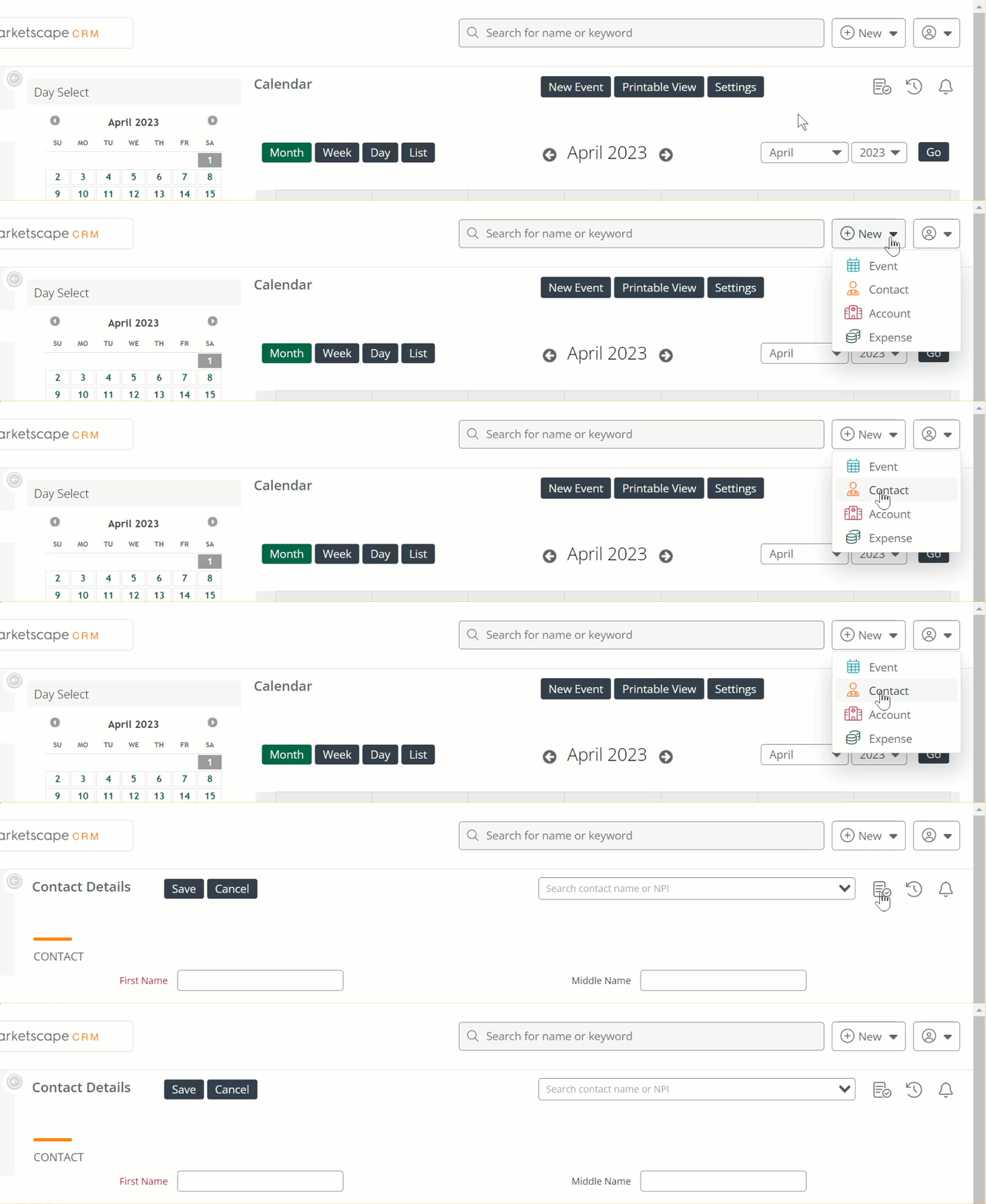
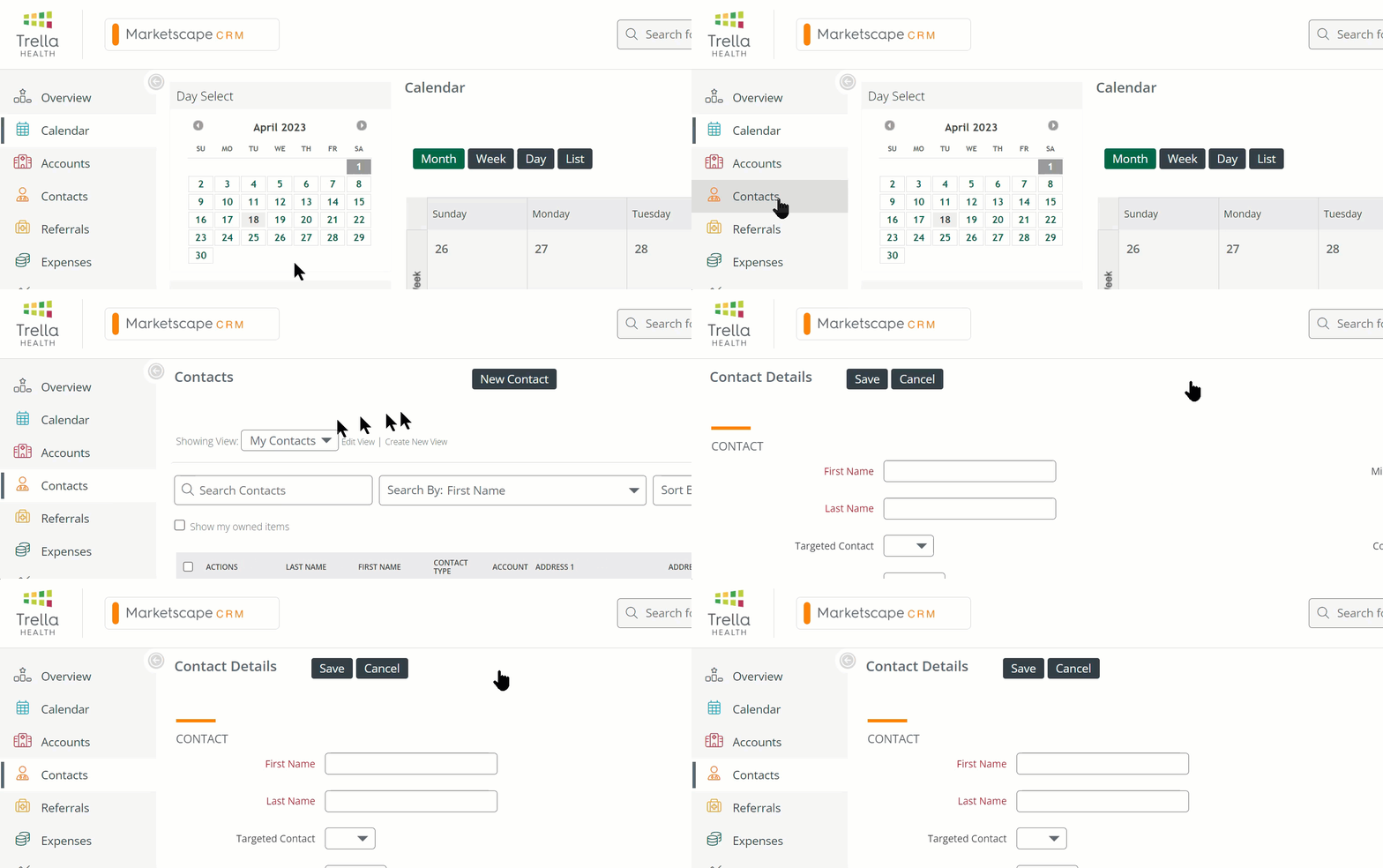
Creating a New Account/Editing an Existing Account
Whether you are creating a new account or editing an existing account, the interface you will use is identical. More specifically, all of the fields you can fill out are the same. Check out the images below.
Create/Edit Account - Web
To Create an Account
Click on the "New" dropdown at the top right of any page in Trella CRM and select "Account."
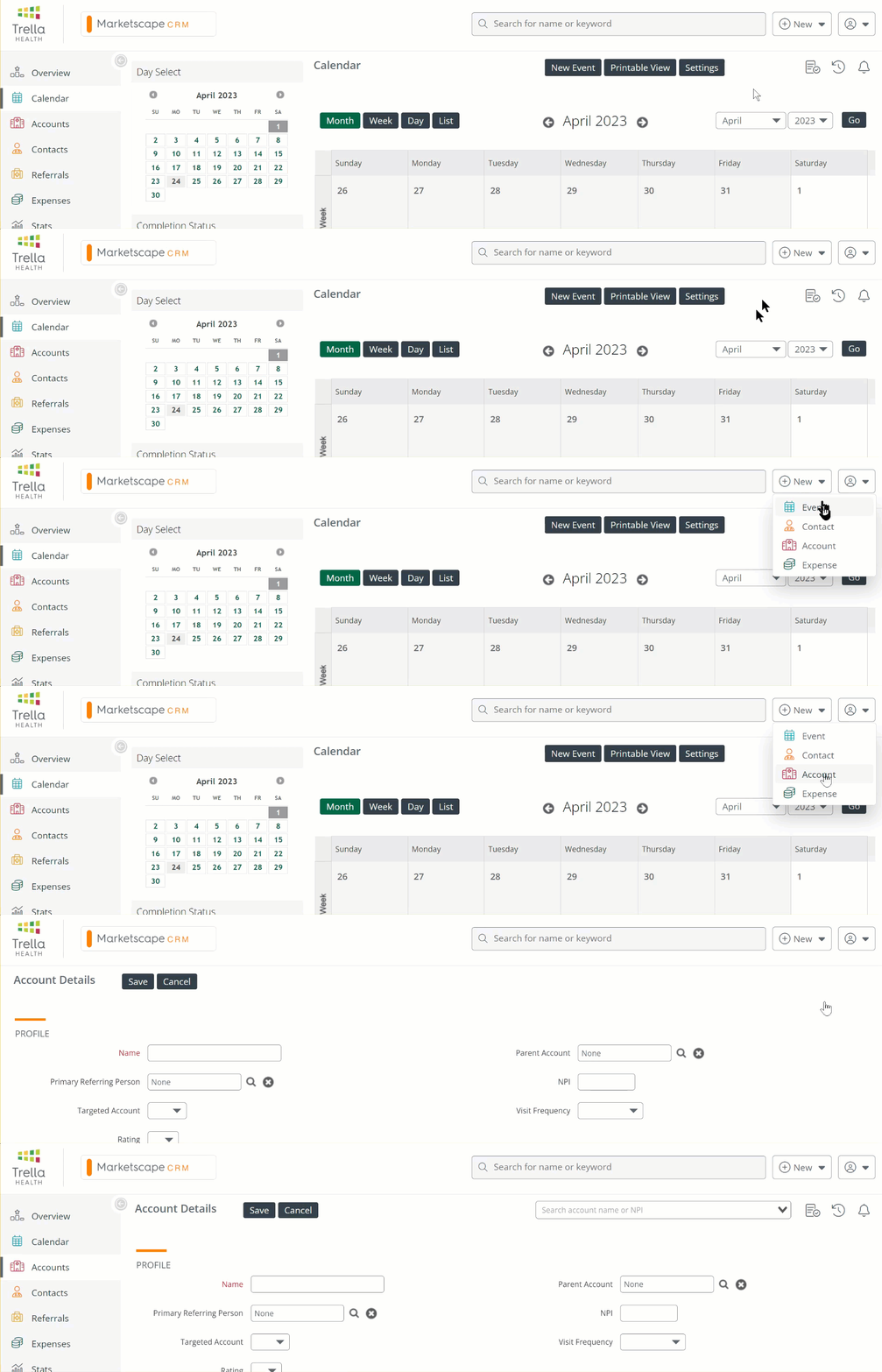
Fill in as many fields as you can. A complete list of account fields can be found below.
Click the "Save" button at the top or bottom of the page.
To Edit an Existing Account
Click on "Accounts" in the left navigation. This will open the list of account to which you are assigned.
Find the account you want to edit. To the left of the account name, click on the "Edit" button. This will open the account in edit mode.
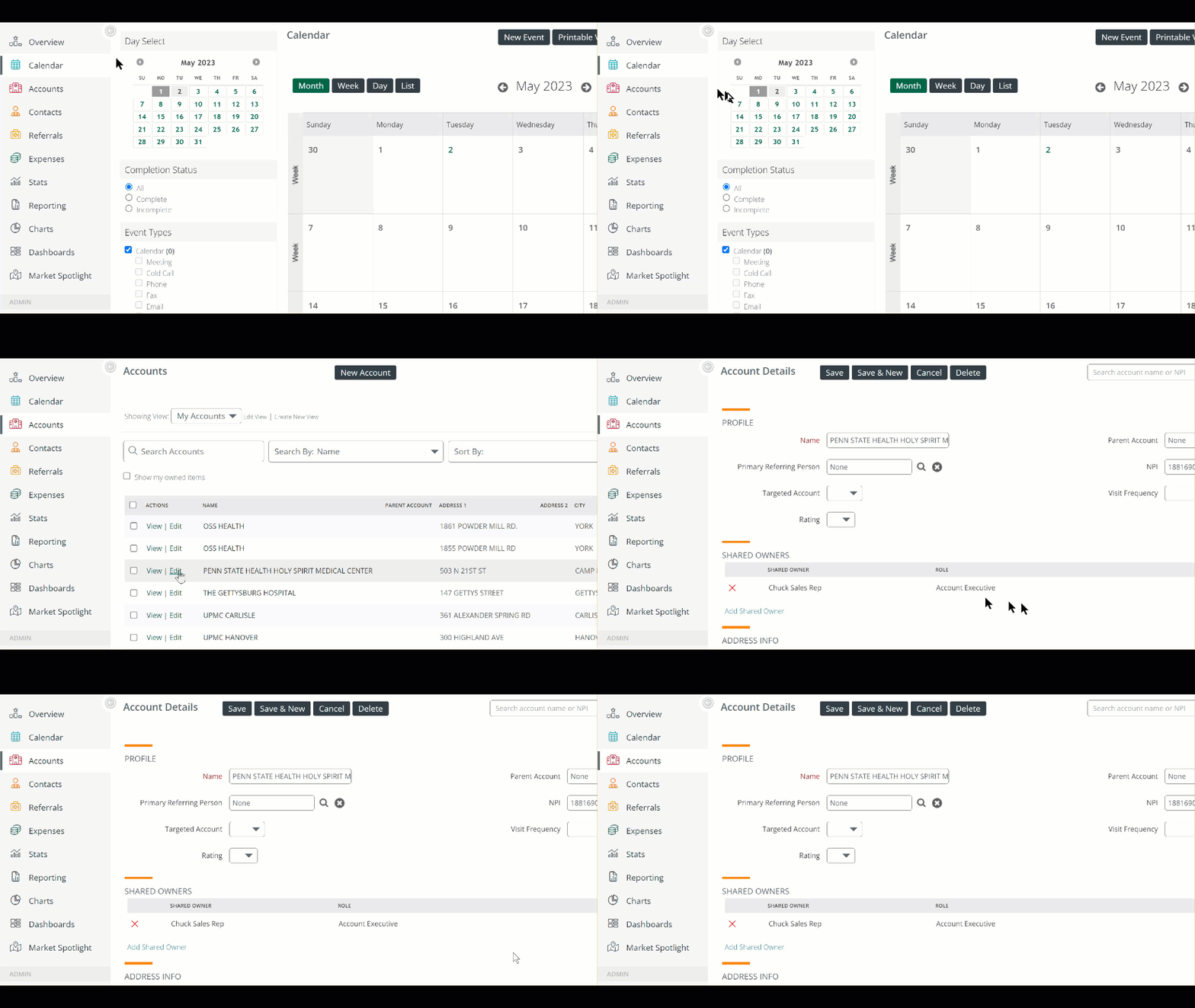
Make any changes to the account details. A Complete list of all account fields can be found below.
 When you are done, click save at the top or bottom of the page.
Create/Edit Account - Mobile
To Create an Account
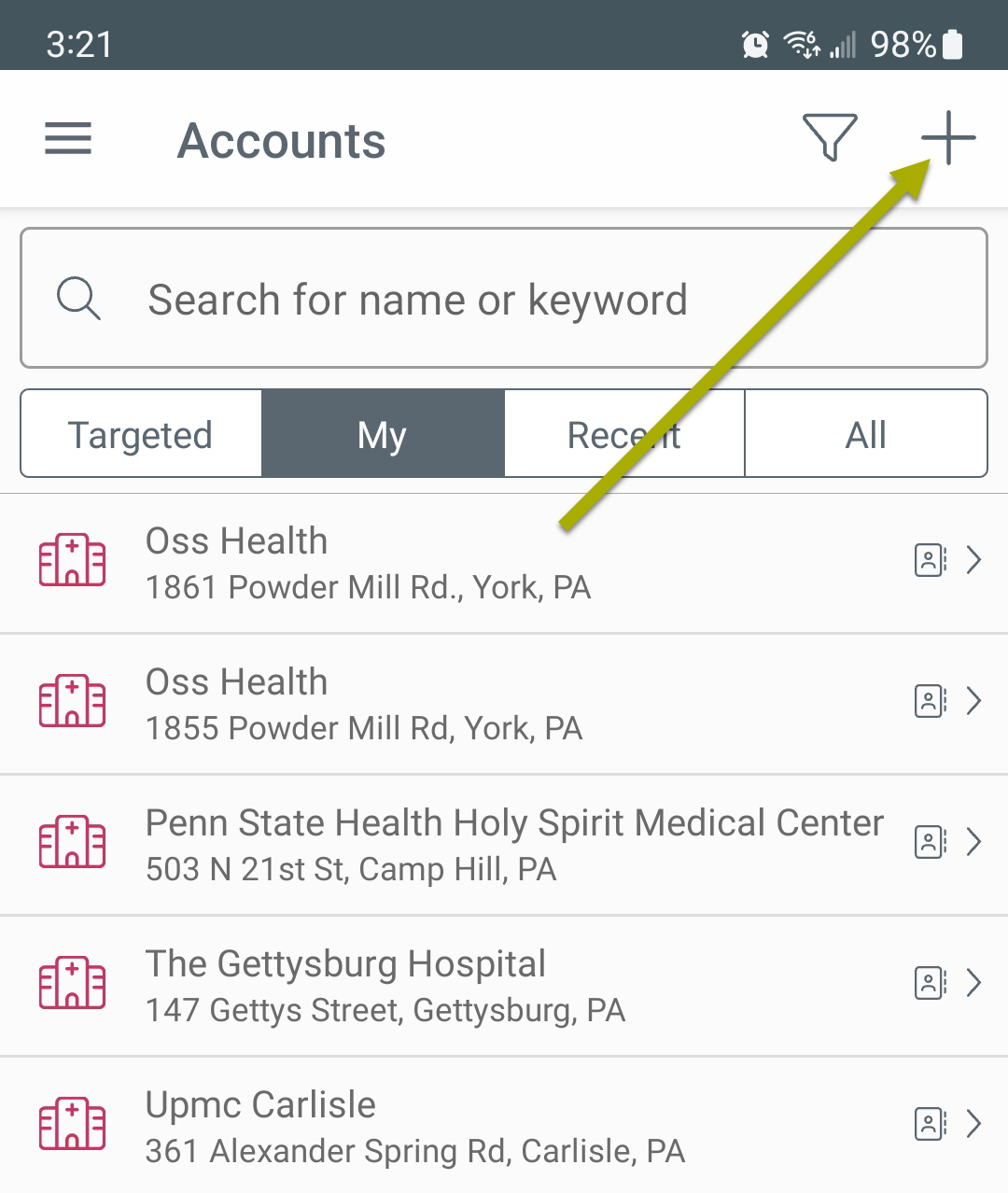
If you have Trella CRM Mobile open there are two paths to adding a new account:
| Option 1 - From just about anywhere | Option 2 - From home page | ||
| Tap the Menu Button at the top left | 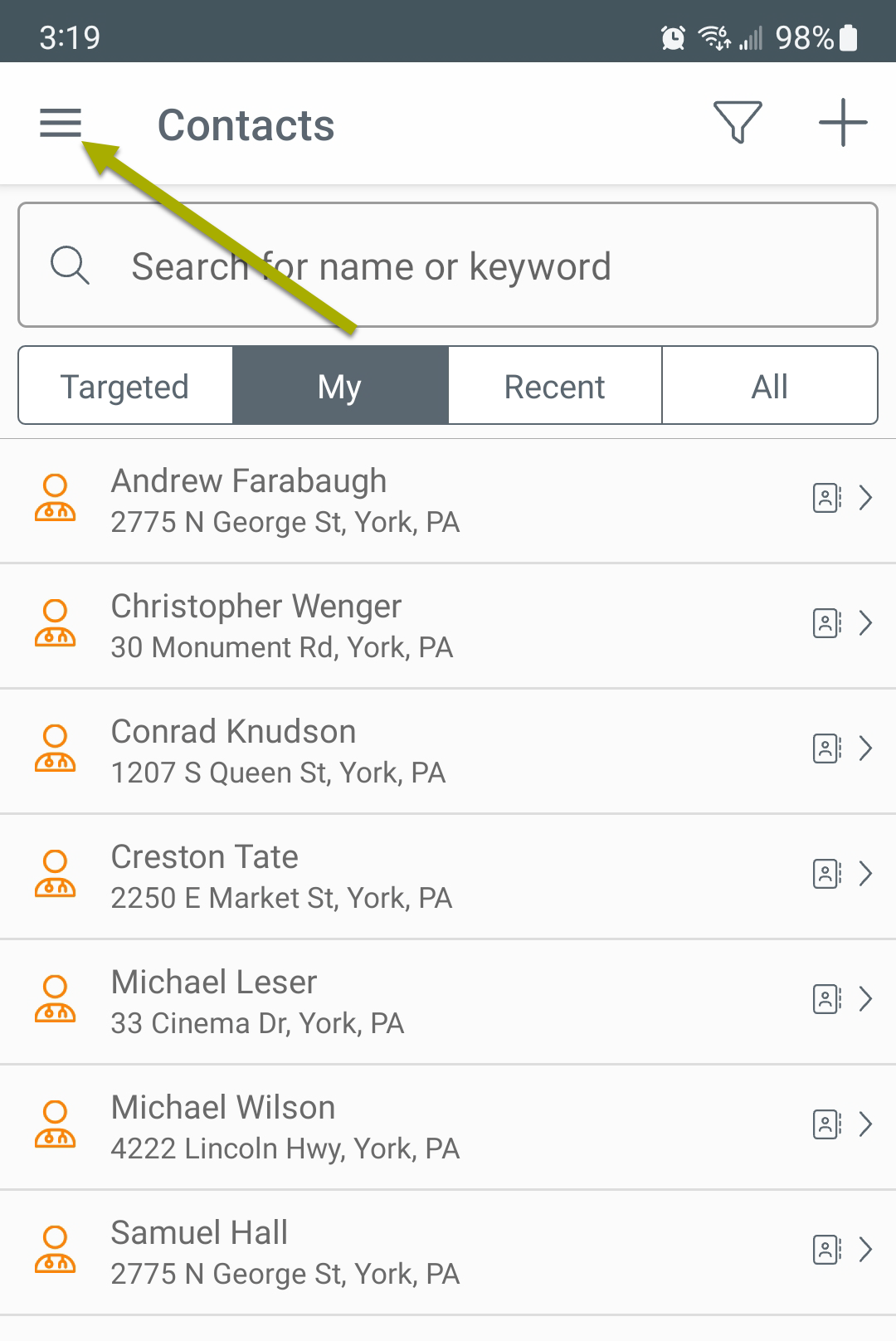 |
Tap the Menu Button at the top left | |
| Tap "Accounts" in the navigation | 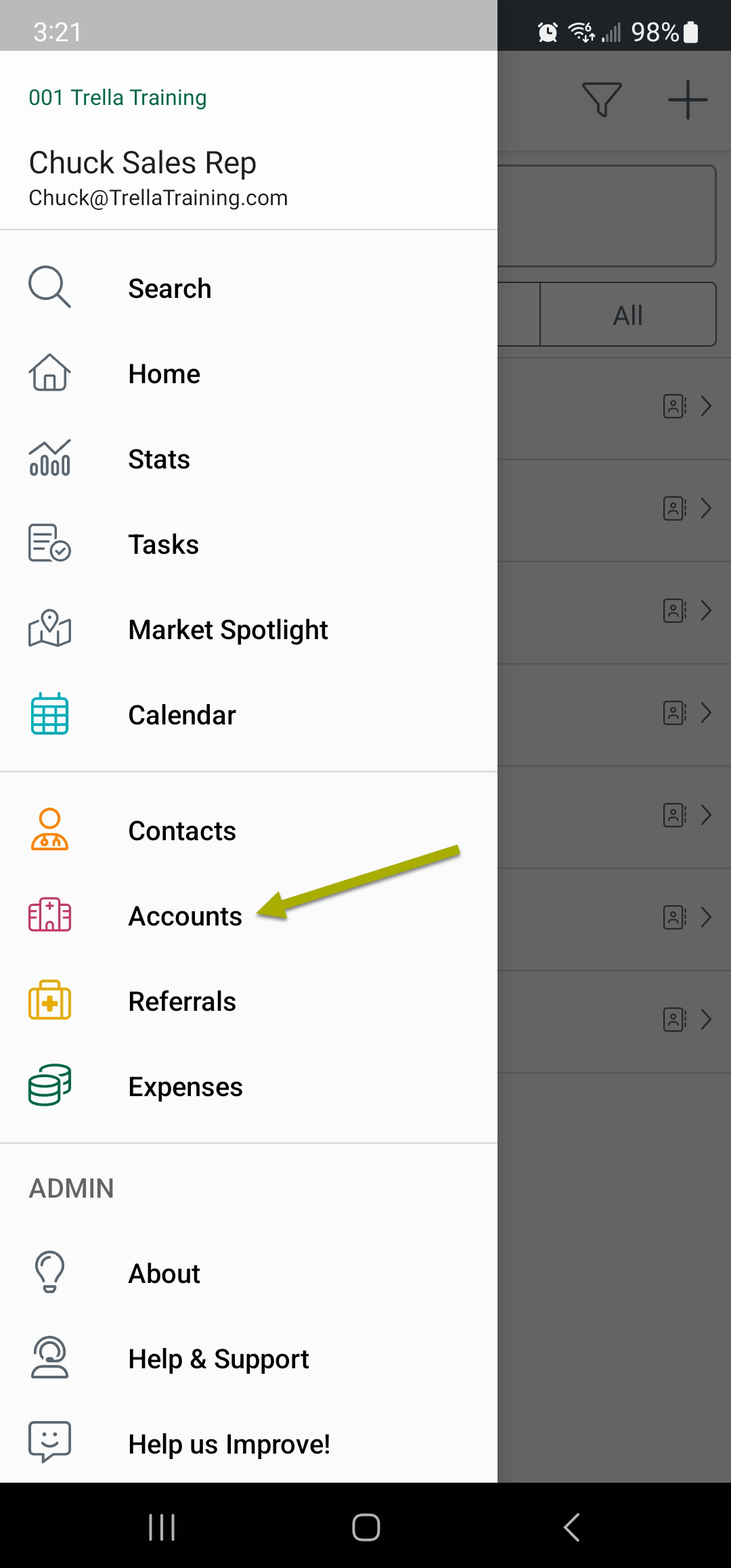 |
Tap "Home" in the navigation | 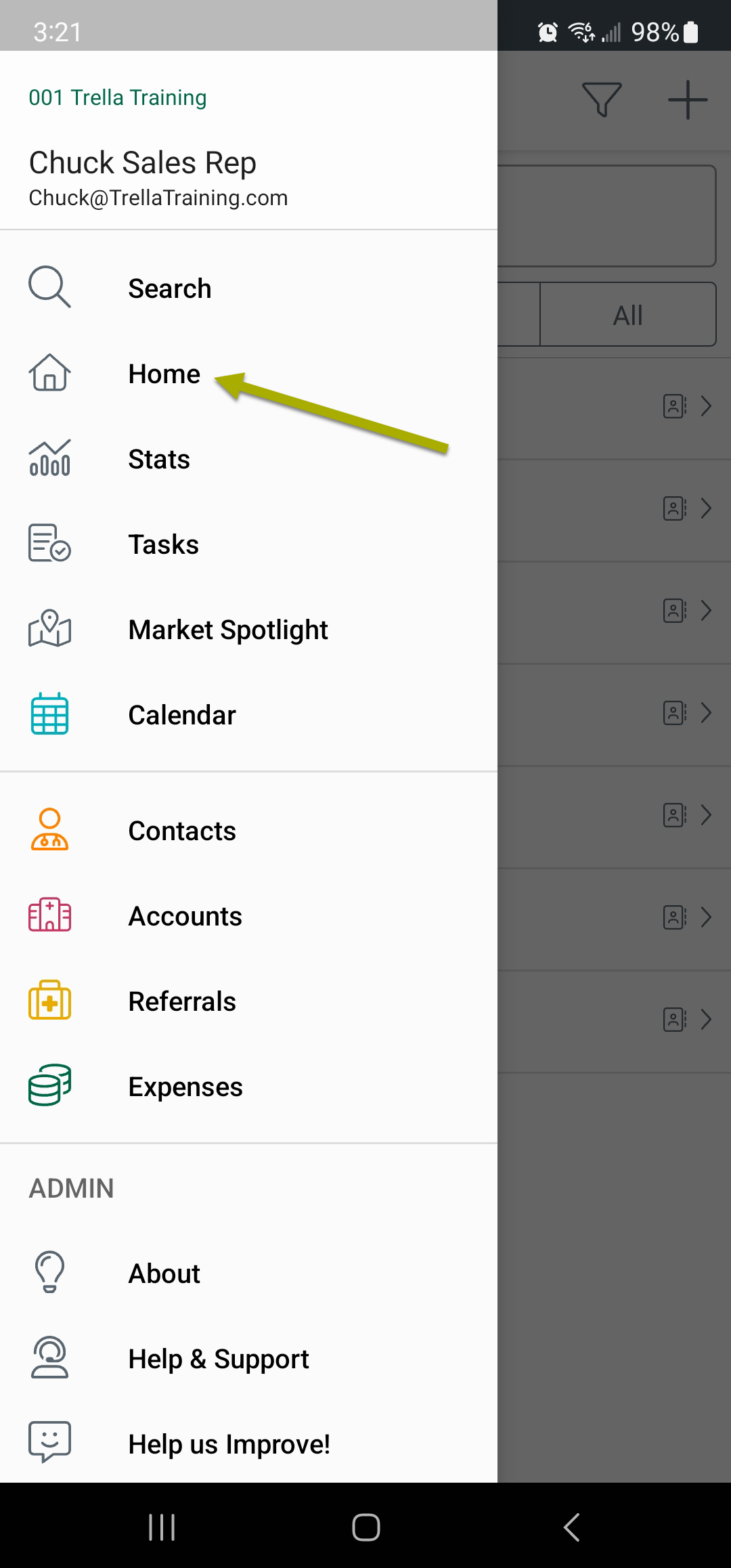 |
|
Tap the "+" at top right
|
 |
From the "Home" page, tap on "Add Account." | 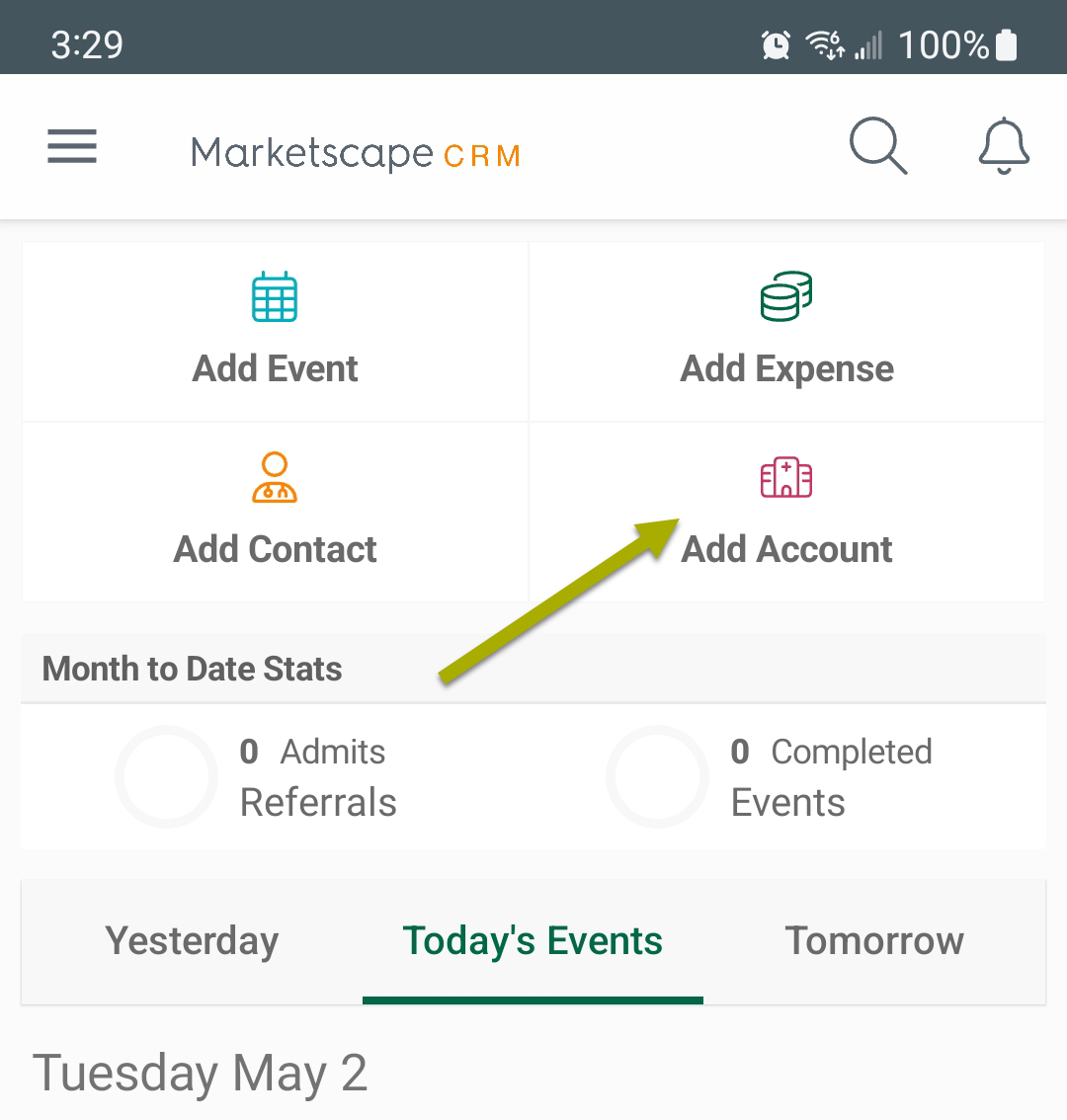 |
|
At this point, you can add any information available for the account. Make sure to tap "Save" when you are done. |
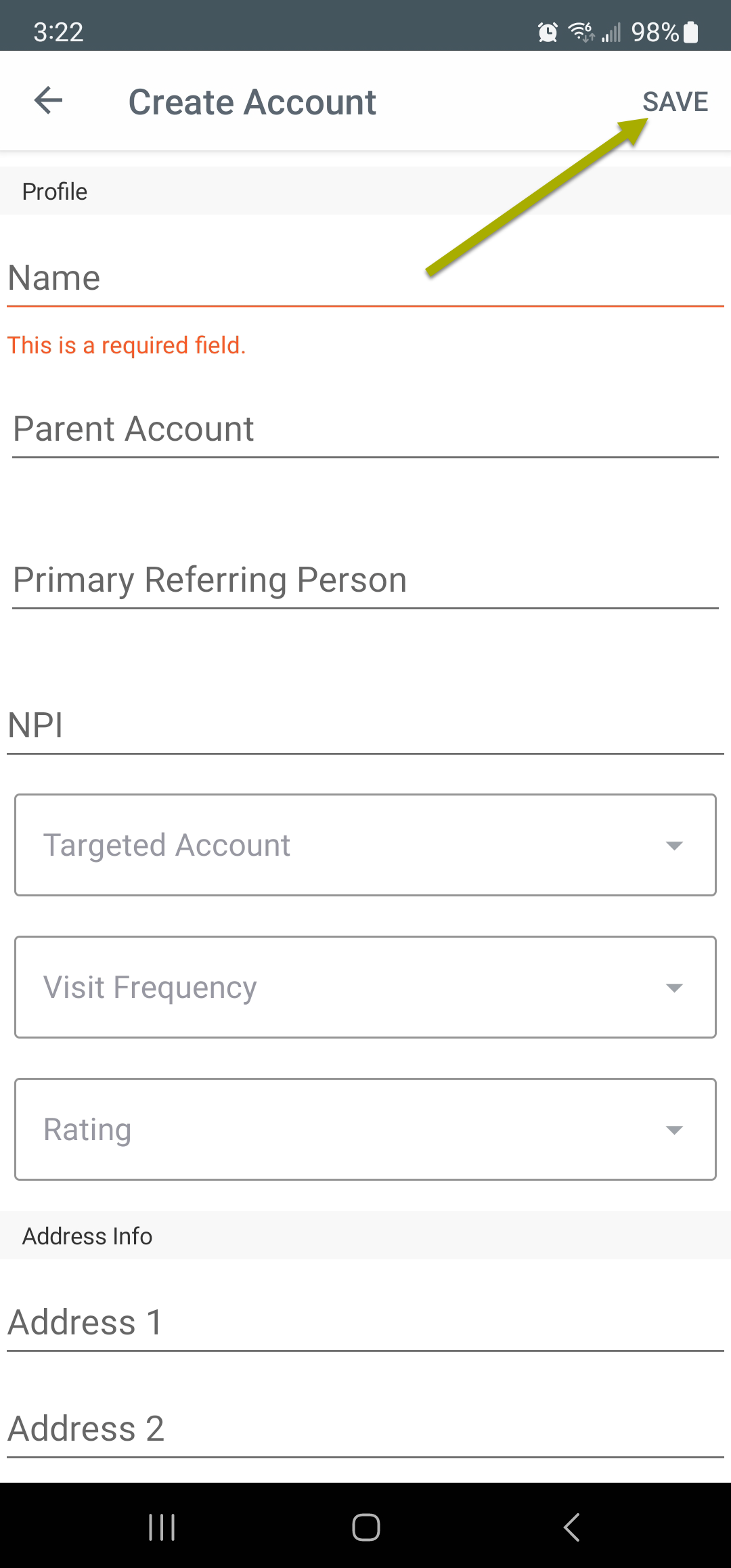 |
At this point, you can add any information available for the account. Make sure to tap "Save" when you are done. |
|
To Edit an Account
Creating a New Contact/Editing an Existing Contact
Create/Edit Contact- Web
Create/Edit Contact- Mobile
Connections between Accounts and Contacts
Overview
Adding a Contact to an Account
Connecting an Account to a Contact
Other BoB Management
manager assignment,
integration
requesting Ownership
In many cases users will have existing data in their Trella CRM environment. This data may be left over from a previous marketer or created automatically via an integration with the agency's EHR. Marketers should discuss with their manager if they can self-assign accounts and contacts or if they will need to request assignment. For those marketers who are inheriting accounts and contacts from a previous marketer, it may be necessary to understand how to manually create accounts and contacts going forward.
**** Not sure what we are trying to communicate here. ****
The method that you will use to add accounts and contacts to a user's book of business will depend on whether or not the user's account already has data available for assignment or if the data is being built from scratch. If your company has recently started using Trella CRM, you may be required to enter some data manually. If account and contact data is already available, that will reduce the amount of input that may be required, but accounts and contacts may still need to be assigned.
**** End here ****
List of all Fields in an Account Listing
Whether you are creating a new account or editing an existing account in web or mobile, the fields that are available are the same. Exceptions will be noted in the notes for each field.
REASONS WHY A MANAGER SHOULD be creating accts
**** This note doesn't nec need to go here... but somewhere.
Managers should be working here in order to manage duplicate entries in the EHR.
Example: Envoy Rehab might have been entered in by a rep and the Intake team calls the organization Envoy Rehabilitation. Two different orgs? Nope! Some one needs to manage this.
There is a report that will help a manager to uncover duplicates. **** look for the duplicates article ****
Notes |
Web |
Mobile |
|
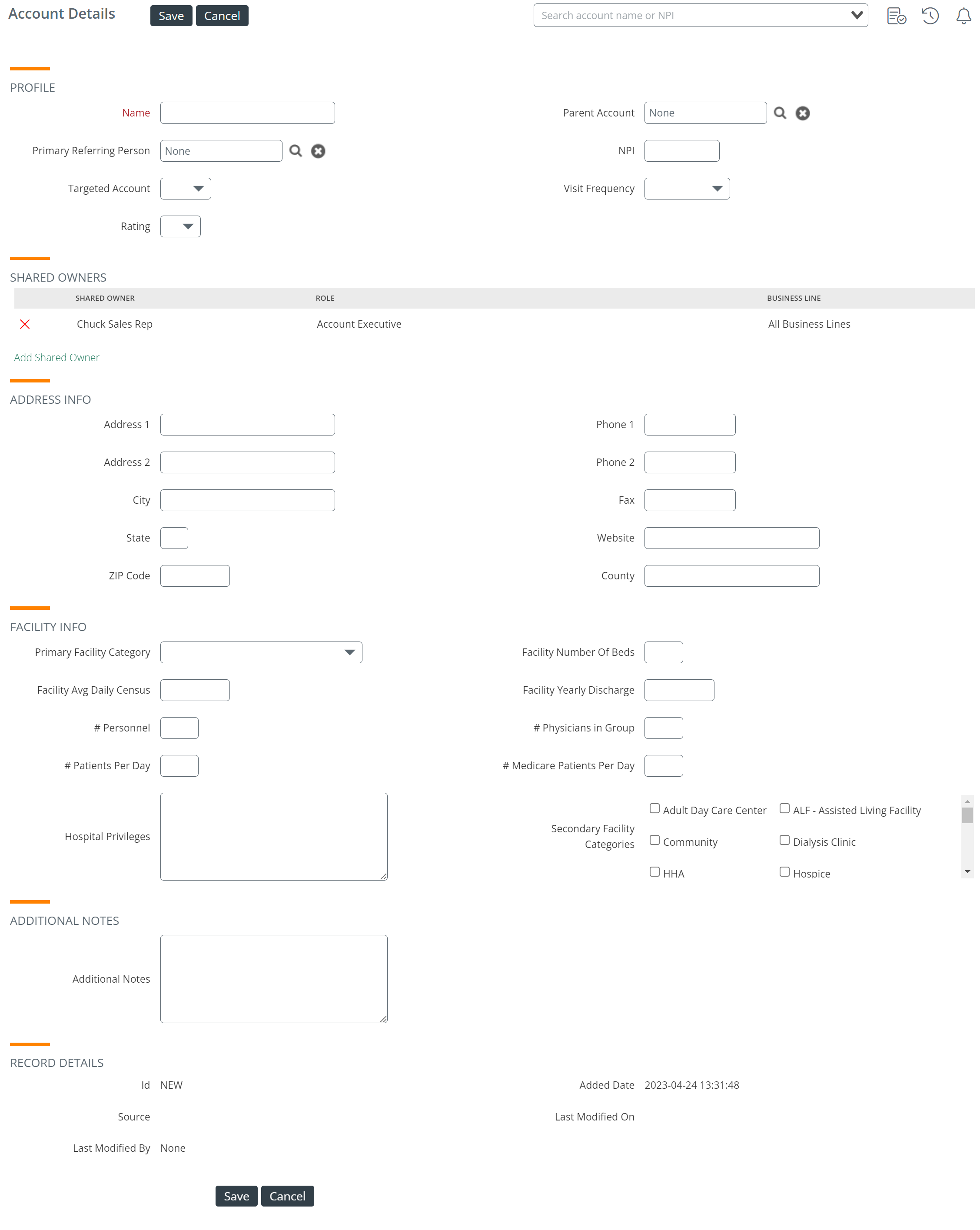
This images to the right show the complete account details for a new Account for Trella CRM for Web and Mobile
Editing an Existing Account - There are two differences you will see when you edit an existing account:
Details of each field are in the table below.
|
 |
 To keep in mind
In this list we will not describe any fields that are obvious.
 For tasks specific to editing an existing account, we will show the edit icon to the left.
| Section | Field name | Description/Details | Images |
|
Profile |
Search Account name or NPI |
If you know the NPI for the account, you can save yourself a lot of time filling out the basic fields by adding the NPI to the search field at the top. In this table - fields that are filled out automatically will have a blue field name. |
Adding the NPI will reveal the provider: Click the provider and numerous fields will be filled automatically.
|
| Name | Corporate name, although you can add a helpful identifier, e.g. "HopeCare Hospital" - East. | ||
| Parent Company |
For companies that have a corporate structure, you can identify the parent company by clicking on the field (none). The dialog box shown in the image to the right will open and you can select the parent account.
|
If the parent account doesn't exist you will not find it in the list. You will need to add it before you can add it to this new account record. |
|
| Primary Referring Person |
If there is a person who is the primary referrer for the account, you can add that person here by clicking the field to open the dialog box shown in the image to the right.
|
If the contact is not set up already, it will not show up in this table. You will need to finish creating this account then add the contact and then set up the association. |
|
| NPI | This field will populate automatically when you search for it using "Search Account name or NPI" above. | ||
| Targeted account | Options - Yes or No. If you identify an account as a target, you will be able to sort lists to display your targeted accounts. | ||
| Visit Frequency | Choose the desired visit frequency for the account you are creating/editing. | ||
| Rating | You will be able to filter your accounts to the rating level of your choice. The four rating levels can means whatever you choose. | ||
| Shared Owners | Shared Owners |
This section contains a list of the people who own the account. If you are creating an account, you will automatically be included as an account owner.
"Add Shared Owner" is a link that will open a dialog box that will allow you to add another person as an owner of the account.
|
|
| Address Info | Address Info | Address, city, state, ZIP Code, phone, fax, website, and county. | |
|
Facility Info |
Primary Facility Category |
Select the category that most closely describes the account you are creating. The options are displayed in the image to the right. |
|
| Numerous fields |
Facility Number of Beds Facility Average Daily Census Facility Yearly Discharge # Personnel # Physicians in Group # Patients Per Day # Medicare Patients Per Day Hospital Privileges |
Filling out these fields will help to evaluate the account potential and help to strategize your sales approach. | |
| Secondary Facility Categories | Choose any additional categories that apply to the account you are creating | ||
| Additional Notes | Additional Notes | In this text field, you can add anything you want to remember regarding the account. |
 - sorry "Add Shared Owner" is so invisible, maybe we can make it a button some day.
List of all Fields in a Contact Listing
Whether you are creating a new contact or editing an existing contact in web or mobile, the fields that are available are the same. Exceptions will be noted in the notes for each field.
Notes |
Web |
Mobile |
|
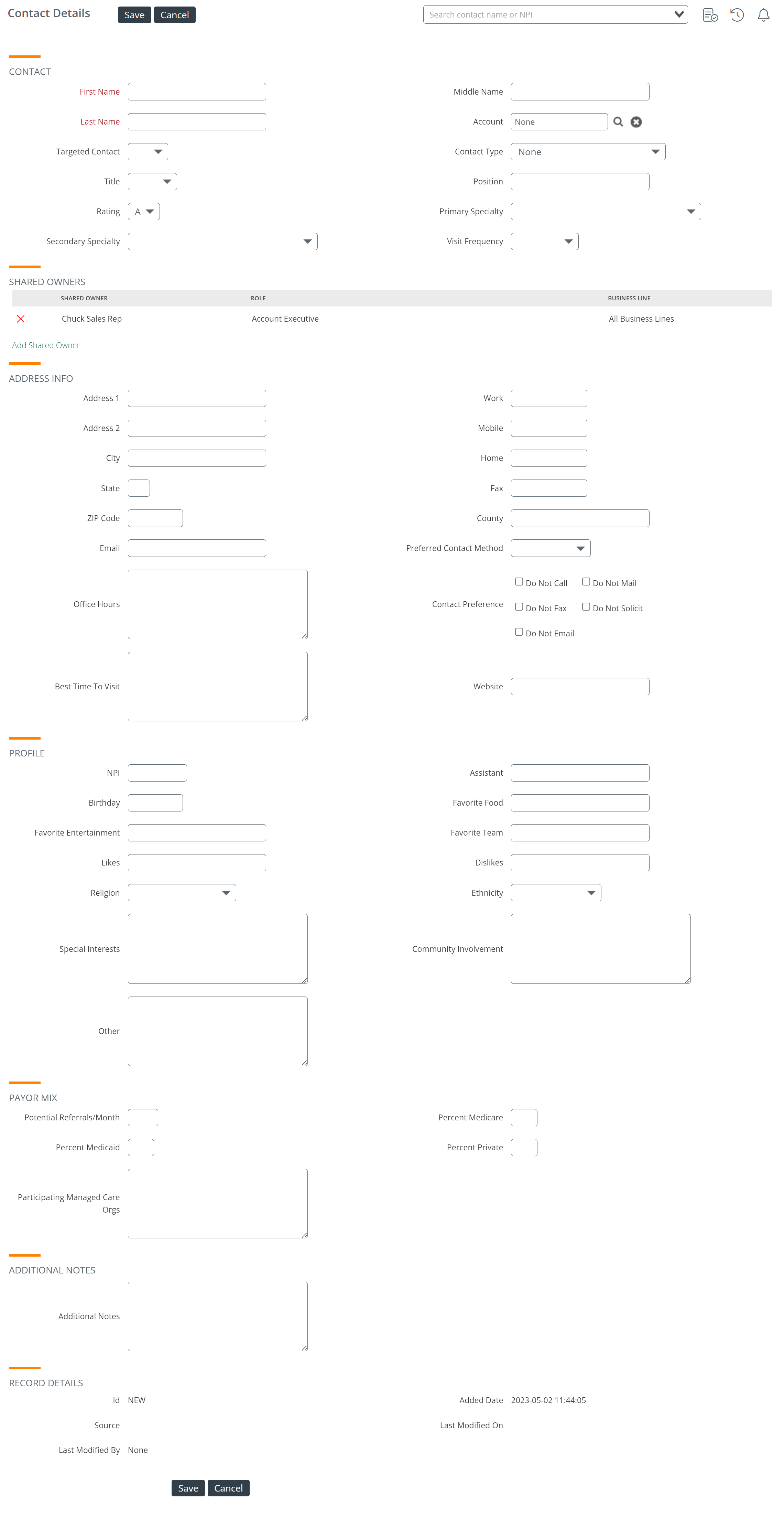
This images to the right show the complete contacts details for a new contact listingfor Trella CRM for Web and Mobile
Editing an Existing Account - There are two differences you will see when you edit an existing contact:
Details of each field are in the table below.
|
 |
 |
In this list we will not describe any fields that are obvious.
For tasks specific to editing an existing contact, we will show the edit icon to the left.
| Section | Field Name | Description Details | Images |
| Contact | Search Contact name or NPI |
If you know the name or NPI of a contact who has an NPI, you can save yourself some time by searching for the contact. In this table, fields that are filled automatically will appear in blue.
|
Adding the NPI reveals the provider listing: Click the provider and numerous fields will be automatically filled.
|
| First Name/Middle Name/Last Name | |||
| Account |
If you know the account to associate with the contact, you can click on this field to add the account to the contact.
|
If the desired provider is not set up as an account, it will not show up in this field. You will need to finish creating the contact, then create the account and set up the association between the two. |
|
| Targeted Contact | Options - Yes or No. If you identify a contact as a target, you will be able to sort lists to display your targeted contacts. | ||
| Contact Type |
Use this field for identifying the professional position of the contact.
|
|
|
| Title | |||
| Position | This field is similar to contact type, but since the Contact Type field might identify a contact correctly relative to the Stark II reporting types listed above, the person's position in the company might be different. For example, a contact may be a "Director of Nursing" from the perspective of Contact Type, but their title is "Resident Care Coordinator," which you would put in the position field. | ||
| Rating | You will be able to filter your contacts to the rating level of your choice. The four rating levels can mean whatever you choose. | ||
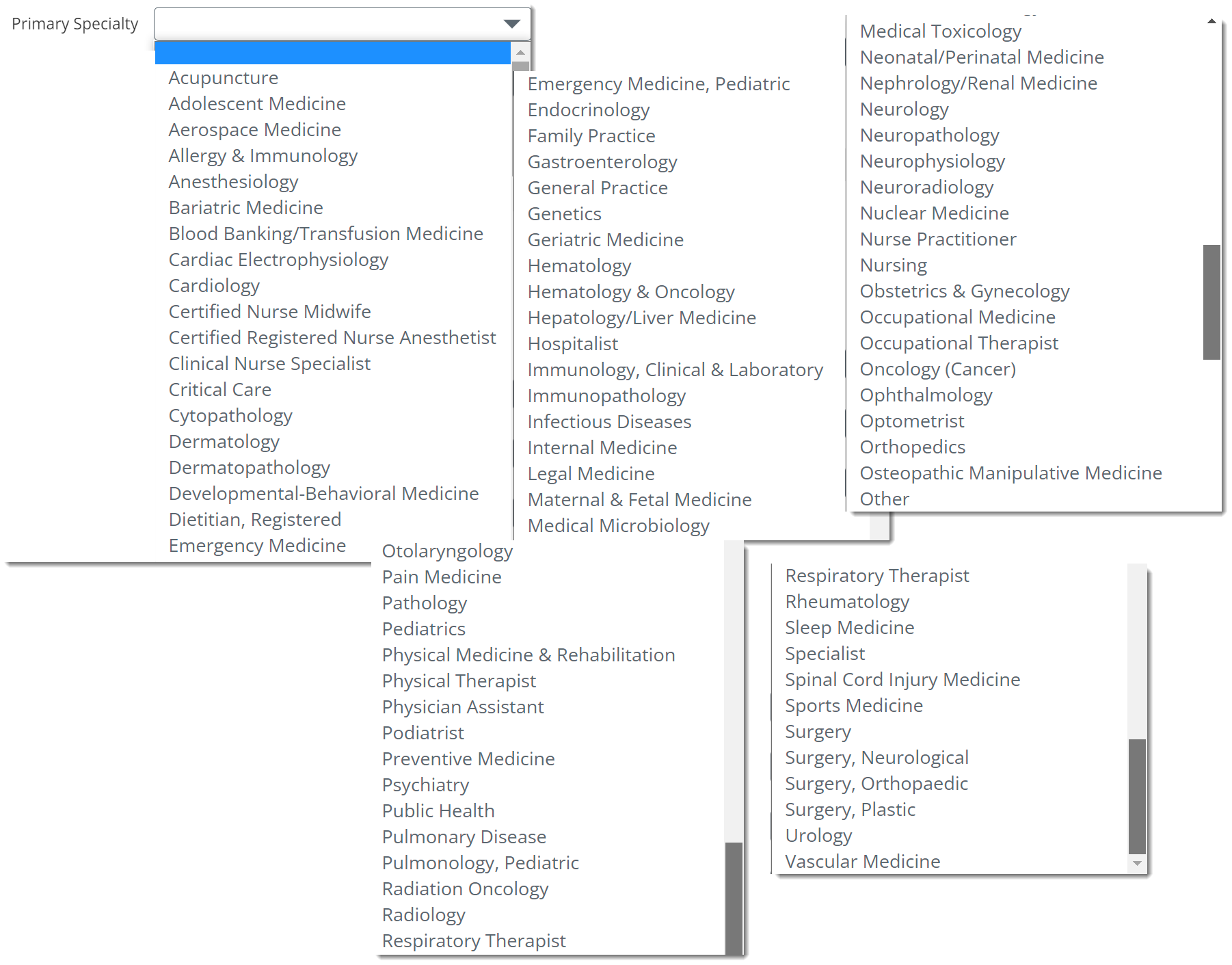
| Primary Specialty | Choose the closest specialty for the contact from the list at the left. |
|
|
| Secondary Specialty |
And, if the contact has a secondary specialty, you can add it here. The list for secondary specialty is the same as the list for primary specialty. Go figure. |
||
| Visit Frequency | The decision regarding visit frequency for each account and contact should have been determined as part of the Sales Planning phase. Identify it for the contact by selecting from the dropdown. | ||
|
Shared Owners |
This section contains a list of all users from your company who "own" the contact. If you are creating the account, you will automatically be included as a contact owner. "Add Shared Owner" is a link that will open a dialog box where you can add another person as an owner of the contact.
|
||
| Address Info | Address 1/Address 2 | ||
| Work / Mobile / Home / Fax | |||
| City / State /ZIP code | |||
| County | |||
| Preferred Contact Method | If you know the preferred method for making contact with your contact, add it here. | ||
| Contact Preference | If you want to add one of these limitations to methods of contact, click the checkbox. | ||
| Office Hours | This is a larger text field so you can build a matrix of hours for each day, or whatever you want to indicate when the contact is regularly available. | ||
| Best Time to Visit | Include any details you want. | ||
| Website | |||
| Profile | NPI | The contact's NPI, if applicable. Not every contact will have an NPI. | |
| Assistant | Fill in any of these fields to help maintain that personal touch. | ||
| Birthday | |||
| Favorite Food, Entertainment, Team | |||
| Likes / Dislikes | |||
| Religion | |||
| Ethnicity | |||
| Special Interests | |||
| Community Involvement | |||
| Other | |||
| Payor Mix | Potential Referrals/Month | All of these are useful details to help you understand referral potential. Include updates as you learn information | |
| Percent Medicare | |||
| Percent Medicaid | |||
| Percent Private | |||
| Participating Managed Care Orgs | |||
| Additional Notes | Anything you want to add that might help to cultivate a better relationship with the contact | ||
| Record Details | These are generated automatically to maintain a history of this record. | ||

Using the Find Unassociated Contacts View
Quick Start Guide:
Step 2: Building a Book of Business
Step 3: Associating Accounts and Contacts
Things that we need to decide where they go
EHR Integration
 In some cases, you don't need to create accounts or contacts because they have been set up as part of the integration between Trella CRM and your company's EHR. Either way, as part of Sales Planning, your sales leadership should have already
 See Other BoB Management.
Finally, in order to keep up changes you discover in the field, you might need to edit accounts or contacts or even change connections between the two. How to do all of this is described in detail in the article below.

