
Overview
If you use Trella CRM extensively, it is likely that the Views on different pages could begin to pile up. When that happens, you can delete views that you no longer need.
 In this article
To delete a View
If you have a view that you want to delete, follow the three steps shown.
 The images shown below come from the Contacts page. The process is the same for all pages
- Select the View you want to delete from the Showing View dropdown
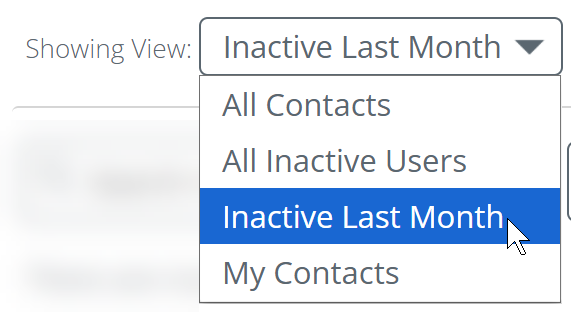
In this example, we choose the "Inactive Last Month" View.
- With the View to be deleted chosen, click the "Edit View" link
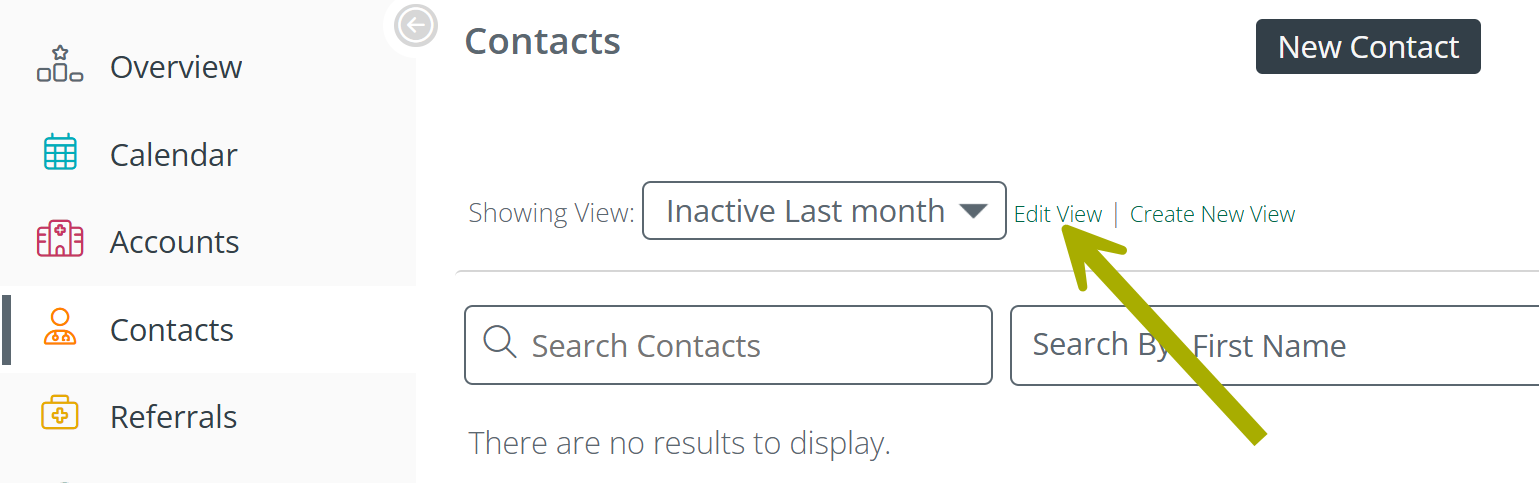
The Custom Views interface opens for the chosen view
- Click on the "Delete View" button
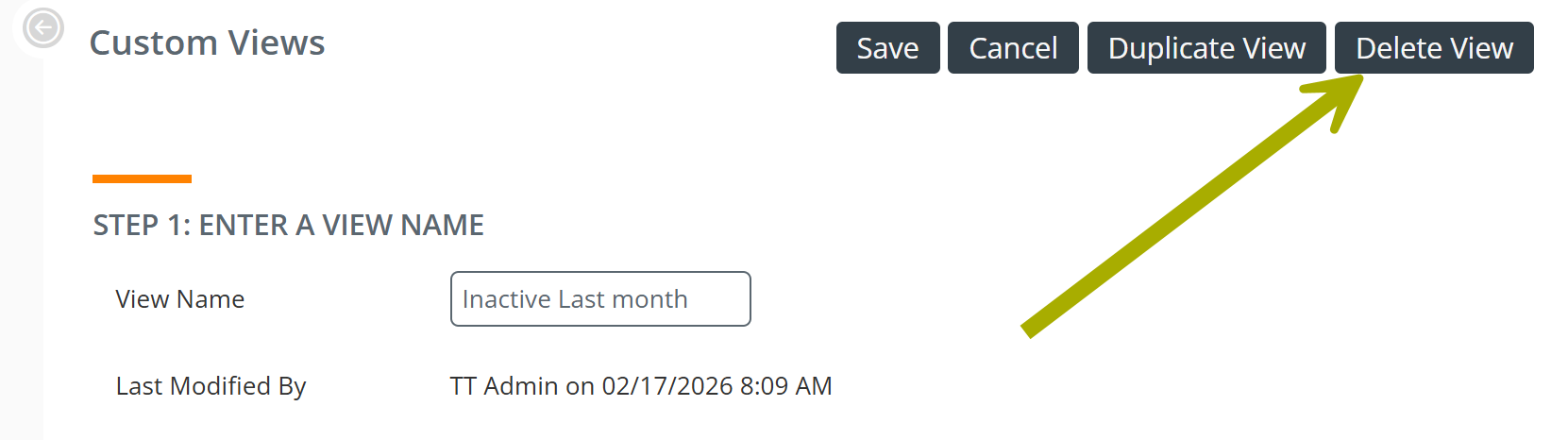
The following confirmation dialog box opens.
- Click the "OK" button
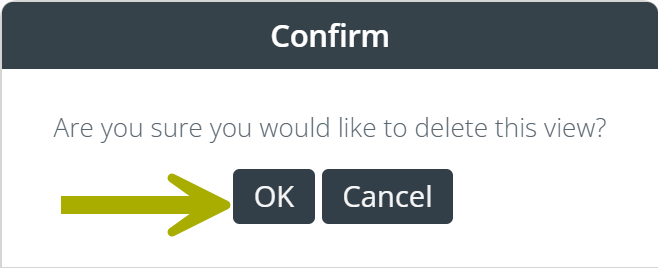
The View is deleted and will no longer be visible in your list of available Views.
 |
Views that can't be deleted
Some Views are part of Trella CRM by default and can't be deleted. Each of these are shown below by Trella CRM page.
If you open the view, you will not see the "Delete View" button.
Accounts page
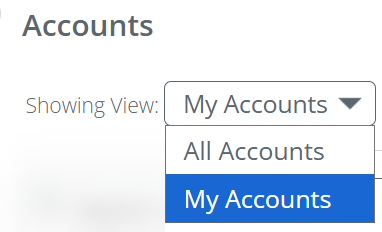
The list and image below show the Views that can not be deleted from the Accounts page.
|
 |
Contacts page
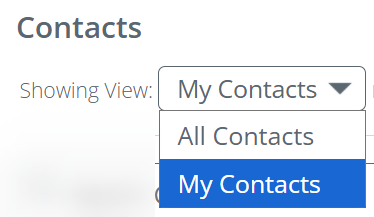
The list and image below show the Views that can not be deleted from the Contacts page.
|
 |
Leads page
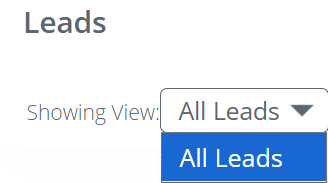
The list and image below show the Views that can not be deleted from the Leads page.
|
 |
Orders page
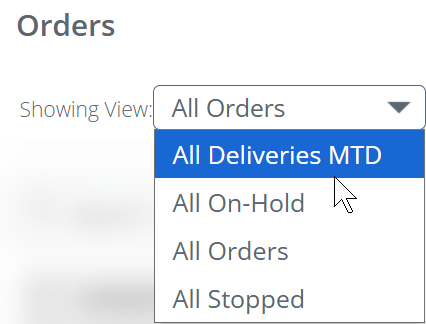
The list and image below show the Views that can not be deleted from the Orders page.
|
 |
Patients page
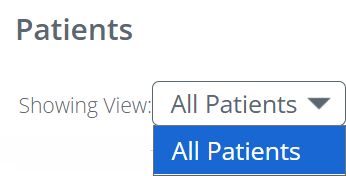
The list and image below show the Views that can not be deleted from the Patients page.
|
 |
Referrals page
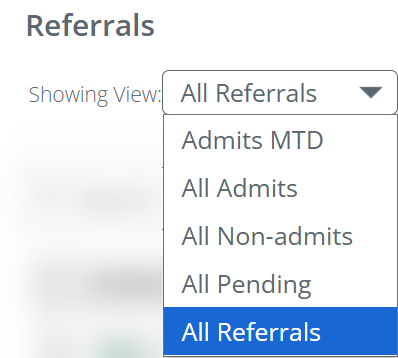
The list and image below show the Views that can not be deleted from the Referrals page.
|
 |
|