
Overview
The Mileage feature in Trella CRM allows your reps to check-in at visits where the check-in is verified by GPS through their mobile device. Reports on their check-ins can be created to verify visits and mileage.
There are five sections of settings listed below that need to be furnished in Trella CRM for the Mileage feature to work properly. Each setting is described in this article.
 There are a lot of details connected to the set up and usage of Mileage Assist. If you run into issues and need help, make contact with your customer success manager.
 Mileage Assist must be enabled for your account before these settings appear. Contact your customer success manager to confirm it has been activated.
 There are three articles related to Mileage Assist in Trella CRM
- Prepping for Mileage Assist - for account administrators to set up Mileage Assist - you are here.
- Using Mileage Assist - for reps - set up and usage "how to's"
- Mileage Reporting - for managers - mileage reports
 In this article
- Before you begin - be ready to set up Mileage Assist
- User Address - if your users calculate mileages from home you will need to add their addresses
- Account Addresses - mileages are calculated based on account location
- Required Event Object - make and account a required event object
- Field Restrictions - determine which account details your reps can edit
- Complete Event Settings - starting and ending locations, check-in radius, default event type, required even object
- FAQs
Before you begin
Before you open up Trella CRM settings, there is some basic information you should collect:
In short, Mileage Assist requires addresses for every destination, (we call them "waypoints.")
-
Addresses - Where do mileage calculations start and end for your reps? Home? The branch office?
- If mileage calculations start or ends at the rep's home or at the office, you will need all of the addresses for home and agency offices.
- Account Addresses - GPS verification depends on account addresses
- Events - What events are included in Mileage Assist?
- Editing - what fields in an account record are your reps allowed to change?
 Knowing the answers to these questions, and having the details on hand will make the setup process smooth. Details are shown below for each setting.
 |
User Address
If your reps track mileage from home, their user accounts need to include their home addresses. There is an easy way to check user accounts to verify the presence and accuracy of addresses for your users, which is shown next. Then, instructions on editing user accounts is included.
Exporting a user report
The easiest way to confirm all addresses for users is to export a user list from Trella CRM to Excel. Follow these steps to do so.
|
|
 |
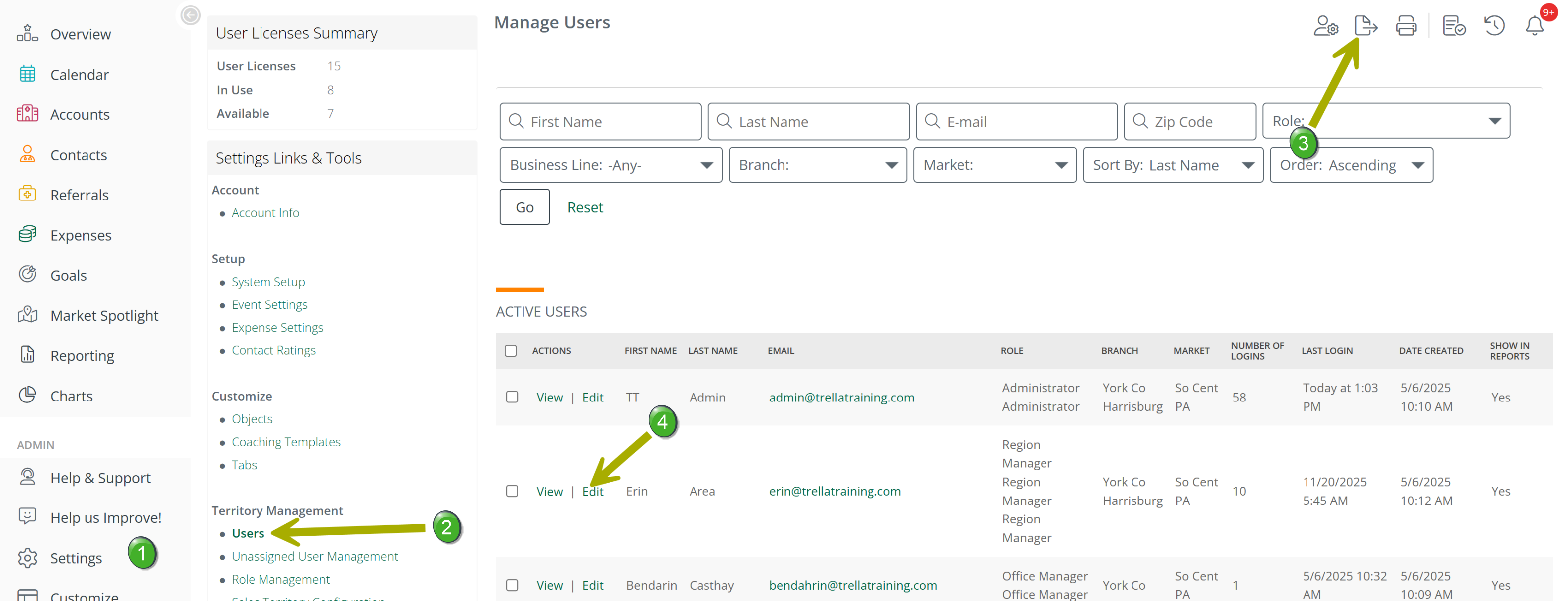
 Users - Click on the "Users" link under the Territory Management section. The page shown above will open. The table, Active Users, will list all of the current user accounts for your company.
 Export - At the top right of the Users page is a set of icons. Clicking on the Export
  icon will export the list of users to an Excel spreadsheet.
The following image shows the spreadsheet for the Trella Training Demo account. The highlighted columns are the ones to check.

Obviously, the Trella Training Admin has been remiss and has not kept up with employee addresses. For Mileage Assist to work all of the highlighted fields need to be filled in for each user
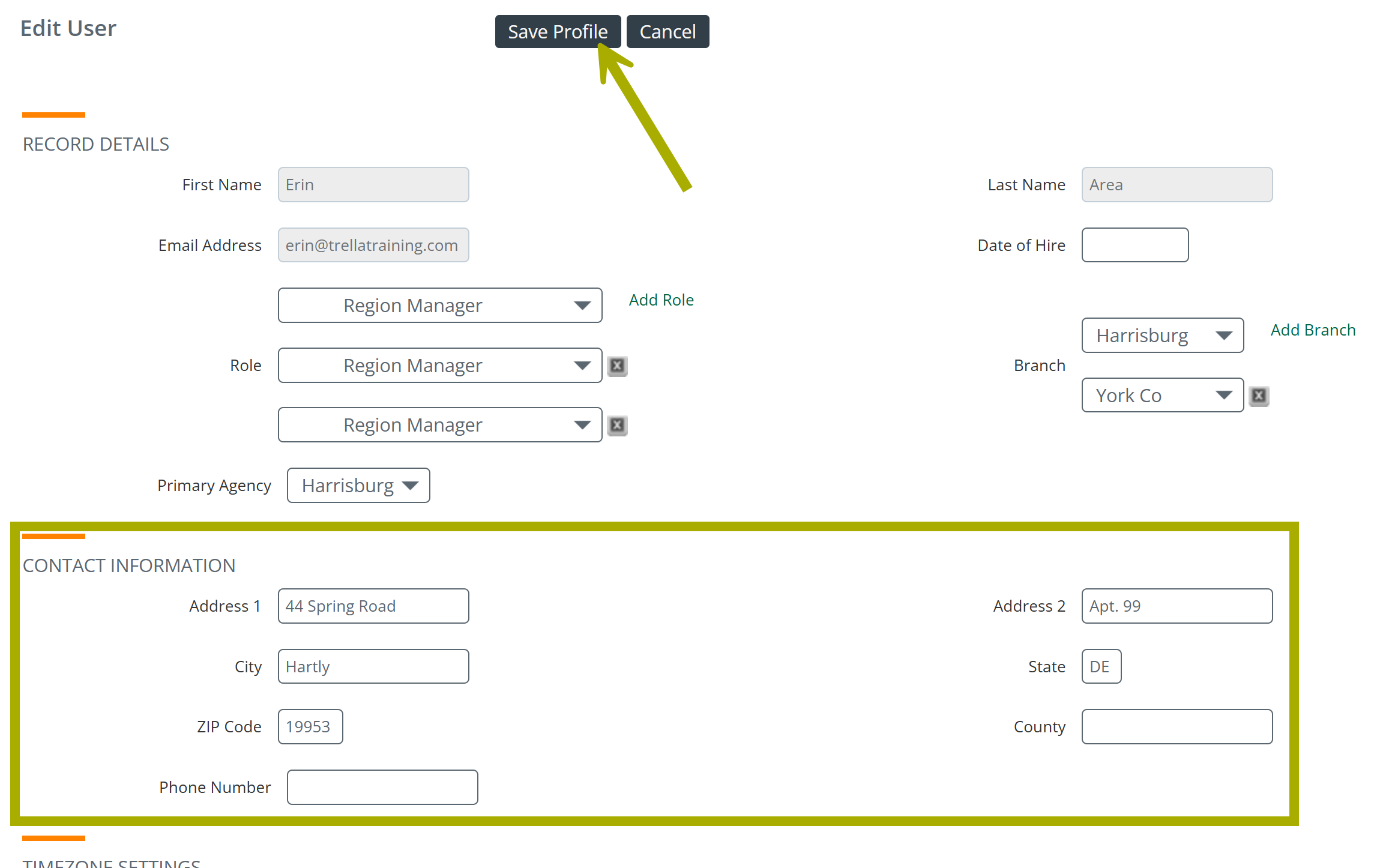
 Editing a user's account - Click on the "Edit" link to the left of a user's name to open their user information in edit mode.
- Fill in the address fields as shown in the box in the image below
- Click on the "Save Profile" button to save the changes to the record.
For complete details on editing a user's account, see Step 3 - User Management.
 Some Details
- An admin will need to set up addresses for all users who will be using Mileage Assist
- If your reps are not reimbursed for mileage from their homes, then addresses will not need to be added to their accounts
- At any time that a rep changes their home address, the address will need to be updated for Mileage Assist to work
|
Account Addresses
Check-ins are validated through GPS using the address of the account where the event took place. For that reason, all account addresses need to be filled out and need to be accurate.
 In some cases, your EHR might be the source of addresses. It is possible that updating an address in Trella CRM will be overwritten by incoming data from you EHR. If that is the case, you will need to supply all addresses required for accounts in your EHR.
Checking and Adding Account Addresses
The easiest way to identify, confirm, or correct account addresses is built in to Trella CRM. Follow these instructions to create an account report that identifies accounts with no addresses.
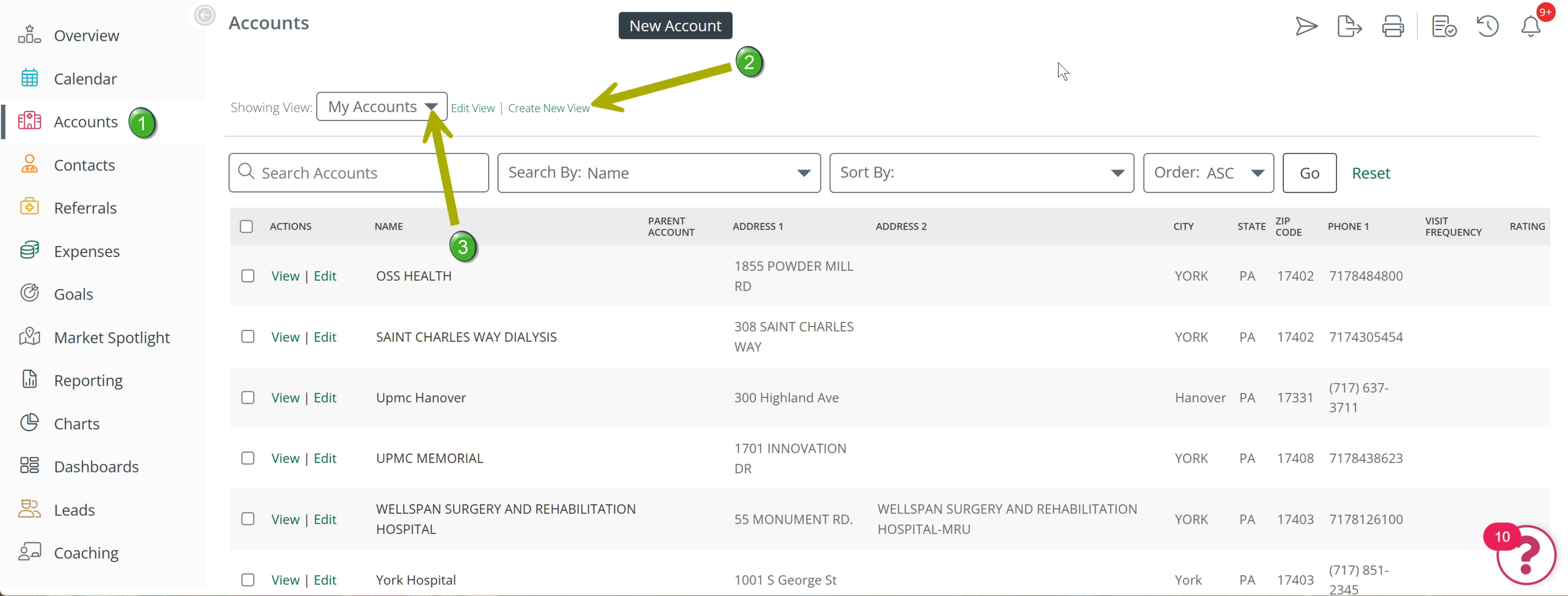
 Click on the "Accounts" button in the left navigation to open the Accounts page. Click on the "Accounts" button in the left navigation to open the Accounts page. |
 |
|
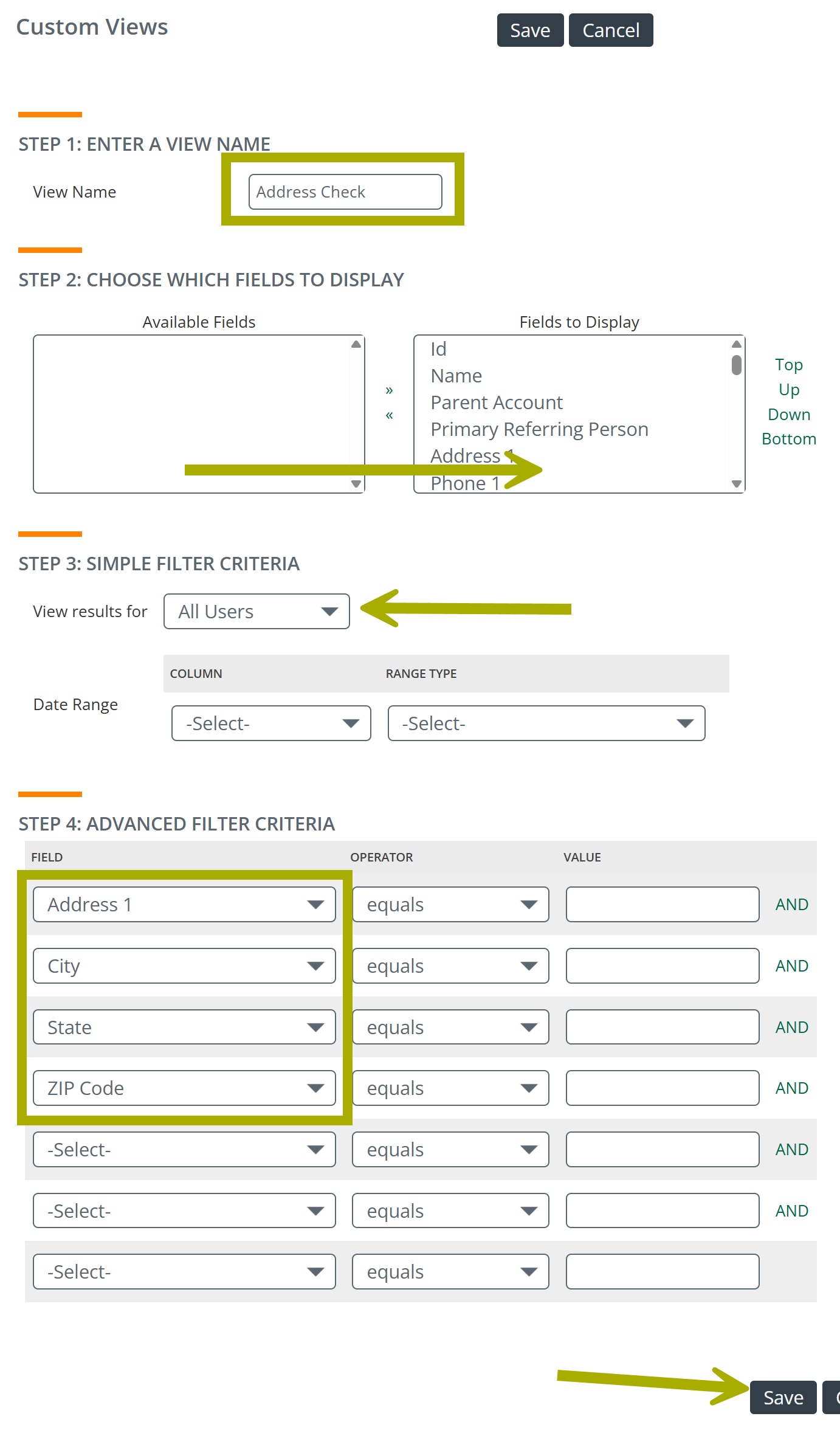
The form shown at right will open. The image does not include all of the fields in the form, only the ones needed for the desired view.
IF you want to find any field that is blank, click on the "and" operators and change them to "or." If you do that, all records with at least one blank field will be shown when this new View is used.
|
 |
Using your View - you need to open your view.
- Click on the "Accounts" button in the left navigation to jump back to the Accounts page.
- If your new View is not the default, click on the Showing View dropdown selector and click on your new View's name.
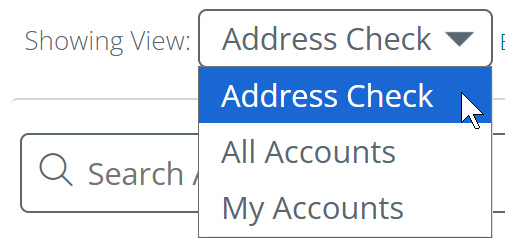
The View will open, showing all accounts that match the criteria you set when you created the View. In the case of the record below, no address information is in the record.
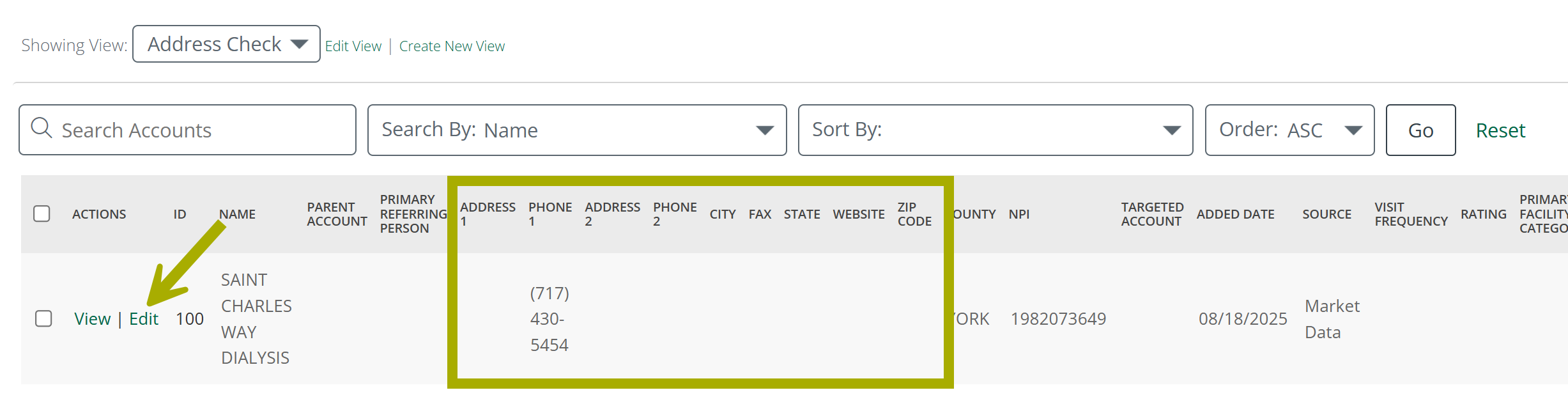
- Click on the "Edit" link to the left of the account name
The Account Details interface will open. (shown in image below)
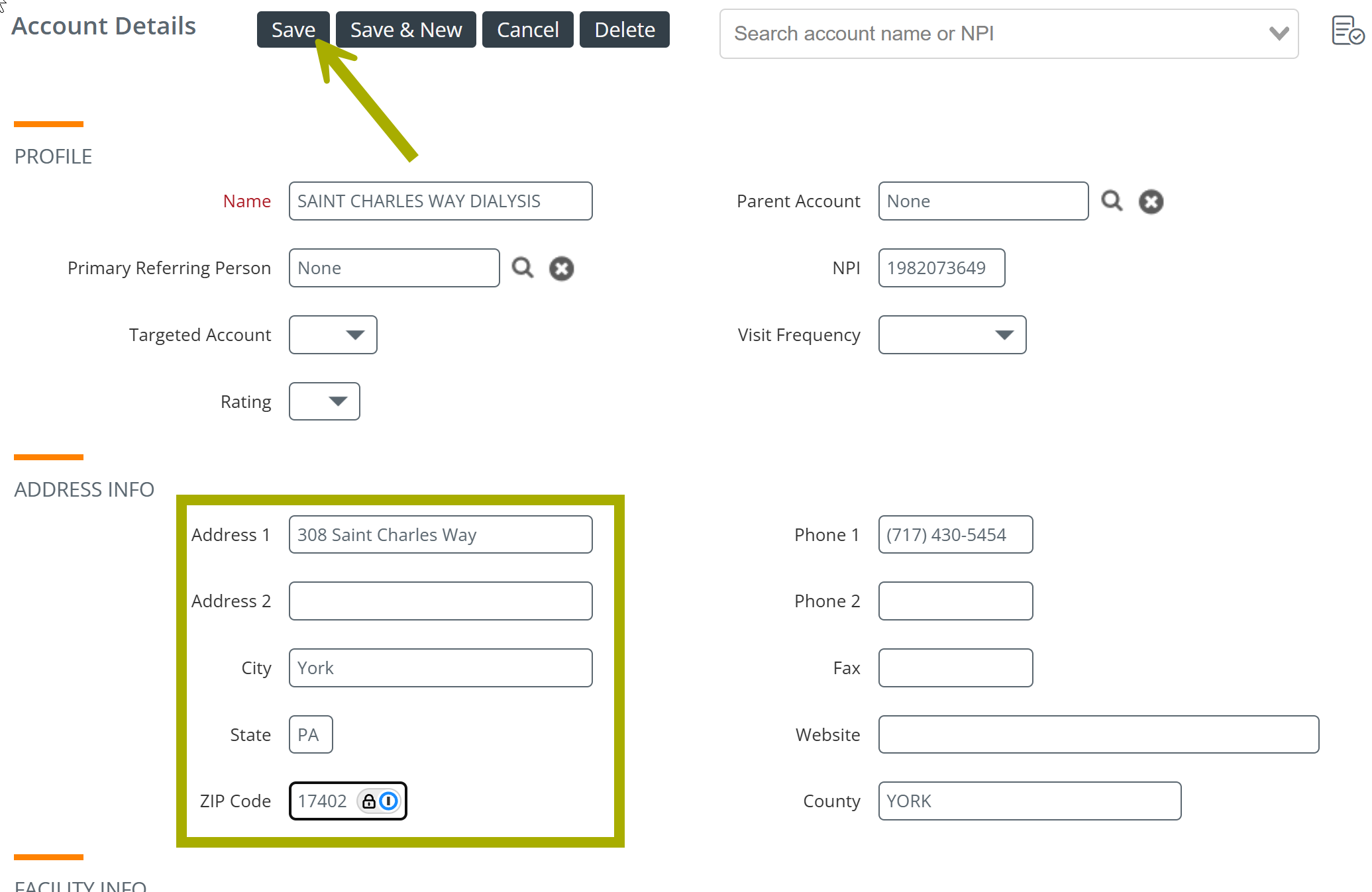
- Fill in the address fields.
- Click on the "Save" button when you are done
 Final thoughts
- Anyone who has ownership of an account can maintain that account's address through the Web or the mobile app. Maintaining account records should be part of every user's Trella CRM workflows.
- If an account is added using Market Spotlight, the address is added automatically.
- If you are missing an address, using the NPI in the NPPES registry is probably the most guaranteed way to find the address that will work with GPS tracking. Use the Primary Practice address, not the Mailing address.
For more on using the NPPES database, see Using the NPPES NPI Database search.
|
Required Event Object
In order to assure that all events can be tracked, an address for each account is required. The following setting will require that every user includes an address for an account when they are creating an event.
|
|
|
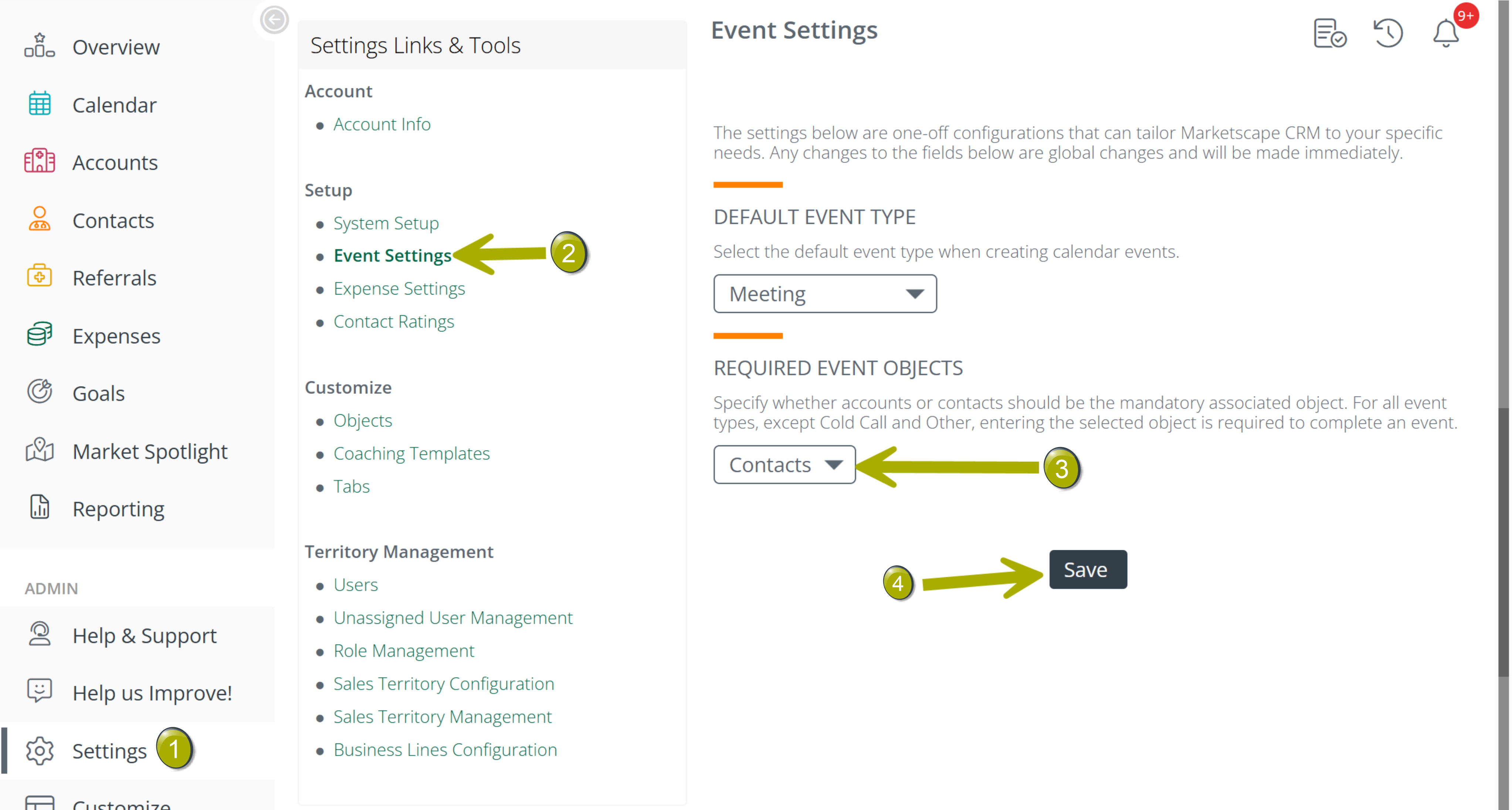
 Click on the "Settings" button in the left navigation to open the Settings page.
 Event Settings - Click on the Event Settings link to open the page to the Event Settings interface.
 Choose Accounts - in the dropdown, select the Accounts option.
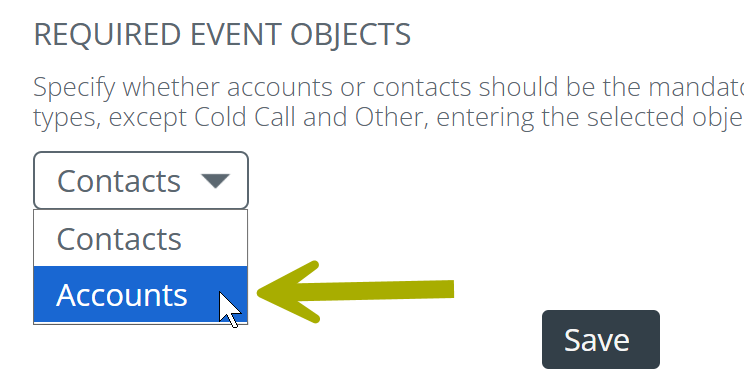
 Click on the "Save" button to save your change.
|
Field Restrictions
Each field in each record has a permission that can be turned on and off. (Shown below) So that your reps can edit addresses for accounts, an admin will need to set those fields as shown below.
|
|
|
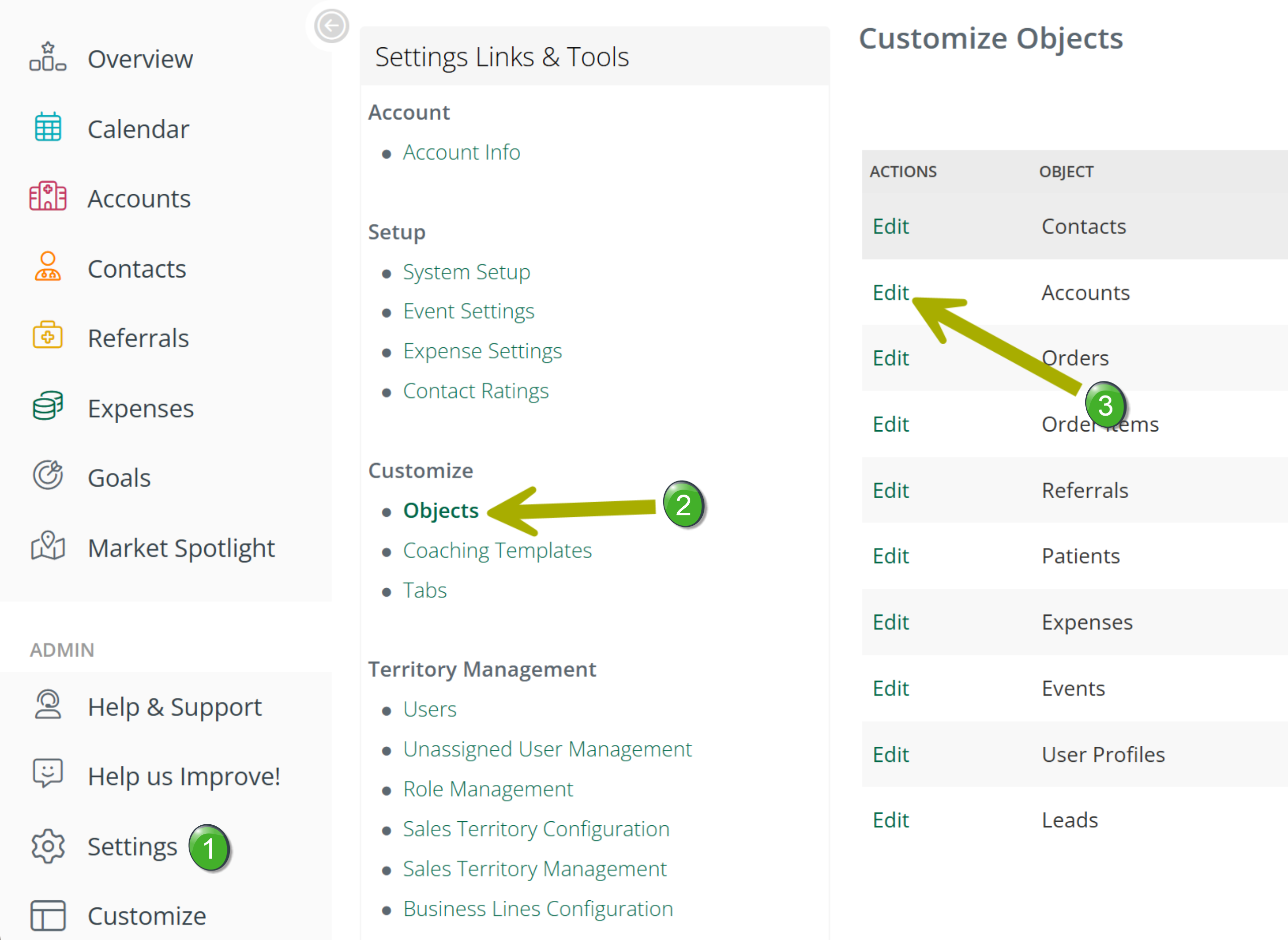
Objects - Click on the Objects link to open the page to the Objects interface.
Notice that each of the items in the Objects column corresponds to a different page in Trella CRM. This is where an administrator is able to make changes to the tables on those pages.
Edit Object - Click on the Edit button in the left column in the row for Accounts.
The interface shown in the image below opens.
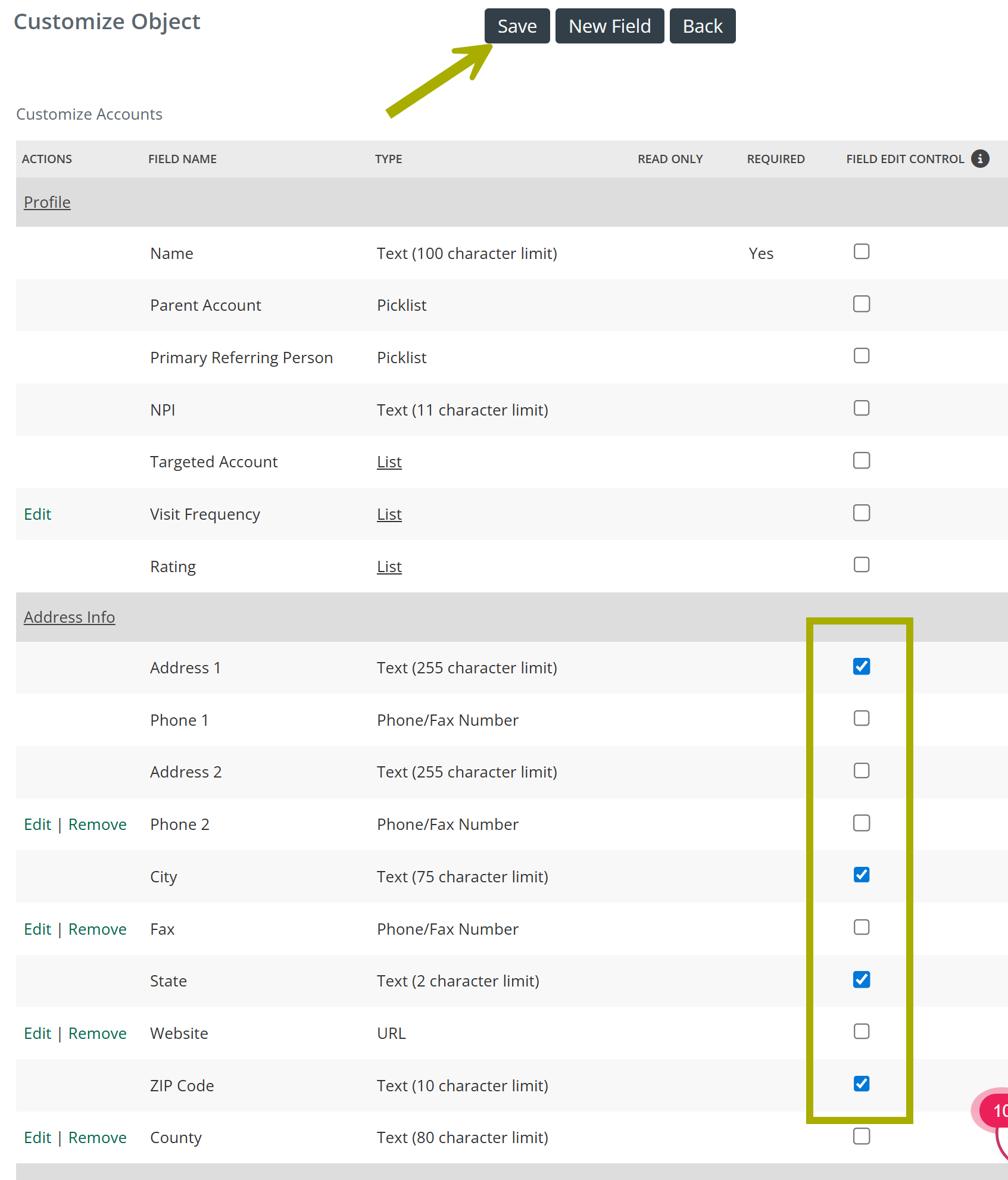
- Click the "Save" button when you have finished selecting options.
The image shows that the checkboxes for four fields are checked. This setting will allow reps to edit those fields so that addresses can be updated to make Mileage Assist more accurate if needed. The four fields checked are those that are used for Mileage Assist.
Event Settings
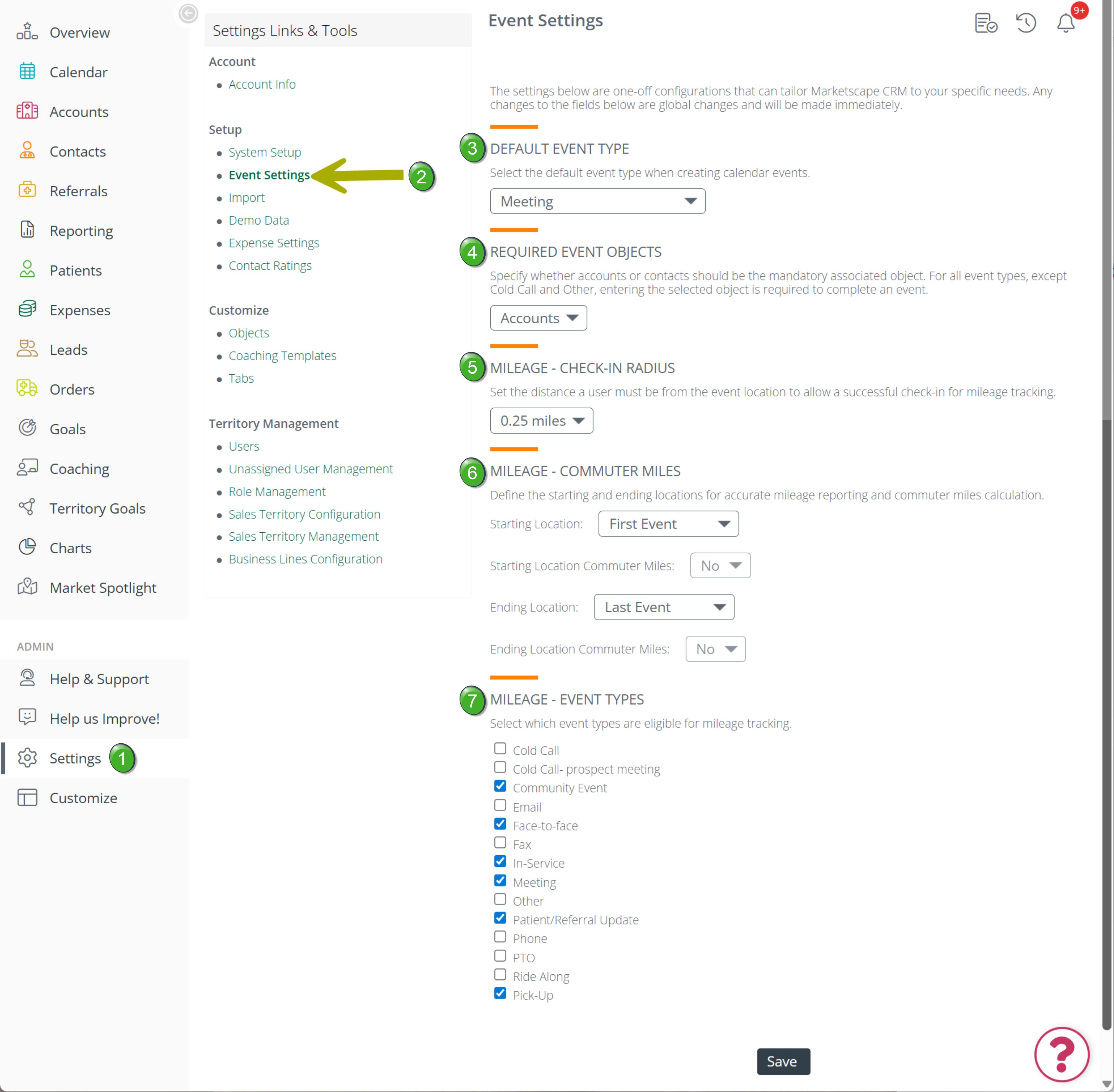
With the account settings done, the details for the Event Settings need to be completed. Use the image below to work through the required settings.
|
|
|
||
|
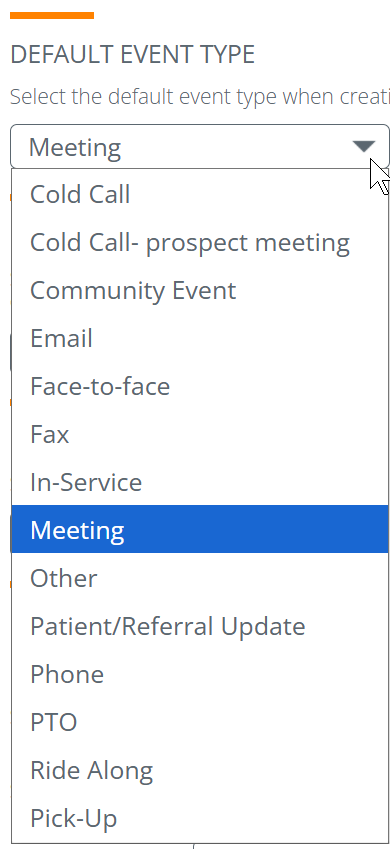
Using the dropdown you can select which event type will be the default when a user creates an event.
|
 |
||
|
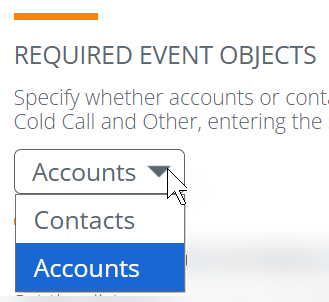
This option allows you to choose whether users will be required to identify an account or a contact when setting an event.
In order to assure that all events can be tracked, an address for each account is required. Choosing accounts will assure that check-ins work more smoothly. |
 |
||
|
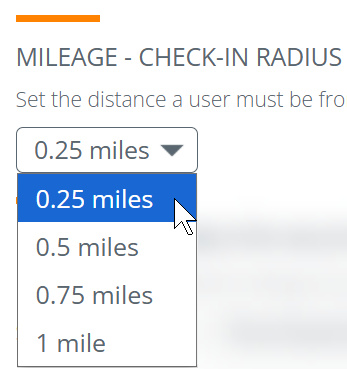
The check-in feature confirms that a user is at the event location associated with a specific account address. The Check-in Radius allows some leeway in case a rep needs to park at a distance from the address.
|
 |
||
|
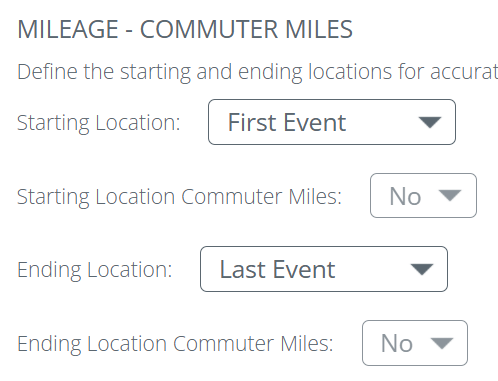
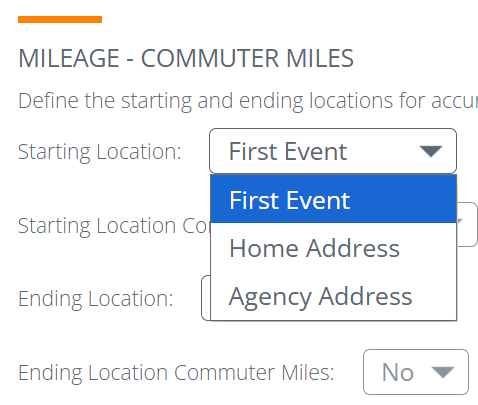
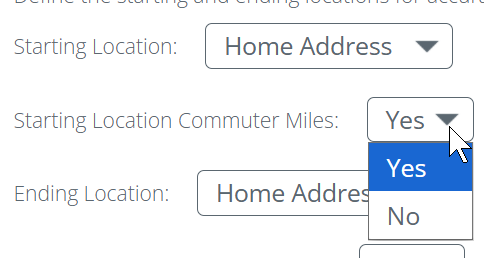
The images to the right show the basic settings for Commuter Miles. Details are below this table. Left image - There are four dropdown settings under Mileage Commuter Miles Center image - Starting Location - this dropdown has three options. Starting Location is shown - The Ending Location dropdown mirrors the Starting Location settings Right image - If you choose to start at the home address, the Commuter Miles Yes/No option is available
|
 |
 |
 |
|
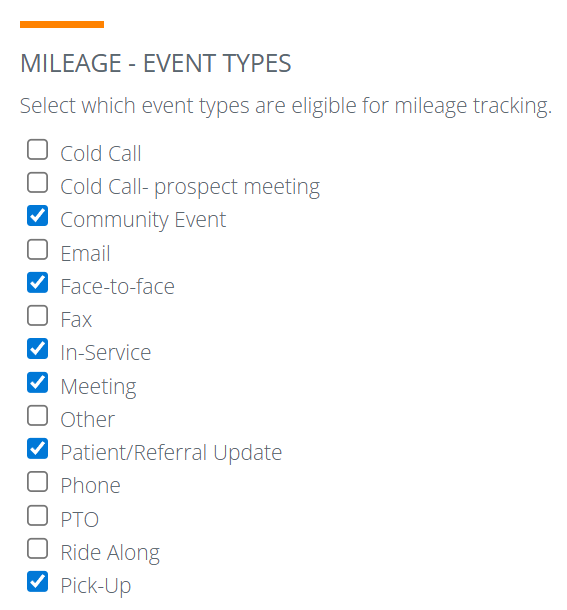
The last setting is to identify which types of events will be included in mileage calculations.
|
 |
||
 Mileage - Commuter Miles
 Mileage - Event Types
Commuter Miles Details
|
The Commuter Miles setting, in short, is about setting where mileage calculations begin and end, and whether "Commuter Miles" are included in the calculation. The image to the right shows the default settings. Commuter miles are only calculated if mileage calculations begin and/or end at the home. Since home is not selected, notice that the two "No" dropdown selectors are grayed out. |
|
Start and End Options
The following table shows the options for the Starting and Ending Locations dropdowns with a summary of the meaning.
 A waypoint is a GPS Location with an identified address.
Starting Location |
Ending Location |
||
| Dropdown Option | Impact on mileage Calculation | Dropdown Option | Impact on mileage Calculation |
| First Event | Uses the first event with a waypoint to begin mileage calculations. | Last Event | Uses the last event with a waypoint to complete mileage calculations |
| Home Address | Uses the address listed on a user's profile as the first waypoint. | Home Address | Uses the address listed on a user's profile as the final waypoint for mileage calculations. |
| Agency Address | Uses the branch address as the first waypoint. | Agency Address | Uses the branch address as the final waypoint. |
Commuter Miles
If you choose "Home Address" for the starting point or ending point, the "Commuter Miles" selection become a required choice. The impact of the choices are listed in the following table.
Commuter Miles are the miles between home and the office.
Home Address as Starting Location |
Home Address as Ending Location |
||
| Yes | Commuter miles will be subtracted from total miles traveled for starting location | Yes | Commuter miles will be subtracted from total miles traveled for ending location |
| No | Commuter miles will not be subtracted from the total miles for the day | No | Commuter miles will not be subtracted from the total miles for the day |
 One way to look at this is to think of the Yes and No as answers to the question, "Should we subtract commuter miles from the total mileage calculation?"
Possible Start and End point Combinations
There are nine possible start and end combinations. The following table identifies the two options that do not work.
| Starting | Ending | Impact |
| First Event | Last Event | There are no reporting issues with this configuration. |
| Agency Address | There are no reporting issues with this configuration. | |
| Home Address | There are no reporting issues with this configuration. | |
| Agency Address | Last Event | There are no reporting issues with this configuration. |
| Agency Address | There are no reporting issues with this configuration. | |
| Home Address | There are no reporting issues with this configuration. | |
| Home Address | Last Event | There are no reporting issues with this configuration. |
| Agency Address |
Can not support this configuration. You should use an alternative set-up. Recommendation: Use First Event & Home Address. |
|
| Home Address |
Can not this configuration. You should use an alternative set-up. Recommendation: Use Home Address & Last Event. |
FAQs
 Is there "geofencing" involved?
Yes, that is the event radius. It lets a customer customize how close a user must be to the address listed on the event to complete a check-in.
Can I check into any event?
Yes, but it is customizable. Each customer can decide which event types are eligible for reimbursement.
Can I decide where I want mileage calculations to start?
Yes, customers will have the choice to choose first event, home address, or agency address. Ending location is also customizable with the same options.