Overview
My Profile is your personal settings page in Trella CRM. From My Profile, you can update your contact information, configure your calendar display preferences, control how many records appear in list views, grant temporary support access to your account, and view which Market Spotlight markets are enabled for your login. Changes take effect after you click Save Profile at the bottom of the page.
 My Profile settings are only available on Trella CRM for web.
 In this Article
- Where to Find My Profile
- User Details
- Timezone Settings
- Records to Show Per Page
- Grant Login Access
- Calendar Settings
- Market Spotlight Access
Where to Find My Profile
|
My Profile is accessible from any page in Trella CRM. Select the user icon
|
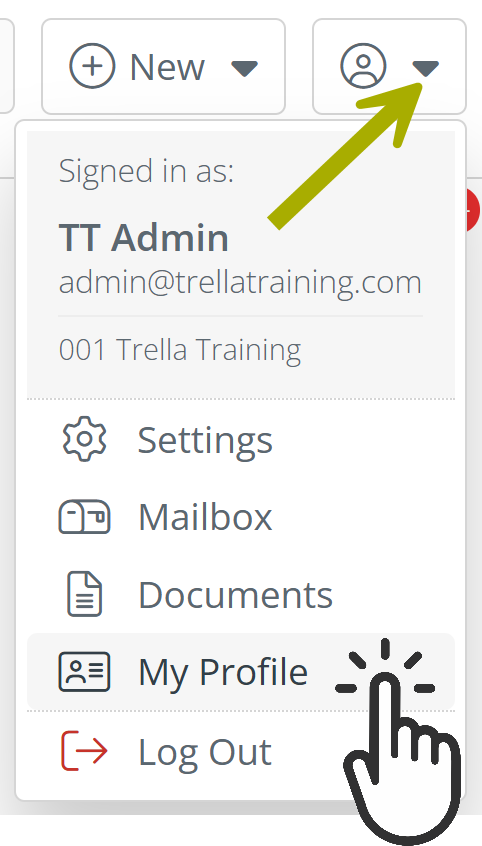 |
The My Profile page will open. The details of each section is included below.
 |
User Details
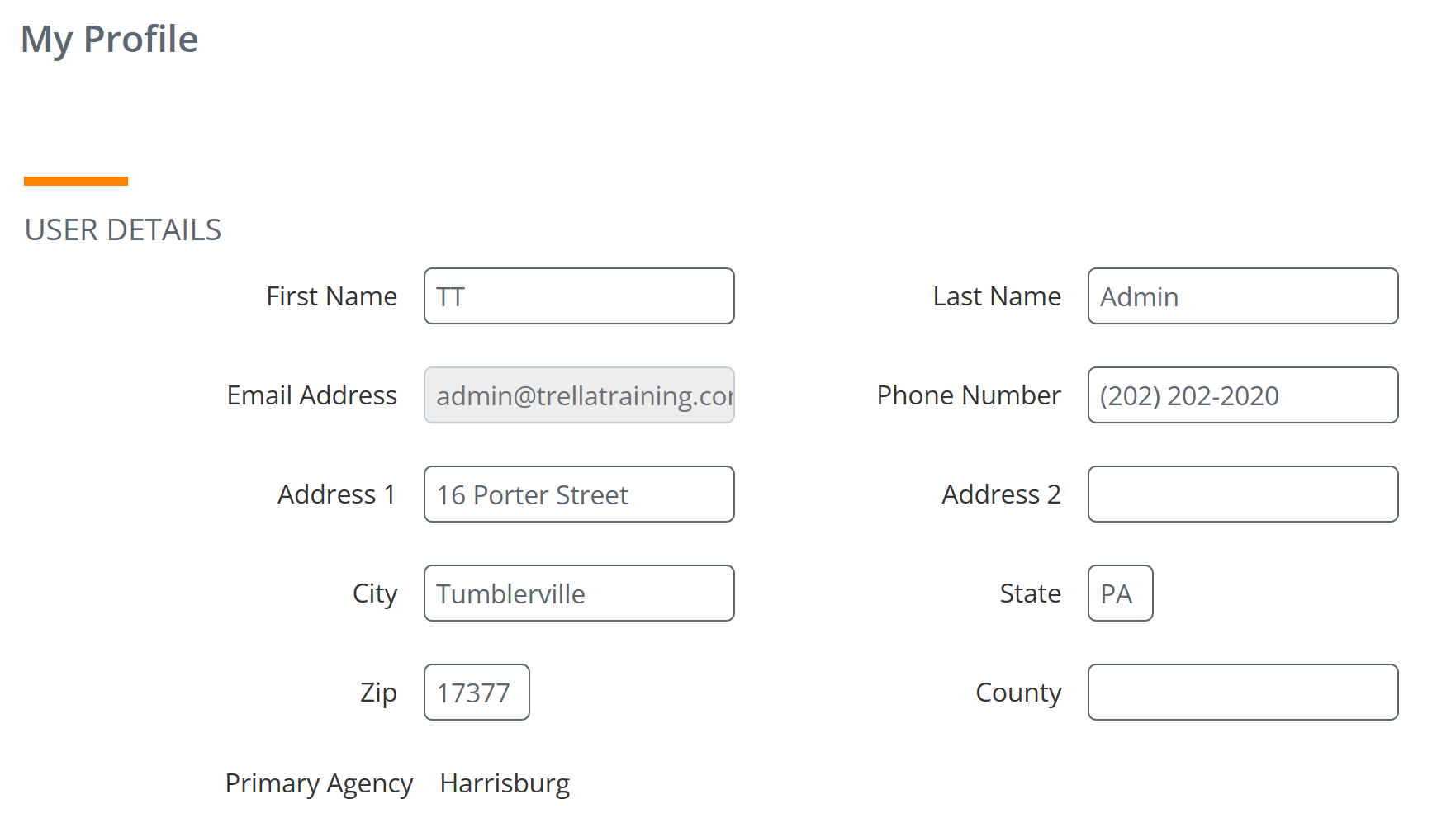
The User Details section displays your personal contact and location information. Most fields in this section are editable directly from My Profile. Details are included below the image:
| Field | Description |
| First Name | Your first name as it appears in Trella CRM |
| Last Name | Your last name as it appears in Trella CRM |
| Email Address | Your login email address |
| Phone Number | Your phone number (optional) |
| Address 1 | Street address line 1 |
| Address 2 | Street address line 2 (optional) |
| City | The city where you live |
| State | Your state |
| ZIP | Your ZIP code |
| County | County |
| Primary Agency | Your assigned agency. This field is read-only and is set by your company administrator. |
Your name and email address in User Details are what appear to other users when you log activities, add notes, and send communications within CRM. Keep this information current so your team can identify your work accurately.
|
Timezone Settings
|
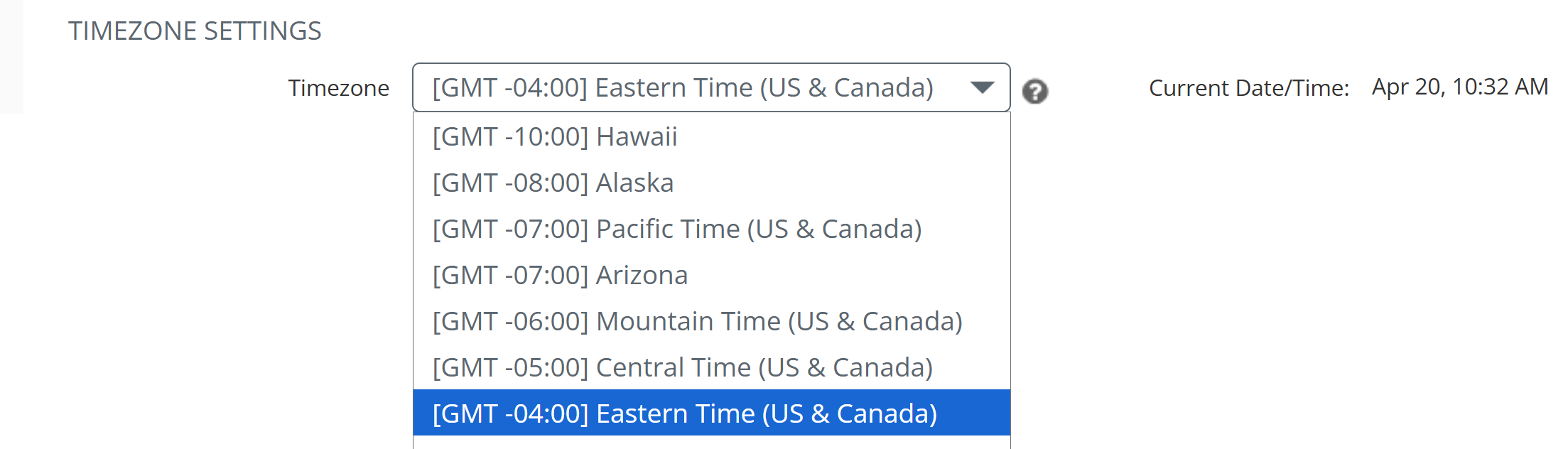
The Timezone Settings section controls the timezone used to display dates and times throughout your Trella CRM account — including calendar events and activity timestamps. Select your timezone from the Timezone dropdown. The Current Date/Time field to the right updates to show you what the selected timezone currently reflects, so you can confirm the selection before saving. |
 |
|
Records to Show Per Page
|
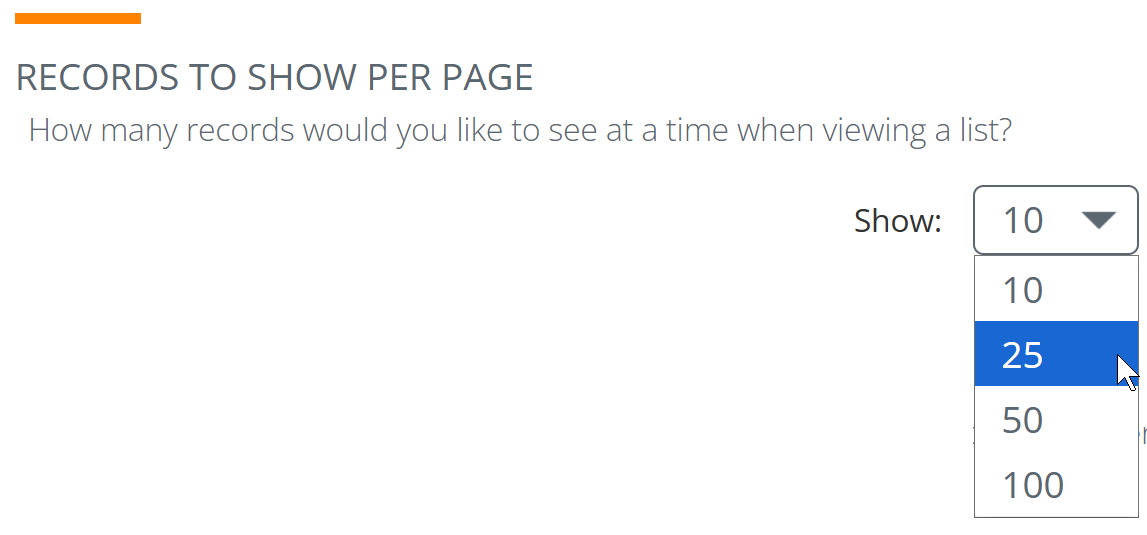
The Records to Show Per Page setting controls how many records appear at one time when you're viewing a list in Trella CRM — such as your Accounts, Contacts, or Referrals lists. Use the Show dropdown to select your preferred number. Showing more records per page means less clicking through pages; showing fewer can be useful on smaller screens or slower connections. |
 |
|
Grant Login Access
The Grant Login Access section lets you temporarily allow a Trella Health Support representative to log into your account on your behalf. This can help support staff diagnose issues or walk through a problem with you without requiring you to share your password.
When you make a support request that requires login access, they will probably suggest an expiration date.
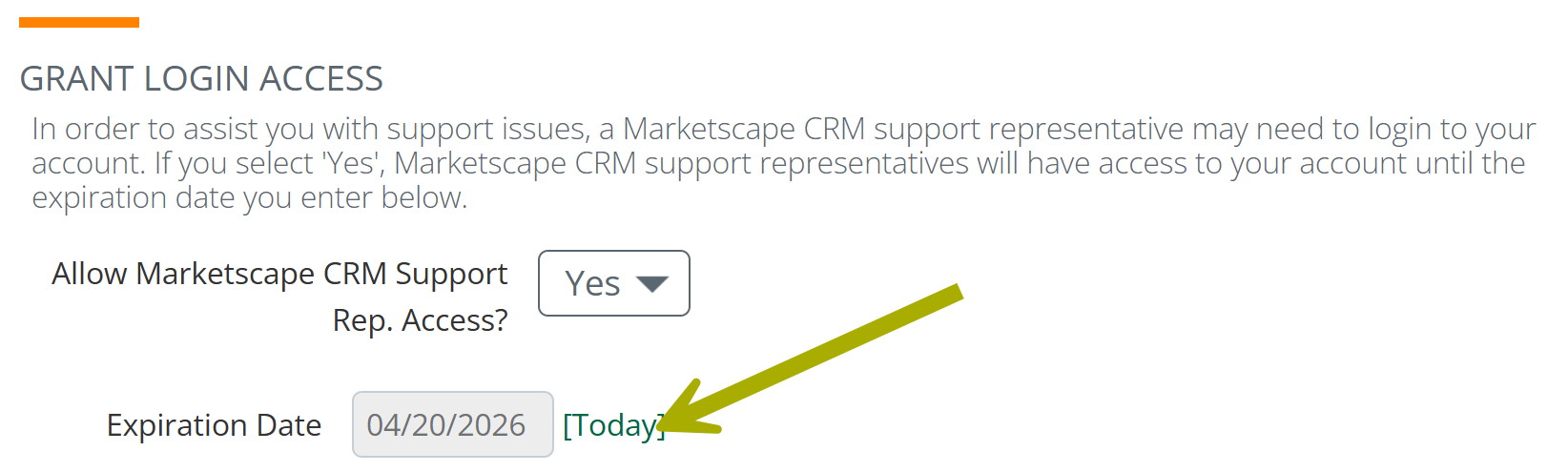
| Field | Description |
| Allow Trella CRM Support Rep. Access? | Set to Yes to grant temporary access; No to revoke or decline |
| Expiration Date | The date the access permission expires. Support access is automatically removed after this date. |
| Today | Click on the "Today" link to put the current date into the Expiration Date field. |
Support access is time-limited and expires on the date you set. You can revoke access at any time before the expiration date by returning to this section and selecting No.
|
Calendar Settings
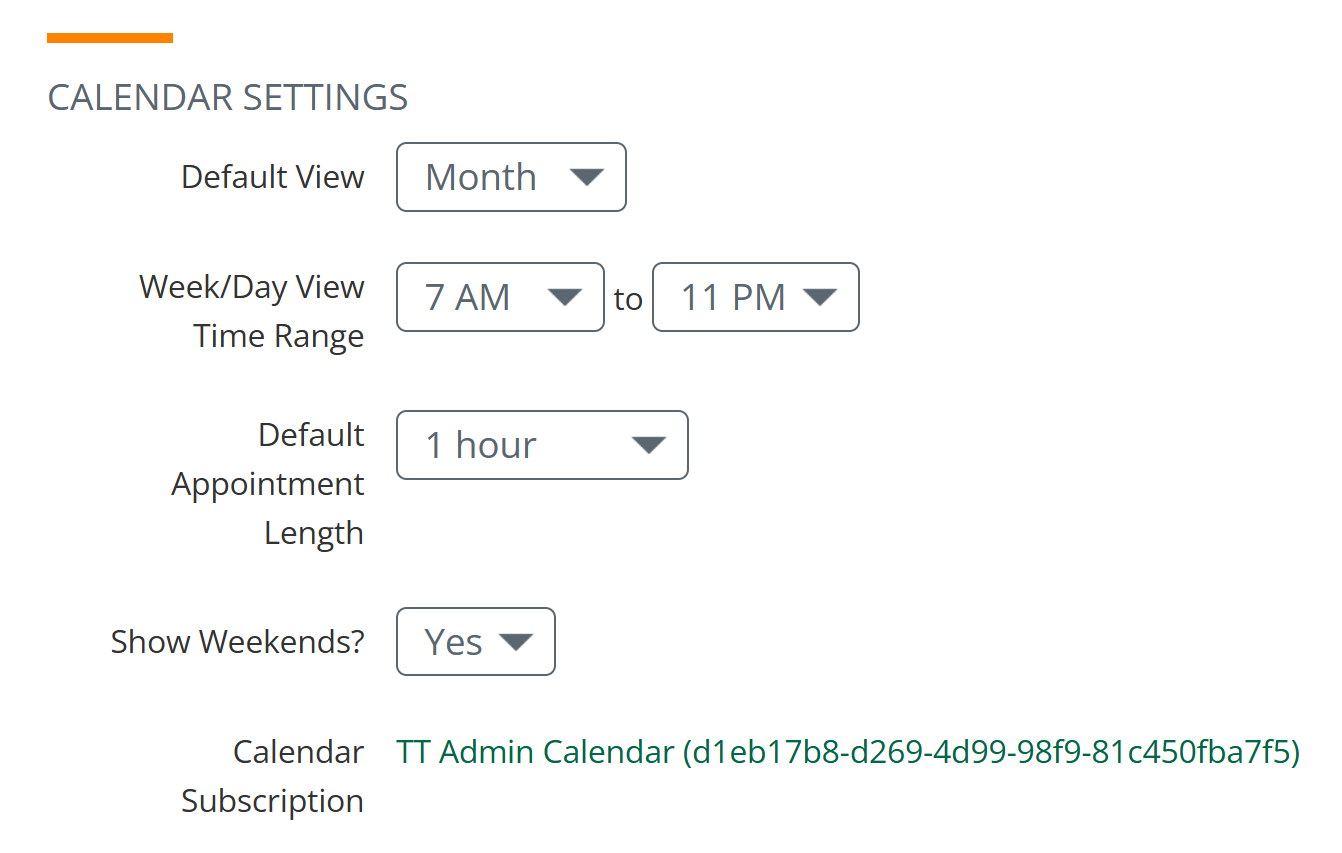
The Calendar Settings section controls how your Trella CRM calendar looks and behaves. These settings affect the Calendar page and any calendar views within CRM.
 For complete details about your calendar in Trella CRM, see Calendar Overview.
| Field | Description | Images |
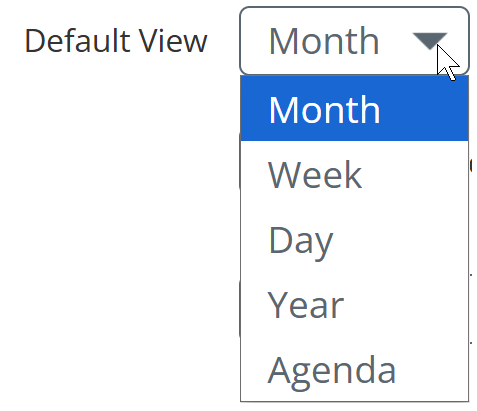
| Default View |
This allows you to default calendar layout when you open the Calendar page.
|
 |
| Week/Day View Time Range | The start and end times displayed when viewing your calendar in Week or Day mode. Set to a range that matches your typical working hours. |  |
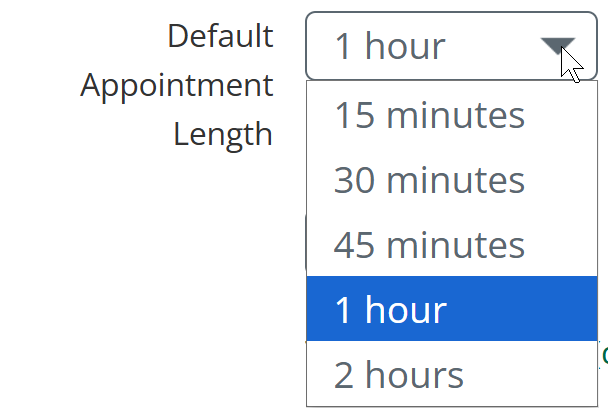
| Default Appointment Length |
The default duration pre-selected when you create a new calendar event.
|
 |
| Show Weekends? | Controls whether Saturday and Sunday appear in your calendar views. | 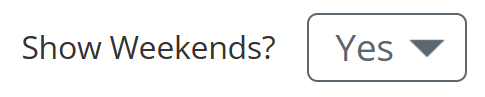 |
| Calendar Subscription | A unique URL you can use to subscribe to your Trella CRM calendar in an external calendar application (such as Google Calendar or Outlook). | 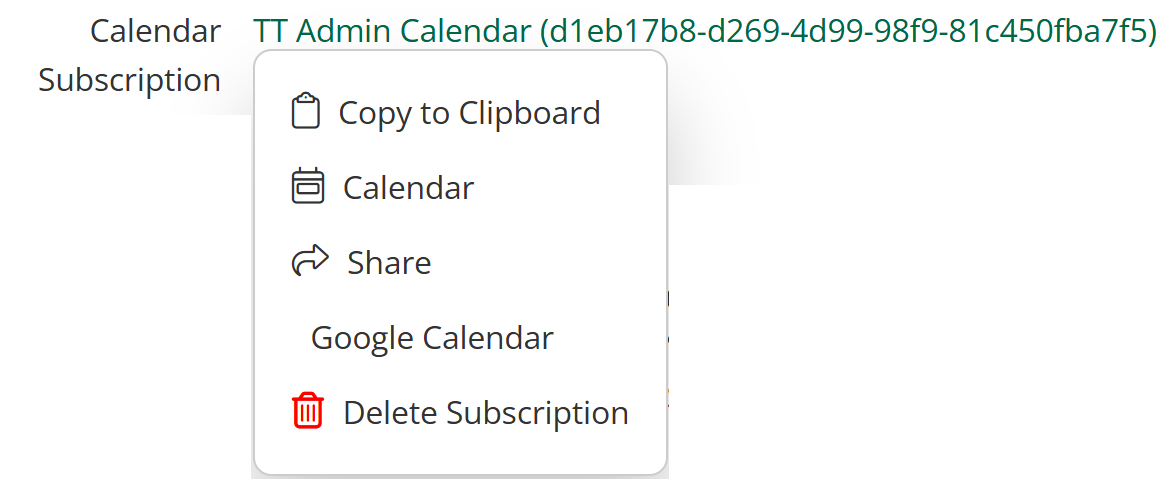 |
|
Click on the large link to open additional options.
| ||
 The Calendar Subscription URL lets you see your CRM appointments alongside your other calendar events without leaving your preferred calendar app. The link is unique to your account — treat it like a password and don't share it.
|
Market Spotlight Access
The Market Spotlight Access section shows which post-acute markets are enabled for your Trella CRM login. Markets are displayed by care setting.
The image in the table is from an administrator account and therefore has access to lots of states and lines of business. It is highly likely that your access will show far less.
| Field | Description | 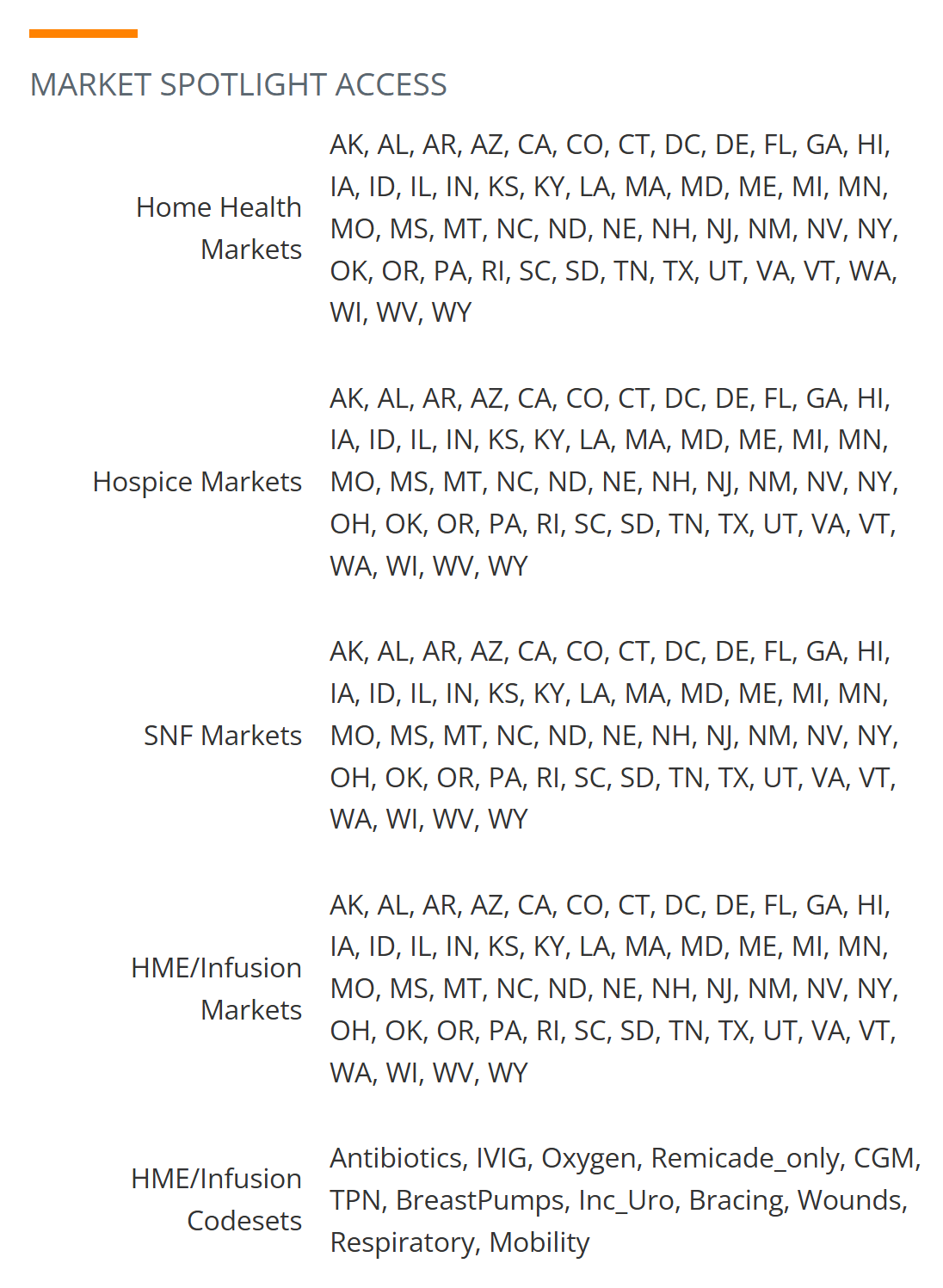 |
| Home Health Markets | Home health markets accessible to your account | |
| Hospice Markets | Hospice markets accessible to your account | |
| SNF Markets | Skilled nursing facility markets accessible to your account | |
| HME/Infusion Markets | HME and infusion markets accessible to your account | |
| HME/Infusion Codesets | Displays the codesets you have access to. |
Market Spotlight Access is read-only. Your market access is provisioned by your administrator and cannot be changed from My Profile. If you believe your market access is incorrect, contact your company account administrator.
|
Saving Your Changes
After updating any settings on the My Profile page, click Save Profile at the bottom of the page to apply your changes. Changes are not saved automatically — any edits you make will be lost if you navigate away without clicking Save Profile.