
Overview
Marketscape CRM uses the terms "ownership" and "shared owner" to indicate assignment of accounts, contacts, orders, leads, or referrals to a person within your company. Depending on your assigned role and how your company has set up permissions, you will either be able to assign and/or remove ownership for these items, OR you will need to request ownership be assigned or removed.
 Good to know
- Many actions that you can perform in Marketscape CRM can be done in more than one location. In this article, we will show the easiest and most visible way to complete ownership management and detailed steps for different paths to completing ownership management.
- Ownership management can be performed using Marketscape CRM for web and Marketscape CRM Mobile. Steps for completing ownership management tasks are shown below.
- Article reference - in this article there are many places where steps are described that apply to an account, a contact, a lead, an order, or a referral. Since the steps apply to all five, rather than providing this list each time, the words "item" or "items" will be used. For example, "to remove ownership for the item, click the "Remove Ownership" link."
 In this article
- Ownership Basics - who can do what, and some quick visuals
- Usage and Value - benefits of ownership management
- Where can I manage ownership?
- From the Accounts / Contacts / Referrals /Orders / Leads View
- On the Market Spotlight page
-
Reports
- Request Owner Change - for a sales rep - check the status of your requests
- Approve Owner Change - for a manager or admin
- In Marketscape CRM Mobile
Ownership Basics
What you can do to manage ownership depends on your role and permissions.
Sales Rep/Account Executive |
Sales Manager |
Administrator |
|
| With permission | Without permission | ||
| You can add and remove ownership of accounts, contacts, and referrals. | You will need to request that ownership of specific accounts, contacts, and referrals be approved. This applies to requesting or removing ownership | Part of the role of a manager is to oversee accounts, contacts and referrals for their reps. This includes approving or denying requests to add or remove ownership | In short, administrators can do pretty much everything in support of reps or managers |
| Benefit: The rep is directly involved with ownership of accounts, contacts and referral. The manager is not required to approve requests to add or remove ownership | Benefit: Reps can make suggestions about what to add or remove from their book of business. | Benefit: Managers maintain approval rights ensuring business priorities are upheld. Requires team cooperation maintaining book of business | Benefit: An admin is able to assist managers in maintaining ownership |
Details
- Your company might have additional levels of roles with different names that have access to different levels of access. If you need clarification, get in touch with your Trella Health customer success manager or Trella Health Support.
- If your agency's Electronic Health Records (EHR) system is integrated with Marketscape CRM it may be possible that ownership assignments are dictated by that system and not changeable directly in Marketscape CRM. Contact your account administrator with any questions.
What to look for
Whether you are managing ownership of an account, a contact, a lead, an order, or a referral, the steps you follow are essentially the same in Marketscape CRM. Moreover, when you are looking at any of these items, what you can do with regard to ownership is always visible and can be accomplished with a couple of clicks.
 The images below were all taken from Marketscape CRM on a Contacts page. What you would see when looking at an account, order, lead, or referral would be identical or very similar. We show these images as a quick reference to how easy these tasks are in general.
Admin or manager adding or removing ownership |
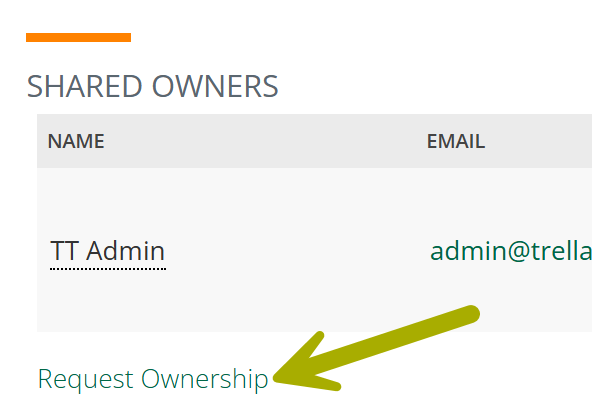
Rep requesting ownership assignment |
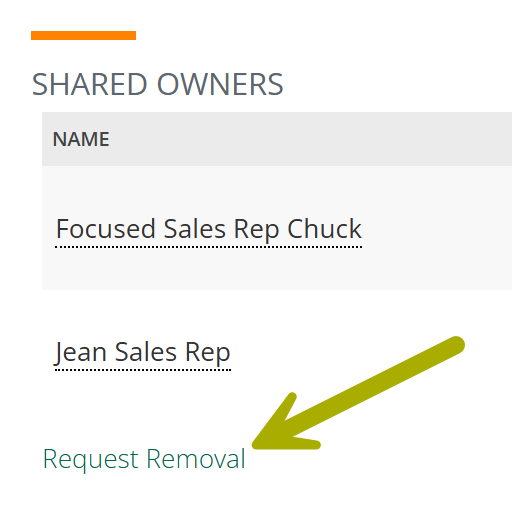
Rep requesting ownership removal |
|
| On the Web | 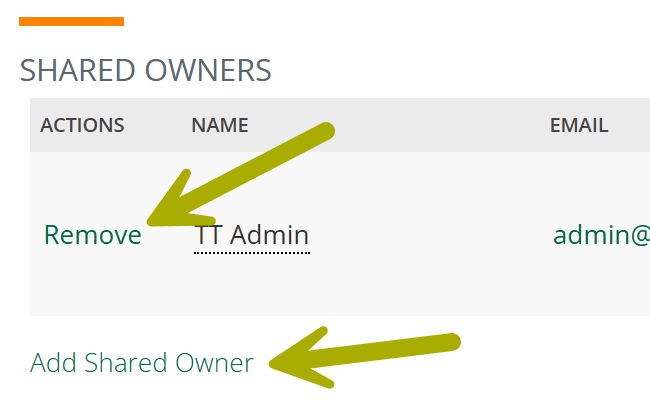 |
 |
 |
| Mobile | 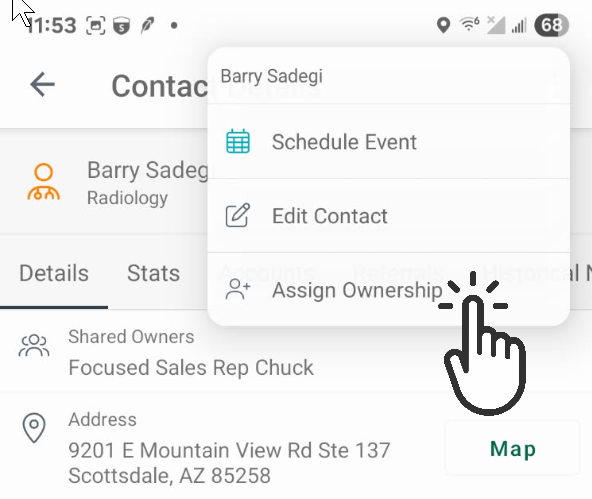 |
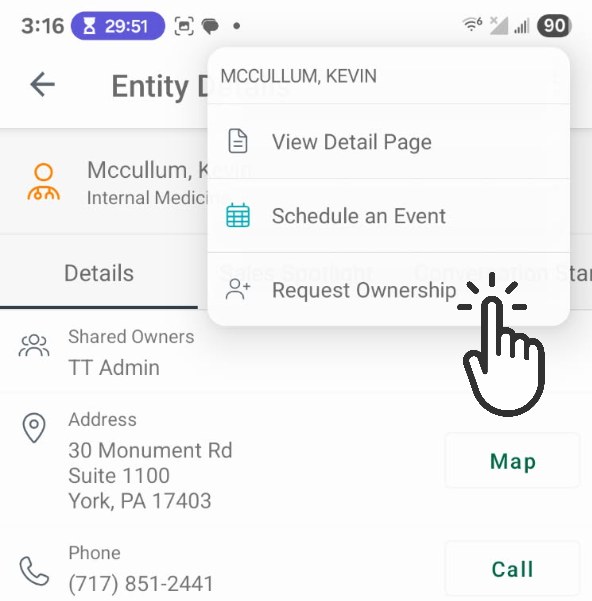 |
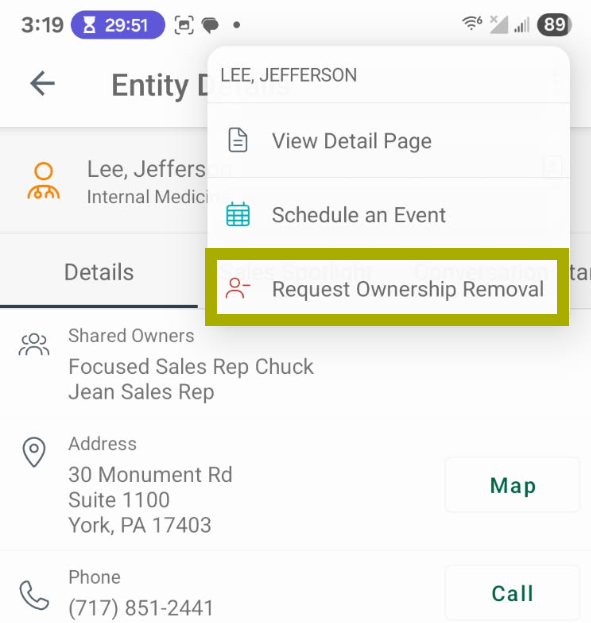 |
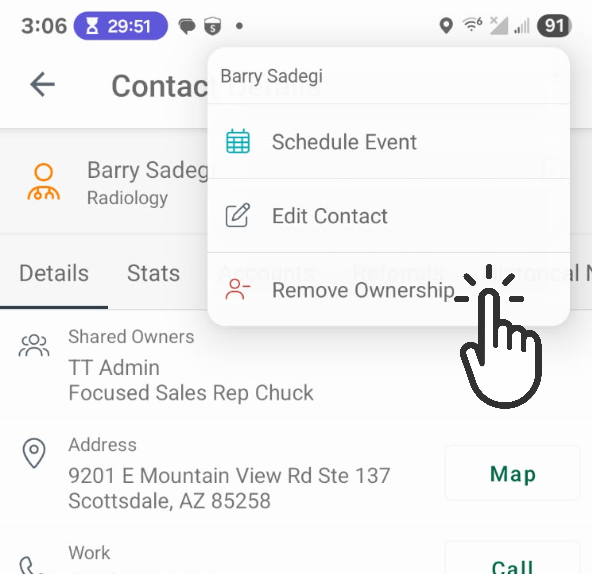 |
 |
Usage and Value
Consider the following situations:
- As a sales rep, I want to be able to easily request that a referral source be added or removed from my book of business so I can stay focused on valuable opportunities instead of having an overinflated territory
- As a manager, I want a list of accounts or contacts that my reps want to remove so I can evaluate before approving or denying within Marketscape CRM to ensure that territories are well balanced and ensure reps are targeting the right opportunities
- As an administrator, I need to be able to assist any users with managing ownership of accounts, contacts, and referrals.
 For more information, see Defining Ownership & Shared Owners.
|
From the Accounts / Contacts / Referrals /Orders / Leads View
Instructions are included for a sales rep and for a sales manager/account administrator.
To jump directly to the steps for a sales manager/account administrator, see For a Manager or Administrator.
For a Sales Rep
The user role for a sales rep/account executive in Marketscape CRM is normally set up so that the rep is required to request changes to ownership of items for which ownership applies. Requests to add or remove ownership can be done from the main pages as shown below.
Requesting Ownership Removal
The steps for requesting ownership removal are shown below.
|
The detail page will open.
|
 |
 | |
 | |
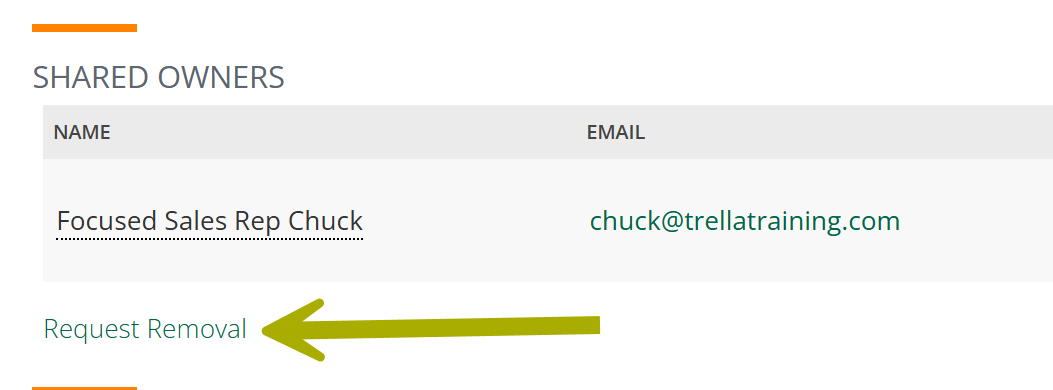
You will see your name in the Name column, identifying that you are a current owner.
|
 |
|
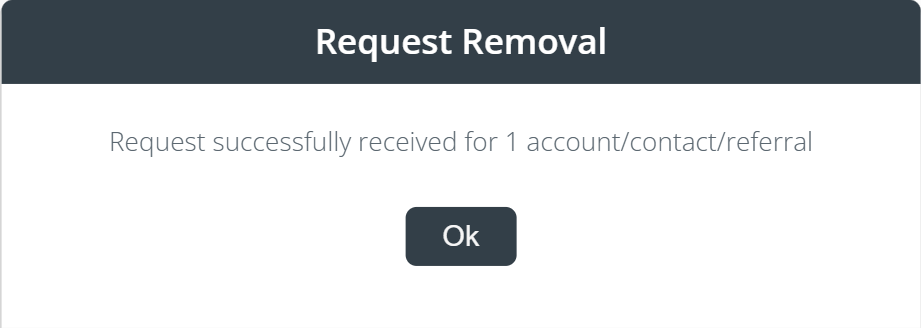
A dialog box will open that confirms your choice
(In our example we added "account/contact/referral." When you remove an item only that item type will be named in the confirmation dialog box.) |
 |
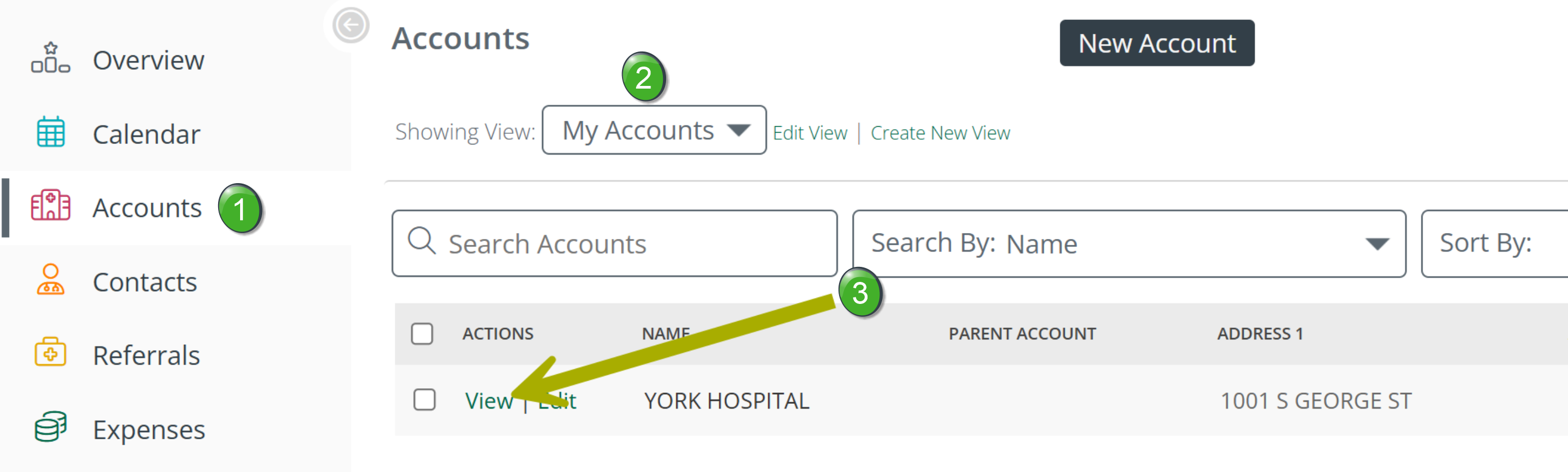
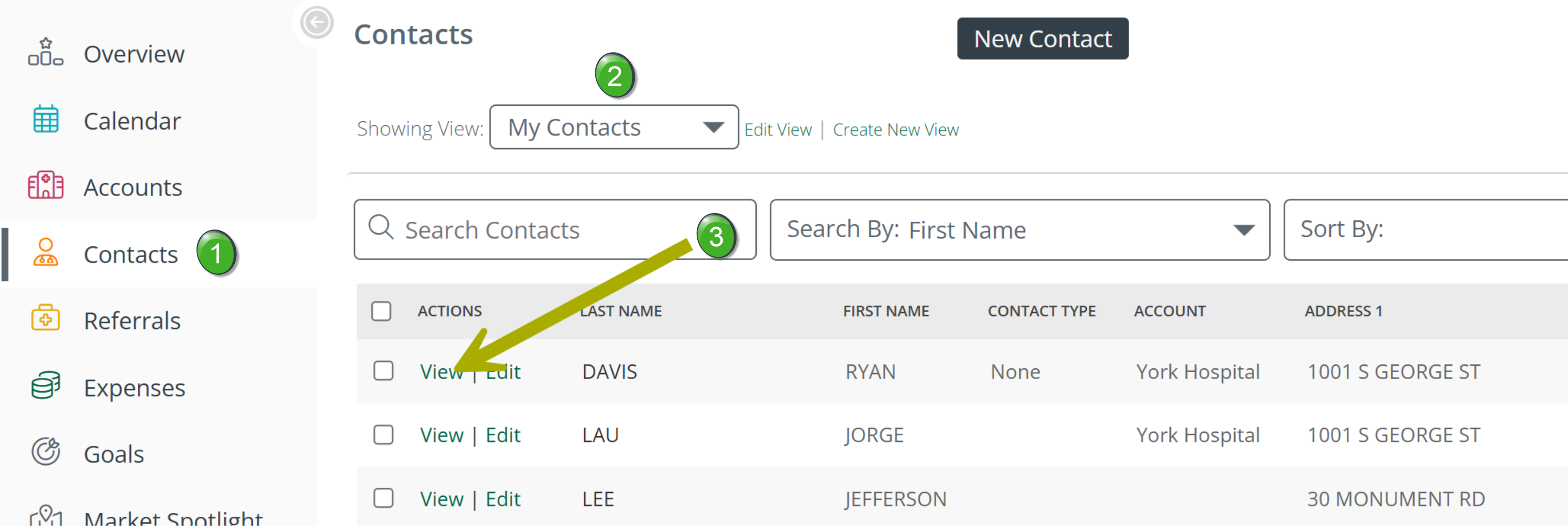
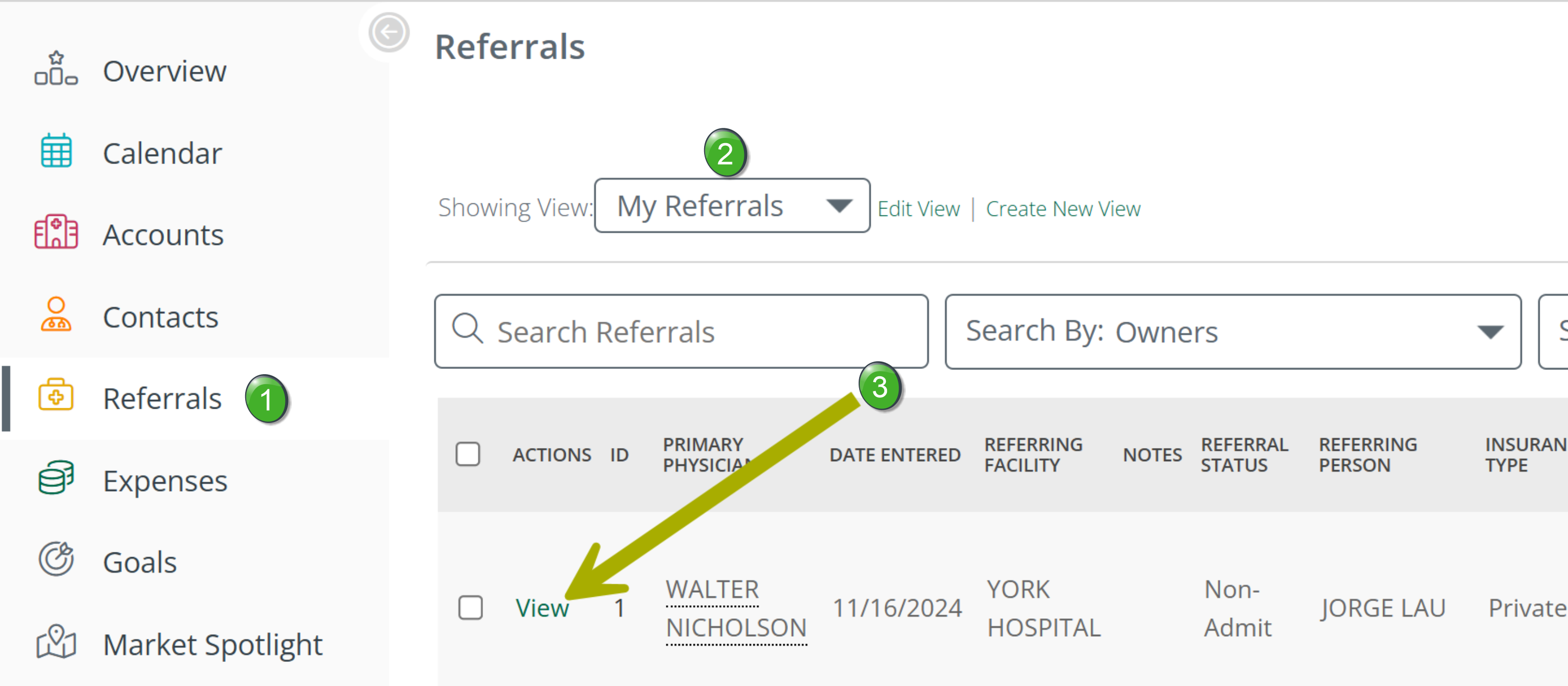
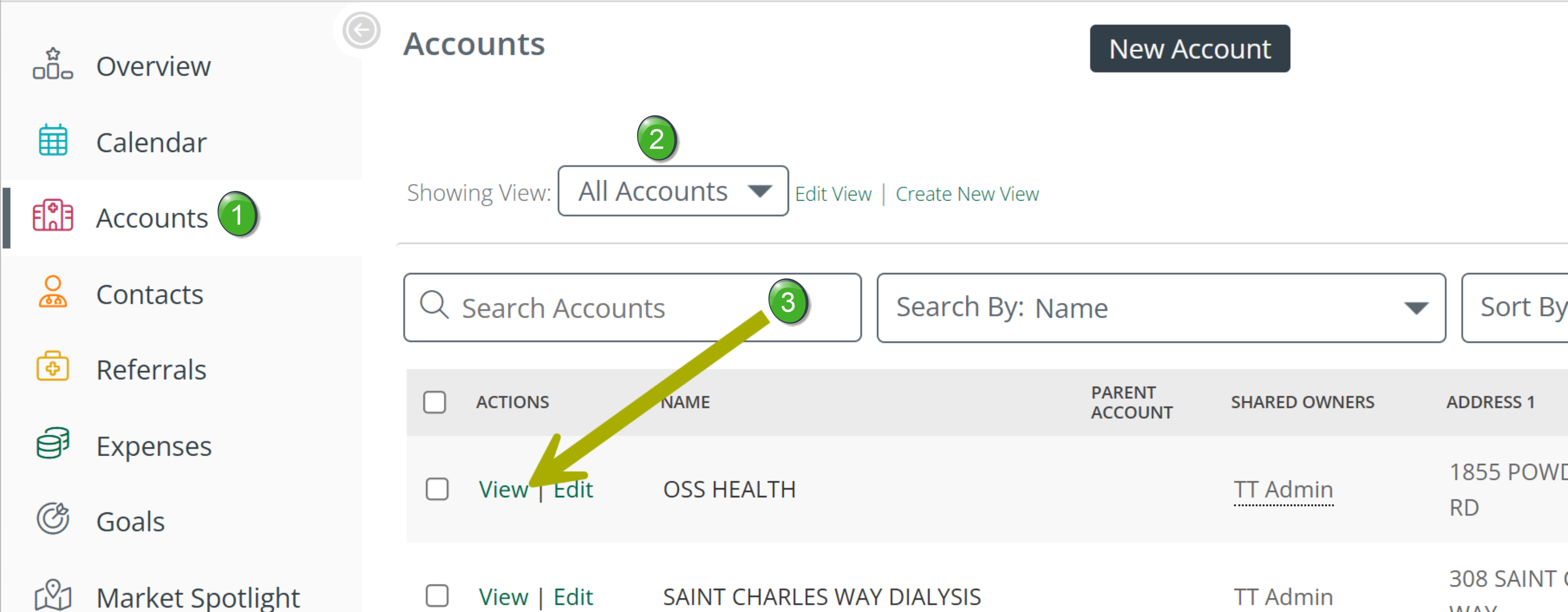
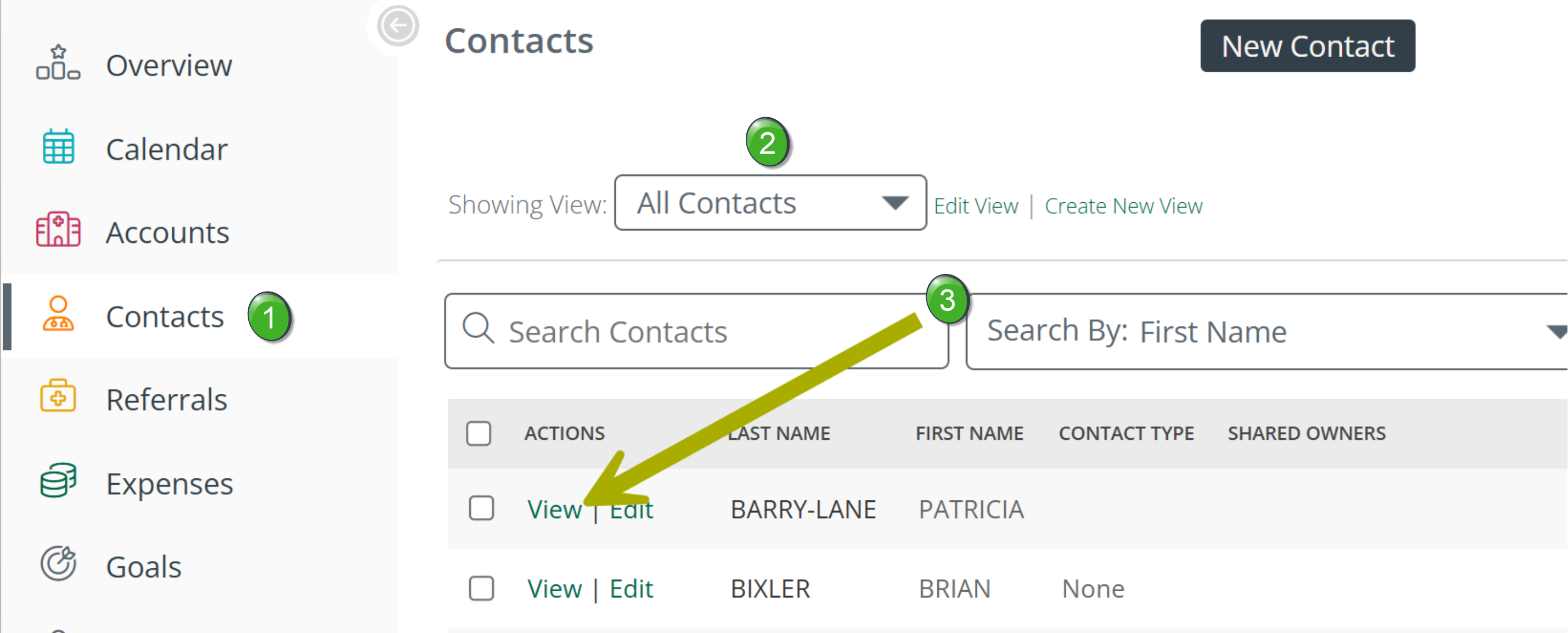
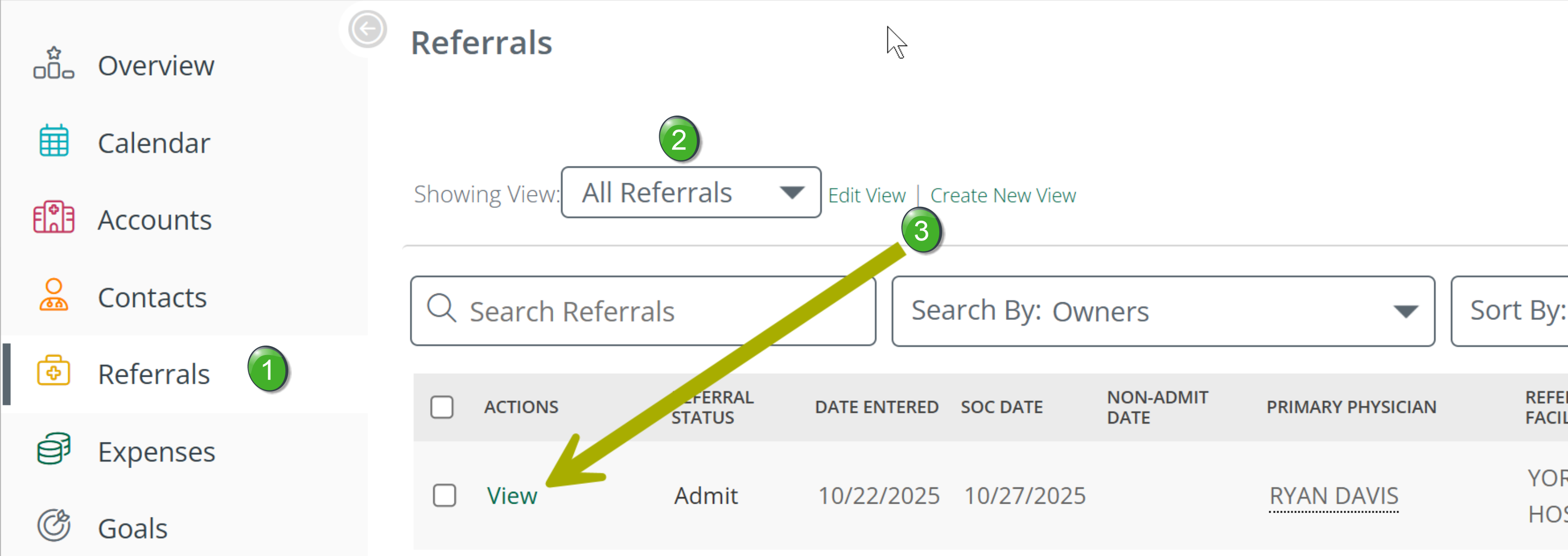
 Select the page in the left navigation. The page shown in each image to the right will open
 Notice that we have selected the view for "My" accounts, contacts, and referrals. Since we are removing ownership, we want the table to only show items for which we currently have ownership.
 Click on the "View" link to open the account, contact, or referral in the list from which you would like to remove ownership.
 Since you are requesting that ownership be removed from you, your manager or an administrator will need to approve the request before the item will be removed from the list under your "My" view.
To check the status of a removal request, see To check on the status of an ownership change request.
Requesting Ownership Assignment
The steps for requesting ownership assignment are shown below.
|
The detail page will open.
|
 |
 | |
 | |
It is possible that other users are currently a shared owner. Other current owners will be displayed in the list.
|
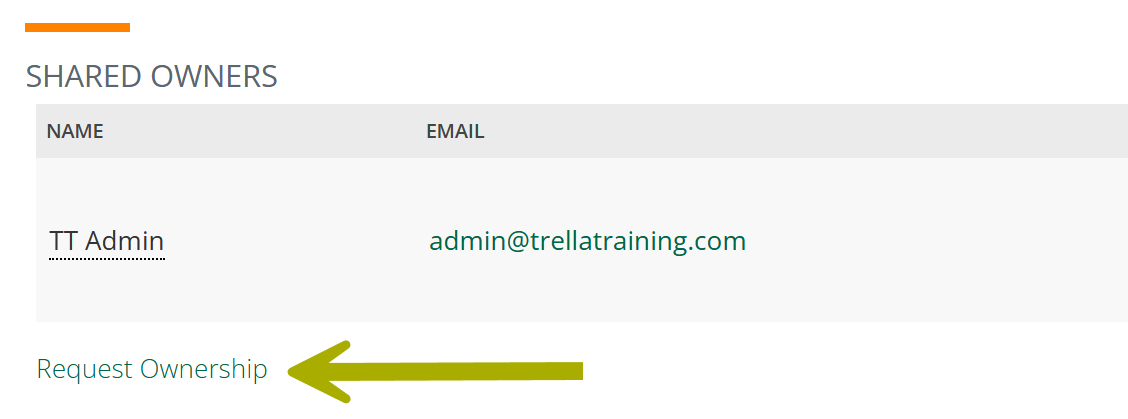 |
|
A dialog box will open that confirms your choice
(In our example we added "account/contact/referral." When you remove an item only that item type will be named in the confirmation dialog box.) |
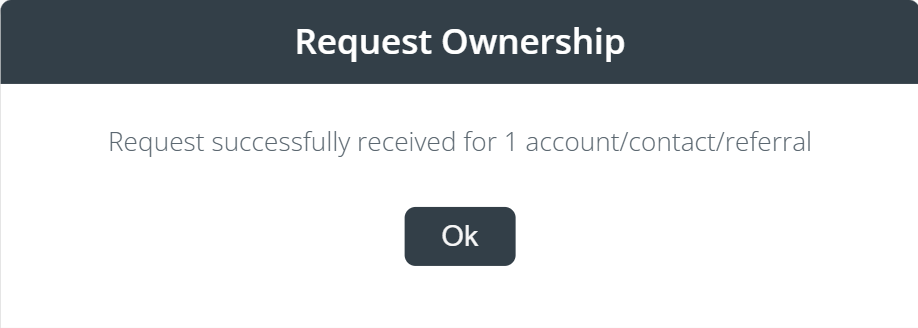 |
Since you are requesting that ownership be assigned to you, your manager or an administrator will need to approve the request before the item will be added to the list under your "My" account/contact/referral view.
To check the status of a ownership assignment request, see To check on the status of an ownership change request.
Bulk Requests
If you want to request changes to multiple accounts, contacts, or referrals, you can make the request using the Bulk Actions tool.
Just like requesting a change for a single account, contact, or referral is pretty much identical, requesting ownership or removal of ownership for multiple items is similar. The image below was taken from the referrals page, but the two steps described will work identically for accounts and contacts.
|
|
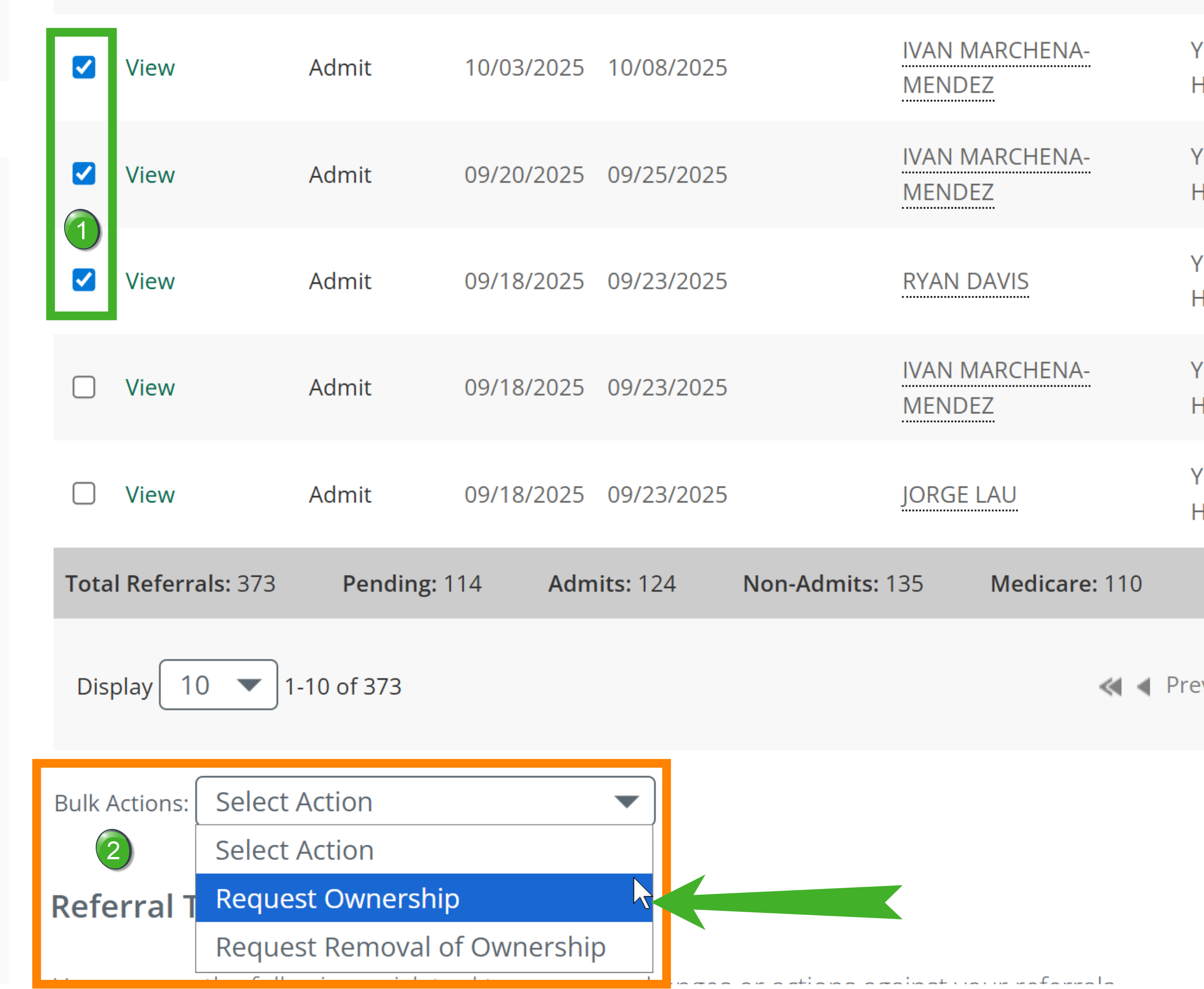 |
|
You will receive a confirmation of your request. (In our example we added "accounts/contacts/referrals." When you remove an item only that item type will be named in the confirmation dialog box.) |
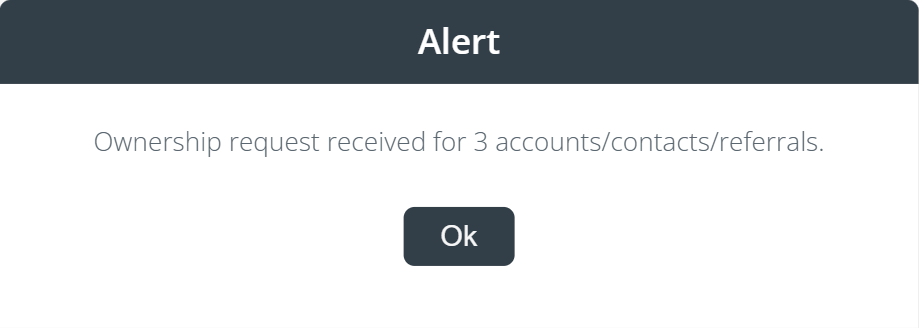 |
|
For a manager or administrator
Sales managers and administrators do not need to request changes to ownership. Instead of requesting change, they can assign ownership or remove ownership for themselves and for other users.
If you are a sales rep who has permission to assign or remove ownership, you will see what we are showing for a manager or admin in this section.
|
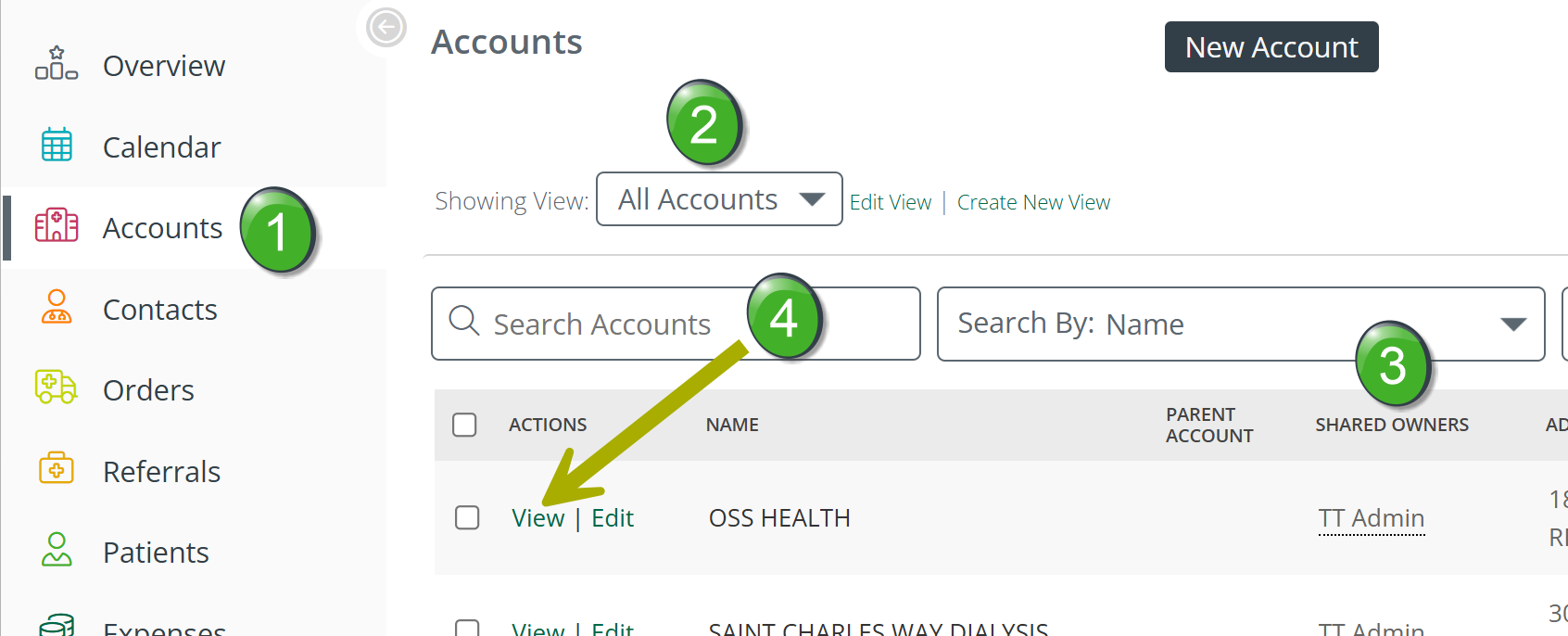
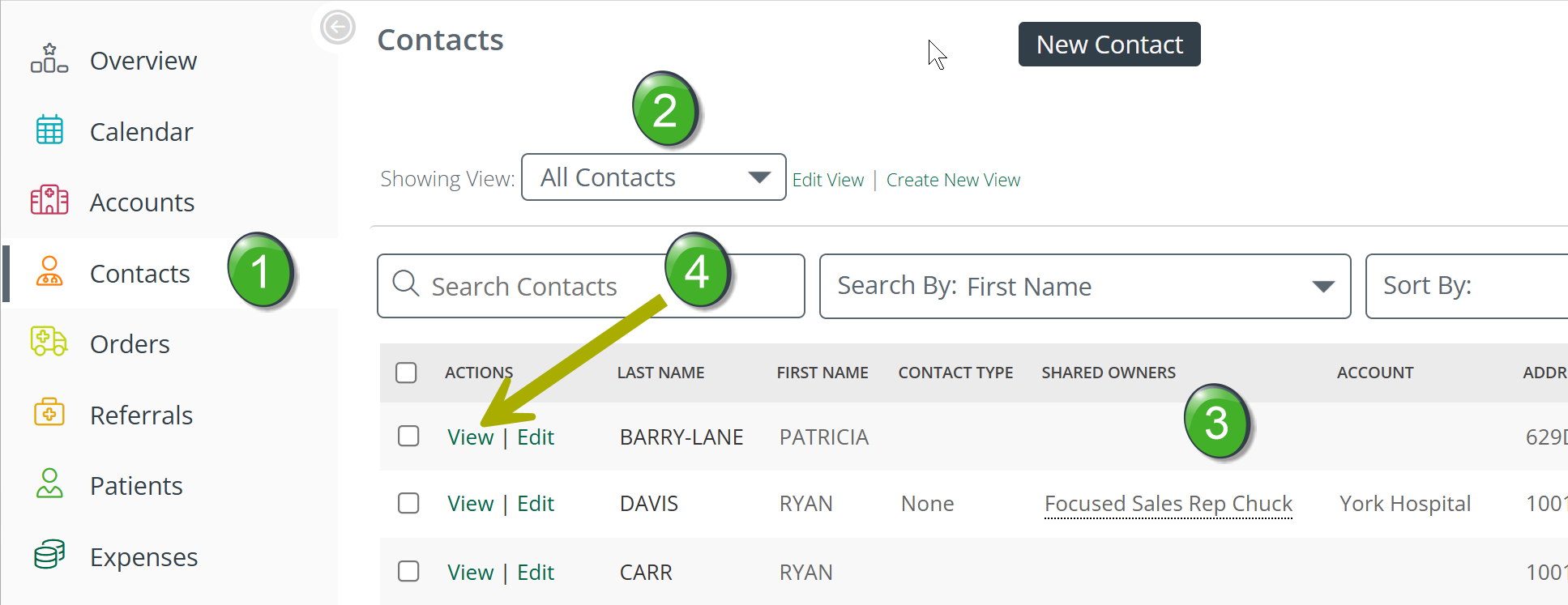
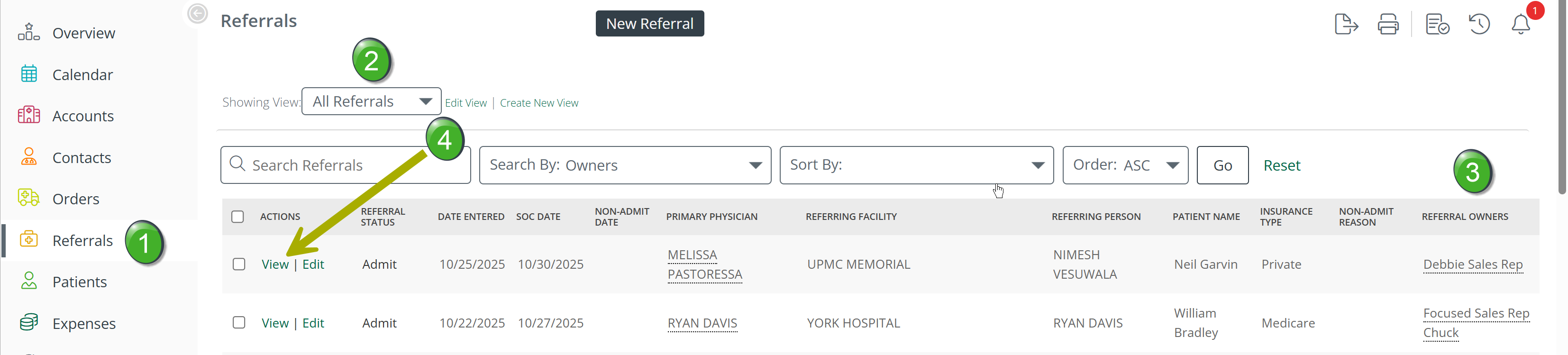
The process for assigning or removing an account, a contact, or a referral is similar in Marketscape CRM.
The Detail page for the selected item will open. (Shown in the next row.)
|
 |
 | |
 | |
|
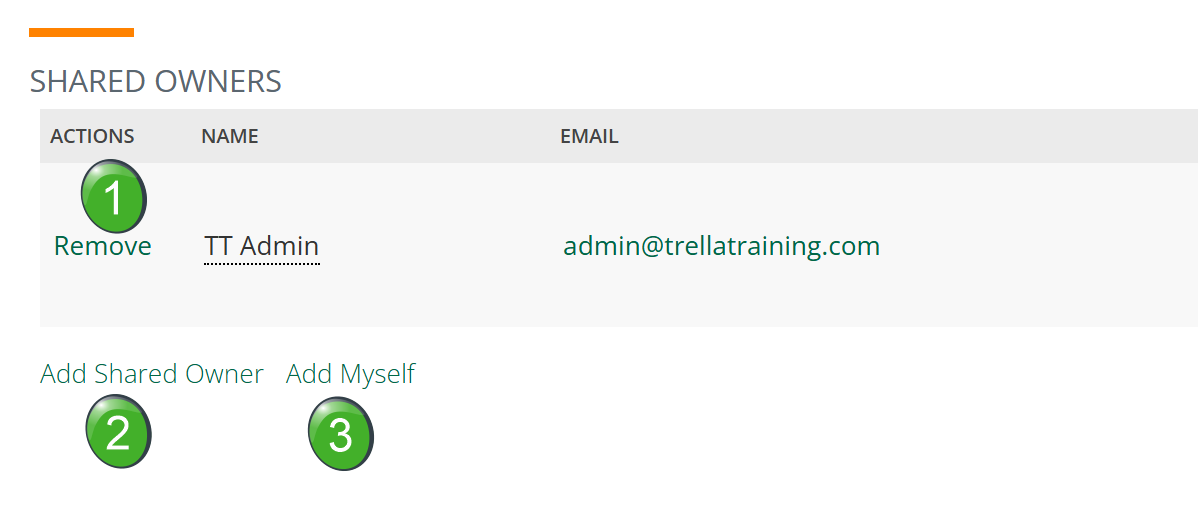
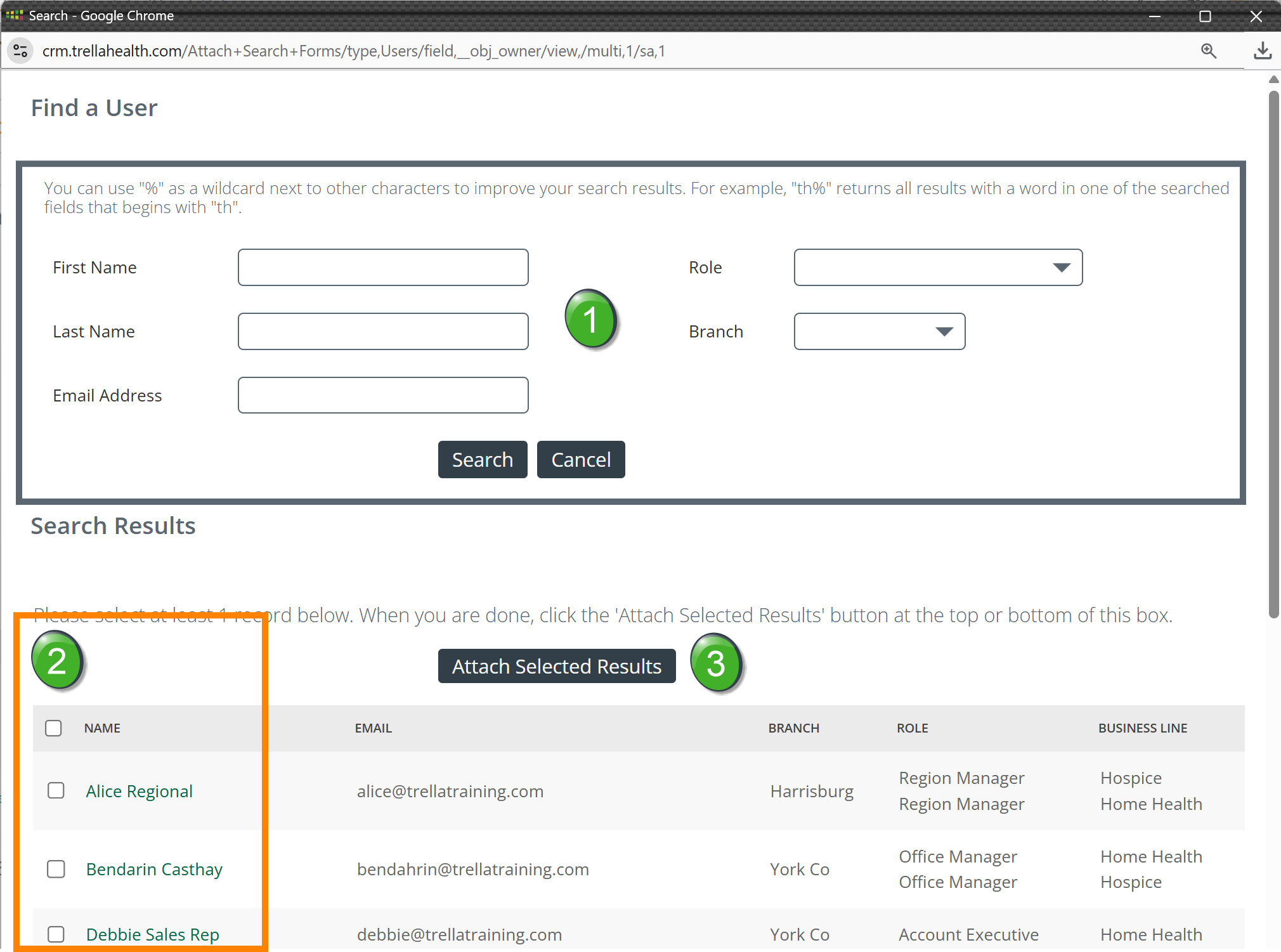
Scroll down to the "Shared Owners" section. This section is identical for accounts, contacts, and referrals. There are three options:
|
 |
|
Add Shared Owner dialog box - When you click on the Add Shared Owner link, the dialog box shown to the right opens.
|
 |
| Add Myself - when you click on the "Add Myself" link, you will immediately appear in the Shared Owner section of the item's detail page. In our example at right, Erin, the Area Manager just added herself as a shared owner. | 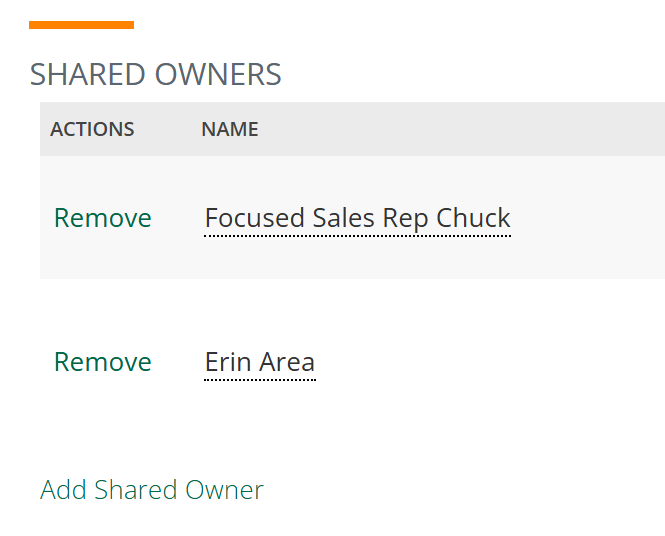 |
 Click on the "View" link for the selected item.
Bulk Changes
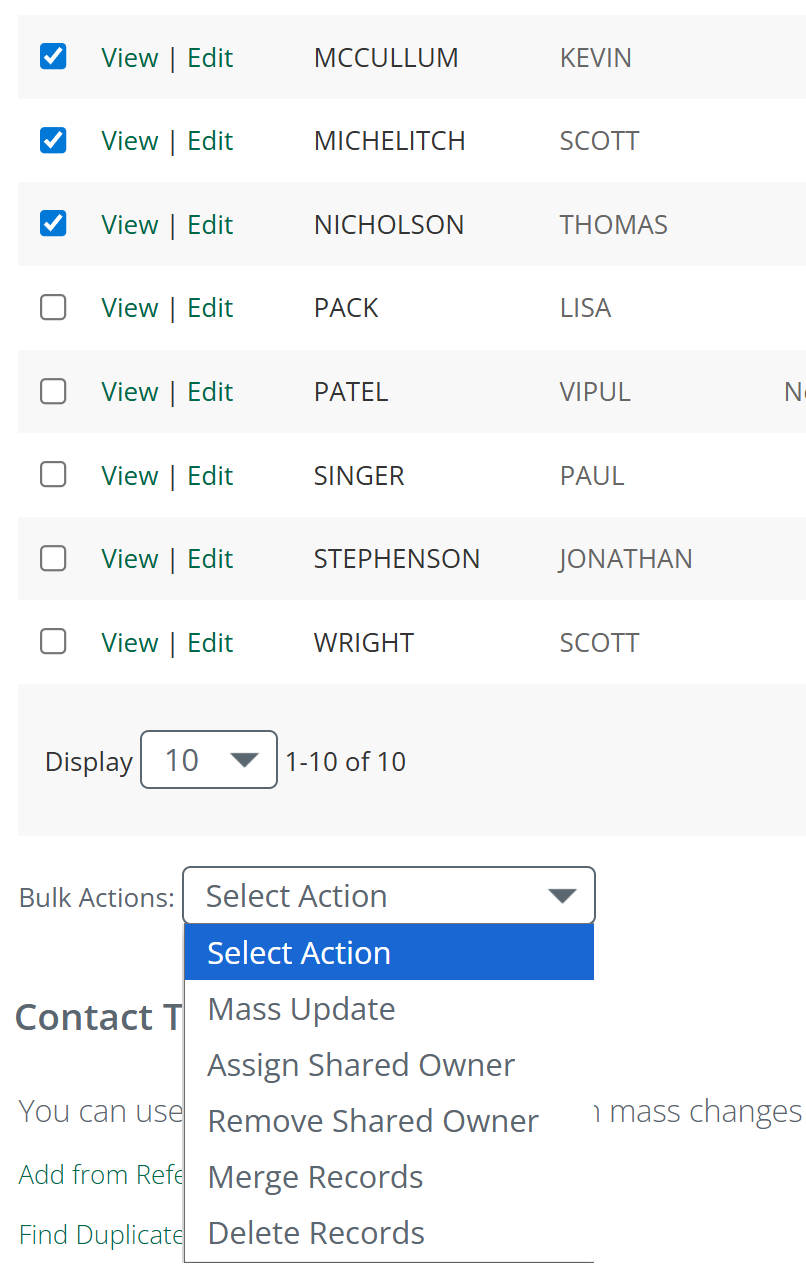
To save time, it is possible to add ownership to multiple accounts, contacts or referrals by using the Bulk Actions tool. This process is identical for accounts, contacts, or referrals.
The image below shows the bulk actions steps for contacts. In Marketscape CRM, this will work the same for accounts or referrals.
|
Steps to use Bulk Actions
When you choose an option, you will be given an opportunity to select a user. (image below)
OR
|
 |
|
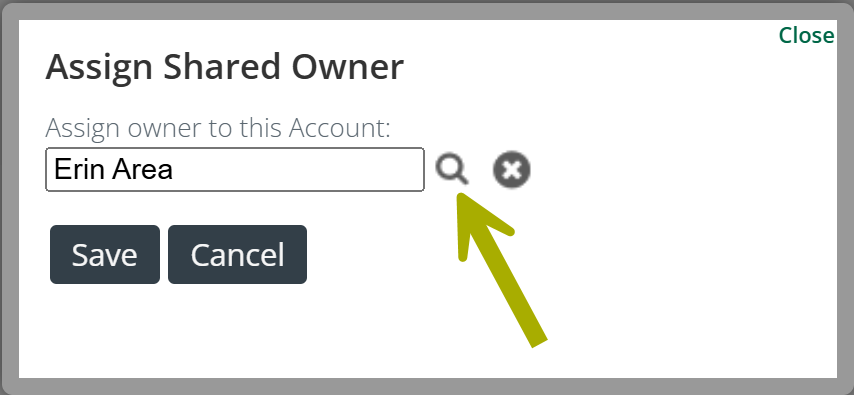
Select Owner dialog box - a dialog box opens that allows you to select a user or users for whom the selected ownership change will be applied
|
|
|
On the Market Spotlight page
Ownership can be managed when viewing the Market Spotlight page. However, unlike the Accounts, Contacts, and Referrals pages, in Market Spotlight ownership can only be requested or assigned. A sales rep is not able to request that ownership be removed, and a sales manager or account admin are not able to remove ownership.
To jump directly to the section for sales managers and account admins, see For a Sales Manager or an Account Administrator.
Some Details
- Ownership management requests or changes work the same way for physicians, facilities, or agencies. All examples shown below are for physicians, but changes for facilities or agencies work the same way.
- Ownership requests or changes can be made for an individual provider, or for multiple providers.
For a Sales Rep
A sales rep can request ownership for an individual provider or for multiple providers.
Requesting a single assignment
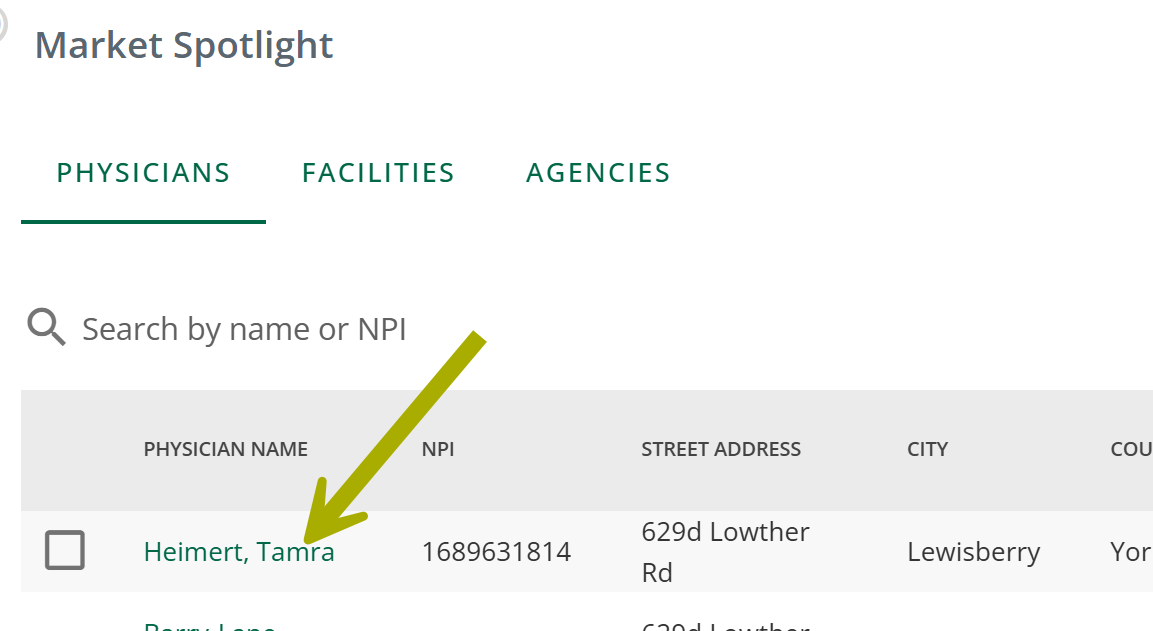
 Remember that the example below is for a physician, but the process is the same for facilities or agencies.
The provider's name is a link that opens Sales Spotlight. |
 |
|
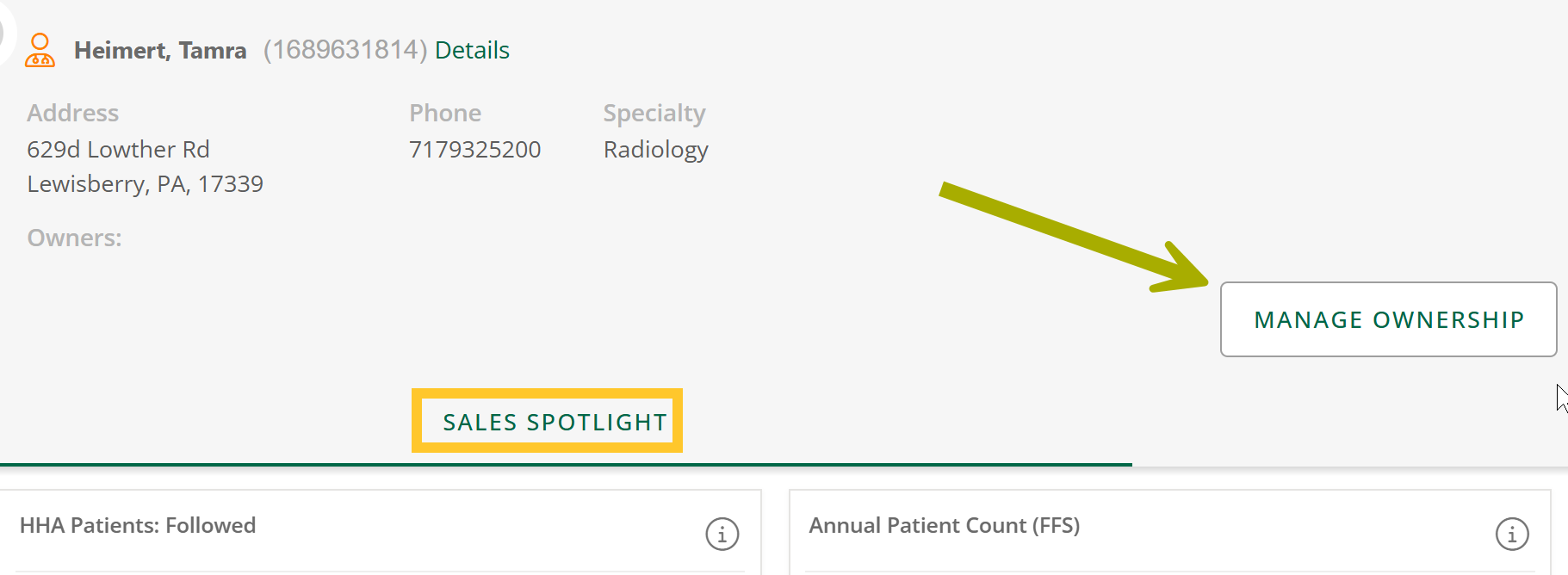
The Sales Spotlight panel opens for the selected provider.
|
 |
|
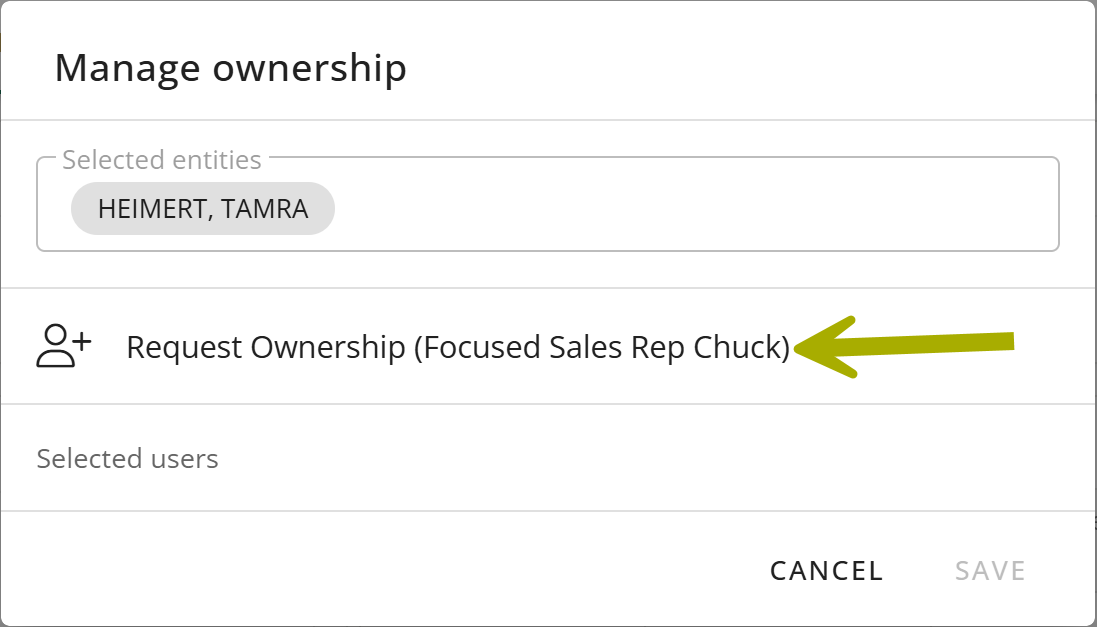
The Manage Ownership dialog box opens. In this example, we are Sales Rep Chuck.
|
 |
|
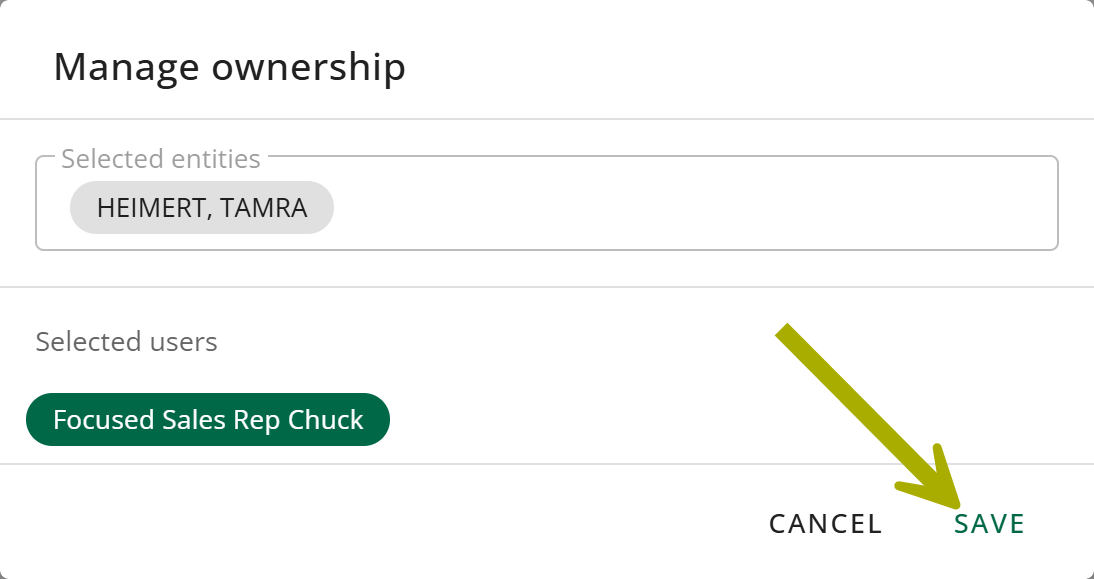
The dialog box will change to show that Sales Rep Chuck is now a selected user.
Your request will be sent for approval. |
 |
Bulk Request
A sales rep is able to request multiple providers by following the steps shown below the image.
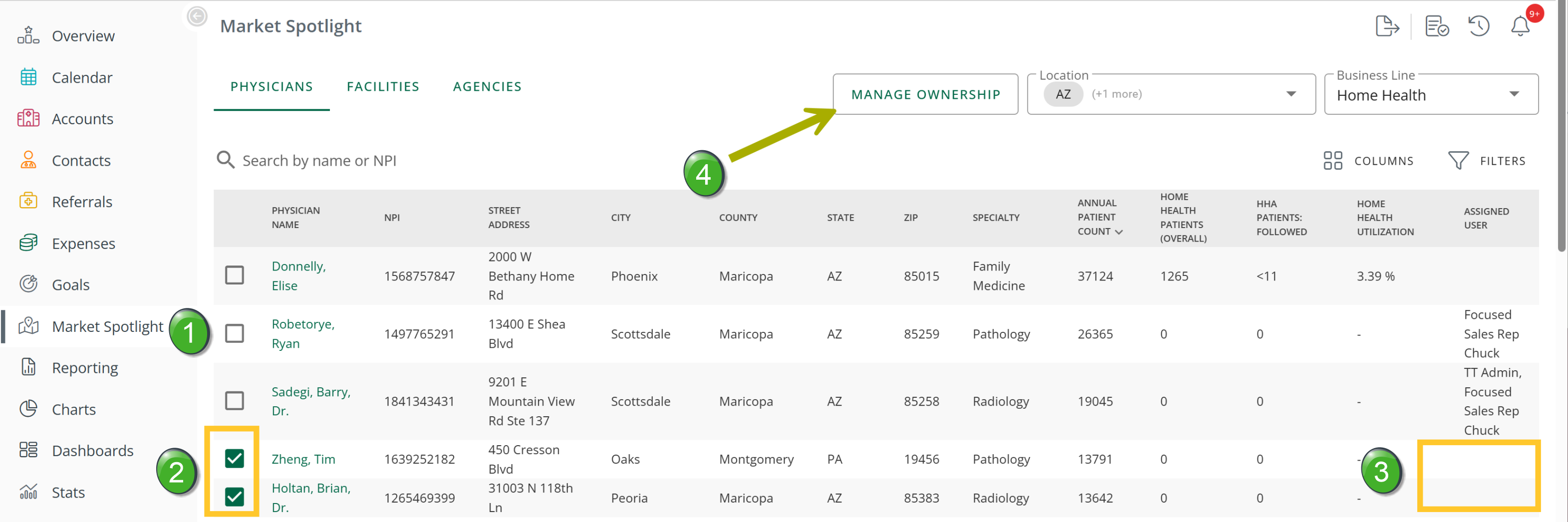 | |
|
| |
|
The Manage Ownership dialog box opens. In this example, we are Sales Rep Chuck.
|
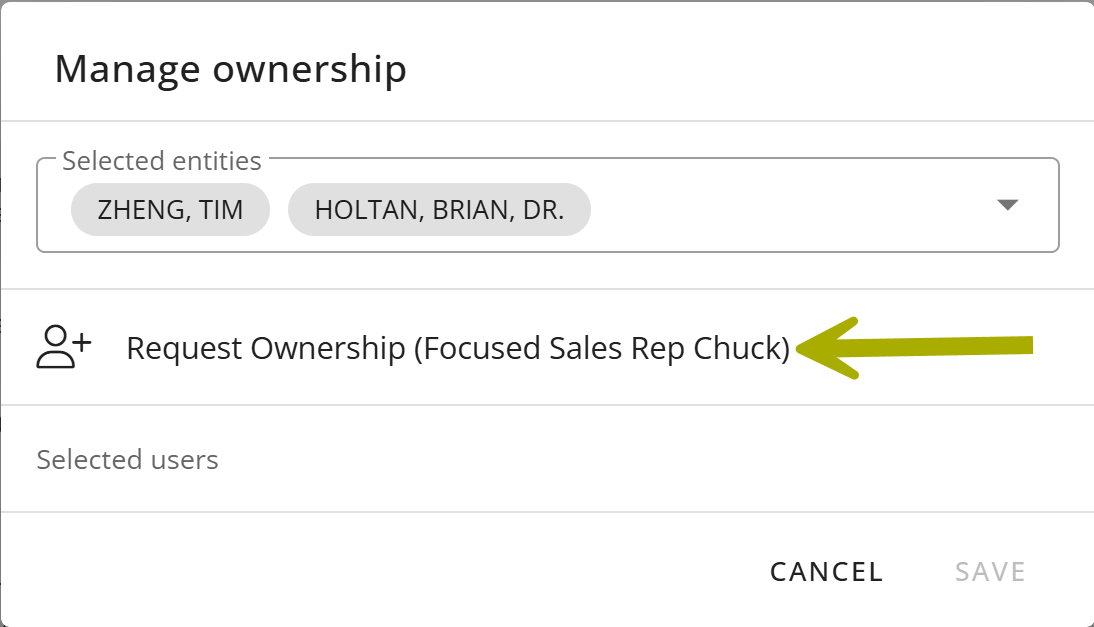 |
|
The dialog box will change to show that Sales Rep Chuck is now a selected user.
Your request will be sent for approval. |
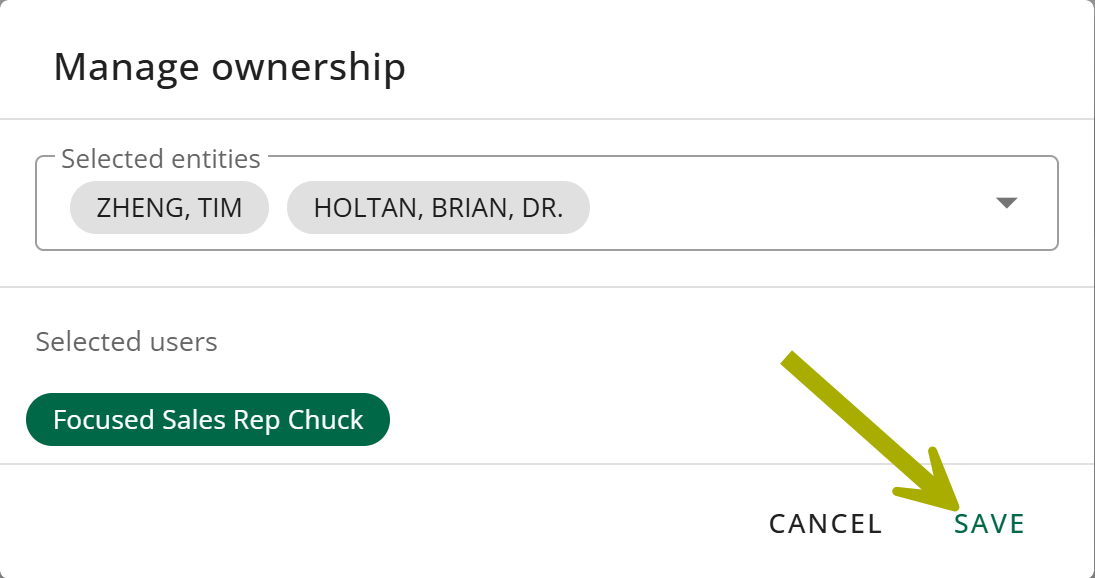 |
Since you are requesting that ownership be assigned to you, your manager or an administrator will need to approve the request before the item will be added to the list under your "My" account/contact/referral view.
To check the status of a ownership assignment request, see To check on the status of an ownership change request.
For a Sales Manager or an Account Administrator
A sales manager or account administrator can assign providers to any user or users.
Single Assignment
Remember that the example below is for a physician, but the process is the same for facilities or agencies.
The provider's name is a link that opens Sales Spotlight. |
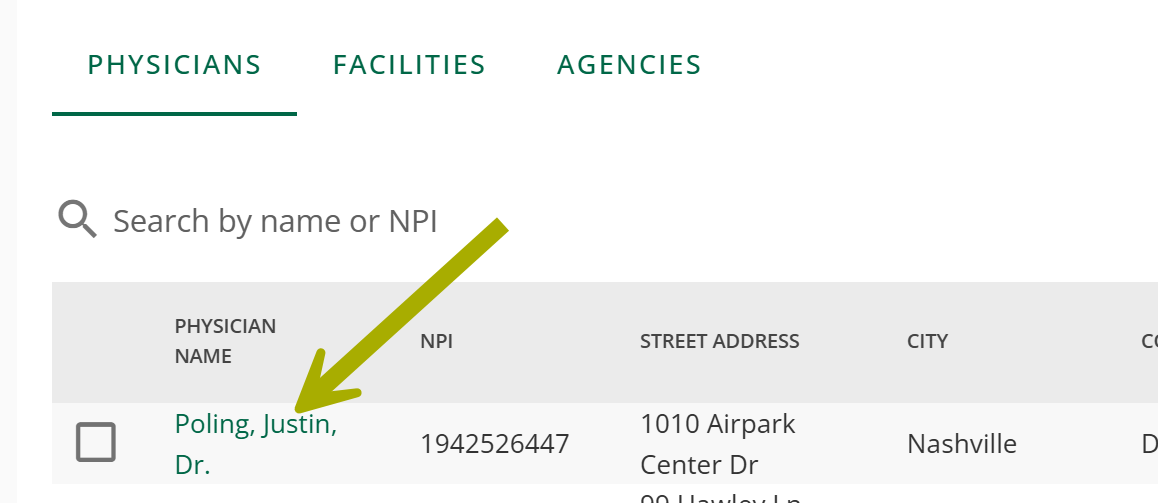 |
|
The Sales Spotlight panel will open.
|
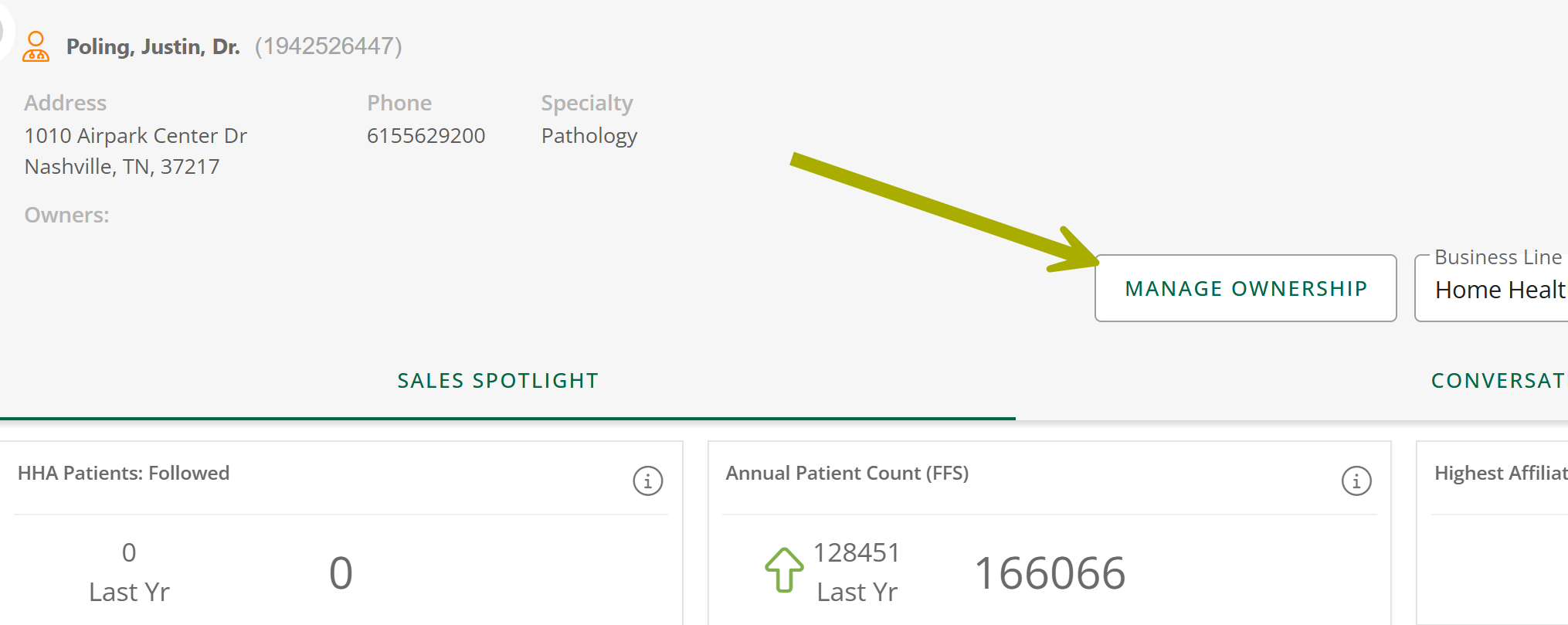 |
|
The "Manage Ownership" dialog box will open.
(For you, your name would appear in the parentheses)
The selected provider and user are now connected. |
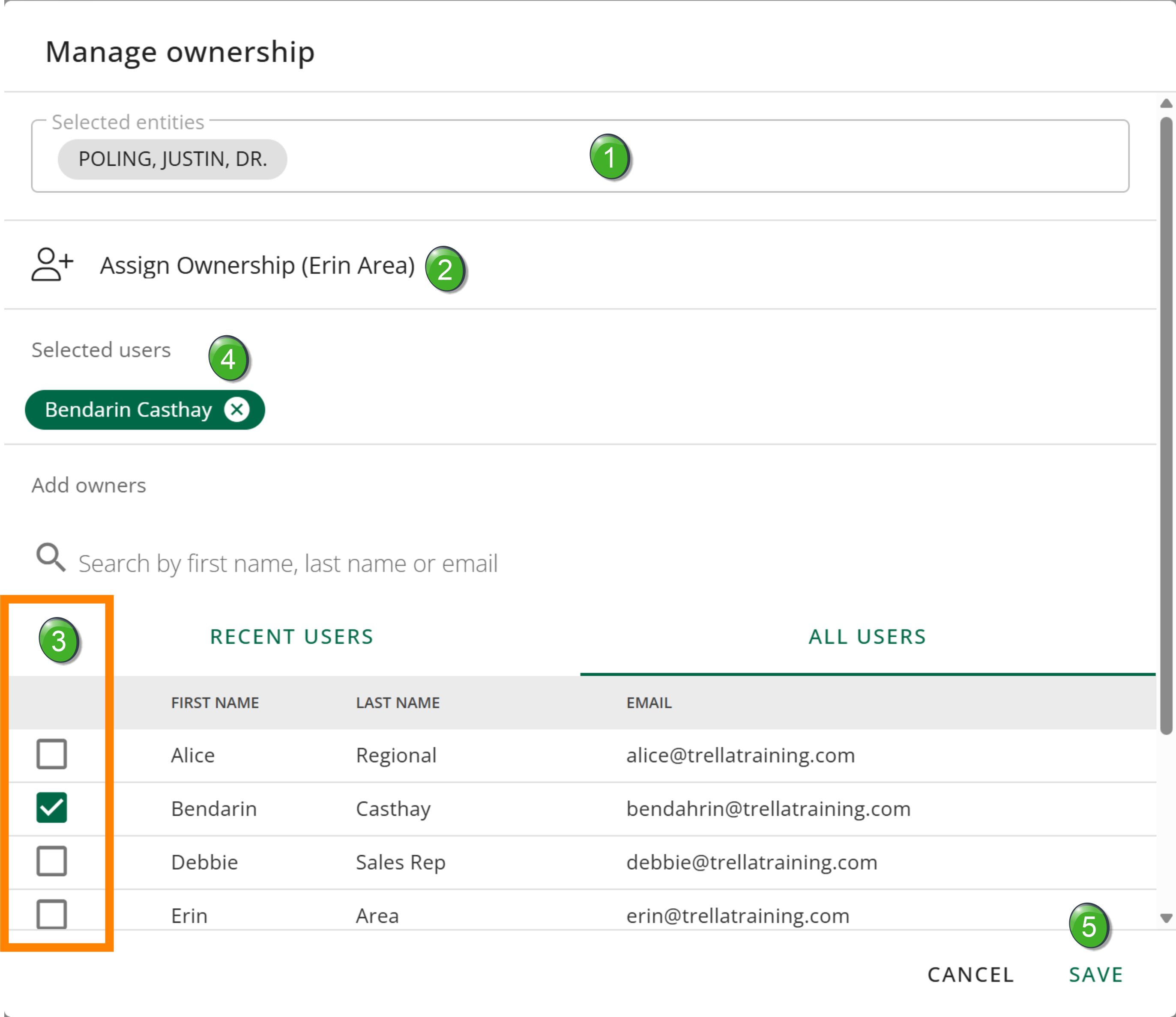 |
 When you have chosen the users, click on the "Save" button.
Bulk Assignment
A sales manager or an account administrator is able to assign multiple providers by following the steps shown below the image.
|
On the Market Spotlight page, select one or more providers you want to assign to a user or users. As soon as you click on the first check box, the "Manage Ownership" button will appear.
|
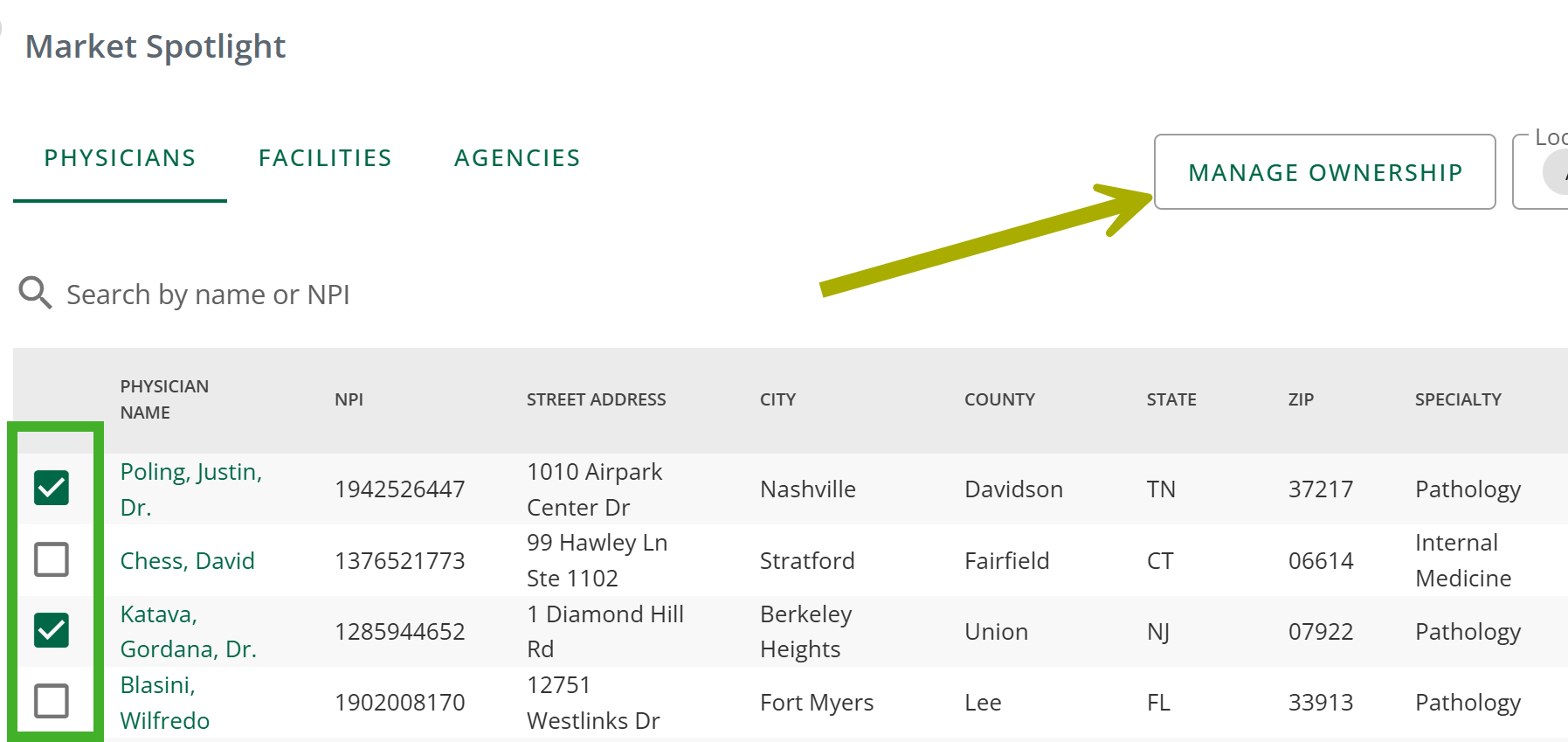 |
|
The Manage Ownership dialog box will open.
(For you, your name would appear in the parentheses)
The selected providers and user(s) are now connected. |
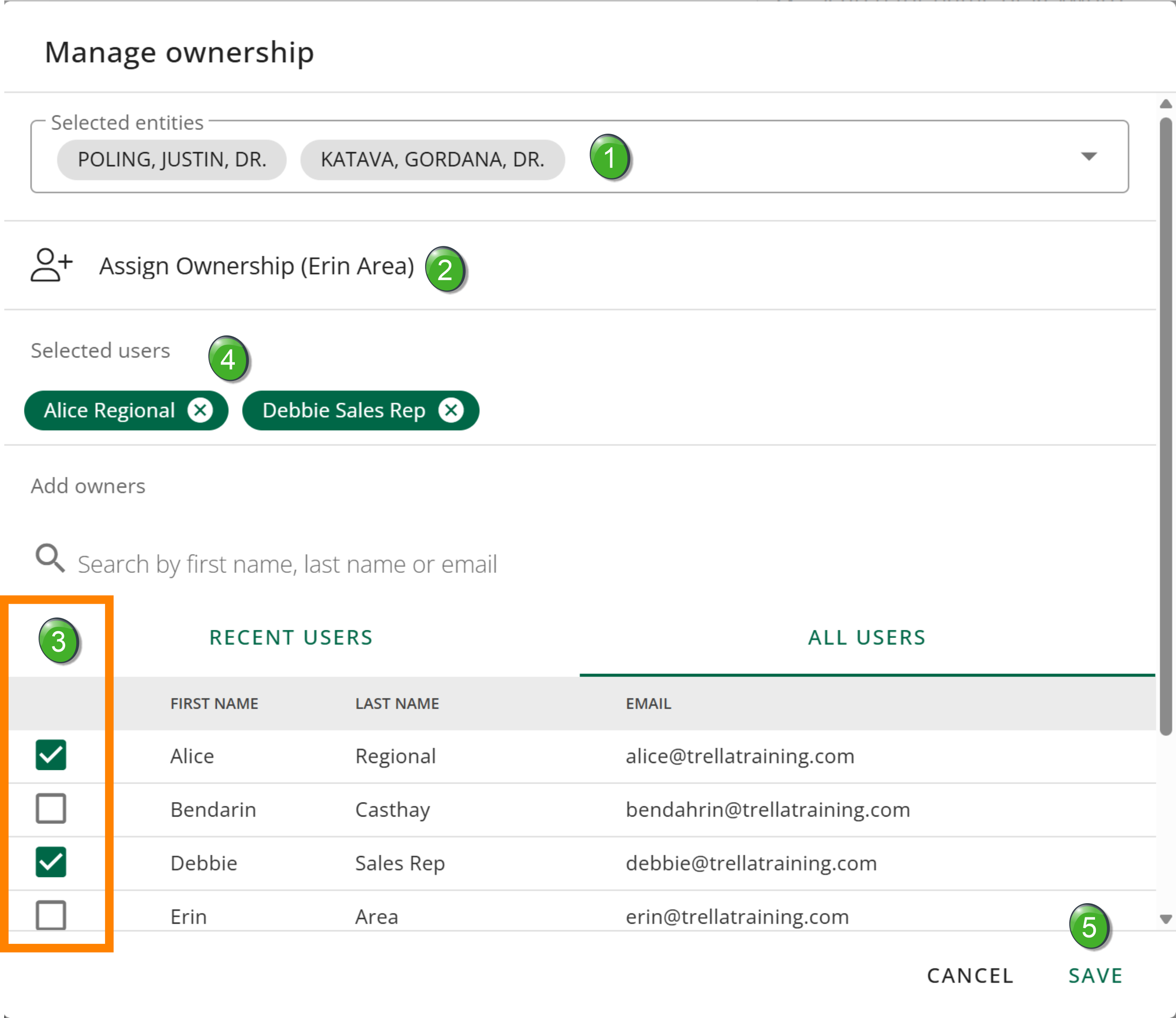 |
|
Reports
There are two reports that are used for ownership management. Depending on your assigned role you will only see one of the two reports shown below.
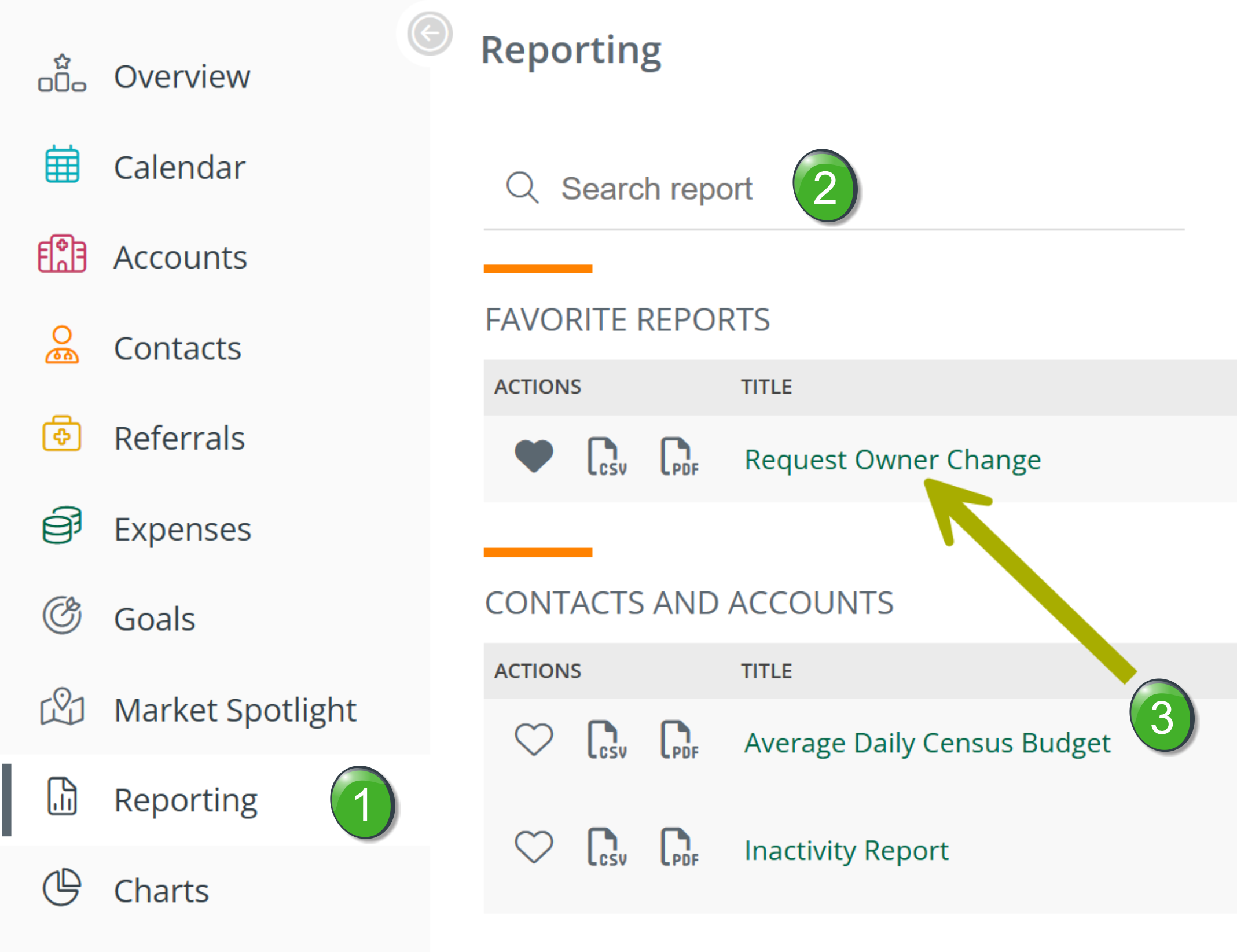
Request Owner Change
A sales rep is able to check the status of current ownership requests.
|
|
 |
|
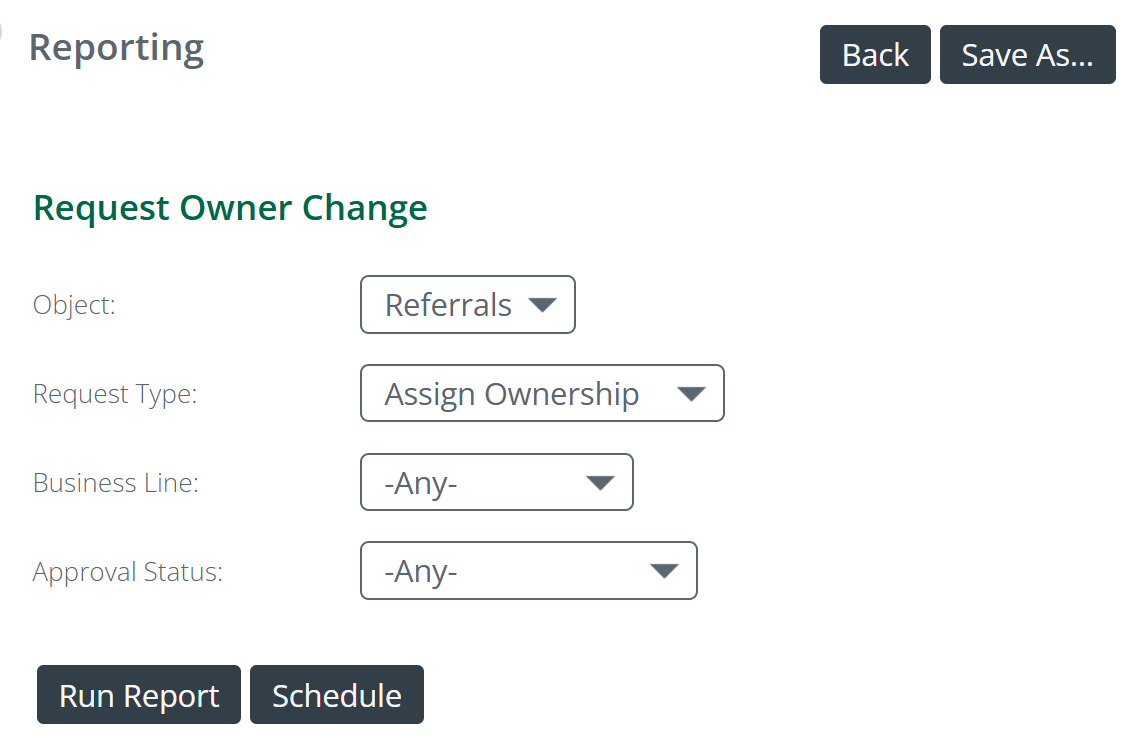
The image to the right shows all of the features for the Request Owner Change report. Each feature is described below.
|
 |
|
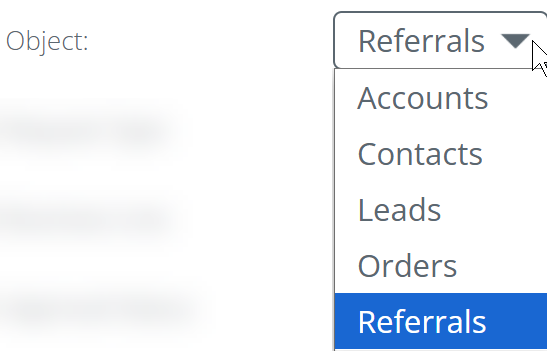
Object - the report will only display one type of object at a time.
|
 |
|
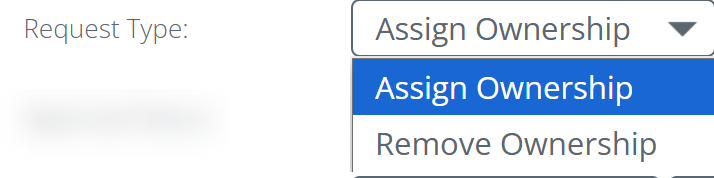
Request Type - Only one request type can be shown at a time.
|
 |
|
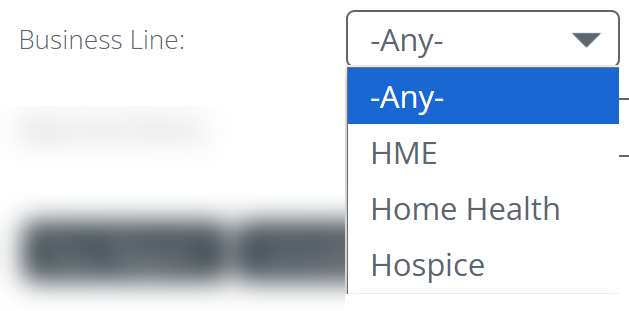
Business Line - If you serve in multiple lines of business, you might want to look at requests that only align with a specific line of business.
|
 |
|
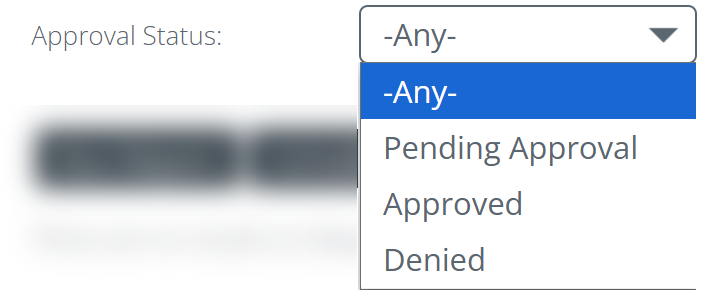
Approval Status - Once you make a request, it will have a status of pending, approved or denied. This filter allows you to choose the status of the requests shown in the table.
|
 |
|
Run Report - Once you have set the filters the way you want, click on the "Run Report" button. The table on the page will populate with requests that match your filter criteria |
 |
| Schedule - All reports in Marketscape CRM can be scheduled. If you want to have a report sent to you, click on the "Schedule" button to set the parameters. |  |
Example
| |
|
The image above shows a sample report.
| |
| Re-Request Ownership - If you select one or more items from the list by checking the check box to the far left of each entry, you can then click the "Re-Request Ownership" button to make another request submission. | 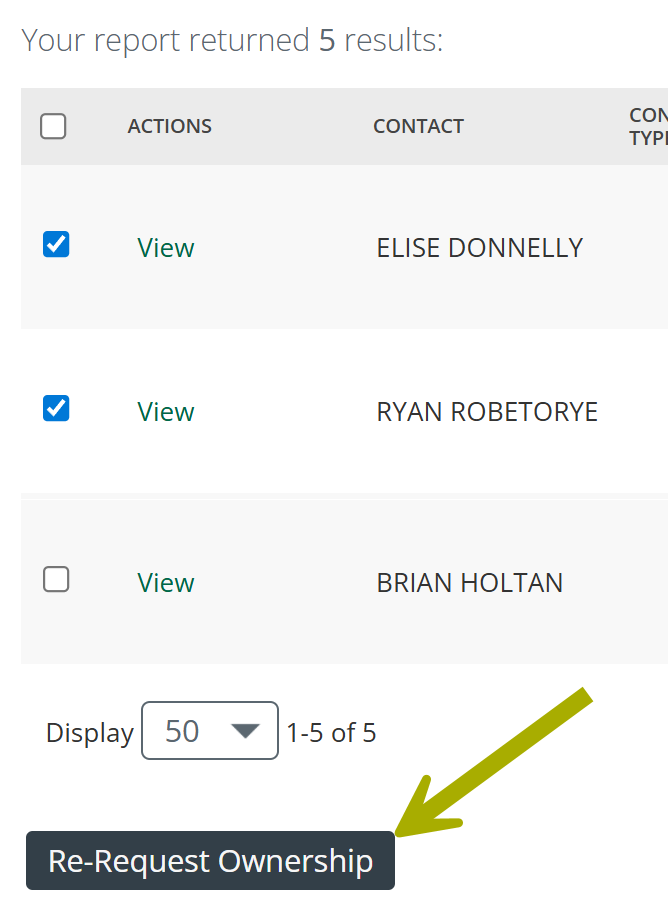 |

Approve Owner Change
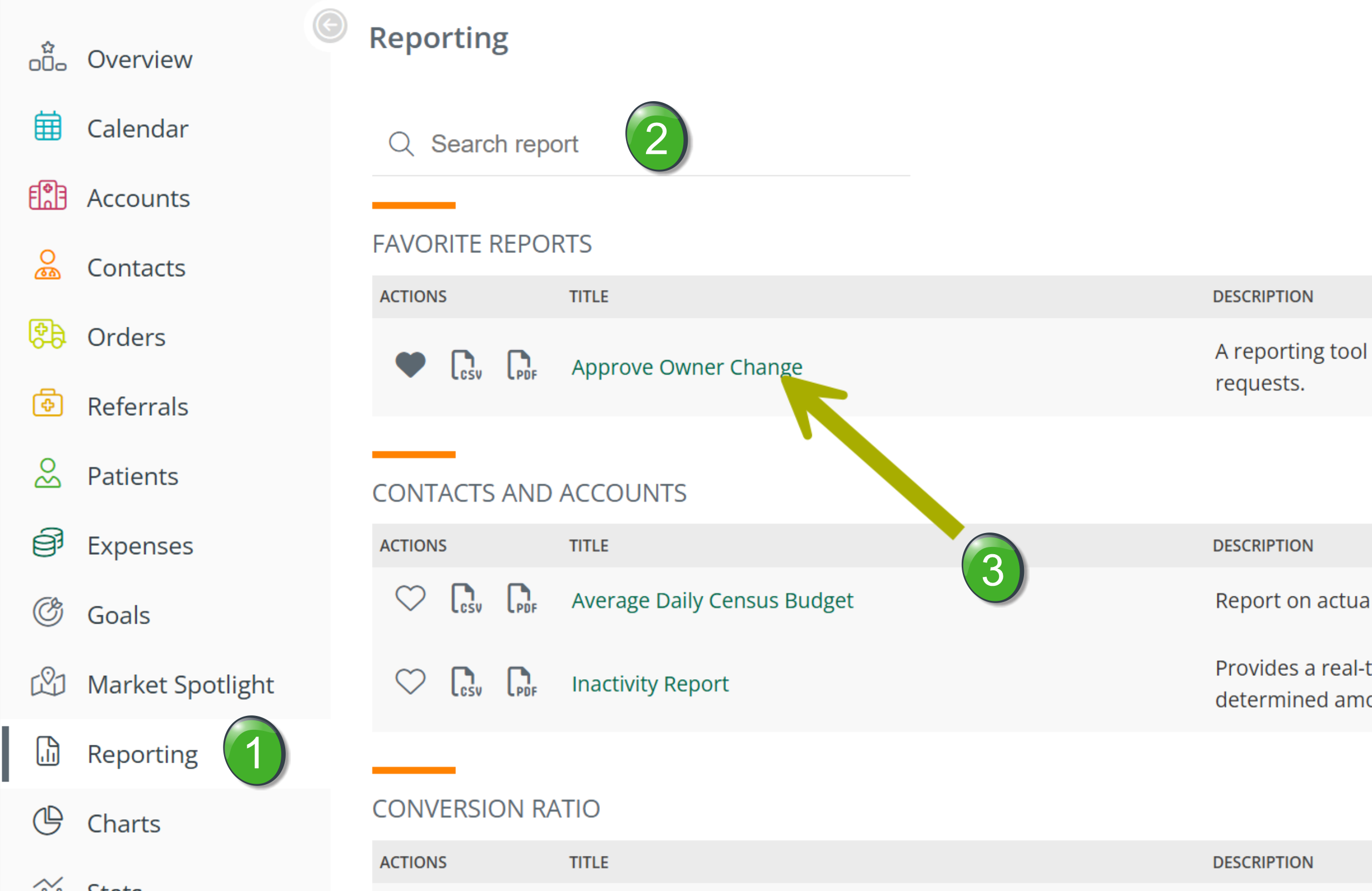
A sales manager and an account administrator can review ownership requests and either approve or deny the requests.
|
|
 |
|
The image to the right shows all of the features for the Approve Owner Change report. Each feature is described below. |
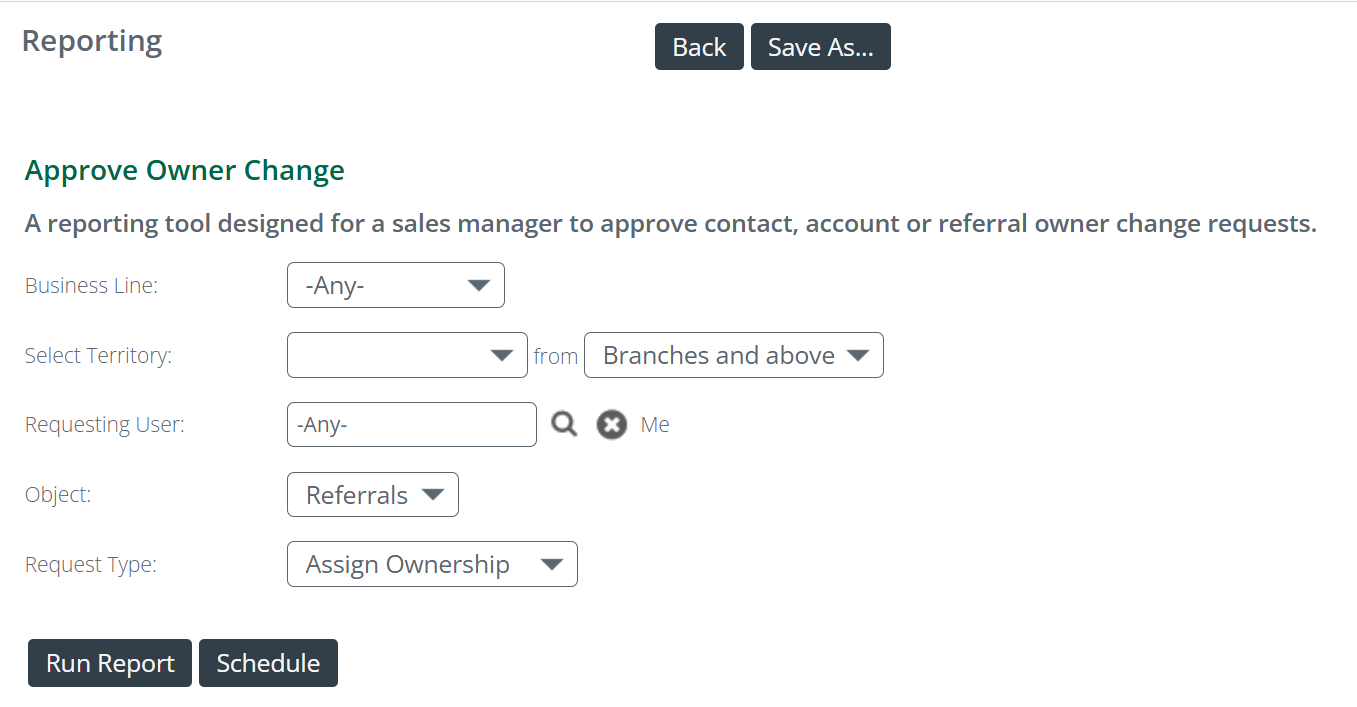 |
|
Business Line - you might want to look at requests that only align with a specific line of business.
|
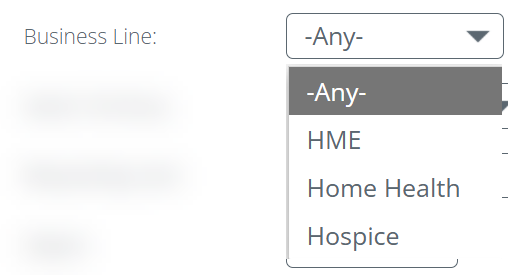 |
|
Select Territory/Branches - you can use the territory and branches filters to narrow the focus of the requests to specific territories and branches in your organization. These filters are more useful for companies with larger and more complex organizational structures.
|
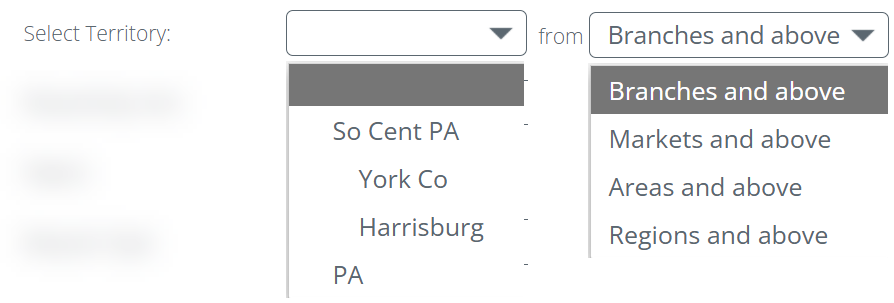 |
|
Requesting User - This filter allows you to choose a specific user from your company. By choosing a specific user, only ownership requests from the chosen user will appear in the report.
|
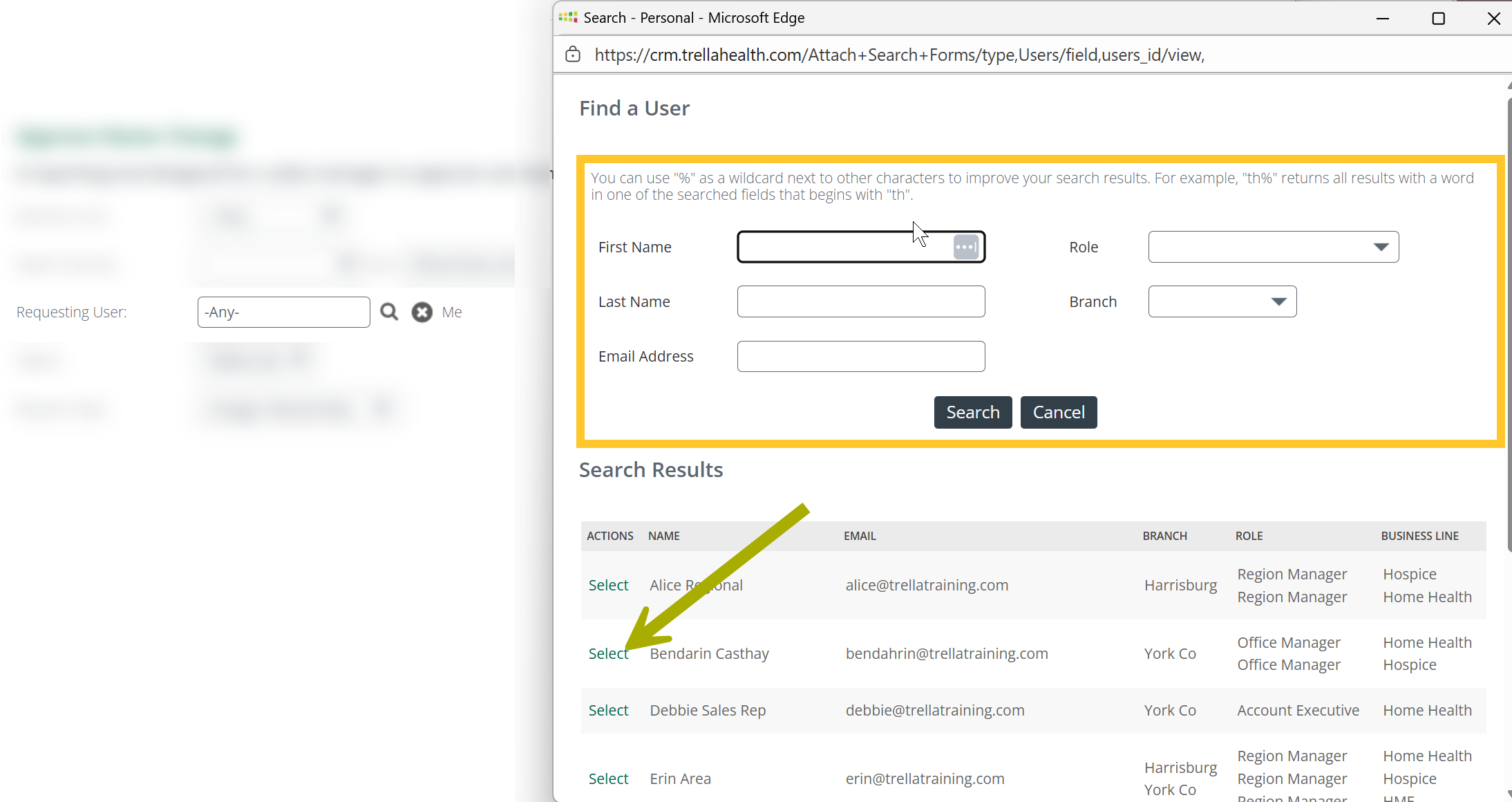 |
|
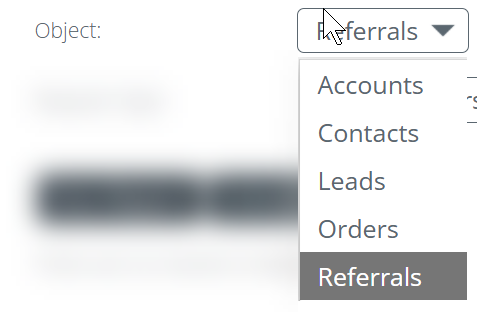
Object - the report will only display one type of object at a time.
|
 |
|
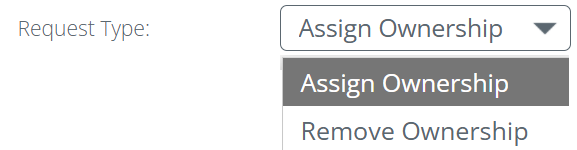
Request Type - Only one request type can be shown at a time.
|
 |
|
Run Report - Once you have set the filters the way you want, click on the "Run Report" button. The table on the page will populate with requests that match your filter criteria |
|
| Schedule - All reports in Marketscape CRM can be scheduled. If you want to have a report sent to you, click on the "Schedule" button to set the parameters. | |
|
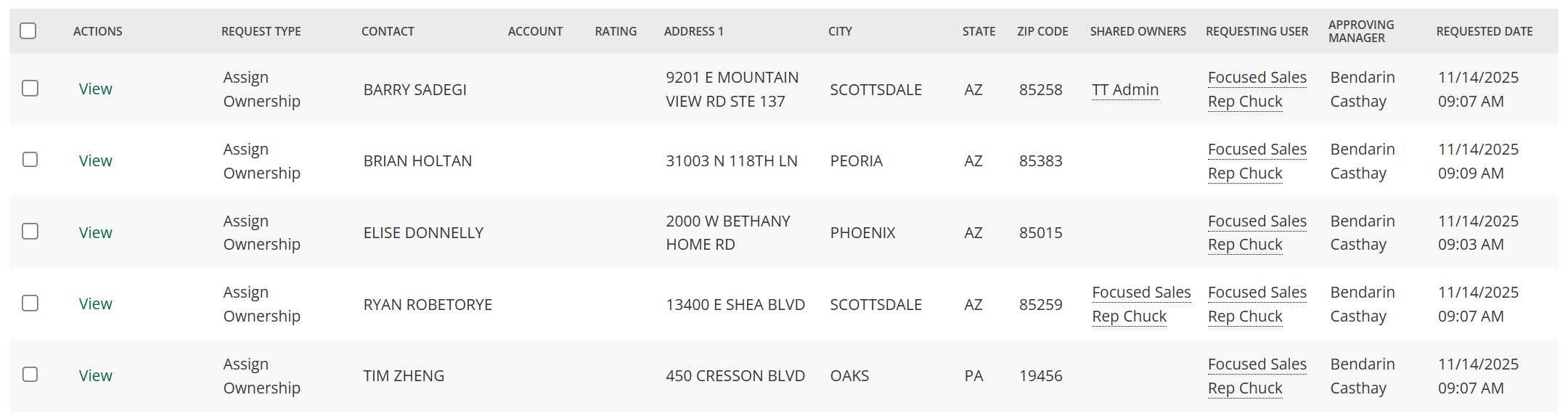
Once you have run the report, the requests that match your settings will appear in the table
|
 |
|
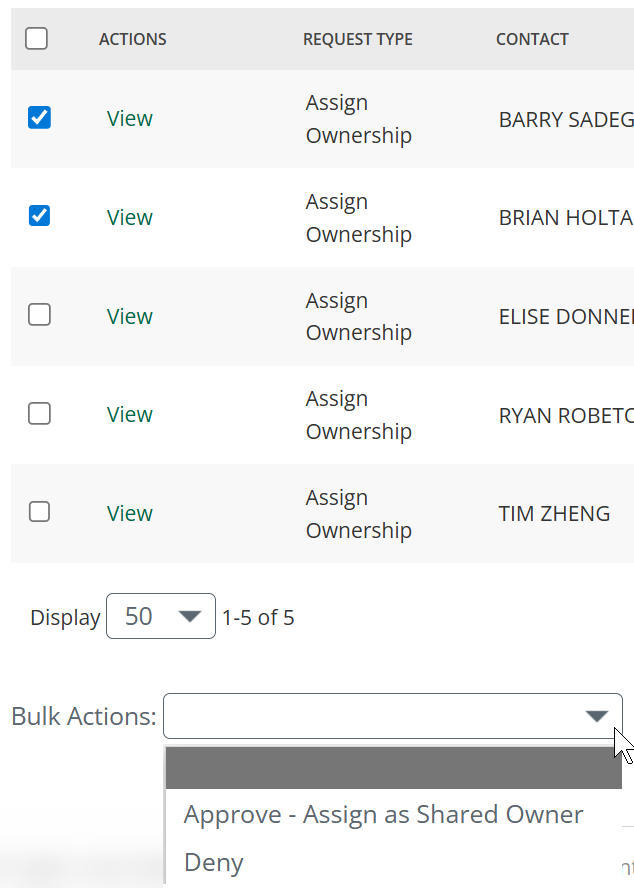
At this point you can evaluate the requests to determine alignment with company goals. You have two options - to approve the requests or to deny them.
|
 |
|
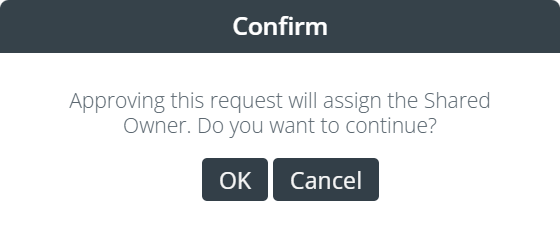
When you make a choice to approve or deny ownership changes, a confirmation dialog box will open.
The ownership change is immediately active in Marketscape CRM |
 |
 This allows you to focus on book of business changes strategically for users based on geographical or organizational parameters.
 Click on the image at right to enlarge it.
 |
In Marketscape CRM Mobile
Most of the ownership related tasks shown in this article can be done in Marketscape CRM mobile.
Some details
- Just as in Marketscape CRM for web, the workflows to make ownership requests and changes are the same between different items; accounts, contacts, orders, leads and referrals. The examples below will mostly show tasks performed on contacts, but the steps for other items are identical.
- In Marketscape CRM mobile, a sales manager or an account administrator can't approve or deny other user's requests.
- The content below is organized by workflows rather than by the differences between the experience of a sales rep versus a sales manager.
Ownership Management on the matching pageThat is, managing ownership of an account on the Accounts page, managing a contact on the Contacts page, etc. | |
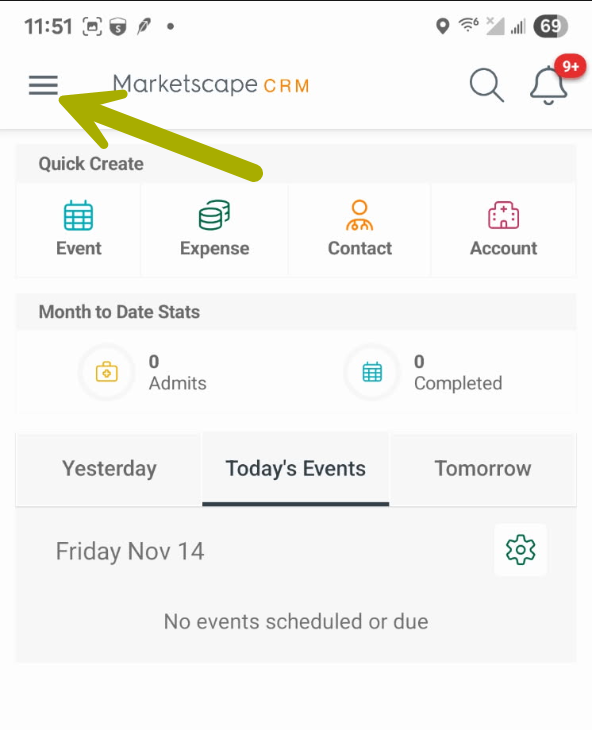
Menu button
This button is your gateway to pretty much everything in Marketscape CRM.
|
 |
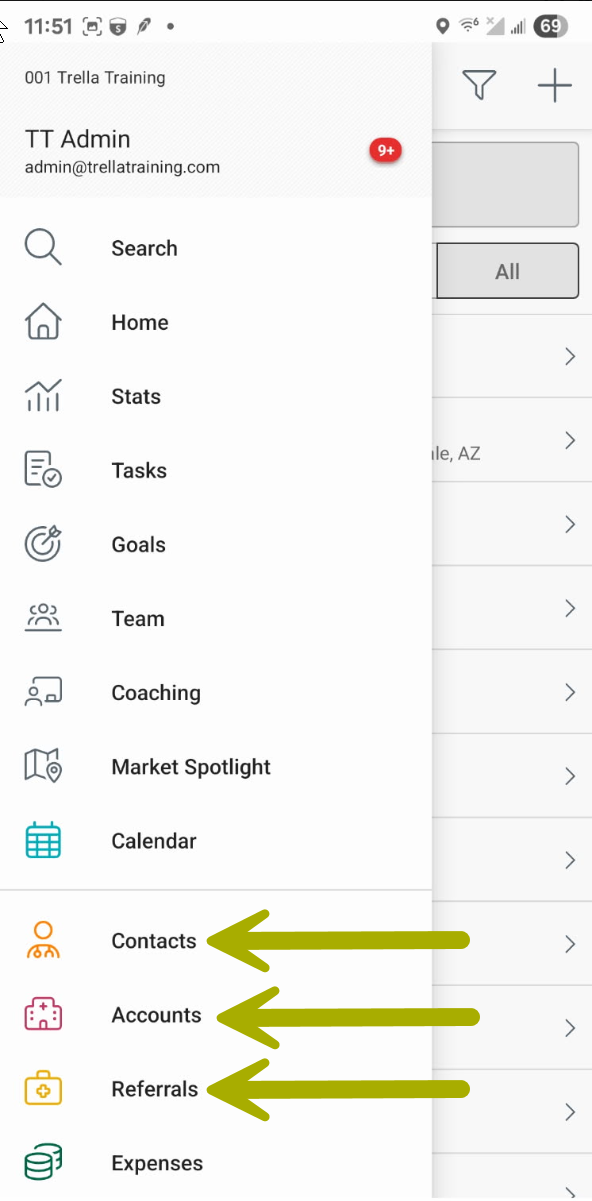
Marketscape CRM mobile menuAs you can see the menu provides access to a lot of cool stuff. With regard to managing ownership, the links we will be using are identified with arrows.
For the examples below, we tapped "Contacts" in the menu.
|
 |
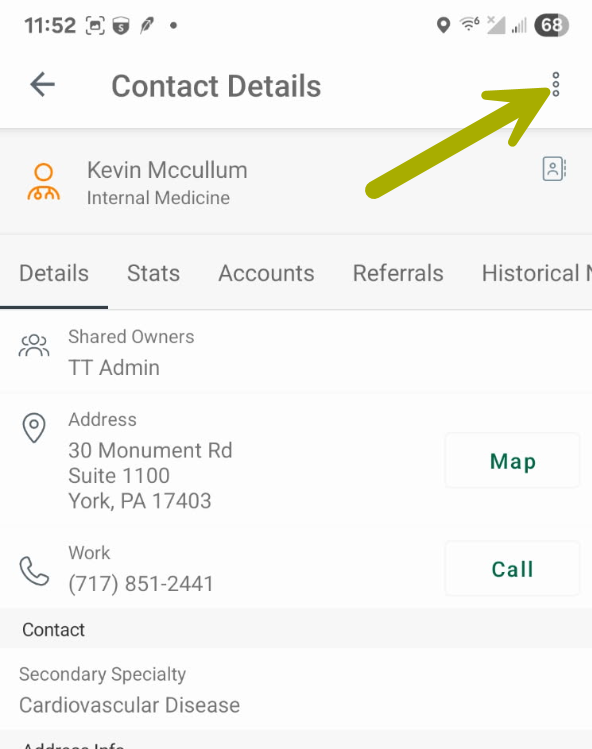
For a sales manager or account admin removing ownership
| |
|
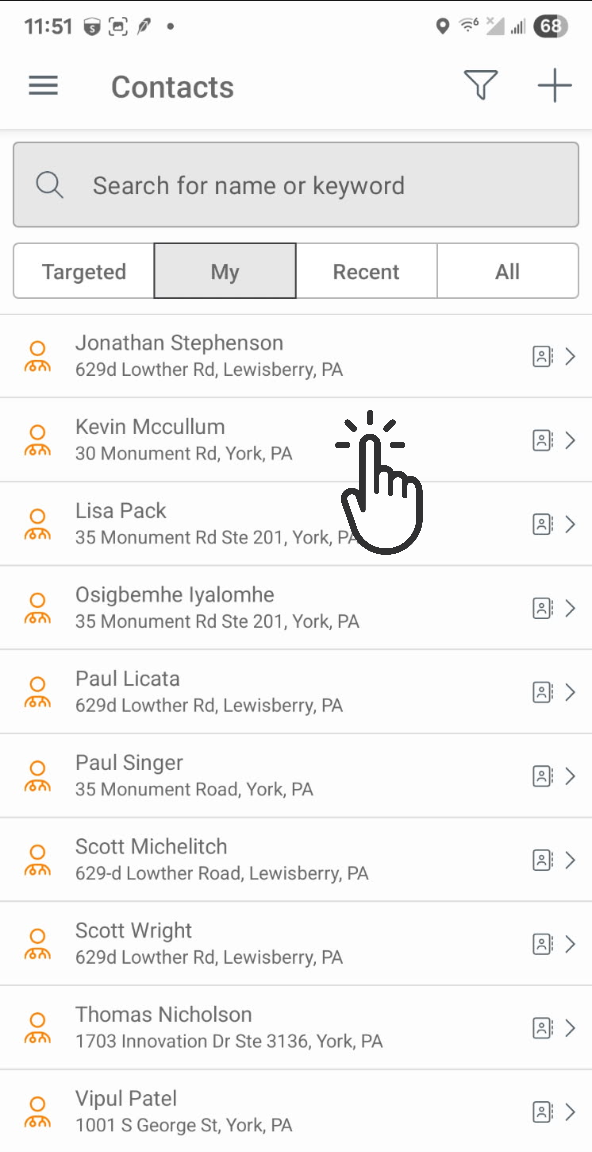
Tap on the contact for which you wish to remove ownership.
|
 |
|
The Contact Details page opens.
|
 |
|
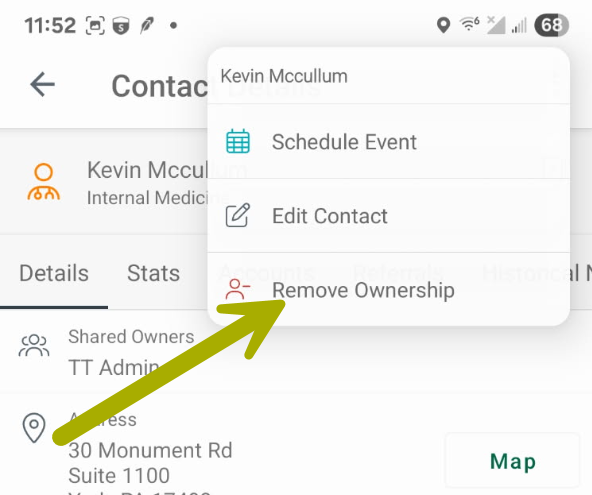
The small (but really powerful) menu opens.
The menu will close, and you will not be assigned to the selected contact. |
 |
For a sales manager or account admin adding ownership
| |
| Tap on the contact for which you wish to assign ownership. | 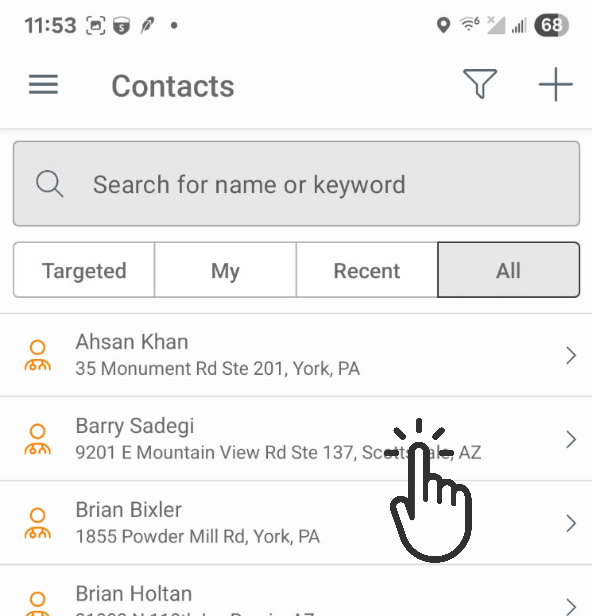 |
|
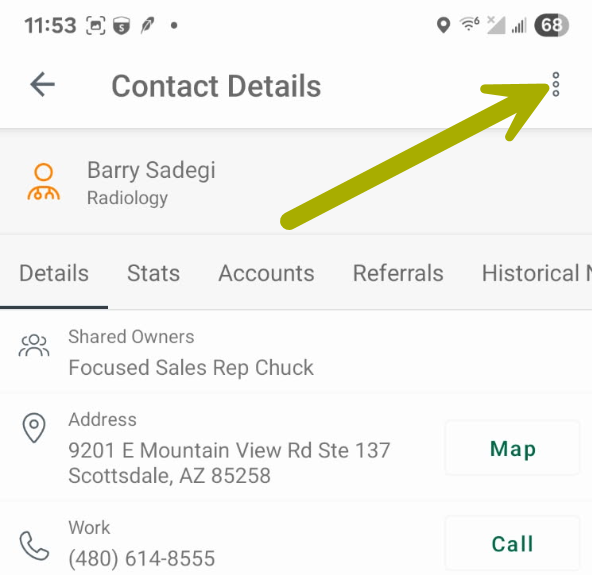
The Contact Details page opens.
|
 |
|
The small (but mighty) menu opens.
The menu will close, and you will be assigned to the selected contact. |
|
For a sales rep requesting ownership assignment | |
|
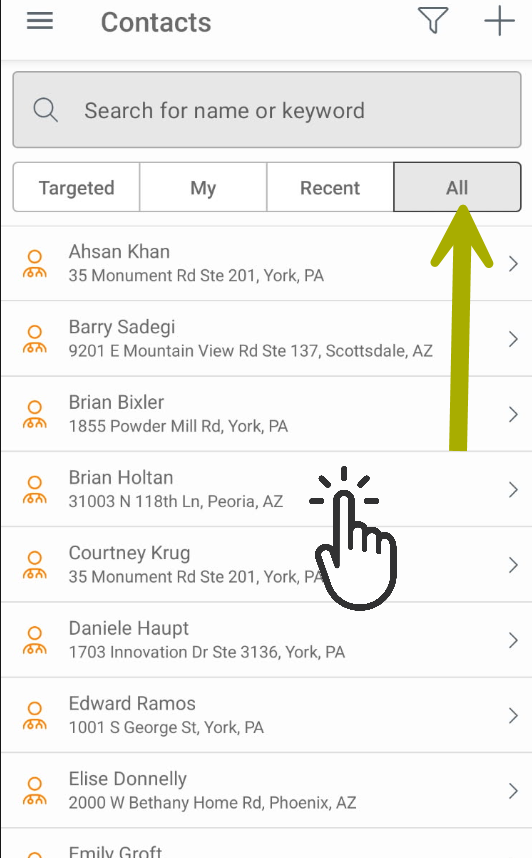
For this example, we tapped on the "Contacts" link in the main menu. In order to select a contact that you don't already own, you can tap on the "All" filter.
|
 |
|
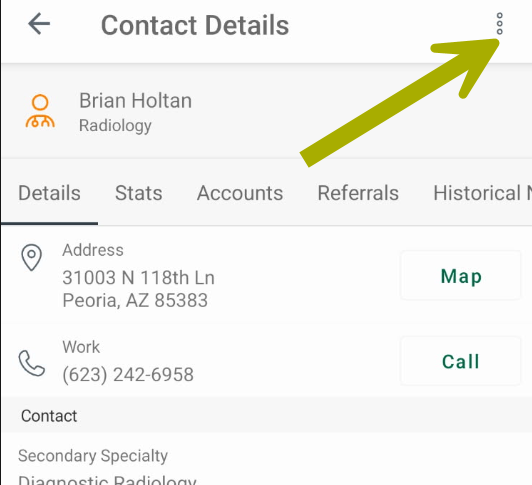
The "Contact Details" page for the selected contact will open.
|
 |
|
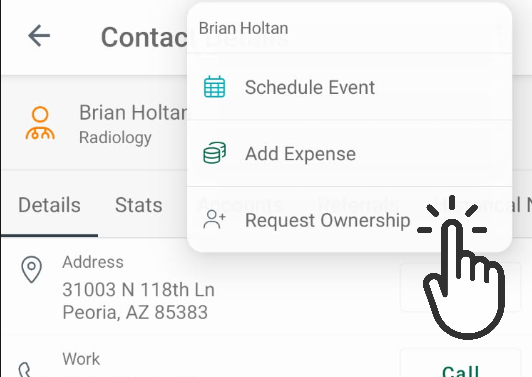
The small (but helpful) menu opens.
The menu will close, and an assignment request will be sent for approval. |
 |
For a sales rep requesting ownership removal | |
|
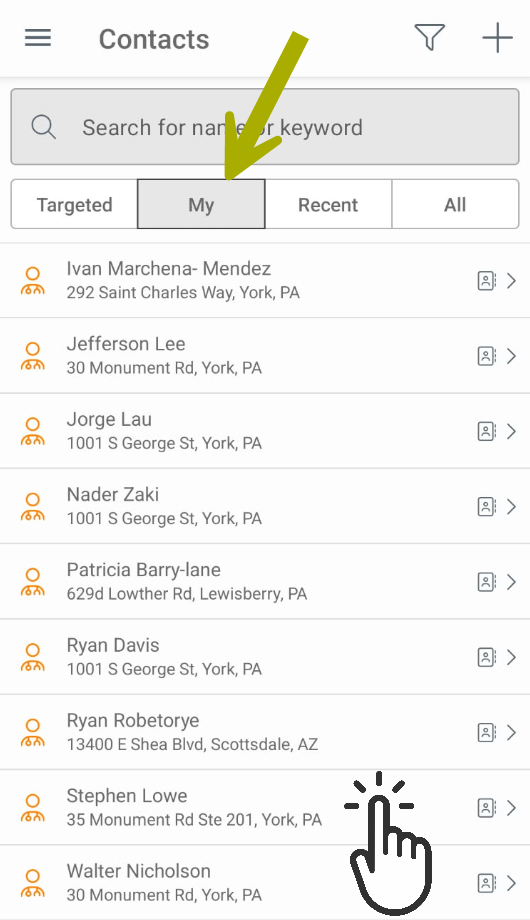
For this example, we clicked on the "Contacts" link in the main menu By default, this page opens with the "My" filter active. You can only request removal of ownership from a contact you own, all of which will be shown under "My" contacts
|
 |
|
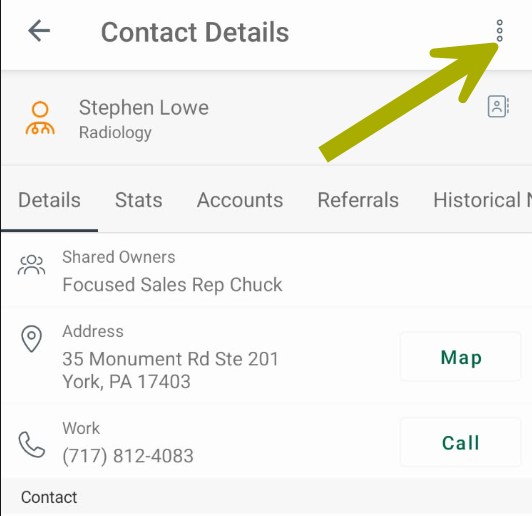
The "Contact Details" page for the selected contact will open.
|
 |
|
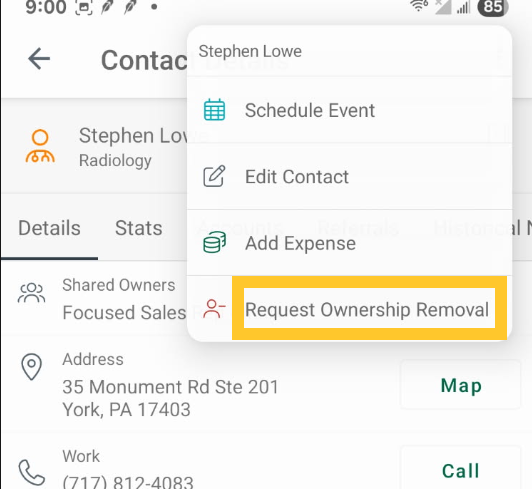
The small (but useful) menu opens.
The menu will close, and a removal request will be sent for approval. |
 |
Ownership Management in Market Spotlight
| |
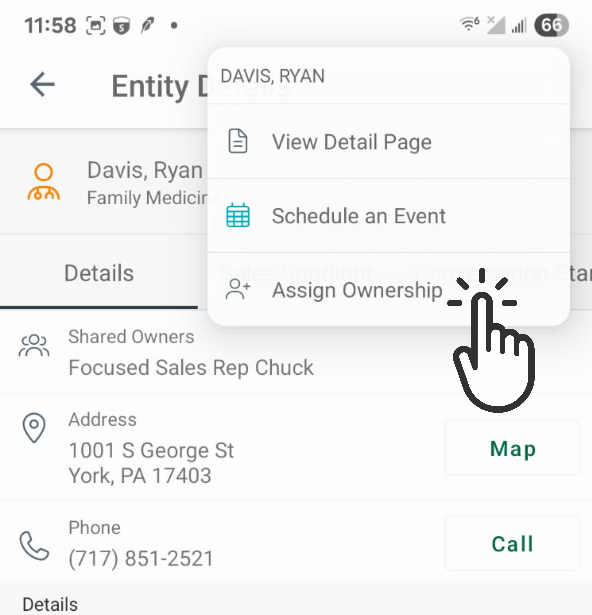
For a sales manager or account admin adding ownership | |
|
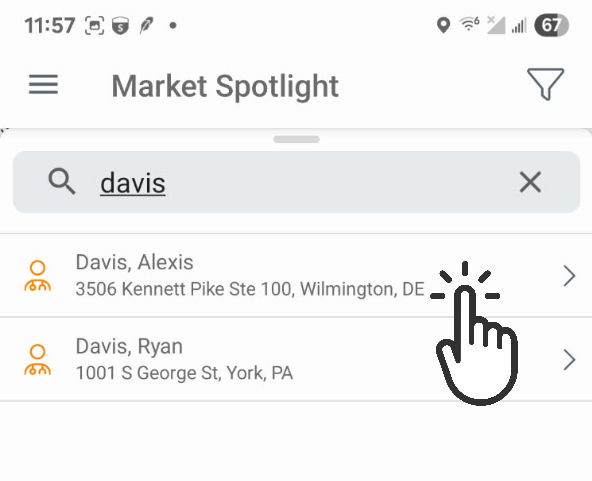
In this example, we searched for a specific physician by name - "davis" in the search field
|
 |
|
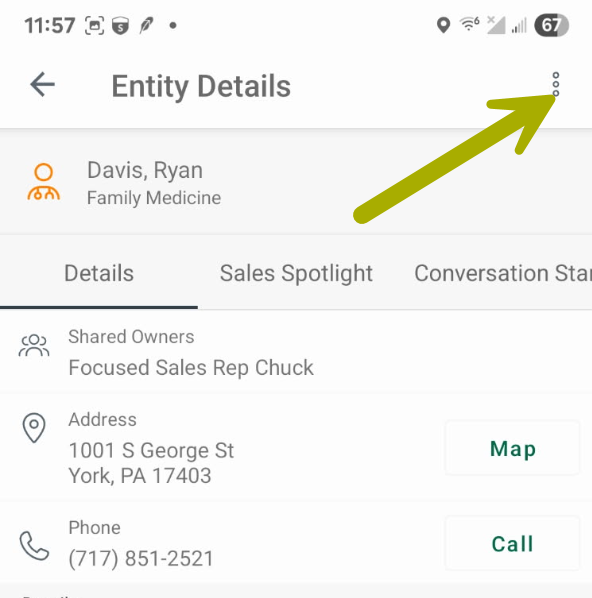
The Entity Details page will open.
|
 |
|
The small (but splendid) menu opens.
The menu will close, and ownership for the selected contact will be immediately assigned to you. |
 |
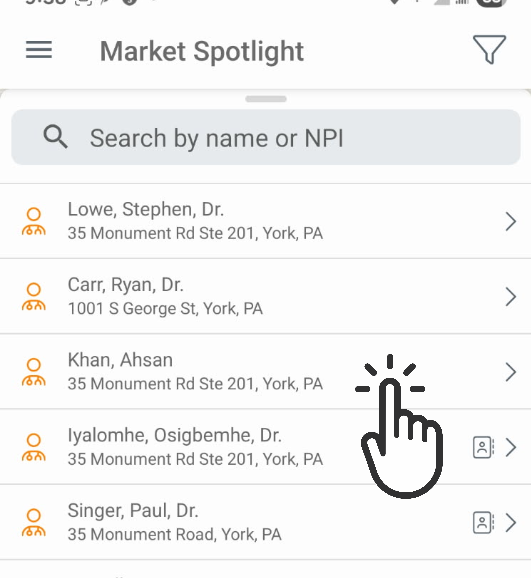
For a sales manager or account admin removing ownership | |
|
In this example, we searched the Market Spotlight map to
|
 |
|
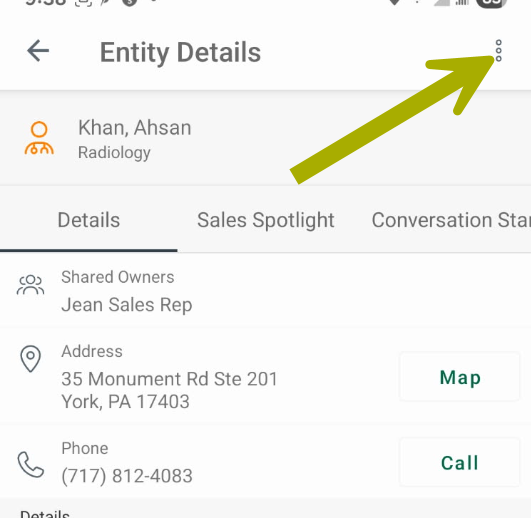
The Entity Details page will open.
|
 |
|
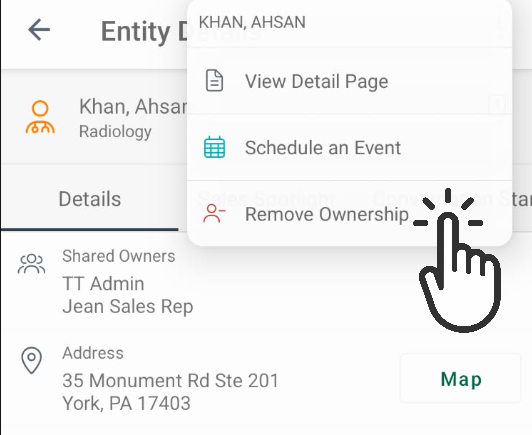
The small (but potent) menu opens.
The menu will close, and ownership for the selected contact will be immediately removed from you. |
 |
For a sales rep requesting ownership | |
|
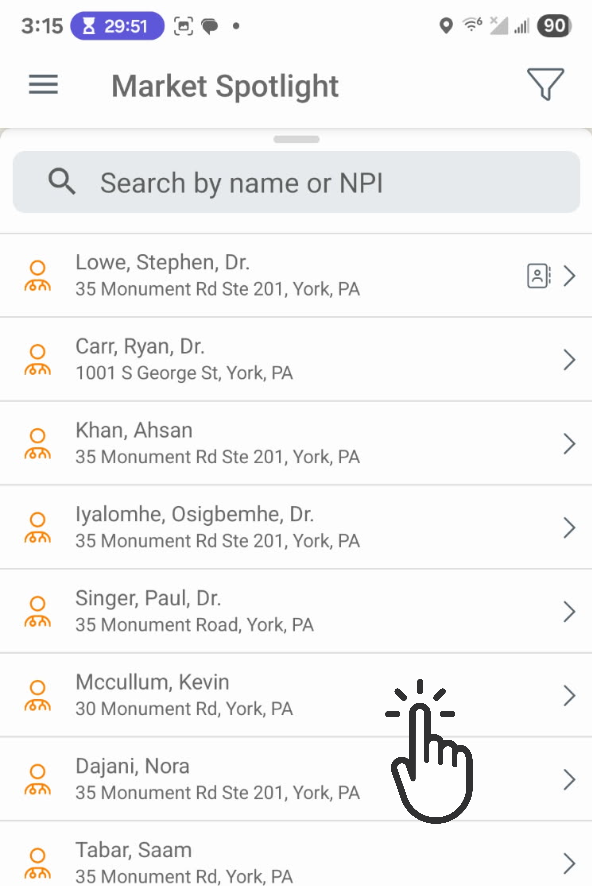
We uncovered the list of physicians shown using the map search in Market Spotlight.
|
 |
|
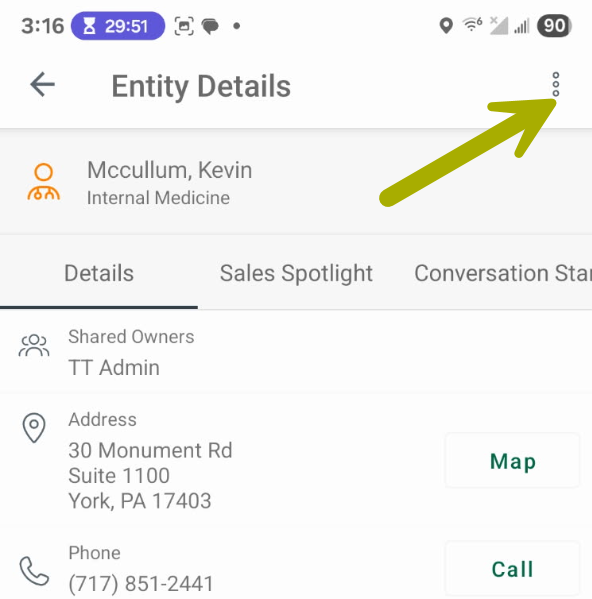
The Entity Details page will open.
|
 |
|
The small (but always obliging) menu opens.
The menu will close, and an ownership request will be sent for approval. |
|
For a sales rep requesting ownership removal | |
|
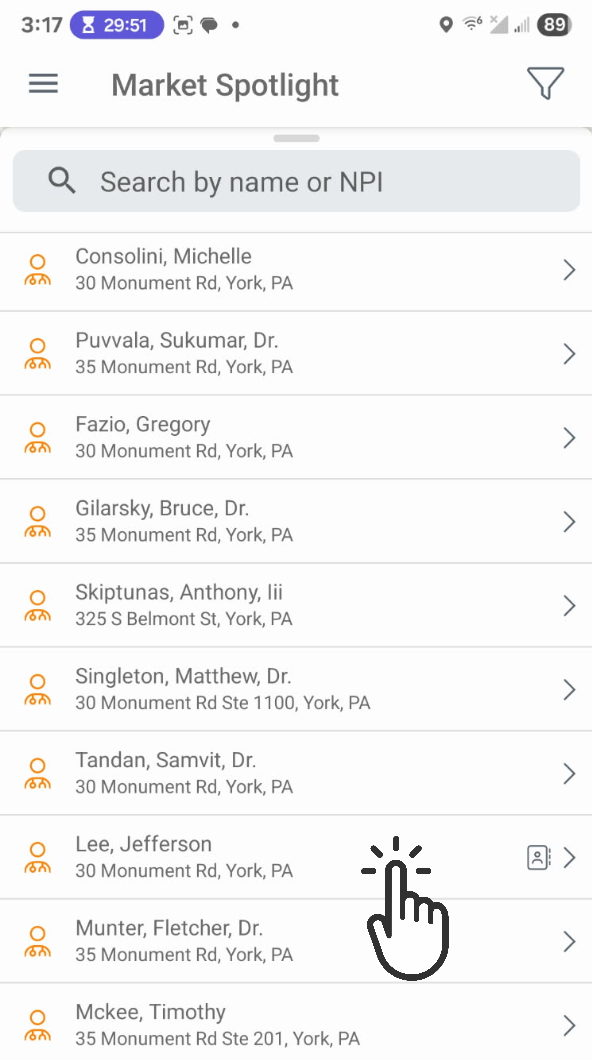
We discoverd the list of physicians shown using the map search in Market Spotlight.
|
 |
|
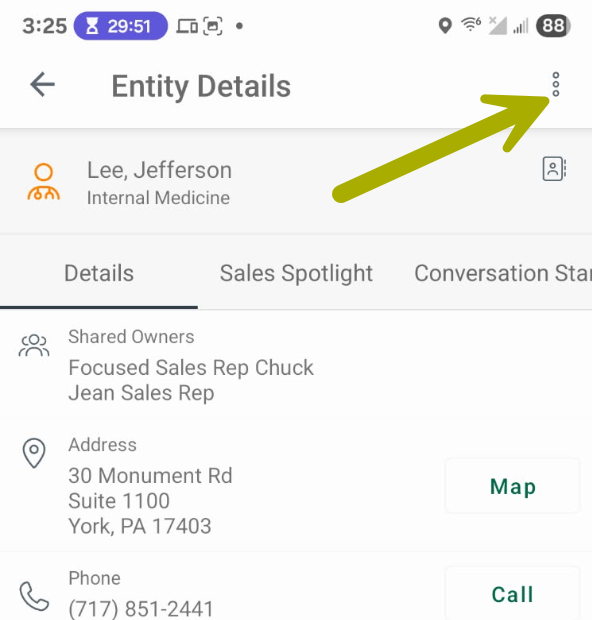
The Entity Details page will open.
|
 |
|
The small (but beneficial) menu opens.
The menu will close, and a request will be sent for approval |
|
 icon at the top left of most pages in Marketscape CRM mobile to open the main menu
|
