
Overview
Trella CRM uses the terms "ownership" and "shared owner" to indicate the assignment of accounts, contacts, orders, leads, and referrals to a person within your organization. Which of these items each person owns makes up their book of business — the set of relationships they are responsible for tracking and growing. Whether you can assign ownership directly or need to request it depends on your role and the permissions your organization has configured.
This article covers the full ownership workflow: what ownership means, how sales reps request ownership changes, how managers and administrators assign and remove ownership, how ownership change requests are approved — including the ability to approve requests from the Trella CRM mobile app — and how shared owners are managed.
 Item(s) - Throughout this article, the word "item" refers to any account, contact, order, lead, or referral — the five record types to which ownership applies. When a step or description applies to all five types equally, "item" or "items" is used in place of the full list.
 In this Article
- Understanding Ownership — what ownership is, roles, and how ownership is assigned
- Requesting Ownership — workflows for sales reps (web and mobile)
- Assigning & Removing Ownership — workflows for managers and administrators (web and mobile)
- Approving Ownership Change Requests — reviewing and acting on requests (web and mobile)
- Adding or Removing Shared Owners — managing multiple owners on a single record
- Putting the Data to Work
Understanding Ownership
What is ownership?
In Trella CRM, "ownership" indicates that a specific person within your organization is assigned to an account, contact, order, lead, or referral. The collection of items a person owns is their book of business. Ownership drives the "My" views on the Accounts, Contacts, and Referrals pages, filters the data that syncs to the mobile app on login, and in some configurations is used to assign referral credit.
What is a shared owner?
Trella CRM uses "shared owner" to refer to the specific assignee on a record. Because more than one person can own an account, contact, or referral at the same time, the term "shared" reflects that ownership is not limited to a single individual. The Shared Owners section appears on every account, contact, order, lead, and referral detail page and shows all current owners of that record.
Roles and permissions
What you can do in ownership management depends on your role and the permissions your organization has set up.
Sales Rep / Account Executive |
Sales Manager |
Administrator |
|
| With permission | Without permission | ||
| You can add and remove ownership of accounts, contacts, and referrals directly. | You must request that ownership be assigned or removed. A manager or administrator approves the request. | Managers can assign and remove ownership for themselves and for reps on their team. Part of the role is approving or denying ownership change requests made by reps. | Administrators can perform all ownership management actions in support of reps and managers. |
| Benefit: The rep manages their own book of business directly, without requiring manager approval for each change. | Benefit: Reps can surface ownership suggestions while managers retain control over territory assignments. | Benefit: Managers maintain approval rights, ensuring business priorities and territory balance are upheld. | Benefit: Administrators can assist any user with ownership management across the organization. |
 More Details
- Your organization may have additional role levels with different names and different levels of access. If you are unsure what your role allows, contact your Trella Health customer success manager or Trella Health Support.
- If your organization's Electronic Health Records (EHR) system is integrated with Trella CRM, ownership assignments may be managed by that system and may not be changeable directly in Trella CRM. Contact your account administrator with any questions.
How ownership is assigned
There are three ways ownership can be assigned in Trella CRM.
- Manually, by the sales rep — If your organization has given the sales rep role permission to assign ownership, a rep can identify accounts or contacts they are working and assign ownership to themselves directly.
- Manually, by a manager or administrator — Many organizations require a manager or administrator to approve ownership assignments. In this setup, the sales rep requests ownership and the manager approves or denies the request. A manager may also assign ownership proactively — for example, when a new rep joins and the manager builds out their initial book of business.
- Automatically, via EHR integration — Trella CRM often integrates with an organization's EHR system. The integration is a one-way push of information from the EHR into Trella CRM — typically centered on referral data, referring facilities, and referring physicians. In some configurations, the EHR also passes ownership information, so that assignment in the EHR is reflected automatically in Trella CRM. The specific logic for this was determined during your integration setup.
What to look for
Whether you are managing ownership of an account, a contact, a lead, an order, or a referral, the steps you follow are essentially the same in Trella CRM. Moreover, when you are looking at any of these items, what you can do with regard to ownership is always visible and can be accomplished with a couple of clicks.
 The images below were all taken from Trella CRM on a Contacts page. What you would see when looking at an account, order, lead, or referral would be identical or very similar. We show these images as a quick reference to how easy these tasks are in general.
Admin or manager adding or removing ownership |
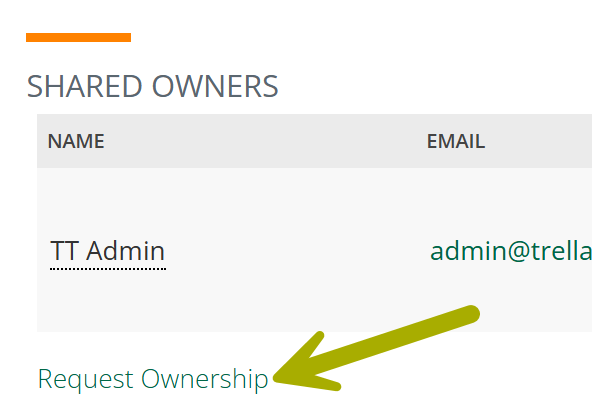
Rep requesting ownership assignment |
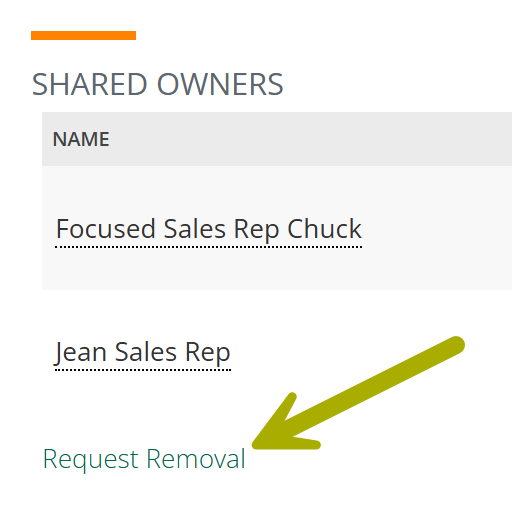
Rep requesting ownership removal |
|
| On the Web | 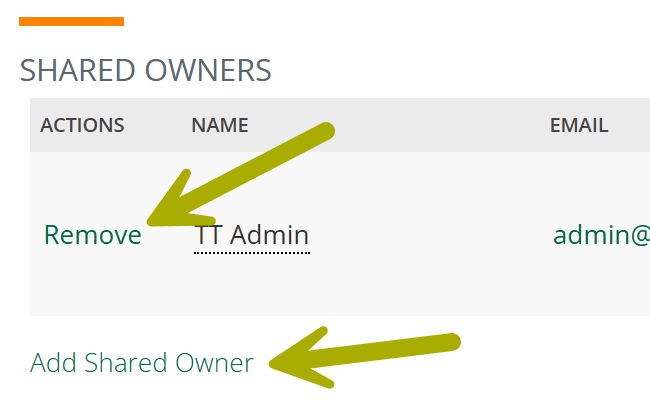 |
 |
 |
| Mobile | 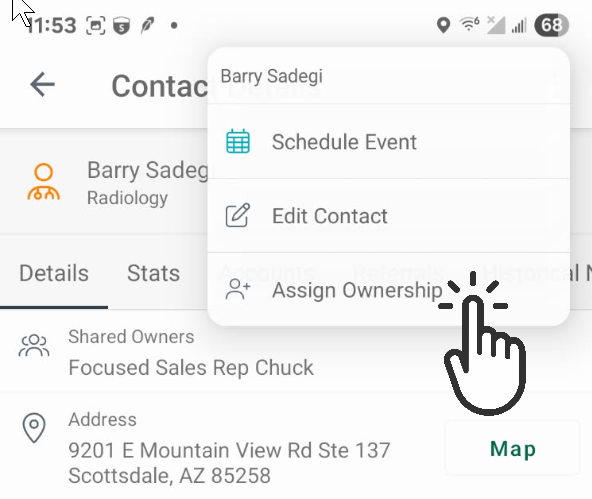 |
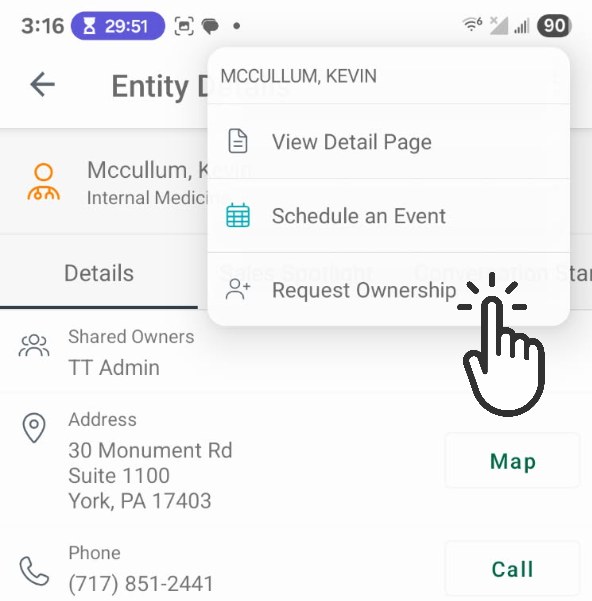 |
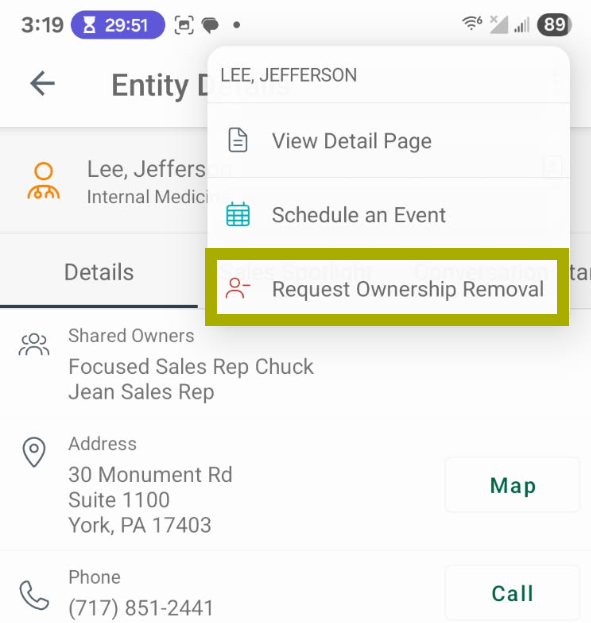 |
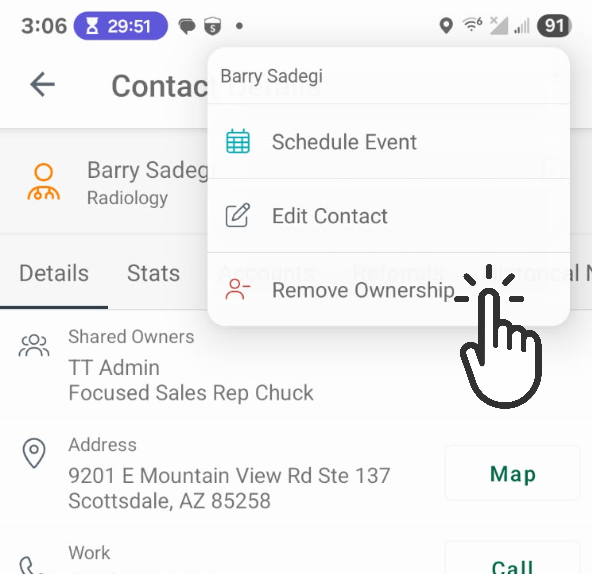 |
 |
Requesting Ownership
Sales reps who do not have permission to assign ownership directly must submit a request. A manager or administrator reviews the request and approves or denies it. Requests can be submitted from the Accounts, Contacts, Referrals, Orders, and Leads pages, from the Market Spotlight page, and from Trella CRM Mobile.
If you are a sales rep who has been given permission to assign ownership directly, you will see the manager and administrator options described in Assigning & Removing Ownership — not the request workflow shown here.
From the Accounts, Contacts, Referrals, Orders, or Leads page
Requesting ownership removal
Use this workflow when you want to remove an item from your book of business.
|
|
 |
 | |
 | |
|
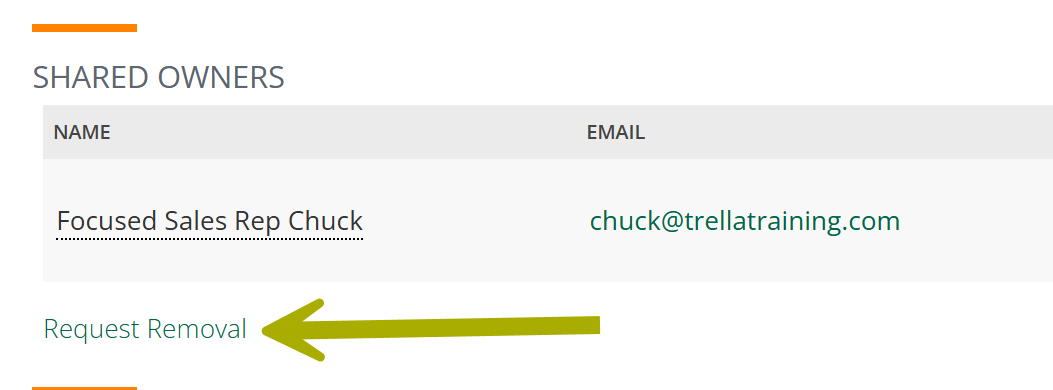
On the detail page, scroll down to the Shared Owners section. Your name will appear in the Name column.
|
 |
|
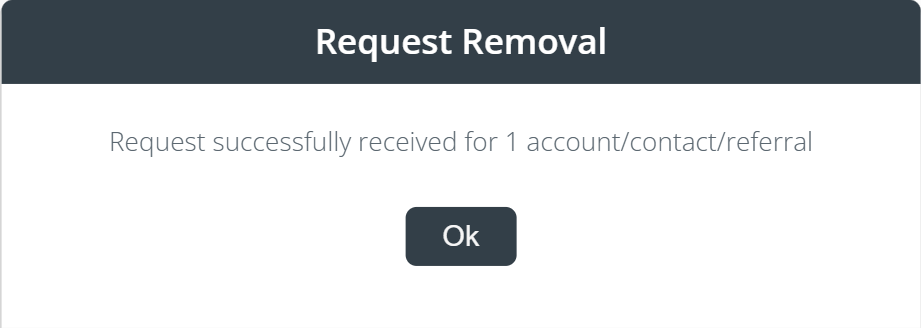
A confirmation dialog box will open.
|
 |
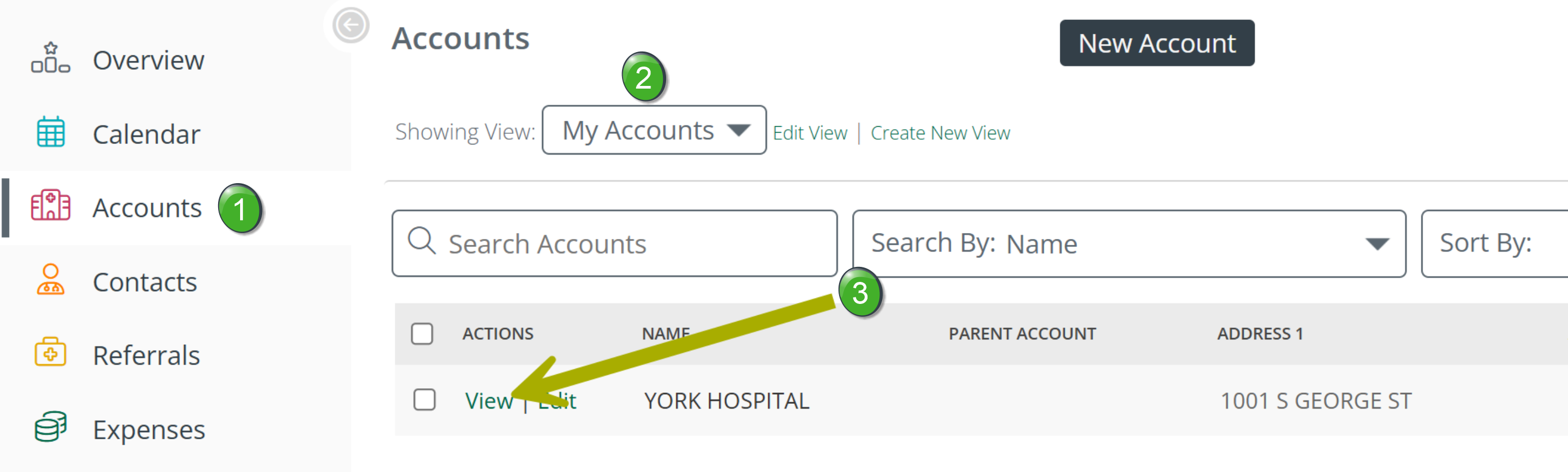
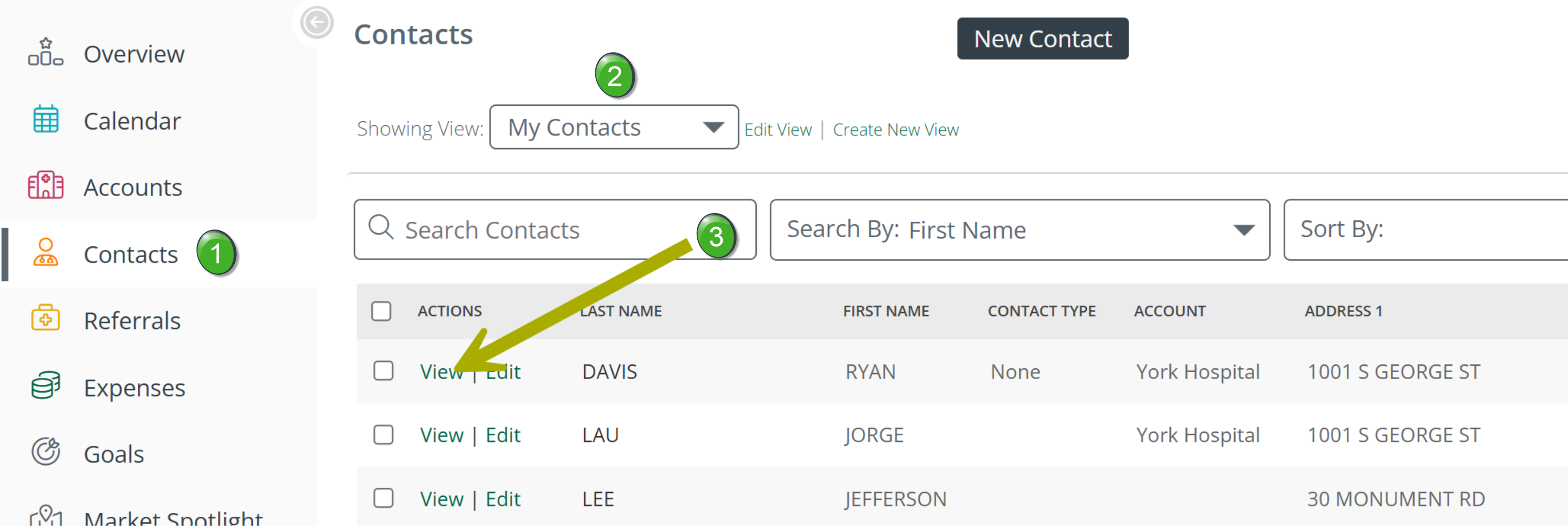
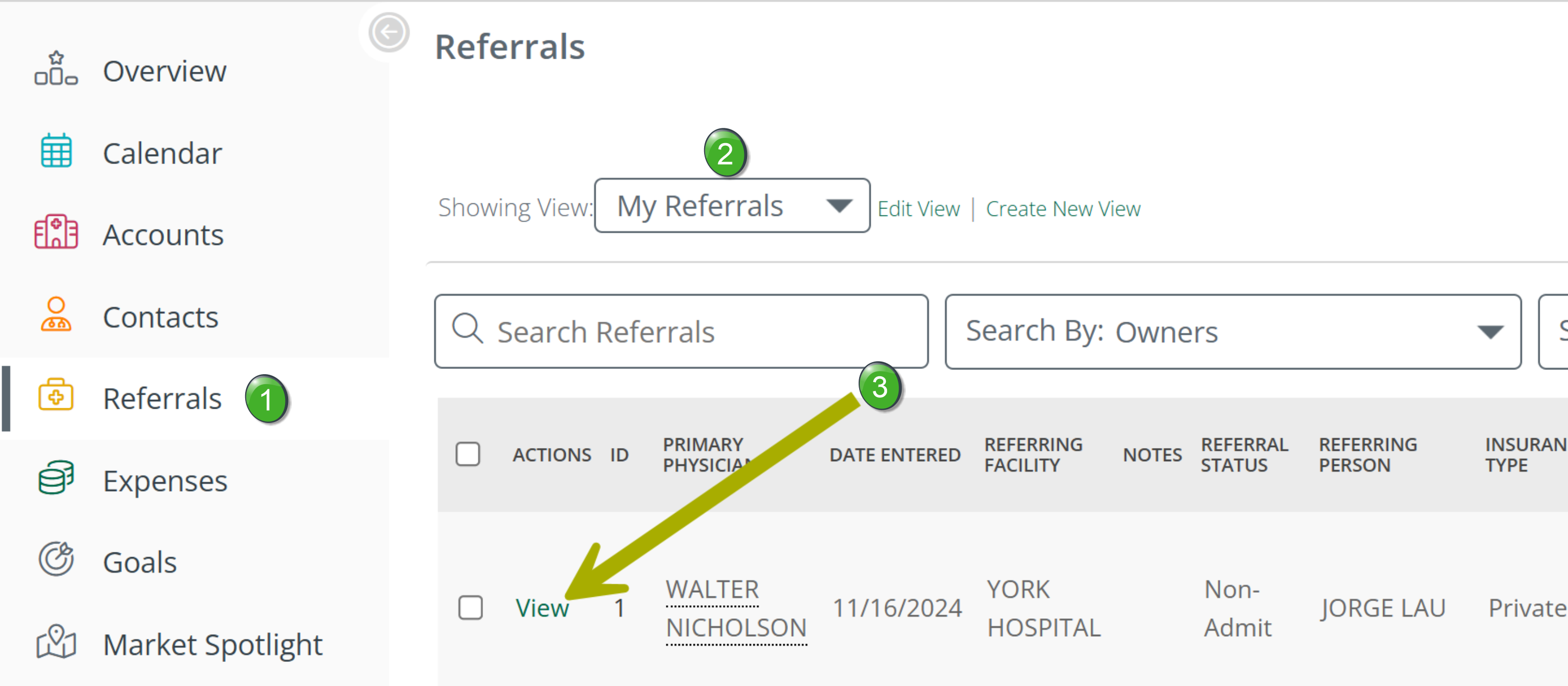
 Click on the appropriate page in the left navigation.
 Select the "My" view to show only the items you currently own.
 Click the "View" link for the item from which you want to remove ownership. The detail page will open.
 Your request will be sent for approval. The item will not be removed from your "My" view until a manager or administrator approves the request.
 To check the status of a request, see Checking the Status of a Request.
Requesting ownership assignment
Use this workflow when you want to add an item to your book of business.
|
|
|
| |
| |
|
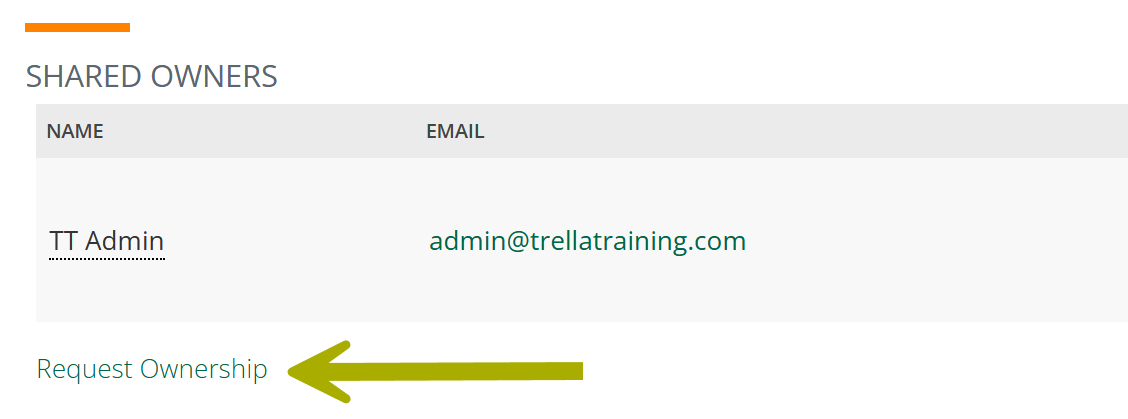
On the detail page, scroll down to the Shared Owners section.
|
 |
|
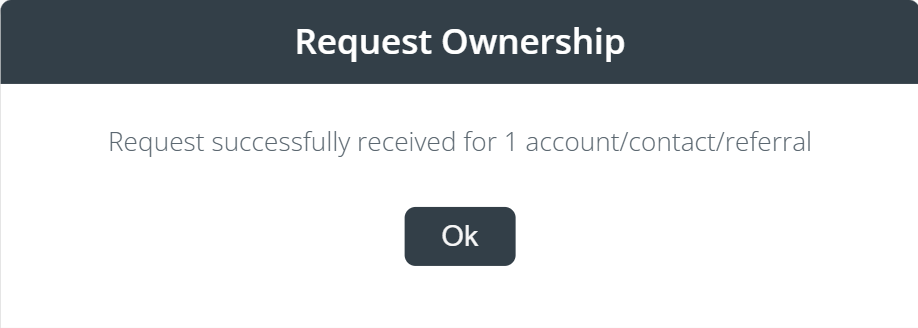
A confirmation dialog box will open.
|
 |
Your request will be sent for approval. The item will not appear in your "My" view until a manager or administrator approves the request.
To check the status of a request, see Checking the Status of a Request.
Bulk requests
To request ownership changes for multiple items at once, use the Bulk Actions tool. The images below show the bulk request steps from the Referrals page, but the process is the same for any group of items.
|
|
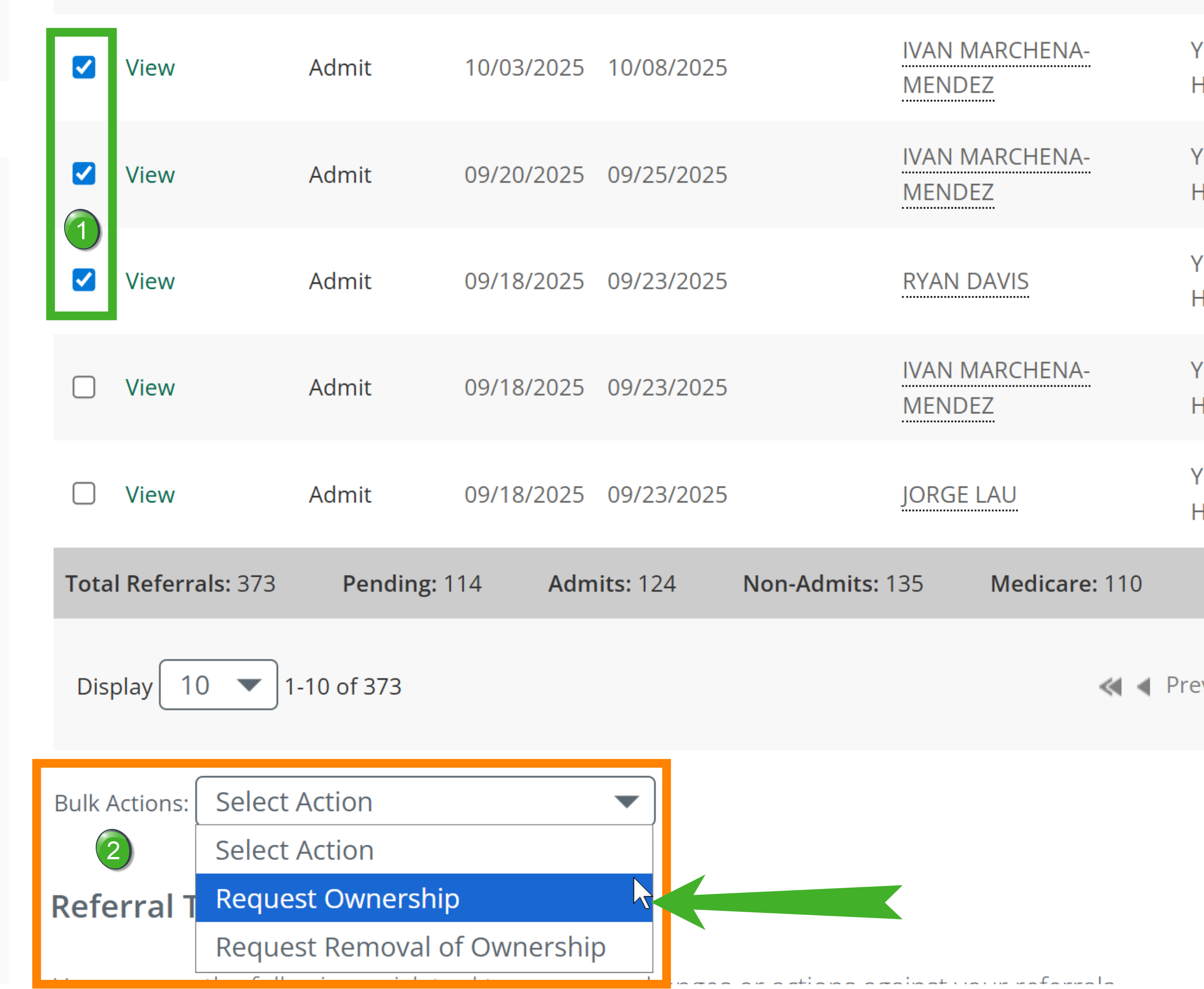 |
| A confirmation of your request will appear. | 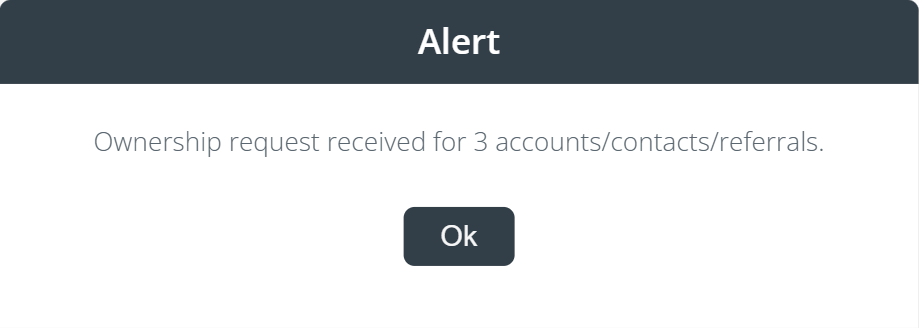 |
Your request to add or remove an item will be sent for approval. The item will not appear in or disappear from your "My" view until a manager or administrator approves the request.
From the Market Spotlight page
Sales reps can request ownership of physicians, facilities, and agencies directly from the Market Spotlight page.
Ownership can only be requested from Market Spotlight — ownership removal requests are not available from this page.
 Consider the workflow in this situation. Market Spotlight is a feature that allows you to browse multiple providers where it is easy to request ownership. The easiest way to cull unwanted items is from the item's page where you can look at, for example, all of your contacts in one place and even use a bulk action to request removal of numerous items at once.
Single request
The Sales Spotlight panel will open. |
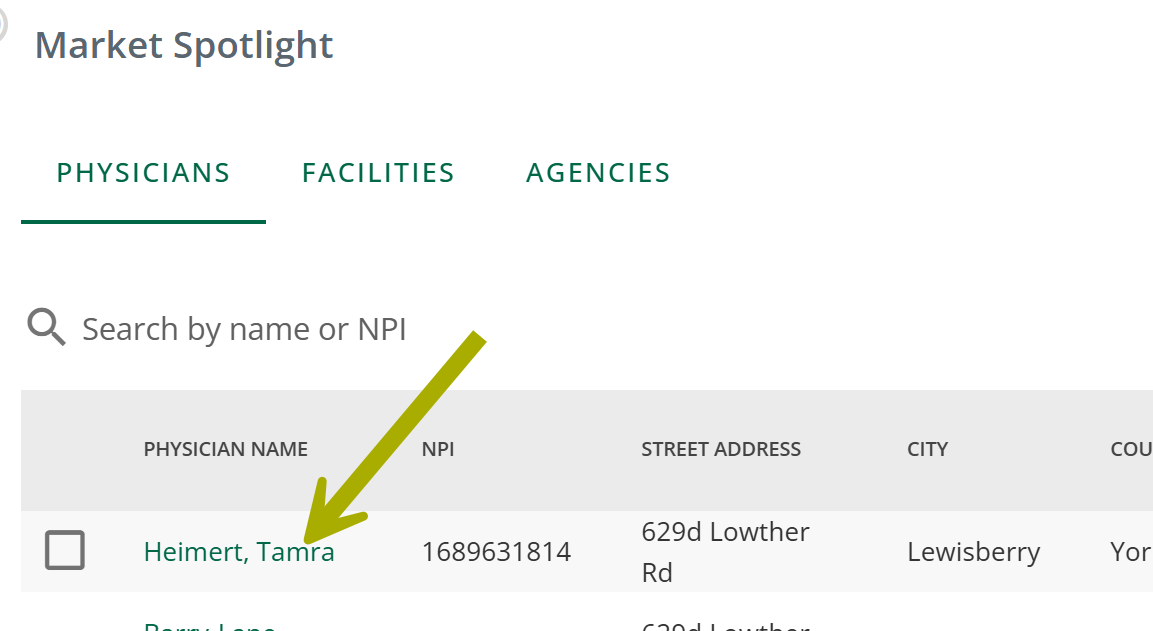 |
|
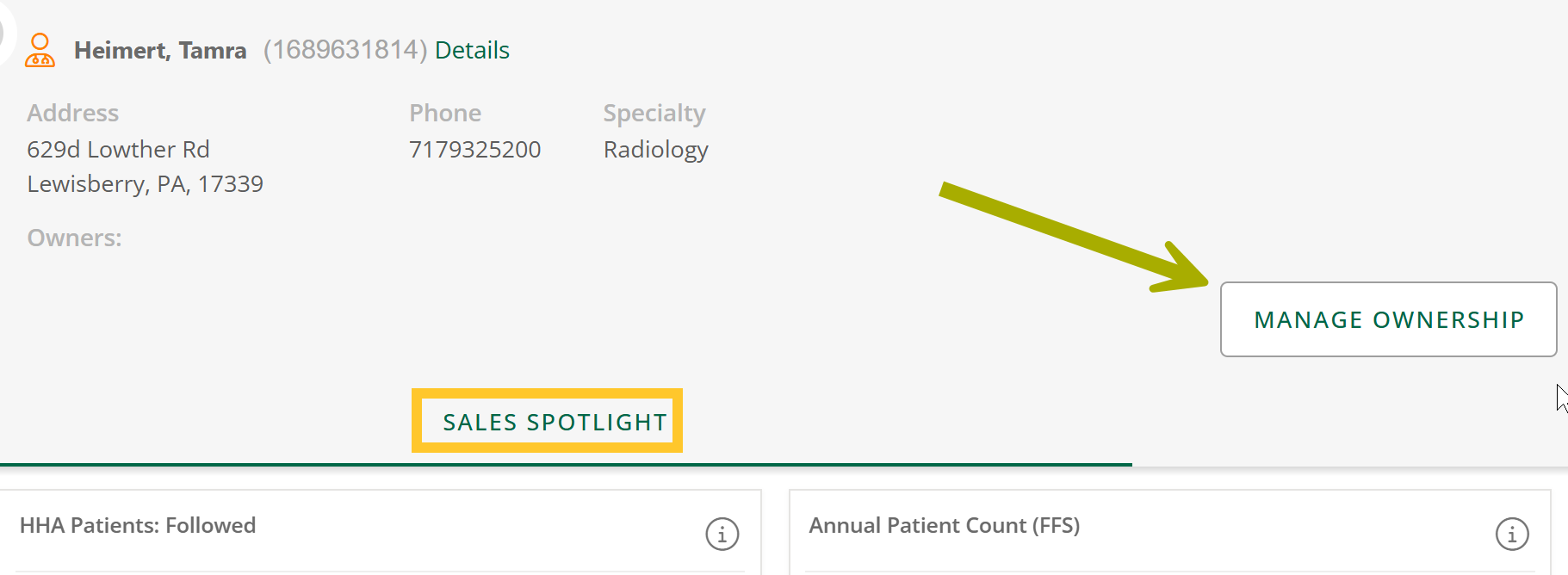 |
|
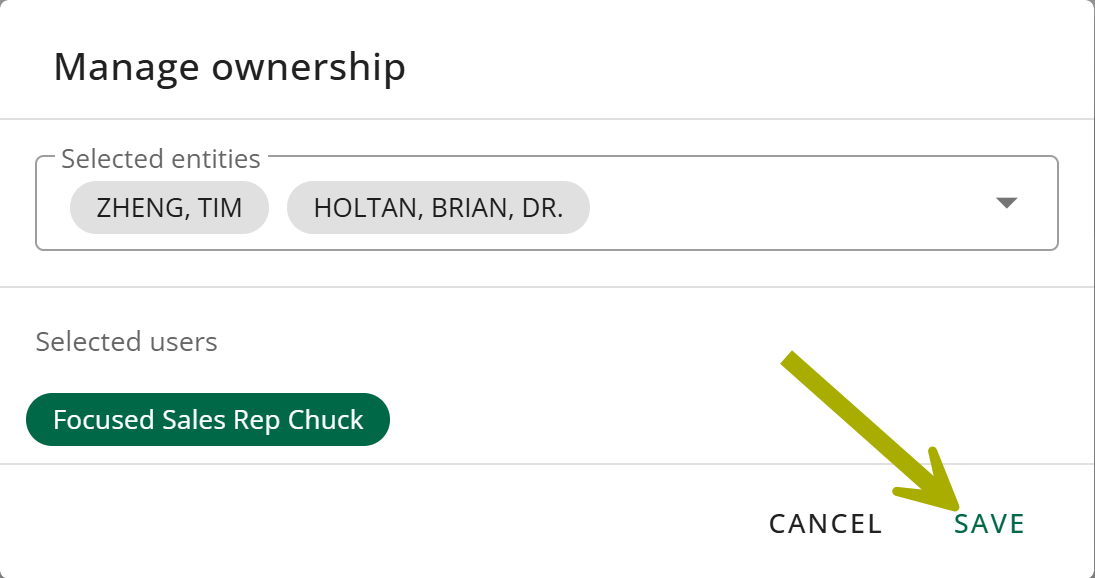
The Manage Ownership dialog box opens.
|
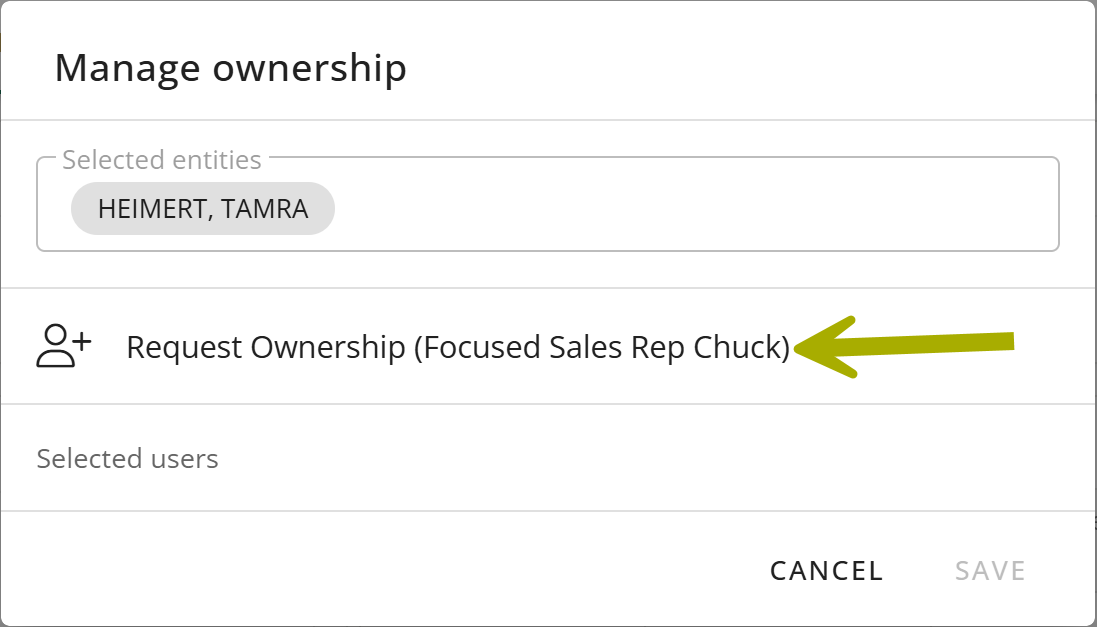 |
|
Your name will appear in the Selected Users list.
Your request will be sent for approval. |
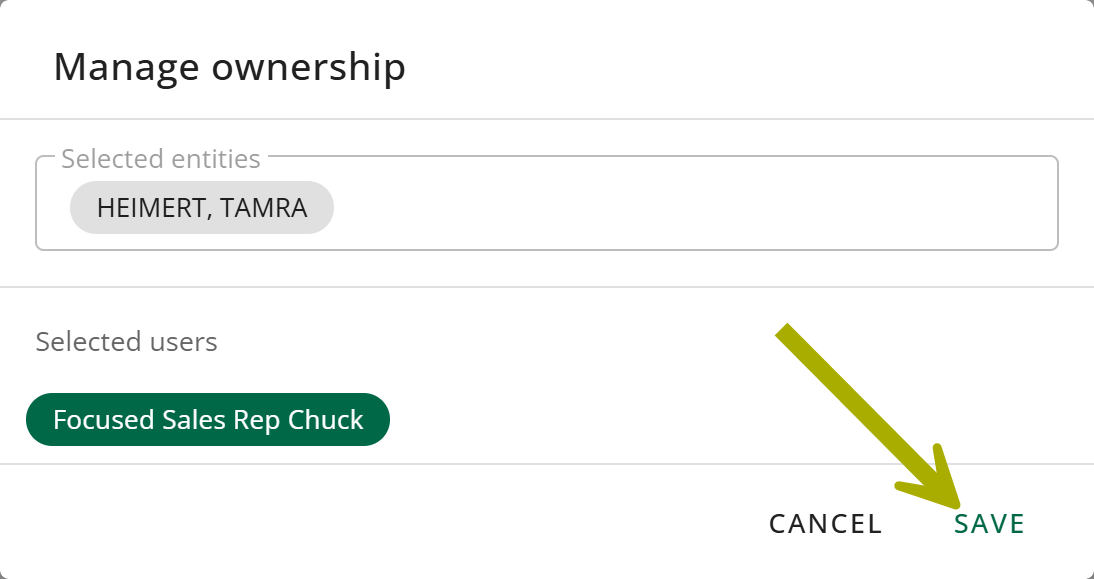 |
Bulk request
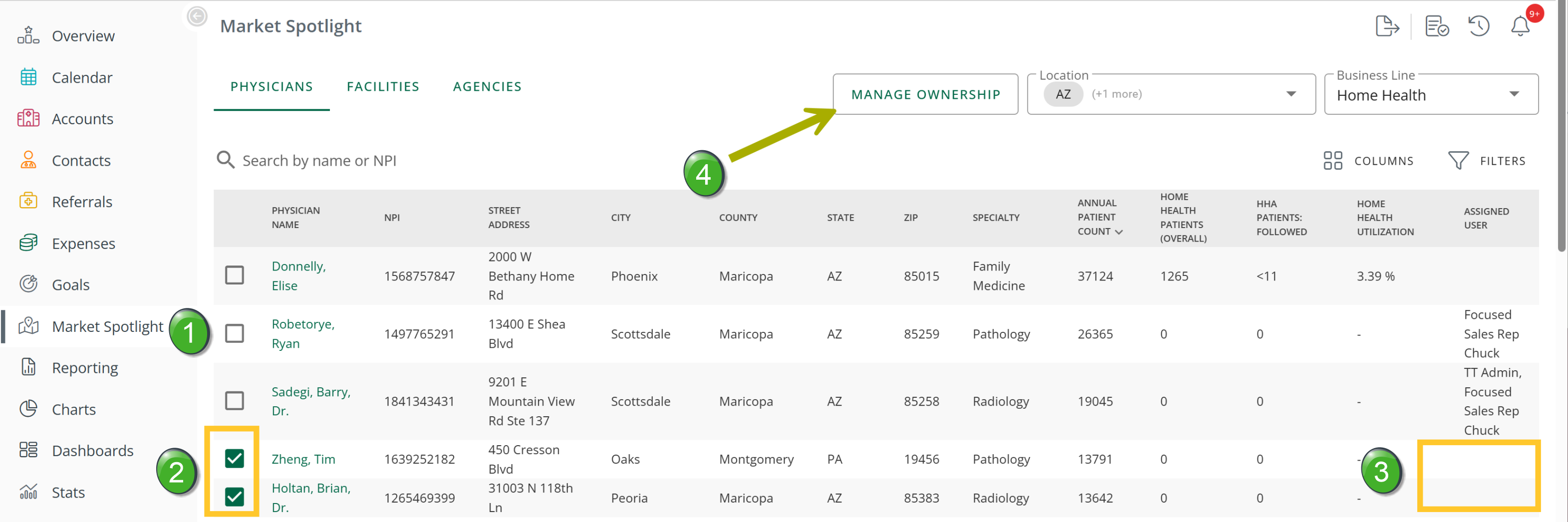 | |
|
| |
|
The Manage Ownership dialog box opens.
|
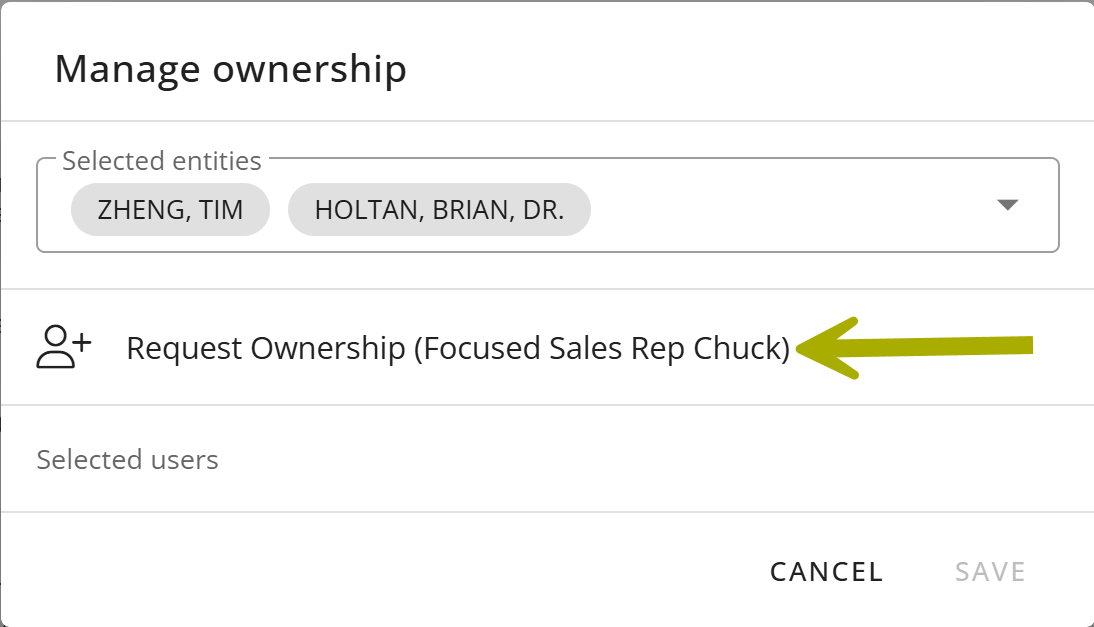 |
|
Your name will appear in the Selected Users list.
Your requests will be sent for approval. |
 |
Checking the status of a request
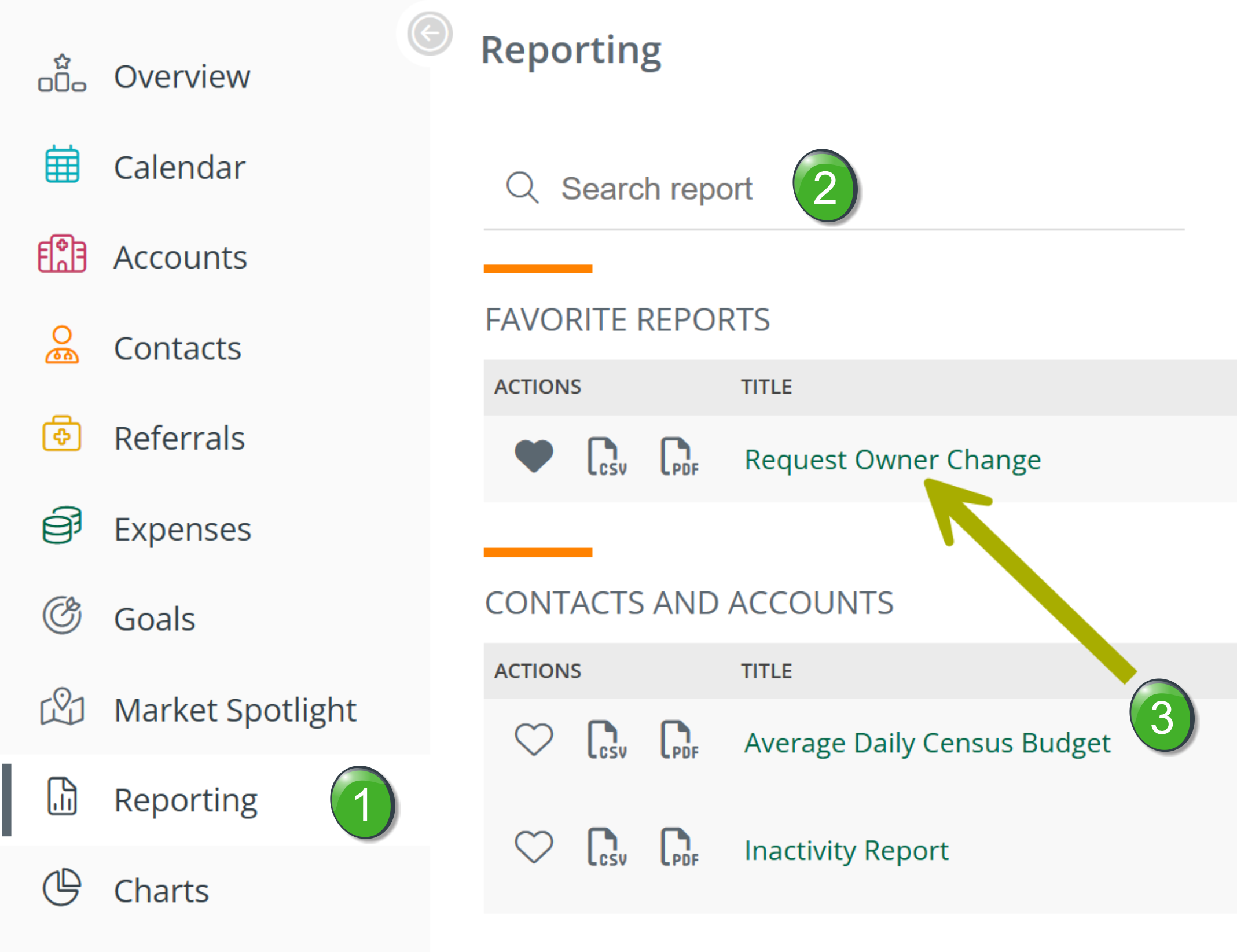
You can check the status of your ownership change requests at any time using the Request Owner Change report.
|
|
 |
The report includes filters to narrow down the requests you want to review.
|
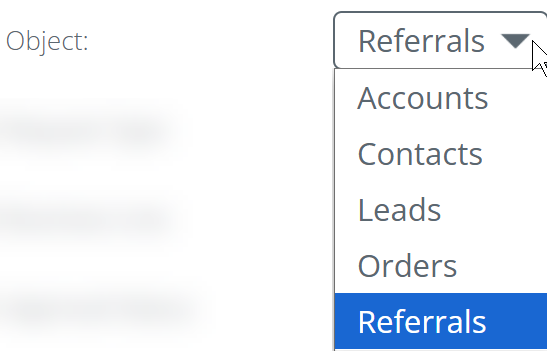
Object — the report displays one record type at a time.
|
 |
|
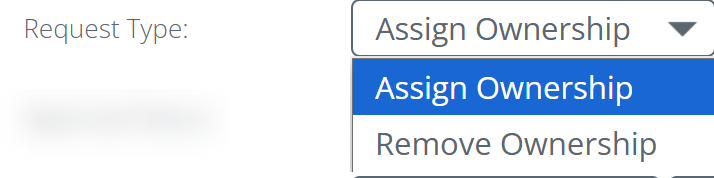
Request Type — shows either assignment or removal requests, not both at once.
|
 |
|
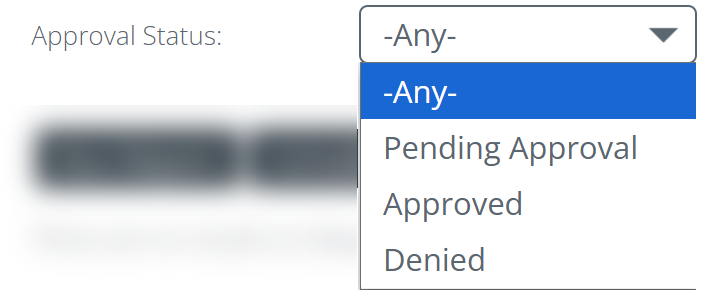
Approval Status — filter by pending, approved, or denied.
|
 |
|
Once you have set the filters, click the "Run Report" button. The table will populate with matching requests. If you want to resubmit a request, select it using the checkbox at the far left and click the "Re-Request Ownership" button. |
 |
Requesting ownership in Trella CRM Mobile
Sales reps can request ownership assignment and ownership removal in Trella CRM Mobile from the matching item page or from Market Spotlight.
The steps below show the workflows for contacts, but the process is identical for accounts, orders, leads, and referrals.
Requesting ownership assignment (mobile)
|
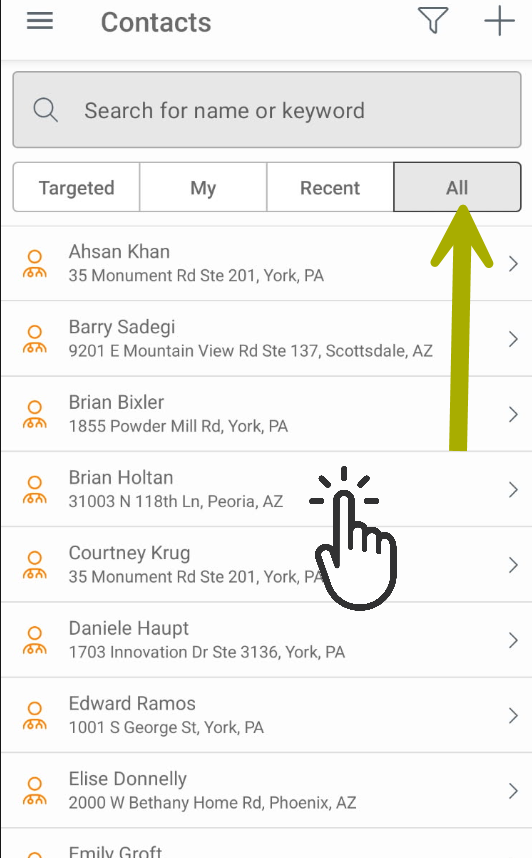
Open the main menu and tap "Contacts." Select the "All" filter to view contacts you do not currently own.
|
 |
|
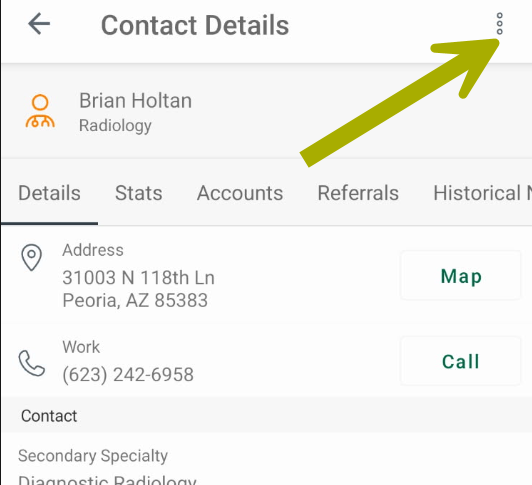
The Contact Details page will open.
|
 |
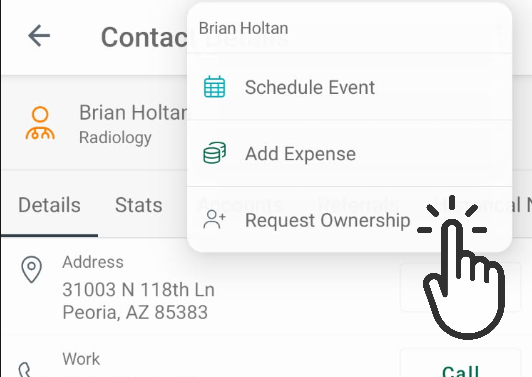
A request will be sent for approval. |
 |
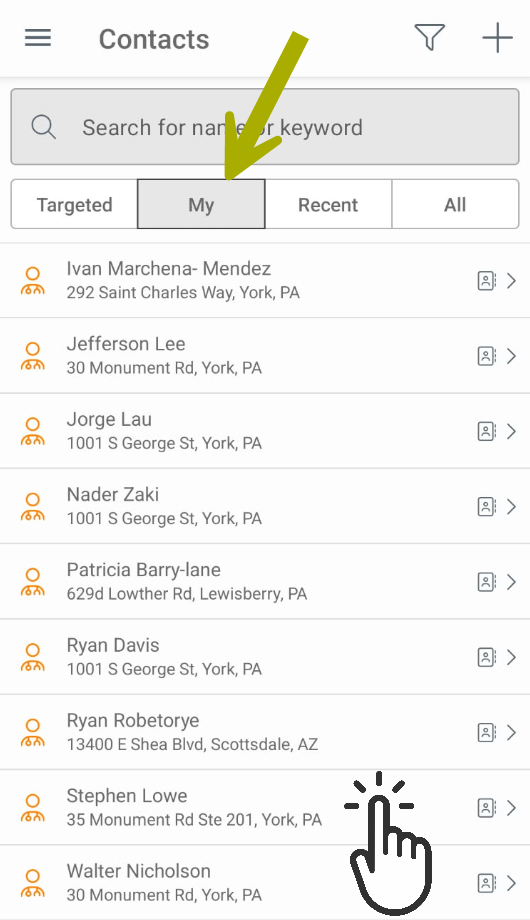
Requesting ownership removal (mobile)
|
Open the main menu and tap "Contacts." The default "My" filter shows only contacts you currently own.
|
 |
|
The Contact Details page will open.
|
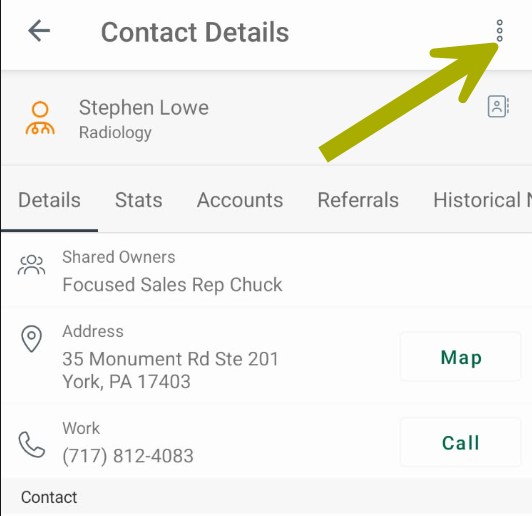 |
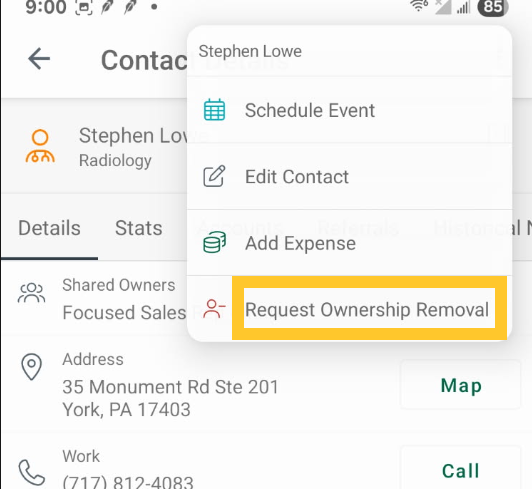
A removal request will be sent for approval. |
 |
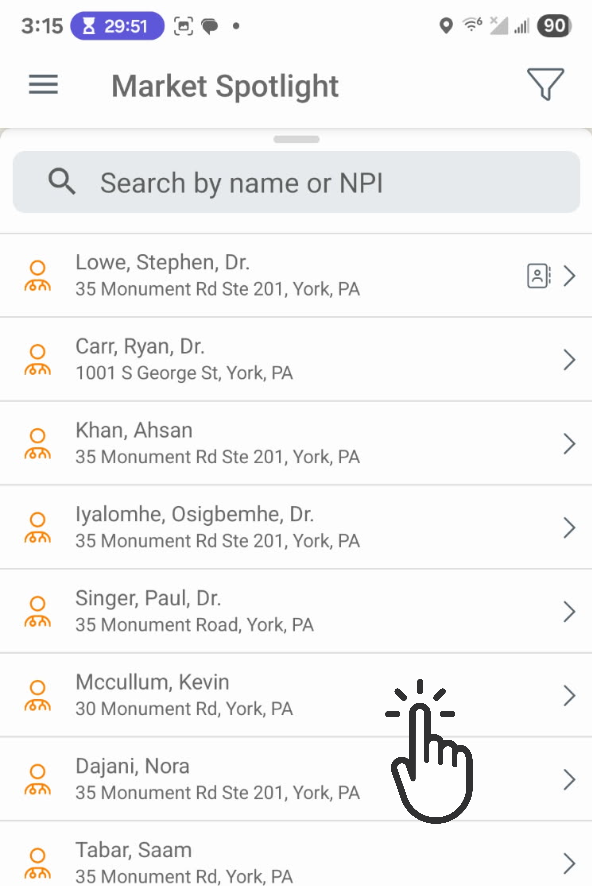
Requesting ownership from Market Spotlight (mobile)
|
 |
|
The Entity Details page will open.
|
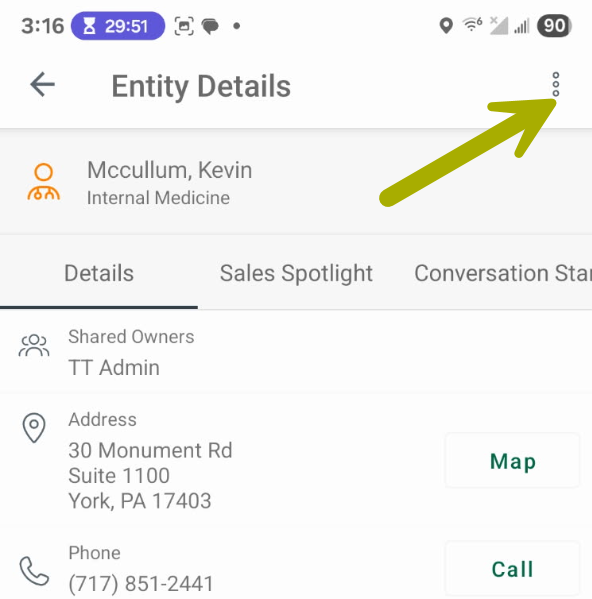 |
A request will be sent for approval. |
|
|
Assigning & Removing Ownership
Sales managers and administrators can assign and remove ownership directly without going through a request workflow. Changes take effect immediately. Managers can act on behalf of any rep on their team; administrators can act for any user in the organization.
Sales reps who have been given direct-assignment permission will see the same options shown in this section, not the request workflow shown in Requesting Ownership.
From the Accounts, Contacts, Referrals, Orders, or Leads page
Single ownership change
|
|
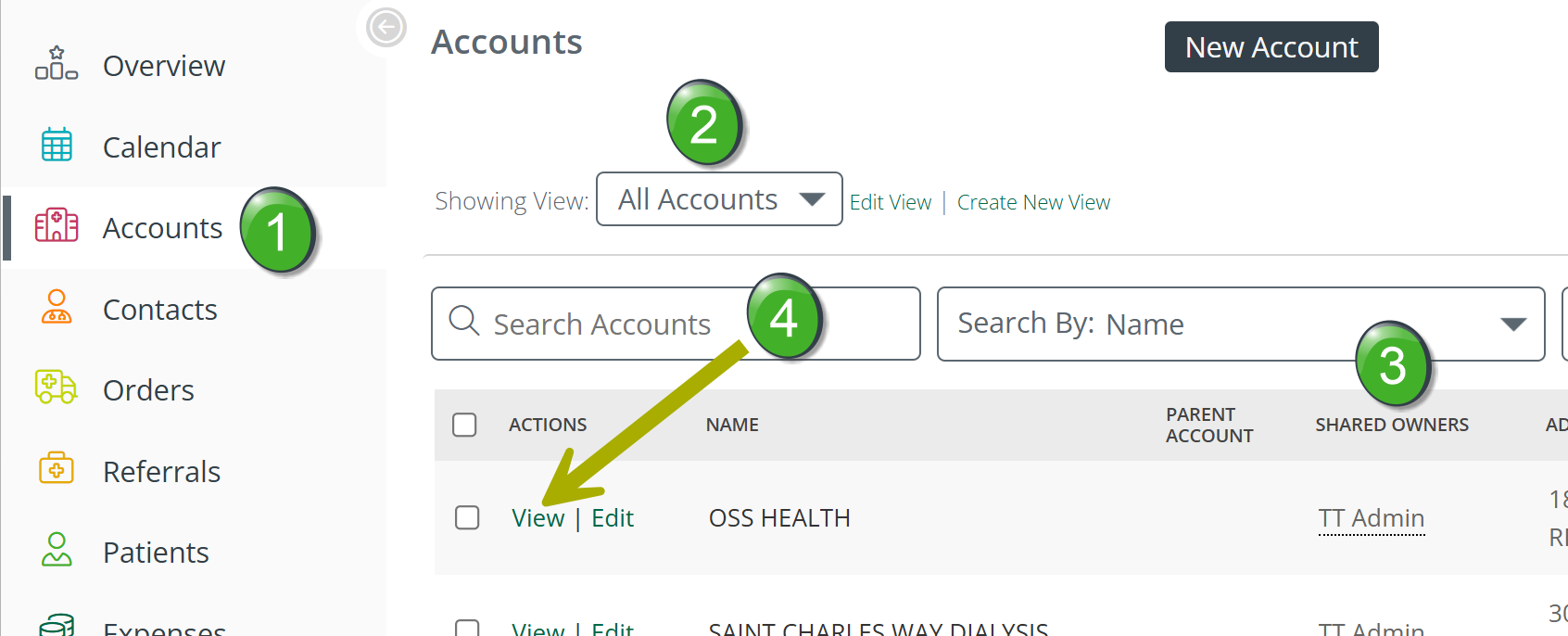 |
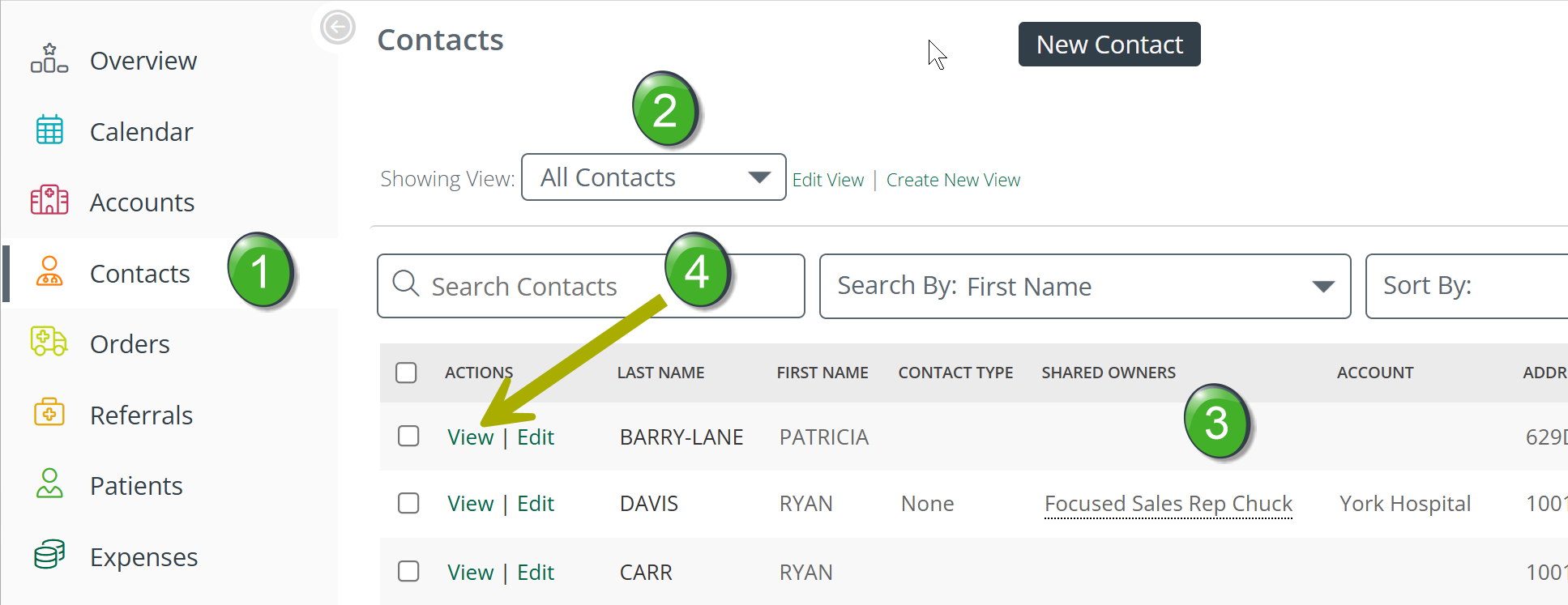 | |
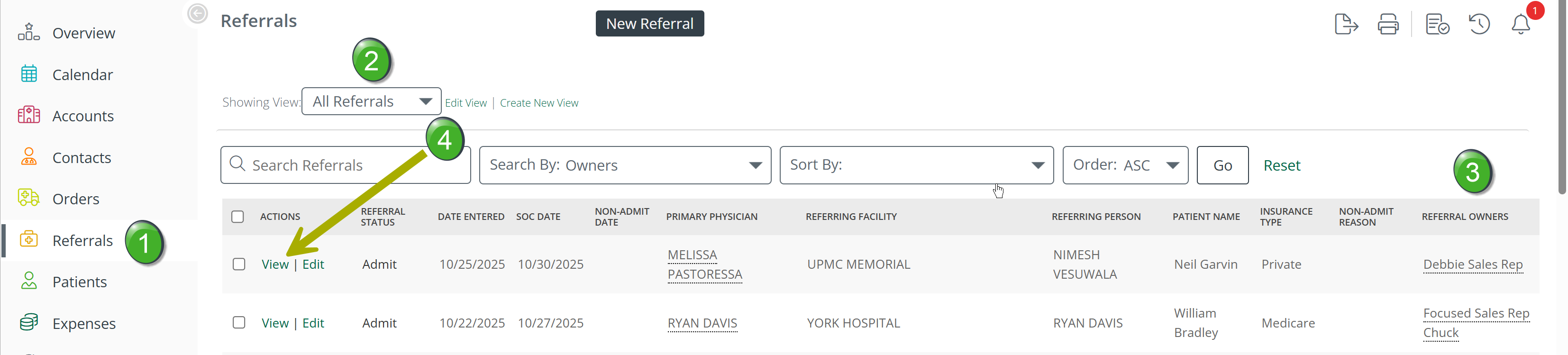 | |
|
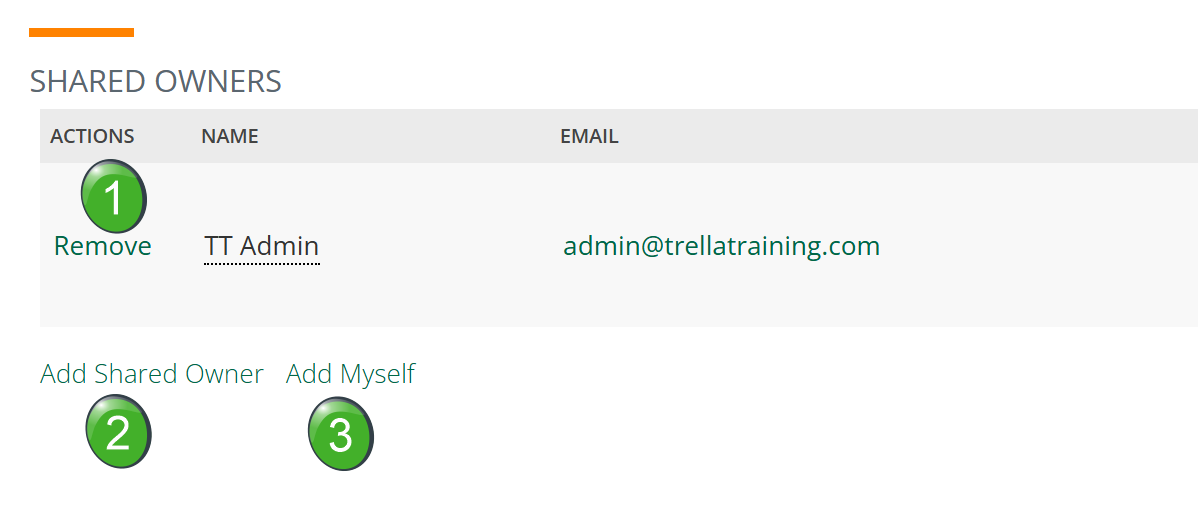
Scroll down to the Shared Owners section on the detail page. There are three options.
|
 |
|
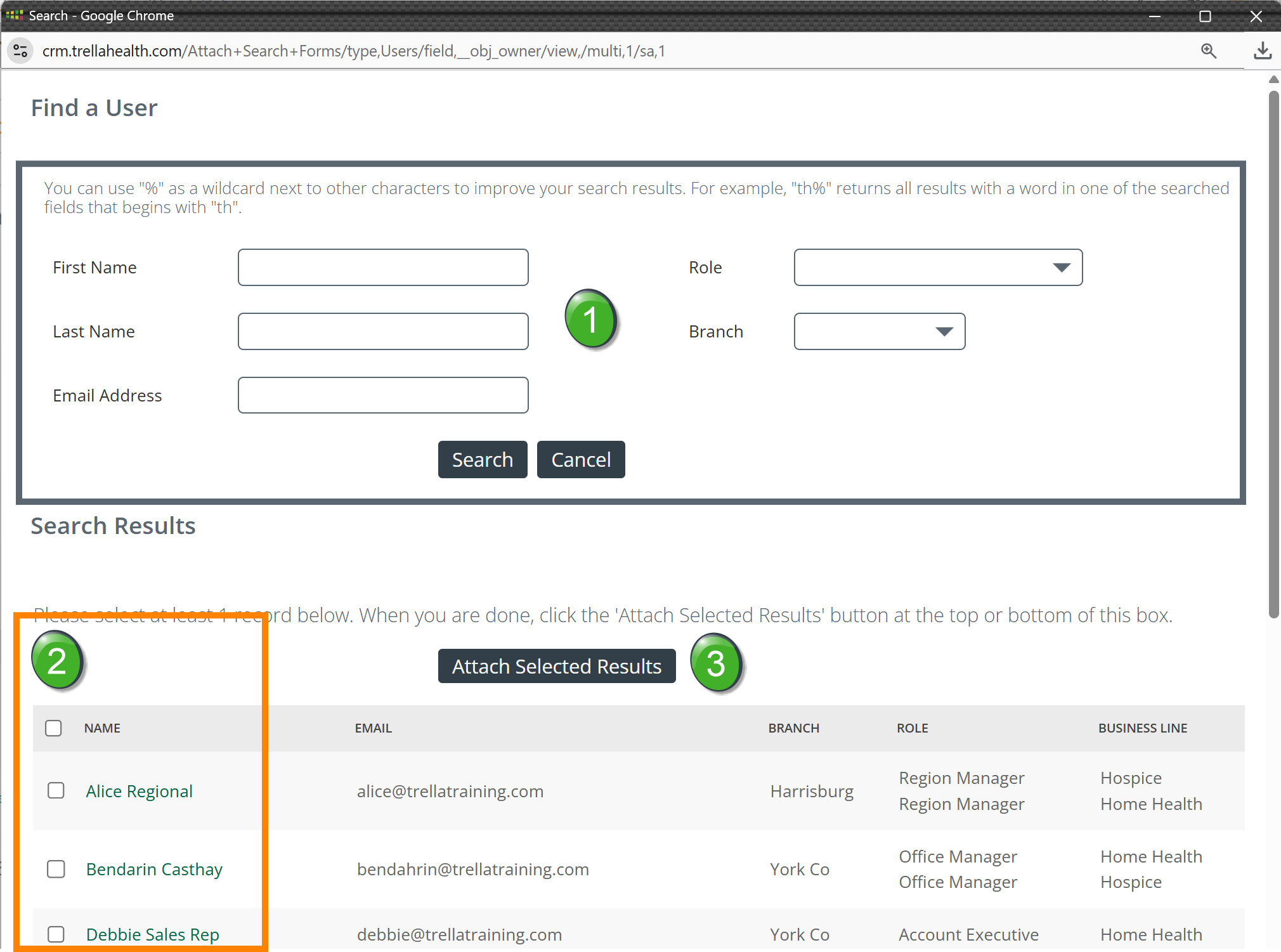
Add Shared Owner — when you click "Add Shared Owner," the dialog box shown to the right opens.
|
 |
| Add Myself — when you click "Add Myself," you will immediately appear in the Shared Owners section of the item's detail page with no additional steps required. | 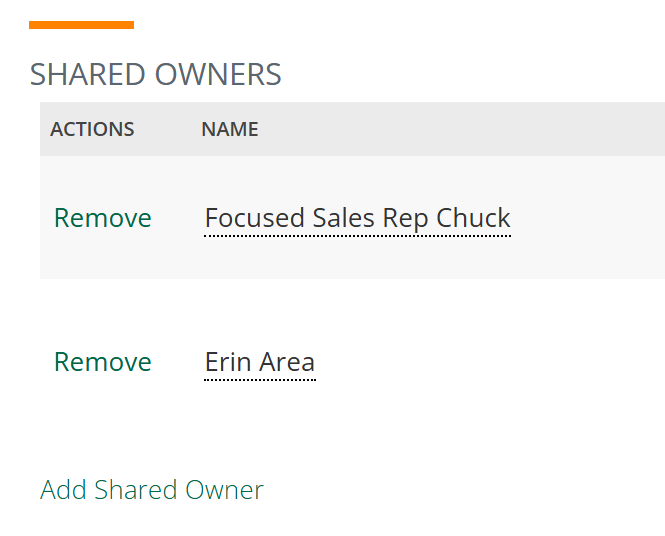 |
 Click the "View" link for the item whose ownership you want to change. The detail page will open.
Bulk ownership changes
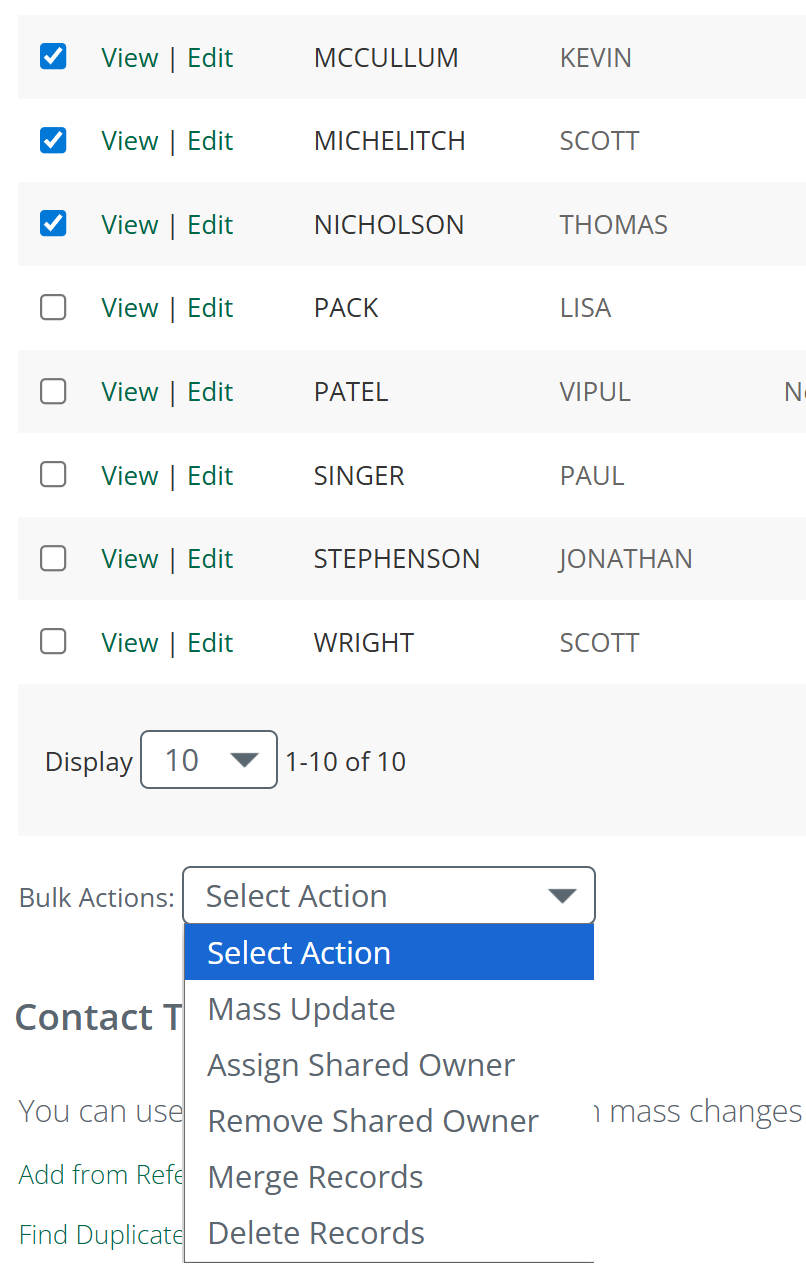
To assign or remove ownership for multiple items at once, use the Bulk Actions tool.
The images below show the steps from the Contacts page, but the process is the same for any items.
|
A dialog box will open that shows the currently logged-in user as the default. You can either:
|
 |
|
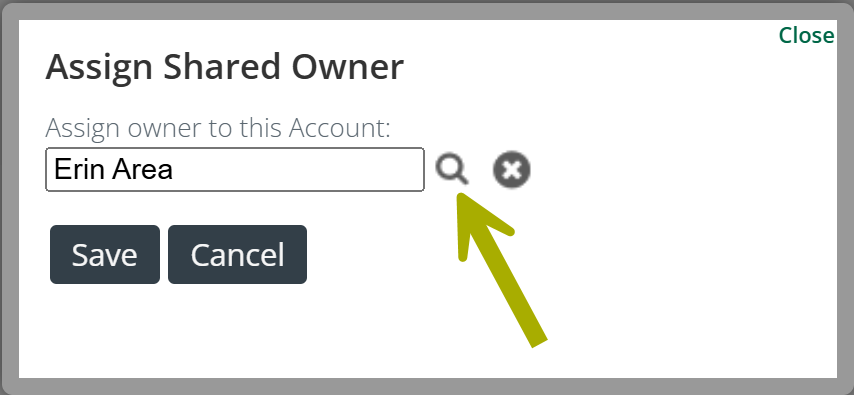
Select Owner dialog box — if you click the magnifying glass, this dialog box opens.
|
|
From the Market Spotlight page
Managers and administrators can assign ownership directly from the Market Spotlight page. Note that ownership can only be assigned from Market Spotlight — removal of ownership is not available from this page. Examples below show physicians, but the process is identical for facilities and agencies.
Orders and leads can not be added from Market Spotlight.
Single assignment
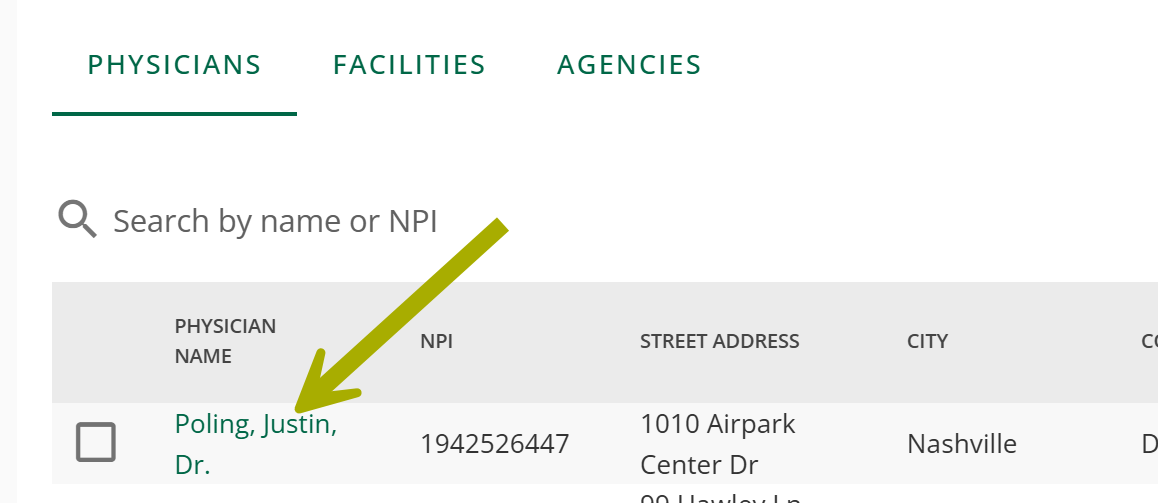
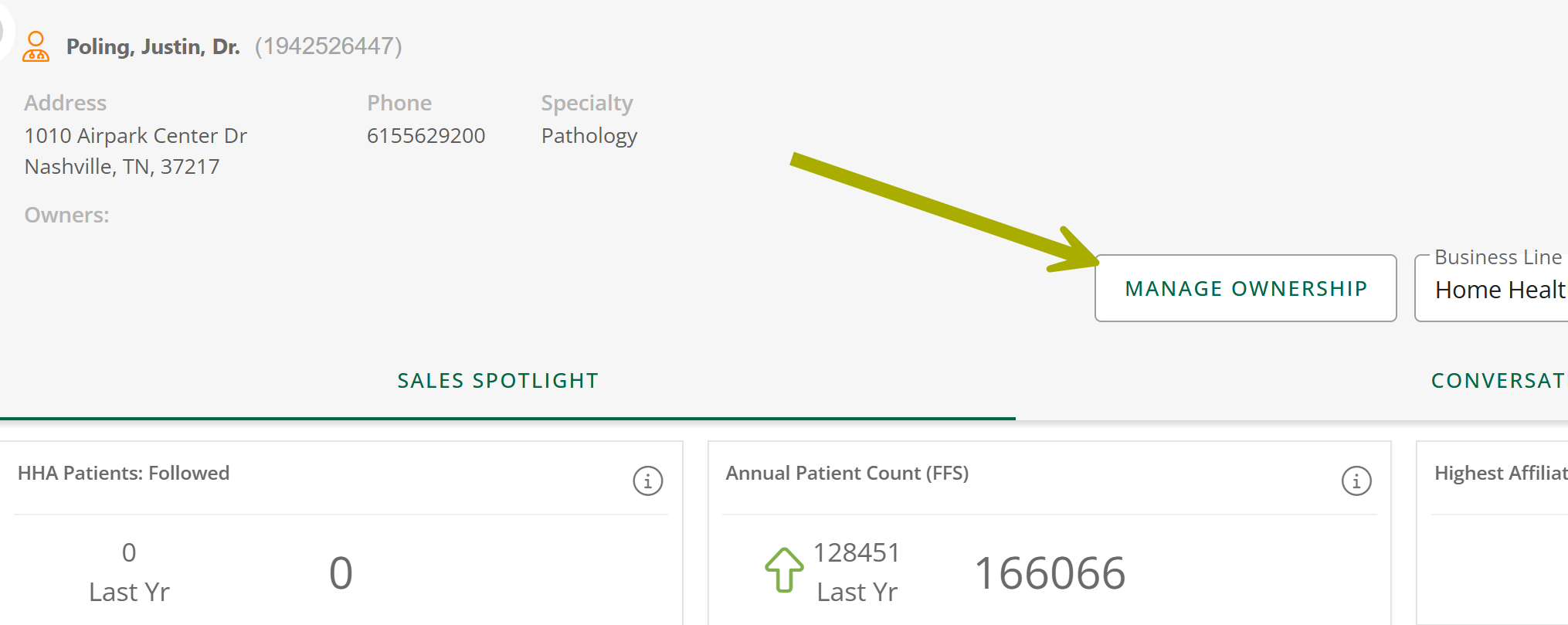
The Sales Spotlight panel will open. |
 |
|
 |
|
The Manage Ownership dialog box opens.
|
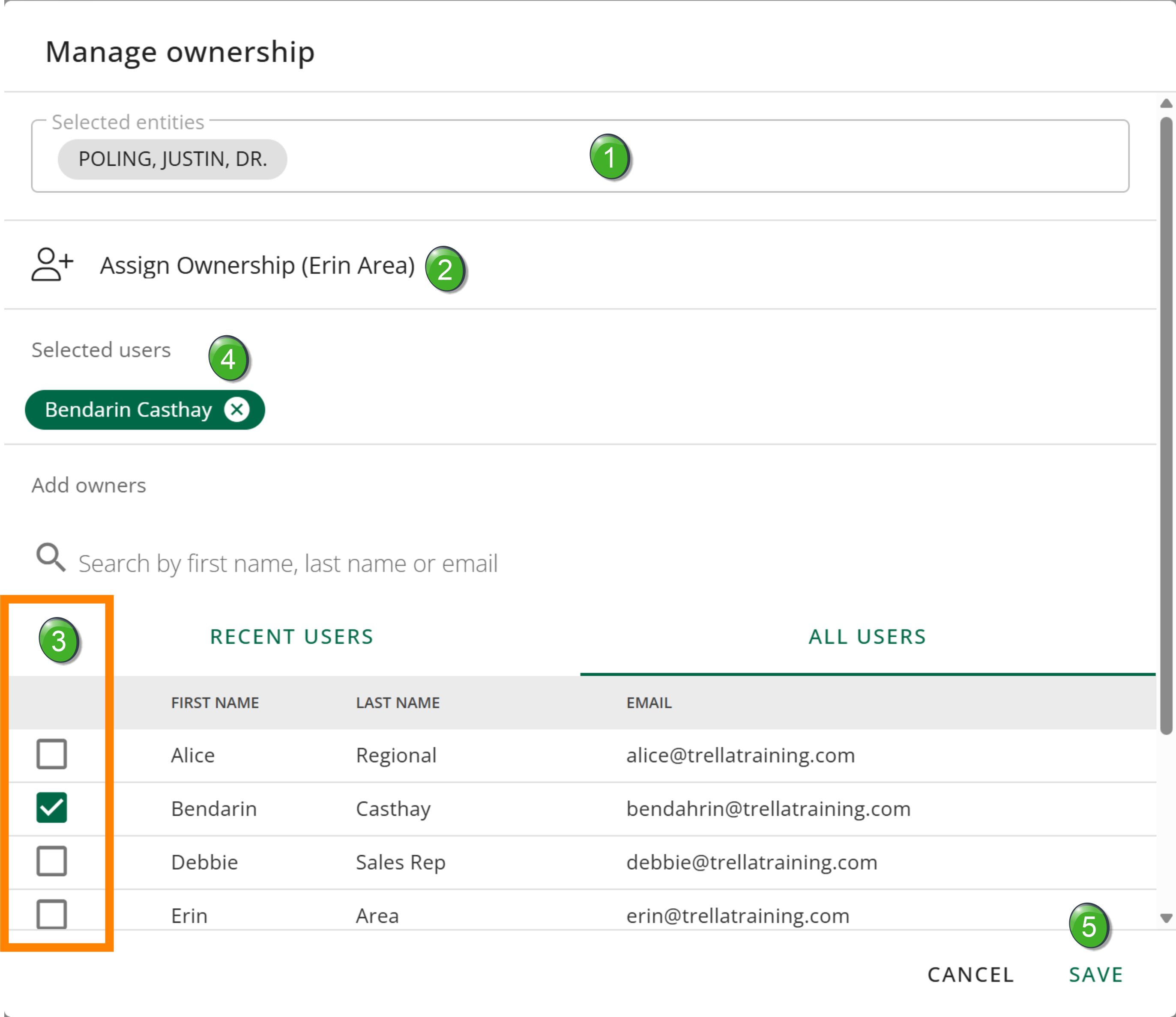 |
 Click the "Save" button. The provider and user(s) are immediately connected.
Bulk assignment
|
On the Market Spotlight page, select the providers you want to assign to a user or users.
|
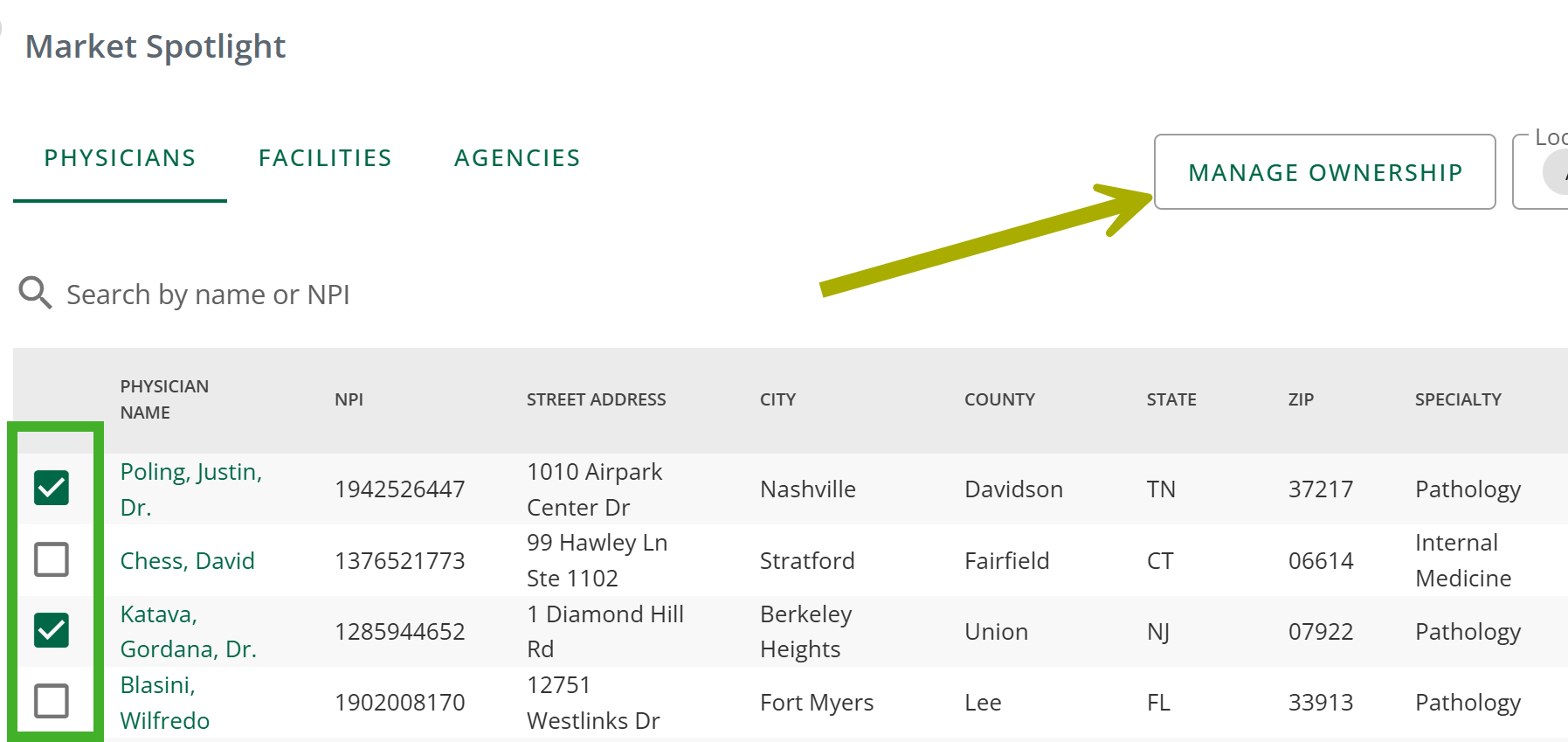 |
|
The Manage Ownership dialog box opens.
|
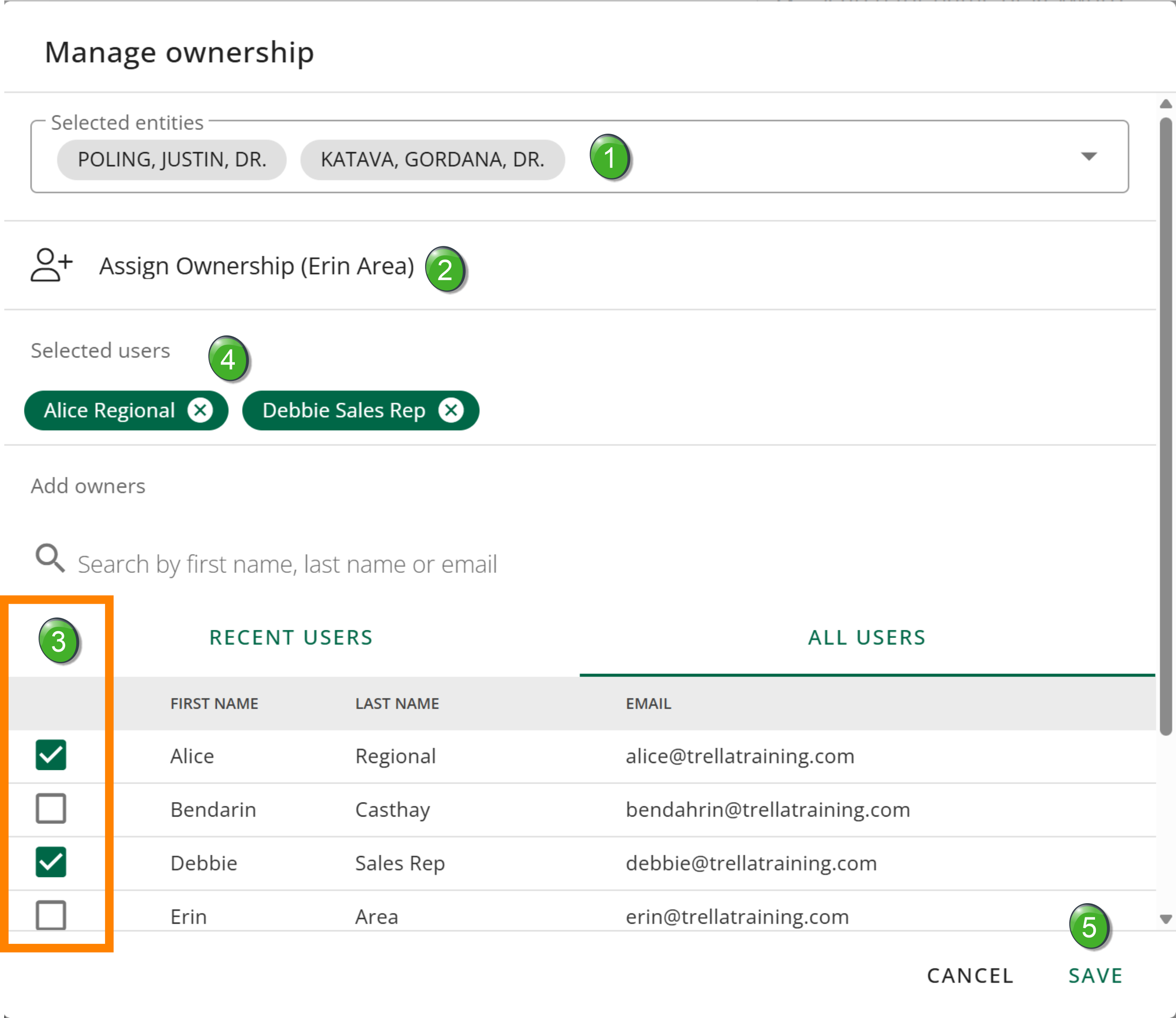 |
Assigning and removing ownership in Trella CRM Mobile
Managers and administrators can assign and remove ownership directly in Trella CRM Mobile. The steps below show the workflows for contacts, but the process is the same for accounts, orders, leads, and referrals.
For information about approving or denying ownership requests in Trella CRM Mobile, see Approving Ownership Change Requests.
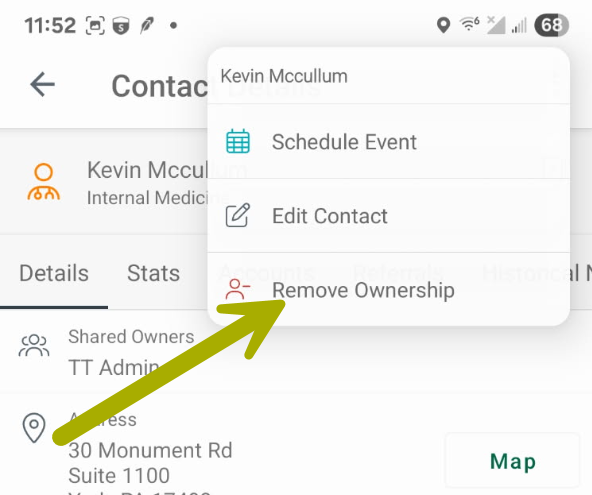
Removing ownership from a contact (mobile)
|
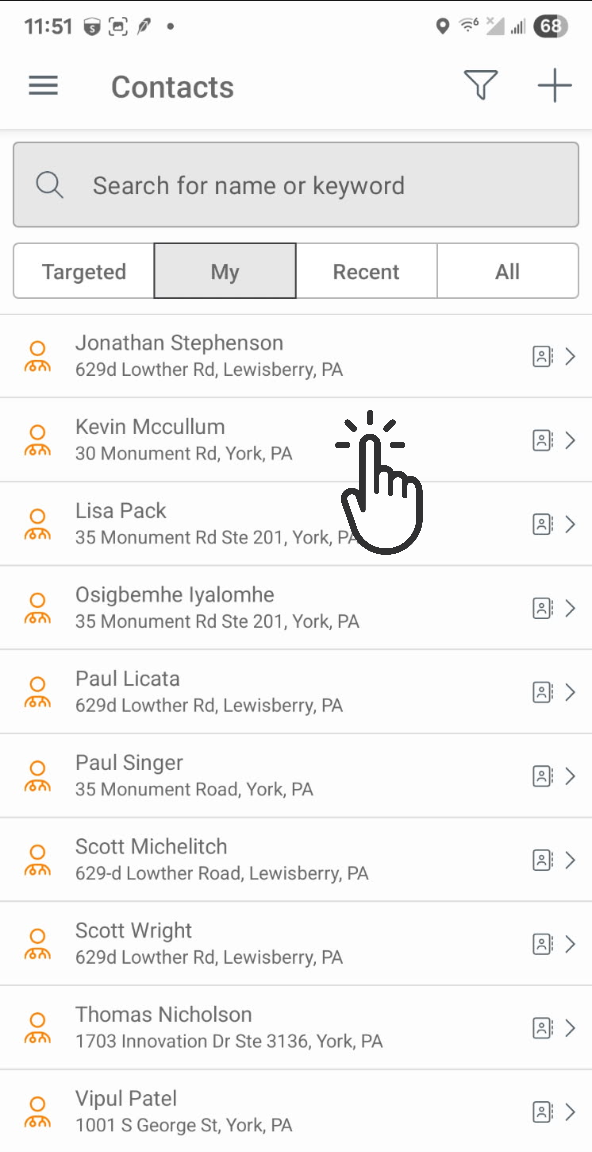 |
|
The Contact Details page opens.
|
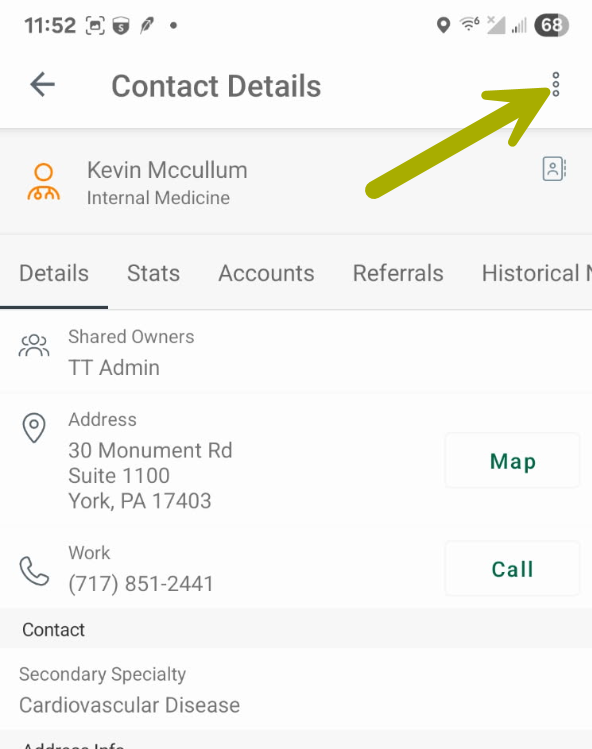 |
Ownership is immediately removed. The item will no longer appear in the rep's "My" view. |
 |
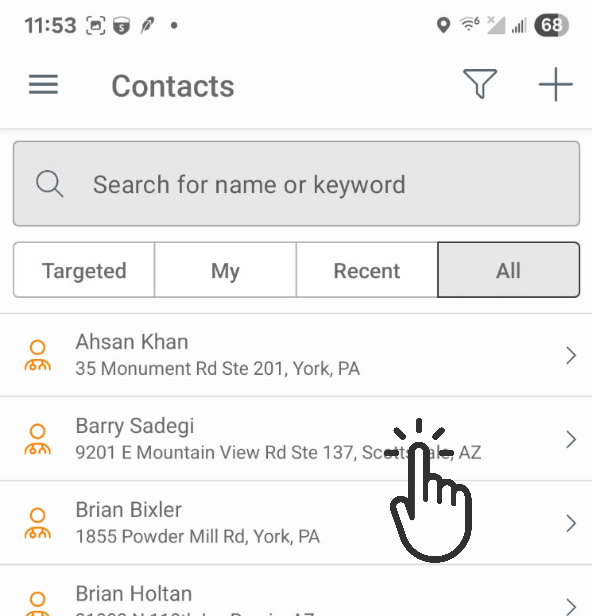
Assigning ownership to a contact (mobile)
|
 |
|
The Contact Details page opens.
|
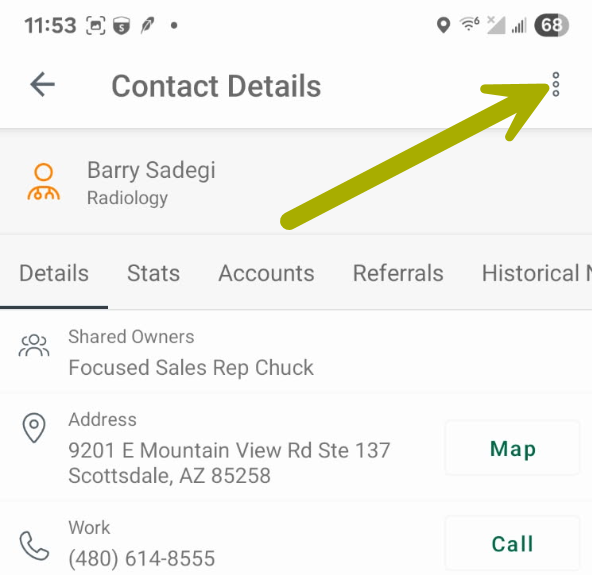 |
Ownership is immediately assigned to you. The item will appear in your "My" view. |
|
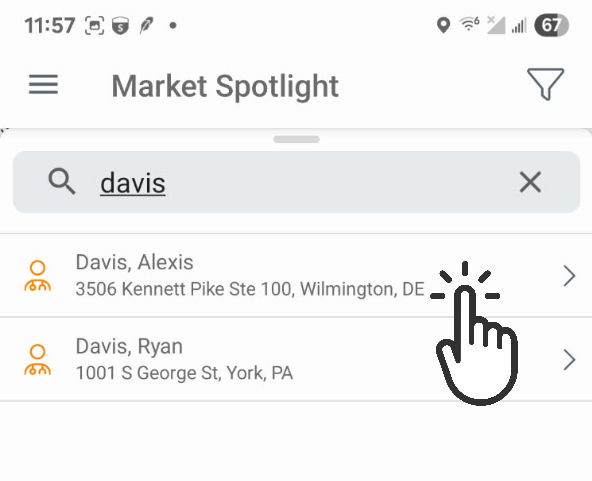
Assigning ownership from Market Spotlight (mobile)
|
 |
|
The Entity Details page opens.
|
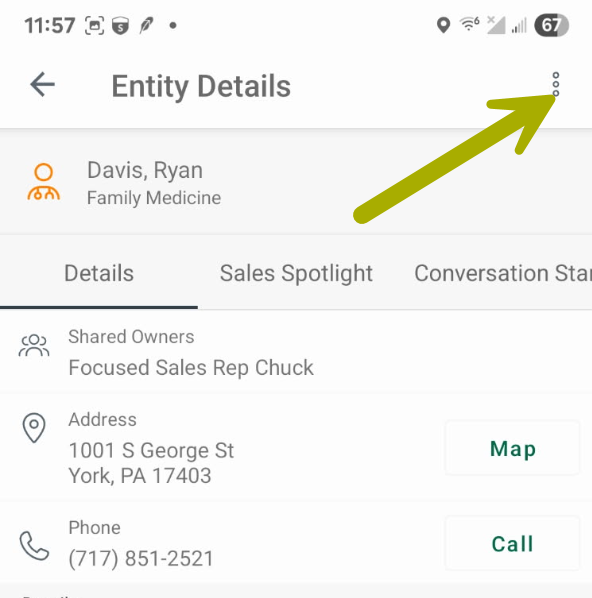 |
Ownership is immediately assigned to you. |
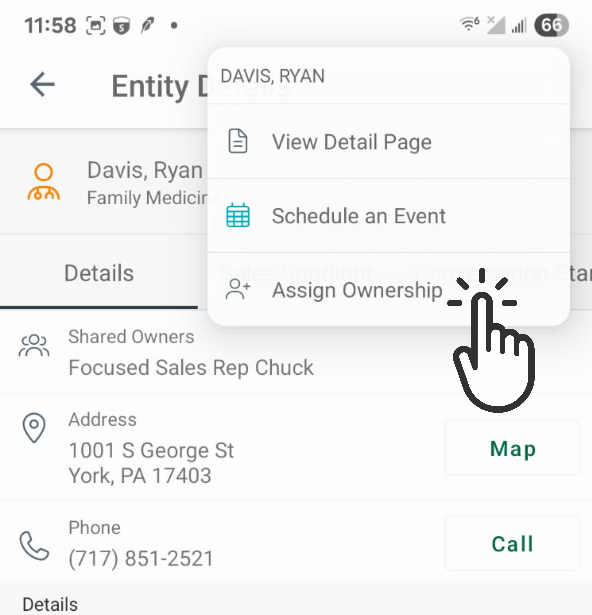 |
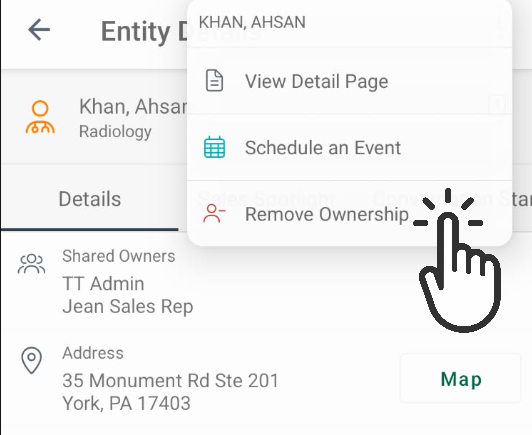
Removing ownership from Market Spotlight (mobile)
|
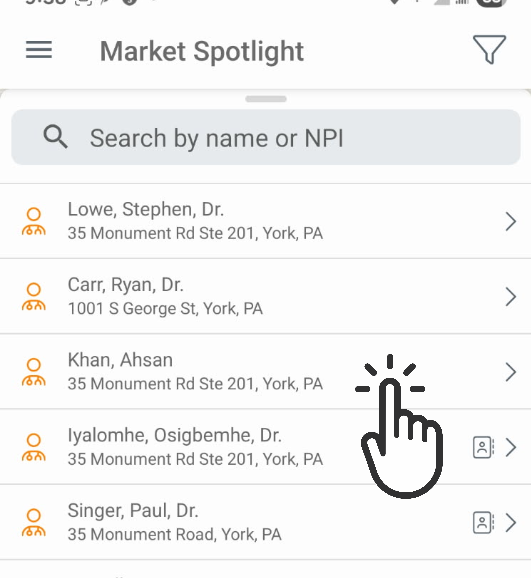 |
|
The Entity Details page opens.
|
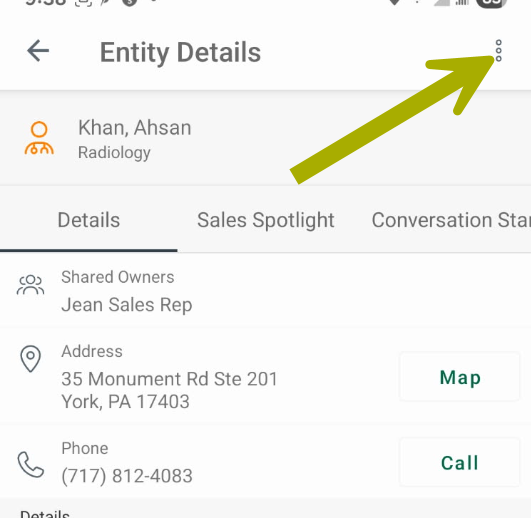 |
Ownership is immediately removed. |
 |
|
Adding or Removing Shared Owners
Because more than one person can own the same account, contact, or referral, the term "shared owner" reflects that ownership is not limited to a single individual. Adding a shared owner gives that person access to the record in their "My" views and — depending on your organization's configuration — may also share referral credit.
The primary tools for managing shared owners are the same tools used for all ownership management: the Shared Owners section on the item detail page (for single records) and Bulk Actions on the list page (for multiple records at once). Both are covered in Assigning & Removing Ownership.
Using the "Assign Shared Owner" bulk action, users can assign records to themselves as long as their role provides the appropriate access.
Reassigning records from an inactive user
When a rep leaves the organization or becomes inactive in Trella CRM, their records remain assigned to them until ownership is transferred. Administrators can reassign all records from an inactive user to an active user in bulk using the following steps.
|
|
 |
|
A dialog box will open asking you to select an active user. Search for and select the user to whom you want to transfer ownership. All records owned by the inactive user will be transferred to the selected user. | |
|
Approving Ownership Change Requests
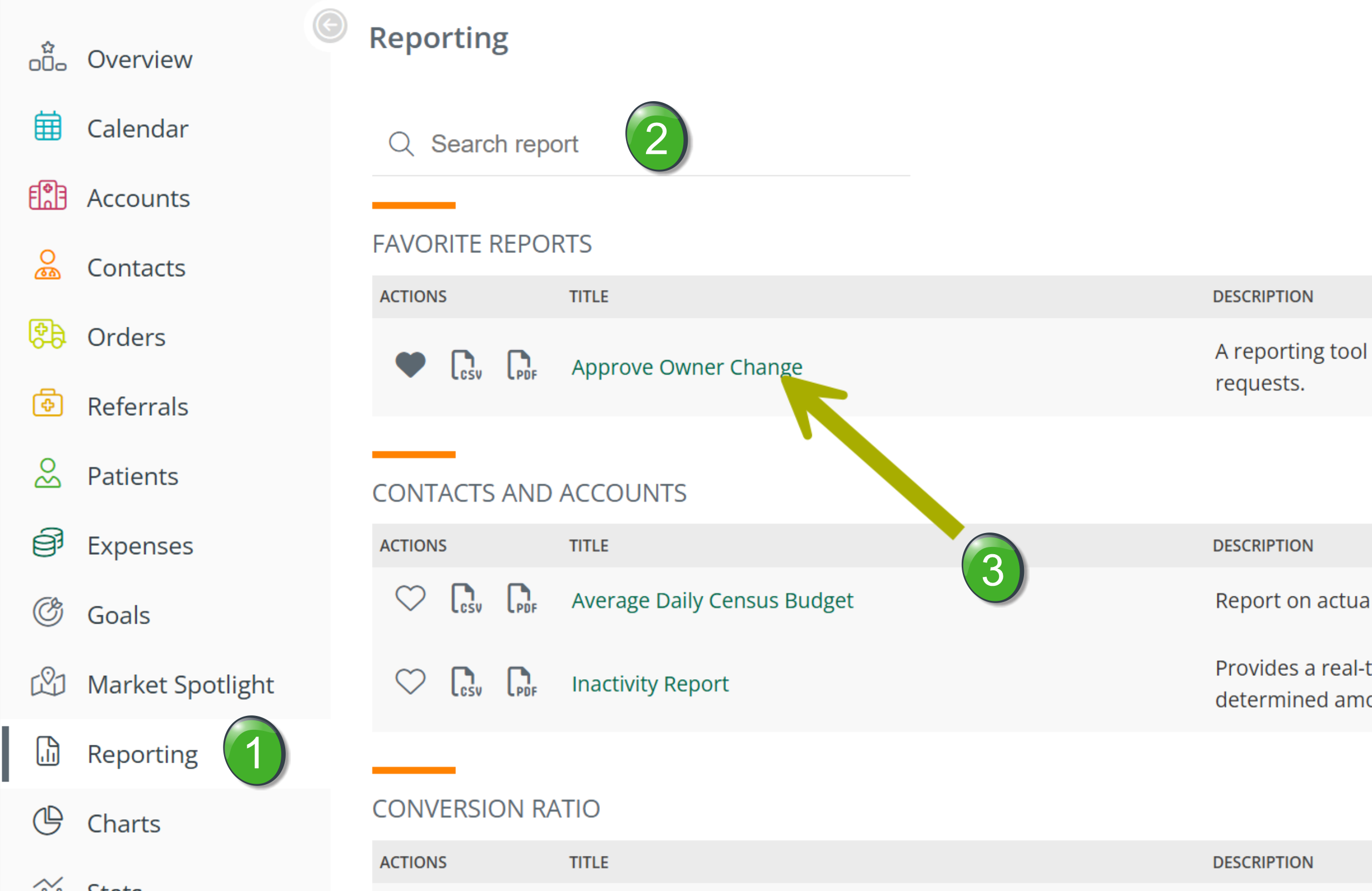
When a sales rep submits an ownership change request, a manager or administrator must review it and either approve or deny it. Approval can be done via the Approve Owner Change report in Trella CRM for web, or — starting in June 2026 — directly from the Trella CRM mobile app.
No in-app notification is sent when an ownership change request is submitted. Managers must run or schedule the Approve Owner Change report to see pending requests. The report can be scheduled to send only when there are pending items, so managers are alerted automatically. See Scheduling the Approve Owner Change report below.
Approval scope is determined by your role and territory. Office managers can approve requests only for account executives within their sales territory. Region managers can approve requests for any user in their region. Account administrators can approve requests for any sales territory.
Using the Approve Owner Change report (web)
|
|
 |
| The report includes several filters. Each is described below. | 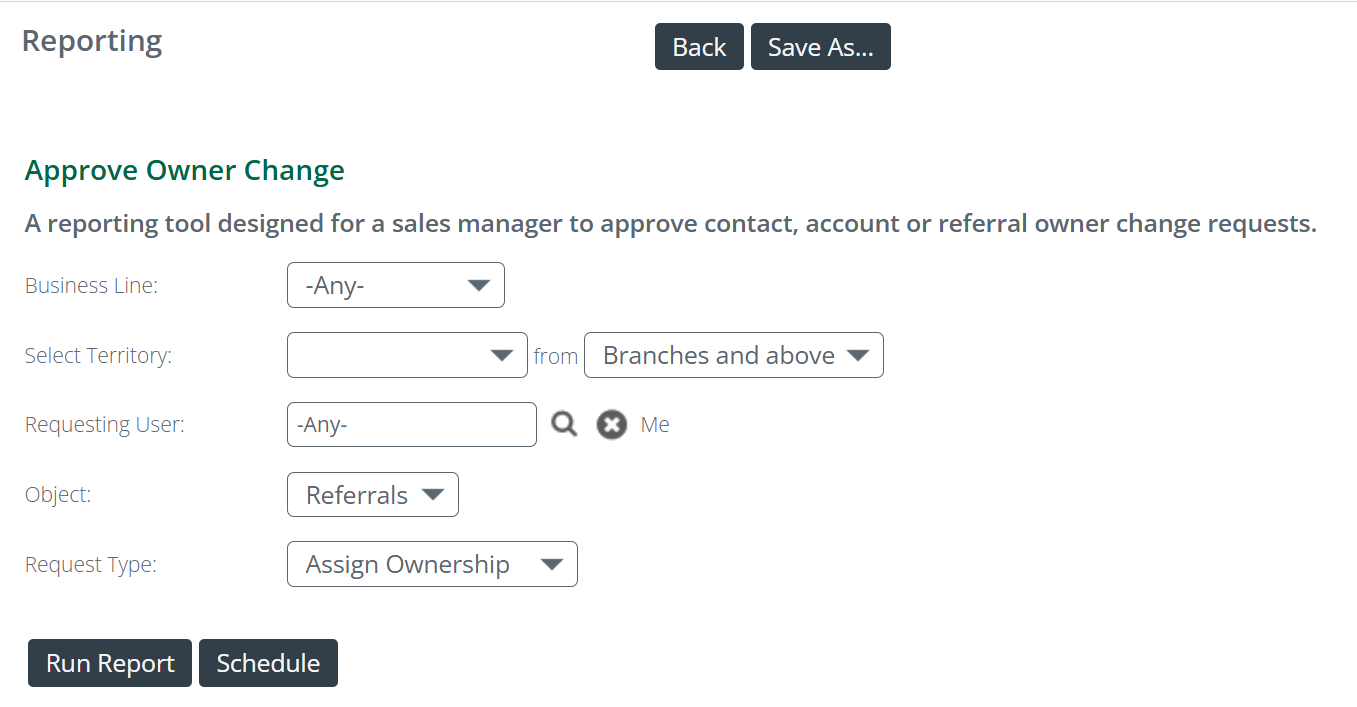 |
|
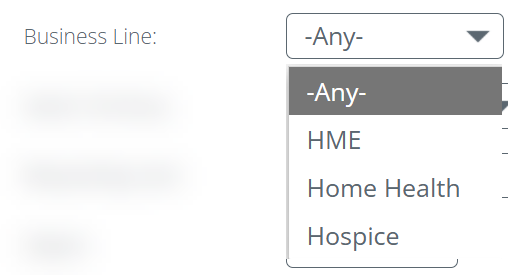
Business Line — filter requests to a specific line of business.
|
 |
| Select Territory/Branches — for organizations with complex structures, use these filters to narrow requests to a specific territory or branch. This allows you to focus on book of business changes by geography or organizational structure. | 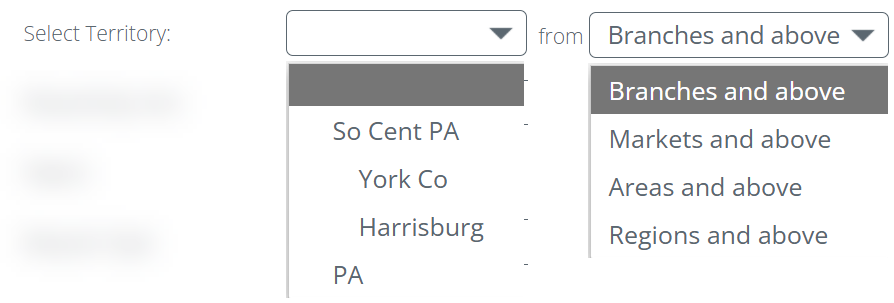 |
|
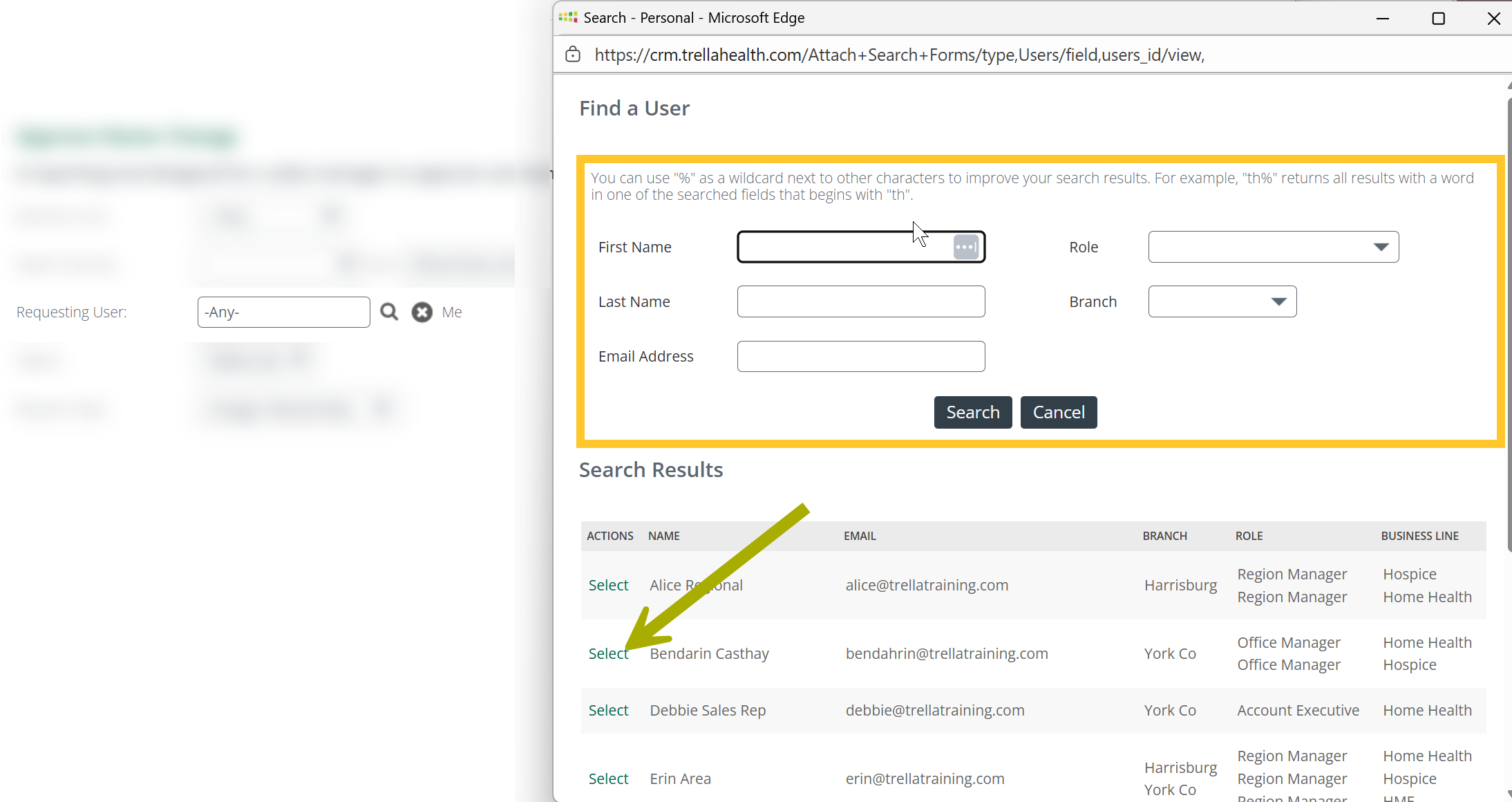
Requesting User — filter to show only requests from a specific rep.
|
 |
|
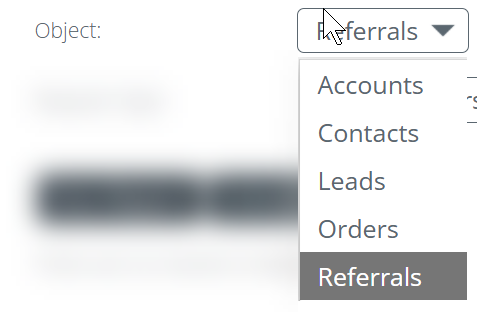
Object — the report displays one record type at a time.
|
 |
|
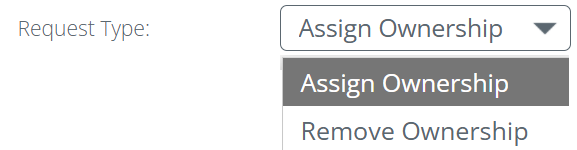
Request Type — shows either assignment or removal requests, not both at once.
|
 |
|
Run Report — once you have set the filters, click the "Run Report" button. The table will populate with requests matching your filter criteria. |
 |
| Once you have run the report, the requests that match your settings will appear in the table. | 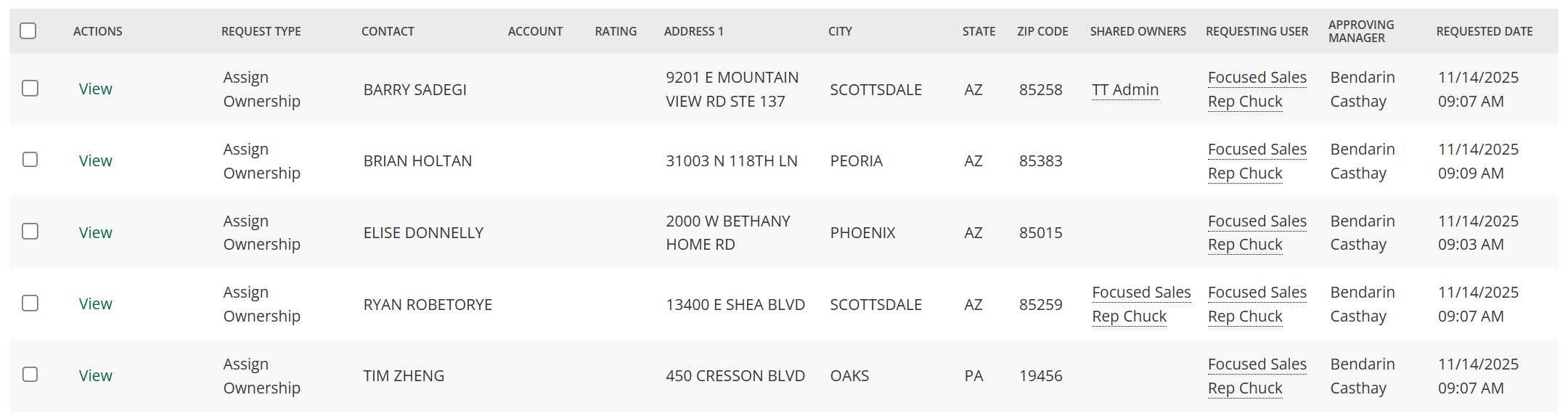 |
|
Once you have reviewed the requests in the table, you can approve or deny them.
|
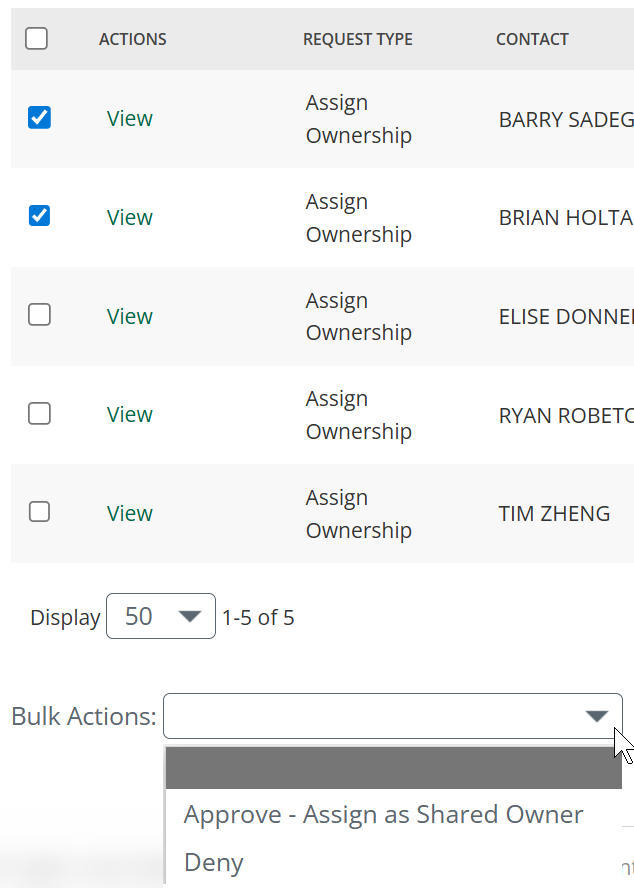 |
|
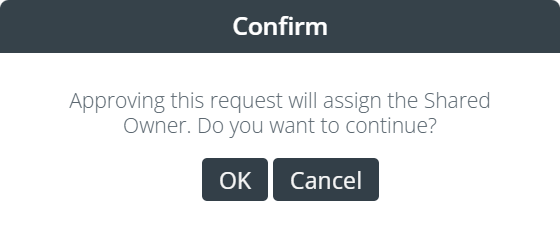
A confirmation dialog box will appear.
The ownership change takes effect immediately in Trella CRM. |
 |
Scheduling the Approve Owner Change report
Trella Health recommends that managers and administrators schedule the Approve Owner Change report so that pending requests are flagged automatically. The report can be configured to send only when there are items to review — so it arrives in your inbox precisely when action is needed.
| With the Approve Owner Change report open, click the "Schedule" button. |  |
For complete instructions on saving and scheduling the Approve Owner Change report, see Saving and Scheduling the Approve Owner Change Report.
Mobile Approvals — approving requests from Trella CRM Mobile
Managers can approve or deny ownership change requests directly from the Trella CRM mobile app. When a rep submits an ownership request, the manager receives a scheduled report email. Tapping the link in that email opens the request queue in the app, where the manager can act on pending requests without logging into Trella CRM for web.
Mobile Approvals are available to managers and administrators on iOS and Android. The Trella CRM Mobile app must be installed and the user must be logged in.
 at the top left of most pages in Trella CRM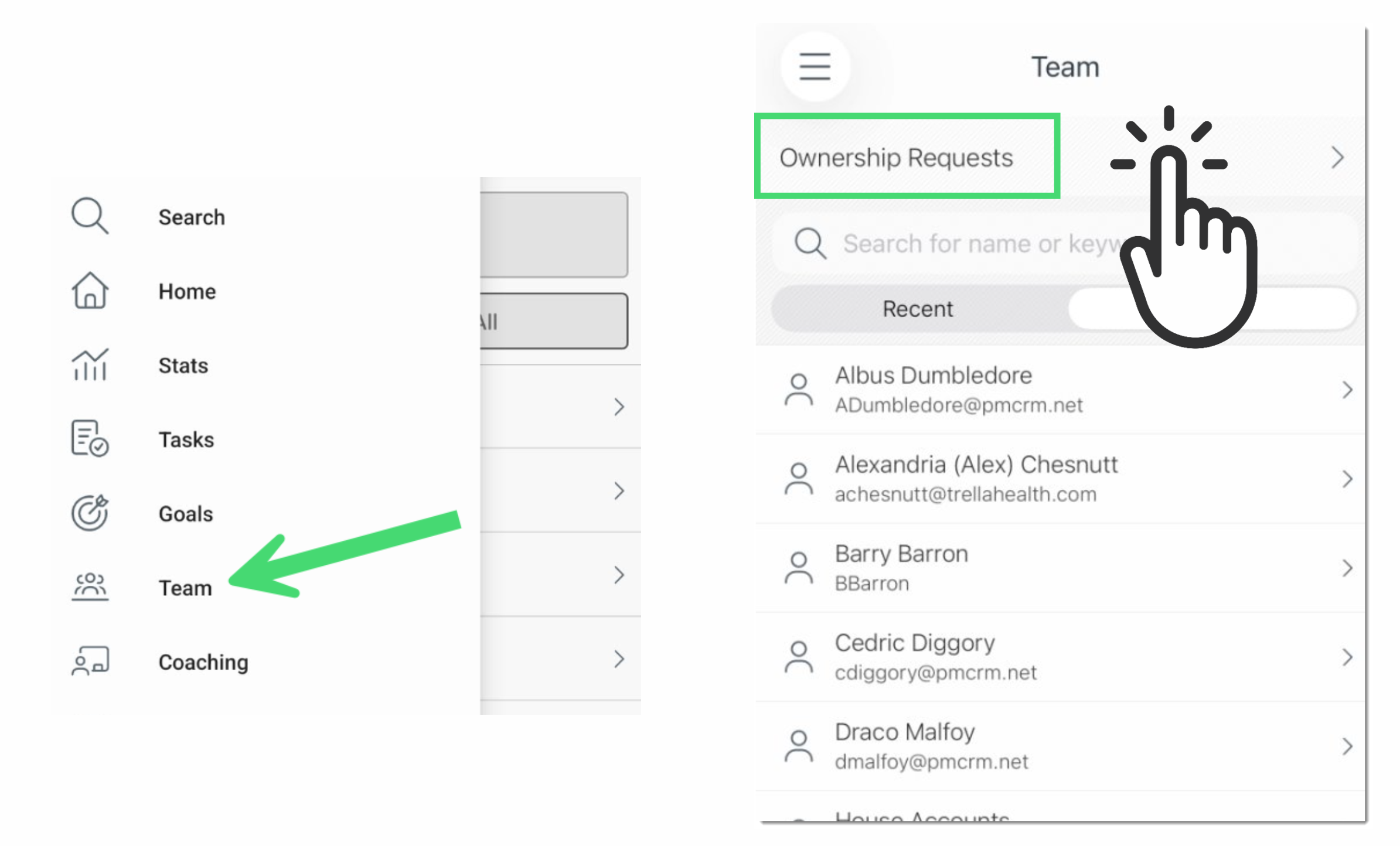
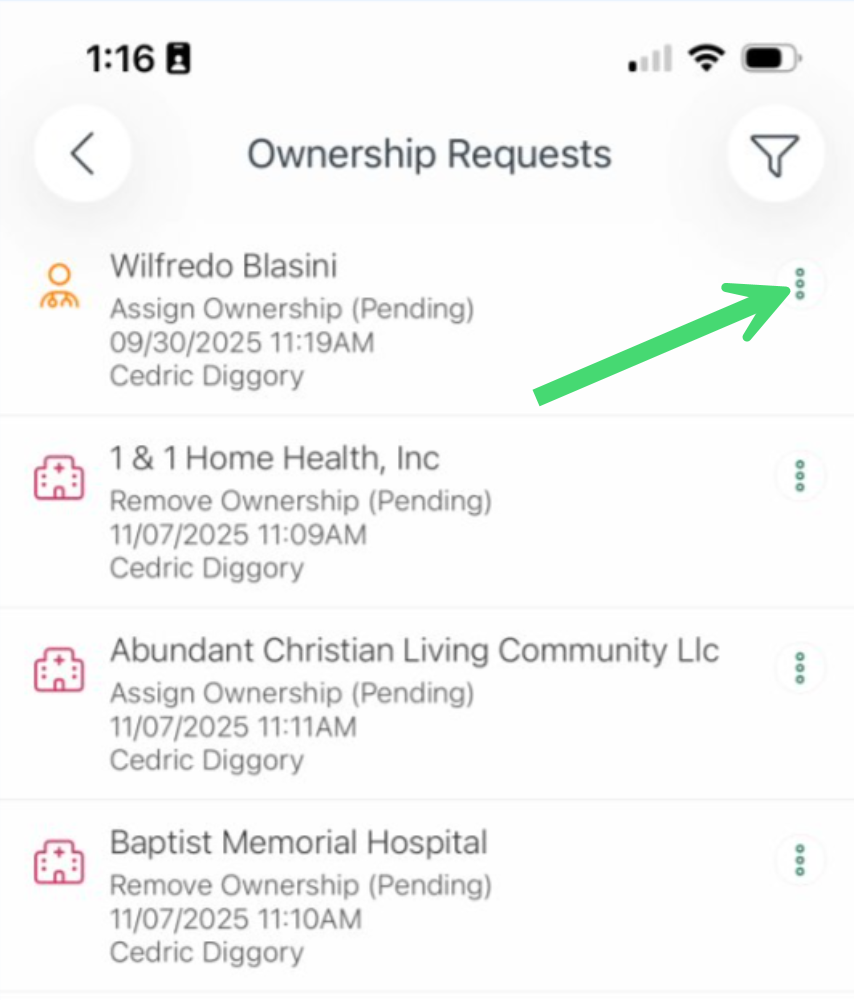
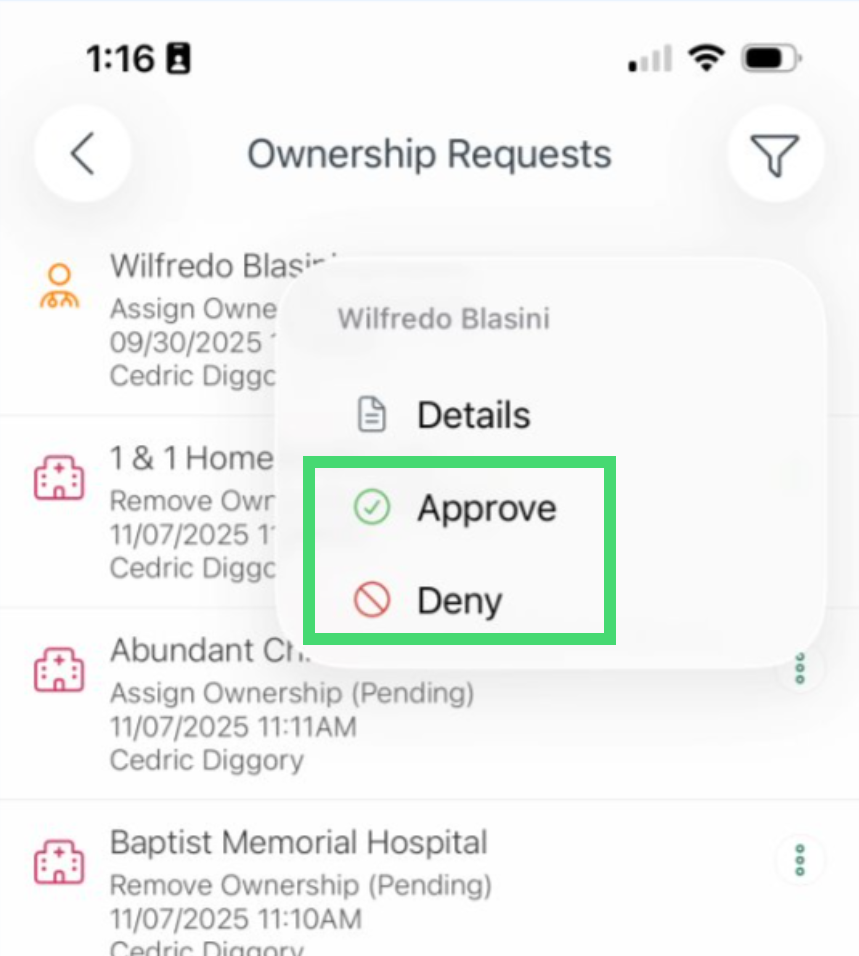
|
Putting the Data to Work
Ownership is one of the most operationally important settings in Trella CRM. An accurate book of business keeps reps focused, drives the right data to mobile, and ensures referral credit lands in the right place. Here are some ways to get the most out of the ownership system.
Schedule the Approve Owner Change report. Pending requests do not generate a notification — managers only see them if they run the report. Set up a daily or weekly scheduled delivery so you never miss a request. Configure it to send only when there are pending items so that the email is a reliable trigger for action, not just inbox noise. For complete instructions, see Saving and Scheduling the Approve Owner Change Report.
Use Mobile Approvals to stay responsive. Starting in June 2026, managers can approve or deny requests directly from the Trella CRM mobile app. Pairing the scheduled report email with Mobile Approvals means requests can be resolved the same day they arrive — even when you are away from your desk.
Use bulk actions to build a new rep's book of business. When onboarding a new rep, managers can quickly assign a territory's worth of accounts and contacts in one operation from the Accounts or Contacts list using the Bulk Actions dropdown. This is much faster than assigning one record at a time.
Reassign records promptly when a rep goes inactive. Records left assigned to inactive users will not appear in any active rep's "My" view, which can cause follow-up to fall through the cracks. Use the Settings > Users > Inactive Users > Reassign Records workflow to transfer the departing rep's book of business to a new owner in a single step.
Use shared ownership to support collaborative accounts. When two reps share a relationship — for example, a specialist and a generalist calling on the same physician — adding both as shared owners of the account ensures both see the record in their "My" views and that referral credit is distributed correctly per your organization's configuration.
Use Market Spotlight for territory prospecting. When a rep identifies a high-value physician or facility in Market Spotlight, they can request ownership directly from that page without navigating away. Managers can review and approve the request — or assign ownership directly — from the same workflow. This keeps the prospecting and territory management loop tight.
|