
Overview
If you manage a sales team, you already know that what gets measured gets managed. The AE Event Summary Report gives you a clear, organized view of exactly what your Account Executives have been doing in the field — how many events each rep logged in a given period, and what kinds of activities those were. One report. One table. Every rep on your team.
Use the AE Event Summary Report for Monday morning check-ins, weekly team reviews, one-on-ones, or any time you want to answer the question: is my team out there doing the work?
 For a basic overview of how to use universal features in reports in Trella CRM, see Reporting Overview. (Coming Soon)
 In this Article
- Finding the Report
- Using the Filters
- Understanding the Columns
- Putting the Data to Work
- Exporting and Scheduling
- Complete Column Reference
Finding the Report
| Click on the "Reporting" button in the left navigation to open the Reporting page. |  |
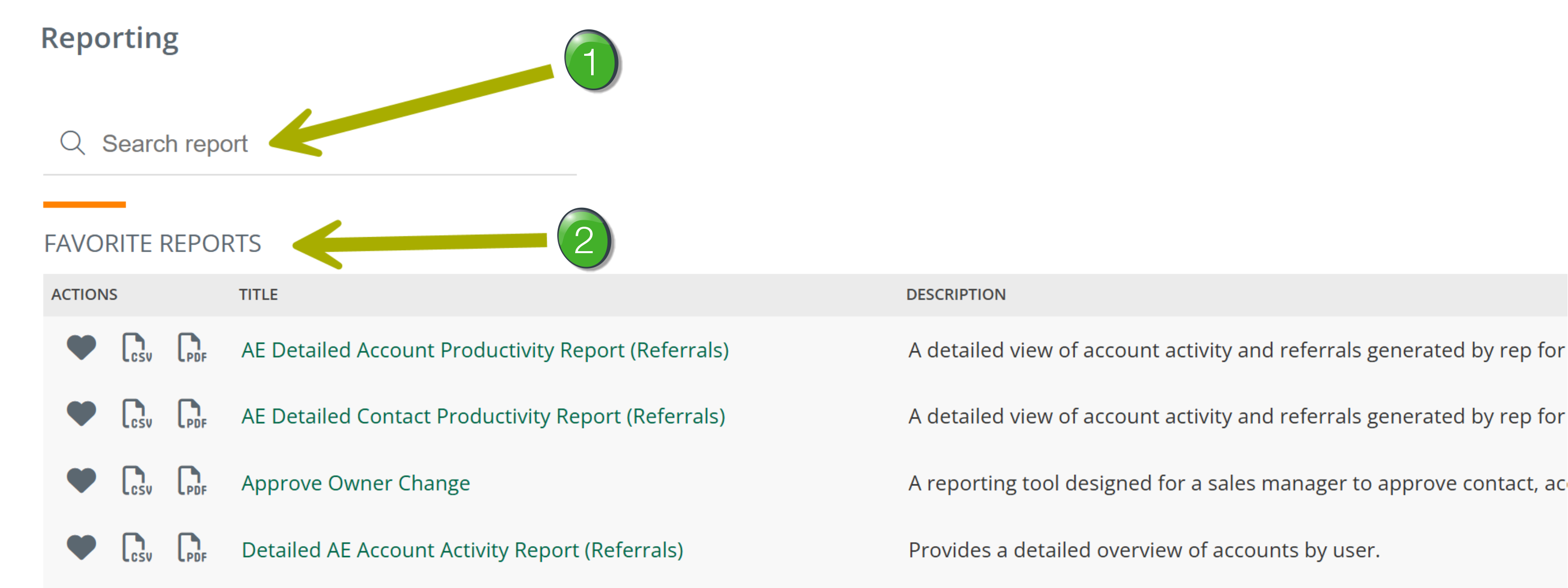
 Search report — The search field will allow you to find a specific report by typing in the name. Or, if you want, you can scroll through the reports to find the one you want.
 Heart/Favorites — The "Favorite Reports" section appears at the top of the page. The reports that you have marked as a favorite will appear in the "Favorite Reports" section.
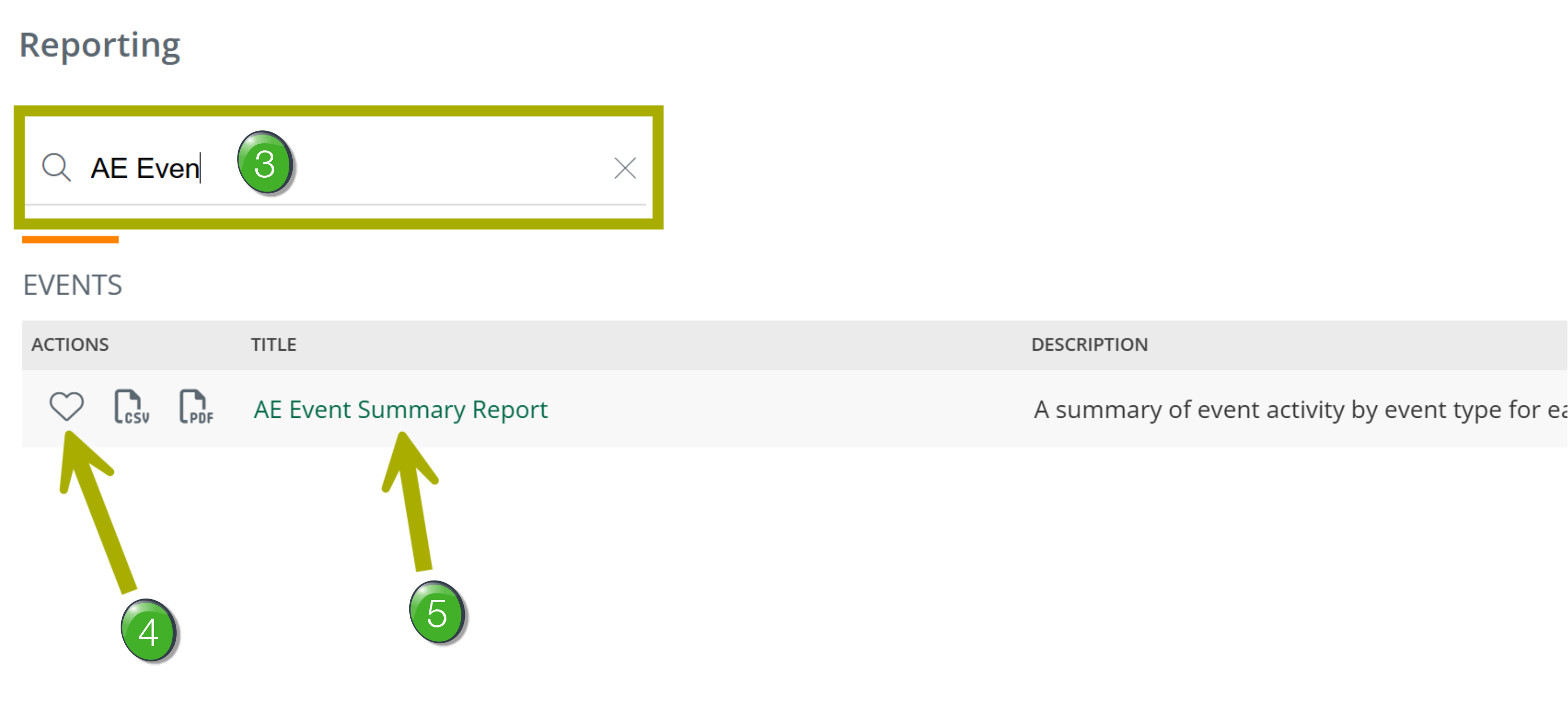
 Search - Type "AE Event Summary" into the search field and the list narrows immediately.
 Notice that you do not need to type the full name of the report into the search field to find the desired report.
 Favorite - Click on the heart icon
  to make the selected report a favorite. Once a report is a favorite, it will appear at the top of the reports page in the "Favorite Reports" section.
 Run the Report — Click on the report name to open the report. The following image shows the open report.
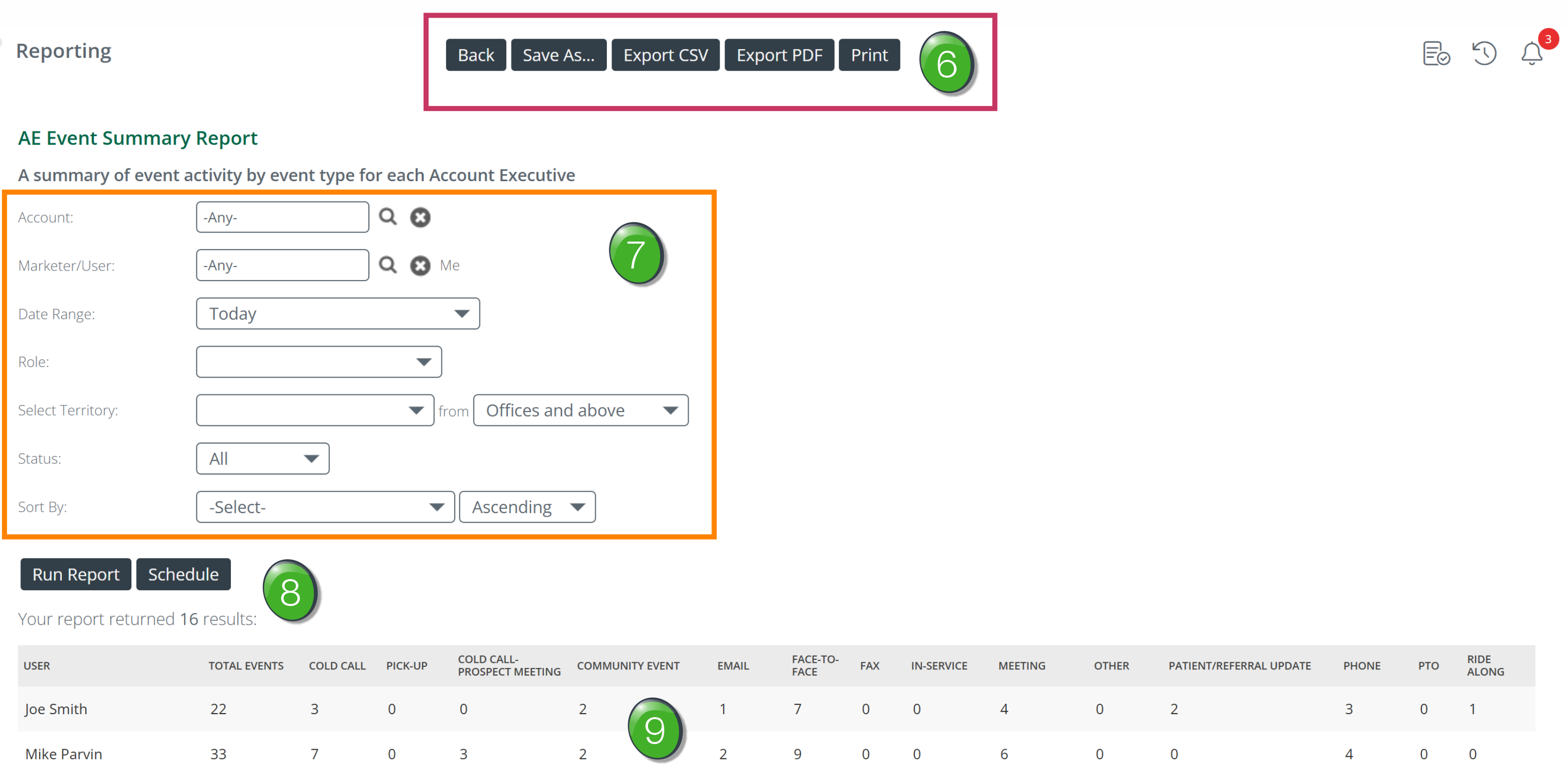
 Options - There are five options at the top of the AE Event Summary Report page.
- Back - returns you to the Reporting page.
- Save As... - if you set specific filters, the "Save As..." button will allow you to save the report with the selected filters so you won't need to set them up again.
- Export CSV - exports the data in the table as a .CSV file that you can open in a spreadsheet
- Export PDF - exports the data in the table as a .PDF file that can be viewed with Adobe Acrobat
- Print - prints the data in the table
 Filters - the filters allow you to slice the results shown in the table by the listed parameters. For more information, see Using the Filters.
 Run/Schedule - If you have made changes to the filters, you will need to click the "Run Report" button to update the results shown in the table. Click the schedule button to have the resulting report sent to your email.
 Report Details - These are all of the counts for different events for the users listed.
 |
Using the Filters
When the report opens, it runs with default settings — today's date, all users, all roles, all territories. Think of the filters as a lens: start wide to see the full team picture, then narrow in on exactly what you need. The most common starting point for a weekly review is to set Date Range to Last Week and leave everything else open.
Filter |
What It Does |
Image |
|---|---|---|
| Account |
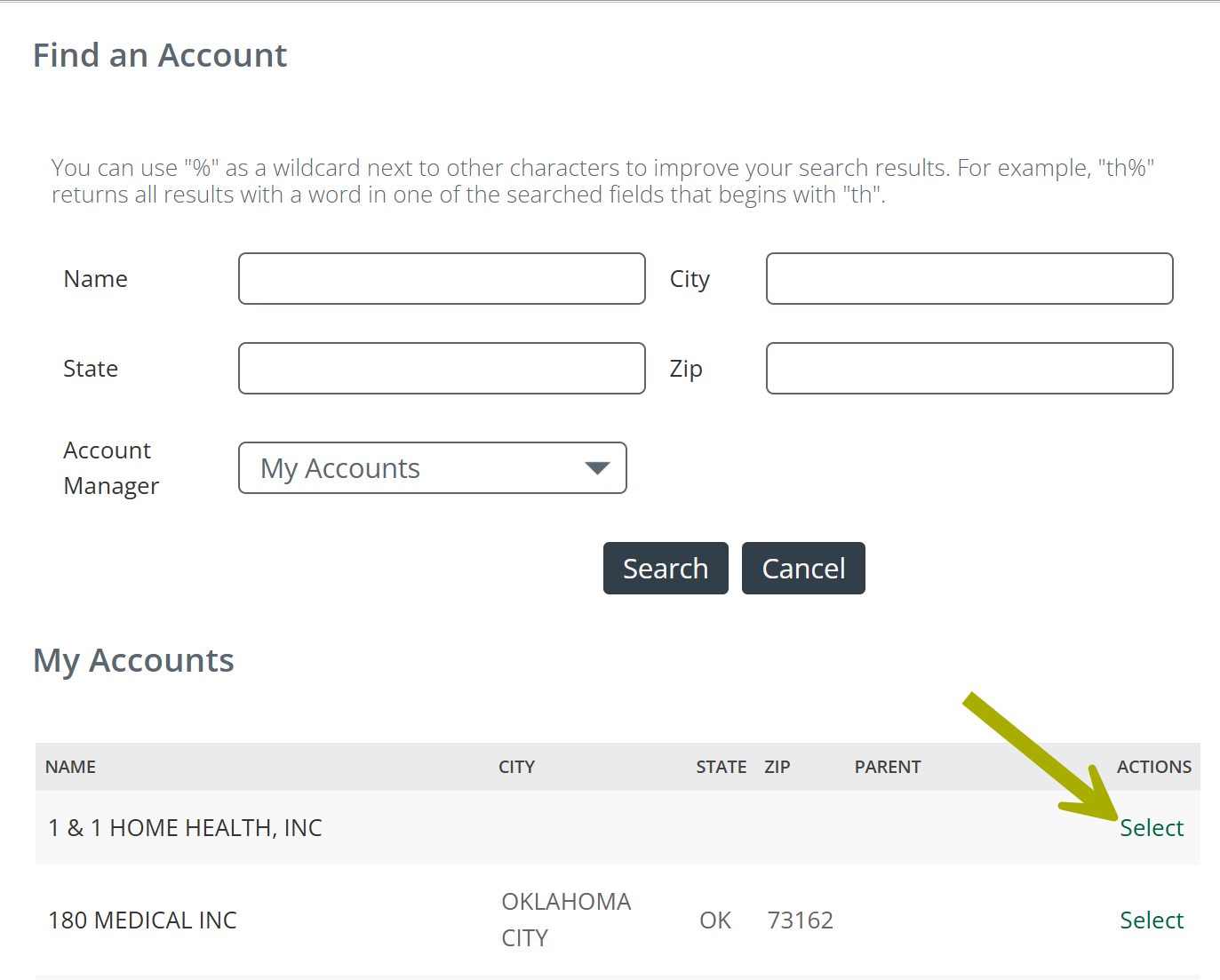
Narrows the report to events logged against a specific account. Use this when you want to see all activity your team has logged at one referral source.
You can use the fields at the top to search for an account, or scroll through the list.
|
 |
| Marketer/User (Account Executive) |
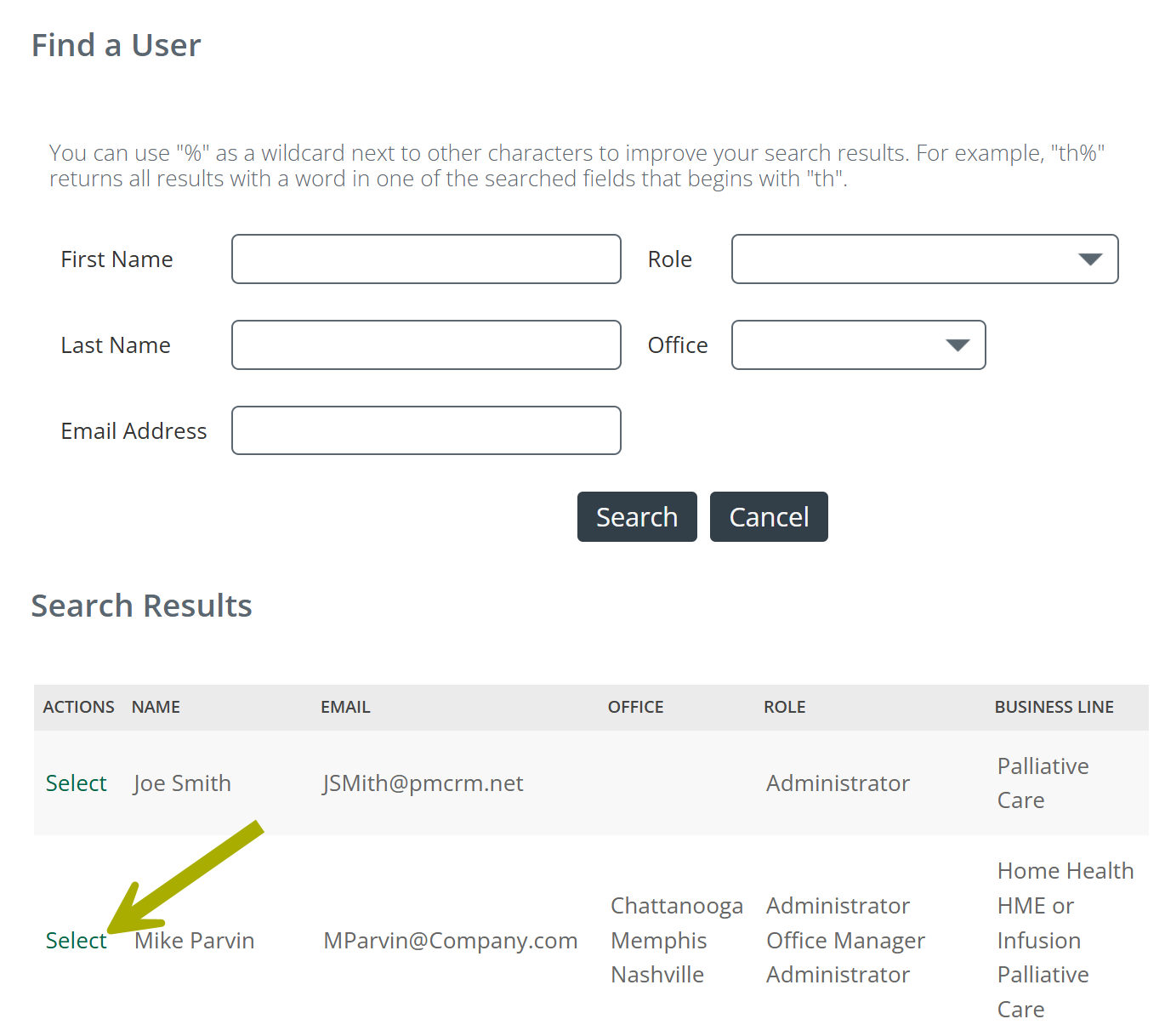
Filters to a single account executive. Leave set to Any for a full team view, or select one rep when preparing for a one-on-one.
You can use the fields at the top to search for a user, or scroll through the list.
|
 |
| Date Range |
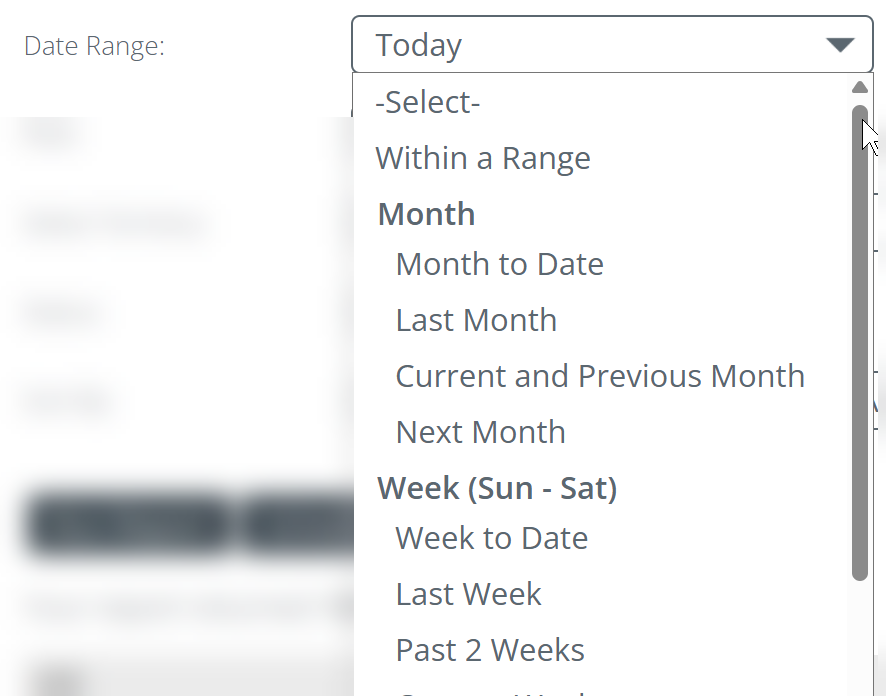
Sets the time window for the report. The default is Today — you will almost always want to change this. Common choices: Last Week for weekly reviews, Month to Date or Last Month for monthly check-ins, or Within a Range for a custom window.
|
 |
| Role |
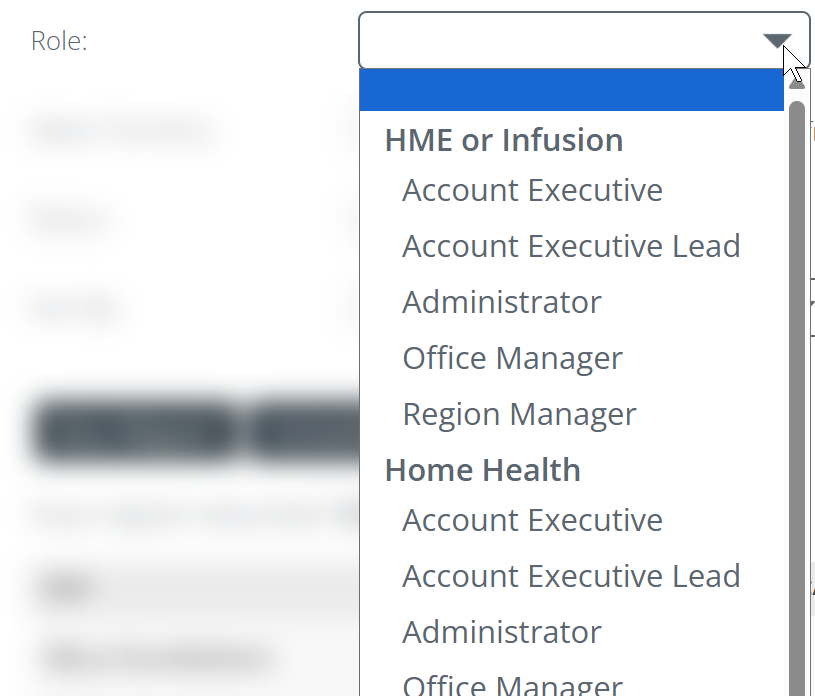
Filters to a specific role type. Select Account Executive to see only AE activity, or leave open to include all roles on your team.
|
 |
| Territories |
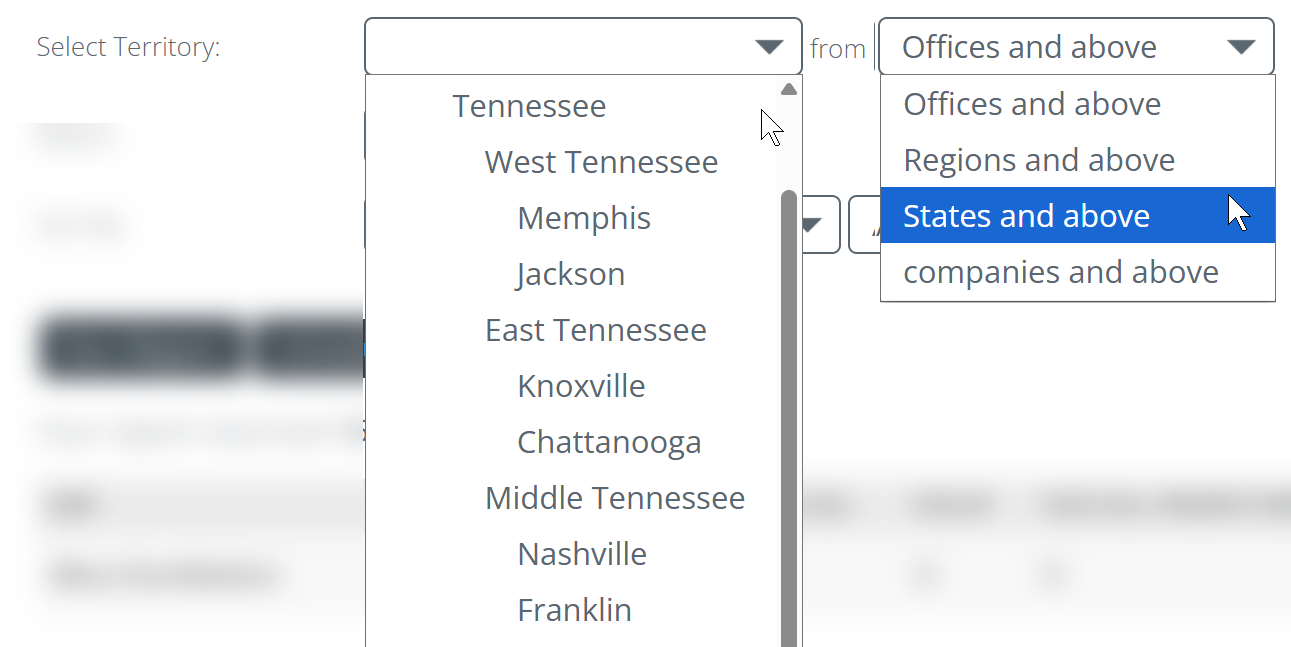
Scopes the report to a specific territory or territory level. Useful when you oversee multiple markets or regions and need to isolate one.
|
 |
| Status |
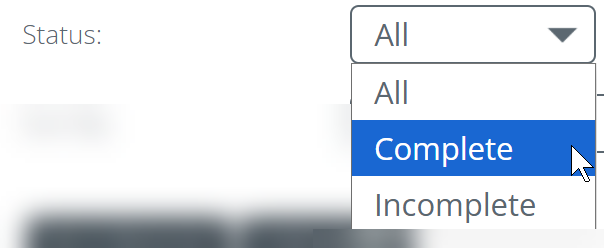
Controls whether the report shows completed events, incomplete (planned) events, or both.
|
 |
| Sort By |
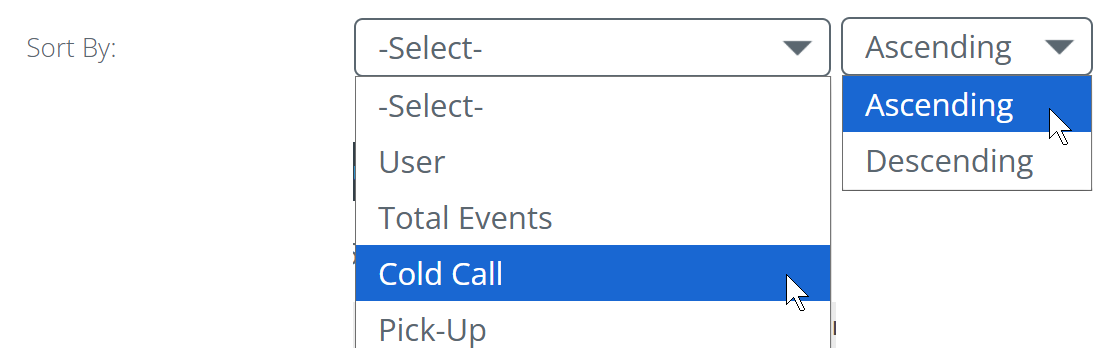
Sorts the results table by any column — Total Events or any individual event type — in ascending or descending order. See Putting the Data to Work for how to use this effectively.
The second dropdown allows you to choose whether to sort ascending or descending |
 |
After setting filters, click the "Run Report" button to run the report.
|
Understanding the Columns
The following image shows the AE Event Summary table.


The event types shown in this report reflect your organization's configuration. Three event types — Cold Call, In-Service, and Other — are standard for all users. The remaining event types (Meeting, Phone, Fax, Email, Face-to-face, and Community Event) may be configured differently or may not appear in your organization's CRM. If you see different event type columns than the ones shown here, that's expected — your report reflects your company's setup.
Each row represents one Account Executive. The columns break their total activity into nine specific event types.
Total Events — The sum of all events logged by this Account Executive within your selected filters. This is the headline number — but the columns to the right tell the real story.
Meeting — Scheduled, formal meetings with a physician, facility administrator, or other referral source.
Cold Call — Unscheduled drop-in visits. Showing up without an appointment to introduce yourself, check in, or make a connection.
Phone — Phone calls made to referral sources or prospects.
Fax — Fax communications sent to referral sources. Still common in clinical settings for orders and referral paperwork.
Email — Email communications to contacts.
Face-to-face — Informal in-person interactions. Less structured than a Meeting — a brief hallway conversation, a quick check-in during a facility visit.
Other — A catch-all for activities that don't fit the standard event type categories.
In-Service — Educational presentations delivered at a facility to clinical staff. In-services are among the most valuable tools in post-acute sales. They give your Account Executive dedicated time with a clinical team — nurses, social workers, discharge planners — to demonstrate your agency's capabilities and build the kind of trust that turns into consistent referrals.
Community Event — Participation in health fairs, networking functions, community outreach events, or similar activities outside of direct facility visits.
|
Putting the Data to Work
The AE Event Summary report is a leading indicator — it shows you the activity happening now that produces referrals next month. Reading the numbers thoughtfully tells you more than just who is busy.
Low total events
What to look for: An Account Executive with significantly fewer events than the rest of the team.
What to do: Two possibilities — they are not doing the work, or they are doing the work but not logging it. Both are coaching conversations worth having, and they are different problems with different solutions. Run with Status = Complete to see finished activity; then run with Status = All to see whether planned events are even being created.
Activity mix
What to look for: A rep whose total events look acceptable but whose activity is concentrated in one or two types — for example, 30 phone calls and zero Face-to-face visits, or no In-Services across several weeks.
What to do: Volume is only half the picture. In post-acute sales, relationships are built in person. A rep avoiding Face-to-face visits may be avoiding the harder, higher-value relationship work. A rep with no In-Services is missing one of the most effective ways to earn clinical trust and referrals in this industry. The type breakdown opens the coaching conversation that total events alone cannot start.
Incomplete events
What to look for: Run with Status = Incomplete early in the week to see what is on your team's calendar that has not yet been completed.
What to do: A rep carrying a large backlog of incomplete events may be over-scheduled, may not be completing events after visits, or may not understand the importance of documenting activity. All three warrant a conversation — each one has a different solution.
Using Sort By
What to look for: Before your weekly team meeting, sort by Total Events descending to rank your team by overall activity volume at a glance.
What to do: Then sort by In-Service to see who is running the most educational programs. Sort by Cold Call to surface who is doing the most prospecting. Each sort turns the same table into a different coaching conversation — and together they tell you far more than total events ever could.
|
Complete Column Reference
Column |
Description |
|---|---|
| User | The name of the Account Executive. Each row in the report represents one user. |
| Total Events | The sum of all event records logged by this user within the selected filters. Includes all event types and — unless filtered by Status — both complete and incomplete events. |
| Meeting | Count of events logged as type Meeting — scheduled, formal meetings with referral sources or prospects. |
| Cold Call | Count of events logged as type Cold Call — unscheduled drop-in visits to accounts or referral sources. Standard across all Trella clients. |
| Phone | Count of events logged as type Phone — phone calls made to referral sources or prospects. |
| Fax | Count of events logged as type Fax — fax communications to referral sources. |
| Count of events logged as type Email — email communications to contacts. | |
| Face-to-face | Count of events logged as type Face-to-face — informal in-person interactions not categorized as a Meeting. |
| Other | Count of events logged as type Other — activities that don't fit the standard event type categories. Standard across all Trella clients. |
| In-Service | Count of events logged as type In-Service — educational presentations delivered at a facility to clinical staff. Standard across all Trella clients. |
| Community Event | Count of events logged as type Community Event — participation in health fairs, networking events, or community outreach activities. |
|